Your edit plays back and it hitches. Tiny little stutters, over and over, on a timeline that should be buttery. You’ve got a beefy GPU. So what gives?
Nine times out of ten, it’s a Windows feature called HAGS. It’s meant to help. In video editing, it often does the opposite. Here’s the why, and the fix.
Why This Happens
HAGS stands for Hardware-Accelerated GPU Scheduling. It lets your graphics card manage its own task queue instead of Windows doing it. Great for gaming. Not so great for editing.
And it gets worse with a second monitor. Got a browser or Discord open on the side? The moment something updates over there, HAGS shoves your timeline to the back of the line. Cue the stutter.
So it’s not your hardware. It’s a scheduling fight nobody asked for.
Fix 1 – Turn HAGS Off
This is the one that fixes it for most editors. You’re handing scheduling back to Windows, which plays nicer with editing apps.
1 – Press Windows + I to open Settings.
2 – Go to System, then Display.
3 – Scroll down and click Graphics.
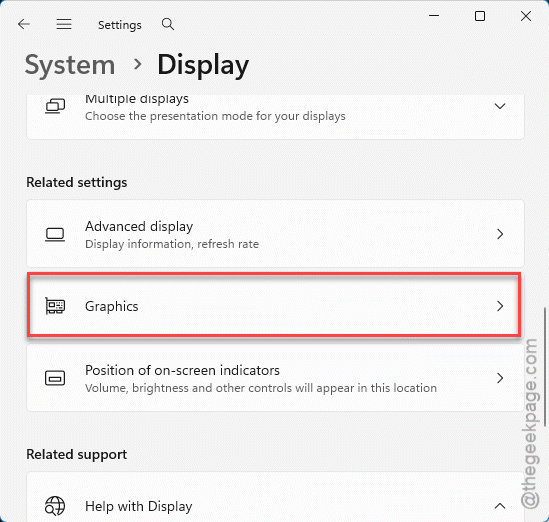
4 – Click Advanced graphics settings section.
5 – Toggle Hardware-accelerated GPU scheduling to Off.
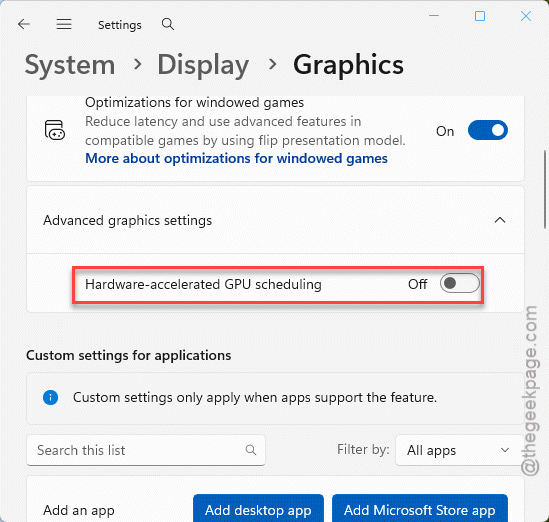
6 – Restart your PC. This is a deep system change, so the reboot isn’t optional — it only kicks in after.
Open your project and scrub the timeline. Smooth now? That was it. If you still feel hitches, the next fixes tackle the other causes.
Fix 2 – Switch to Studio Drivers (NVIDIA)
Game Ready drivers are tuned for games — they lean hard on HAGS. Studio drivers are tuned for creative apps and handle memory more steadily. Less hitching.
1 – Open the NVIDIA App (or GeForce Experience).
2 – Click the Drivers tab.
3 – Click the three dots (⋯) next to the check-for-updates button.
4 – Switch the driver preference from Game Ready Driver to Studio Driver.
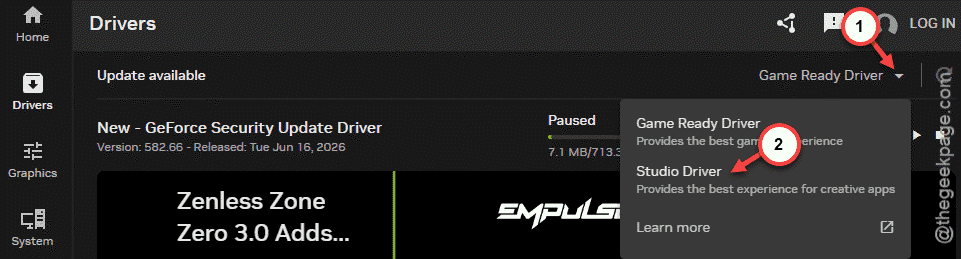
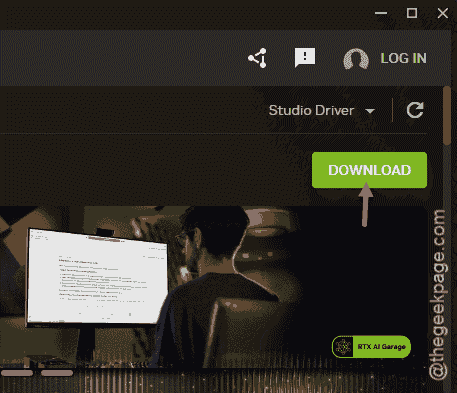
5 – Download it and run the install.
On AMD, the equivalent is the Pro driver. Same idea — stability over gaming frame rates. That’s exactly what you want in an editing suite.
Fix 3 – Kill Hardware Acceleration in Side Apps
If a browser or chat app lives on your second monitor while you edit, it keeps tugging the GPU’s attention. Turn its acceleration off.
1 – In Chrome or Edge, open Settings and search for Hardware acceleration.
2 – Toggle Use graphics acceleration when available to Off.
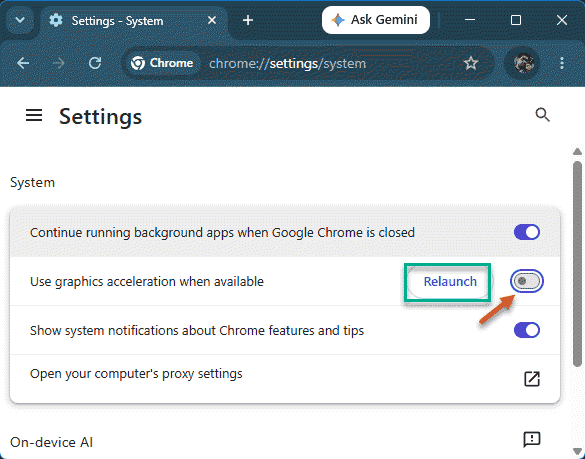
3 – In Discord, go to User Settings > Advanced and turn off Hardware Acceleration.
4 – Relaunch each app.
Then edit for a few minutes with them open like usual. If the stutter’s gone, a background app was stealing GPU time mid-playback.
Fix 4 – Clear Your Media Cache
HAGS changes how memory gets addressed on the GPU. Toggle it while old cache files are still indexed, and those stale files can keep stuttering on their own. So clear them out.
In Premiere Pro:
1 – Go to Edit > Preferences > Media Cache.
2 – Click Delete next to Remove Media Cache Files.
In DaVinci Resolve:
1 – Go to Playback > Delete Render Cache > All.
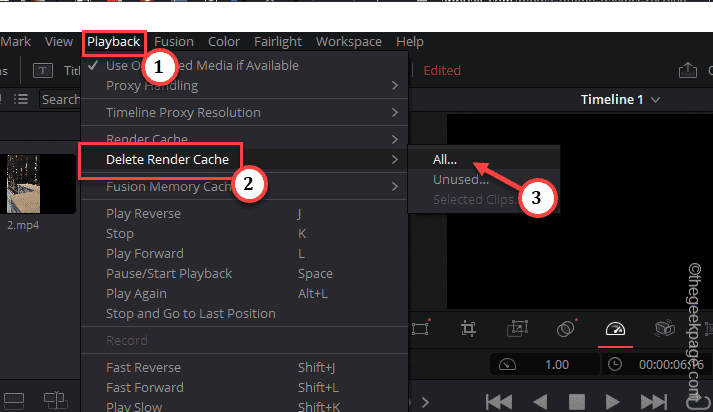
Your app rebuilds the cache as you work, so the first playback after this may feel slow. That’s normal. It smooths out fast.
Fix 5 – Lock Your Monitor’s Refresh Rate
Quick one for mixed-monitor setups. If you pair a fast preview monitor with a plain 60Hz grading screen, HAGS struggles to sync their timing during playback. Go to Settings > System > Display > Advanced display, pick your high-refresh monitor, and lock it to 60Hz — or a clean double like 120Hz — while you’re editing.
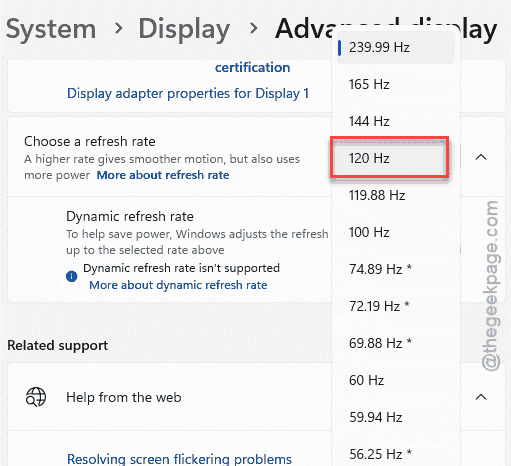
Matching the timing across screens takes the stutter out of playback.
Fix 6 – Test With the Software Renderer
This is a diagnostic more than a daily setting.
1 – In Premiere Pro, go to
File > Project Settings > General
2 – Change the renderer from GPU Acceleration (CUDA / Metal / OpenCL) to Software Only.
3 – Click OK and play your timeline.
If the stutter vanishes, the issue really was GPU scheduling — go back and keep HAGS off. Software rendering is slow for exports, so flip this back to GPU once you’ve confirmed it.
How to Prevent This
– Keep HAGS off if you edit video regularly. The smoother timeline beats whatever tiny gain it gave you.
– Run Studio drivers on NVIDIA, or Pro drivers on AMD. They’re built for exactly this kind of work.
– Don’t park busy apps on a second screen while editing. They pull GPU time you need for playback.
– Clear your media cache now and then. Stale cache causes hitches all on its own.
People Also Ask
Can hardware-accelerated GPU scheduling cause stuttering?
Yes, especially in video editing. HAGS lets the GPU manage its own task queue, which clashes with editing apps that talk to the GPU directly. The result is micro-stutters during playback.
Should I disable hardware-accelerated GPU scheduling?
For editing, often yes. It frequently causes timeline hitching with apps like Premiere and Resolve. For gaming, it can help, especially with frame generation. Try it off while editing and on while gaming, and keep whichever setup runs smoother for what you’re doing.
Why does my video timeline stutter on a powerful PC?
A strong GPU doesn’t help if scheduling gets in the way. HAGS, an old cache, or a background app stealing GPU time can all cause it. Turn off HAGS, clear your media cache, and close heavy apps on your second monitor. That combination fixes most stutters.