Something Resolve checks during startup is choking it. That’s why it dies on the Loading Projects splash screen. Every single time.
Maybe it sits there frozen. Maybe it just closes on you. Painfully unhelpful, either way.
But your projects are almost certainly still safe. Resolve is tripping on the way to them, and you can clear the path without reinstalling anything.
What’s Tripping It Up
So what is Resolve doing on that splash screen? A lot, it turns out.
It opens your project library (the database where every project is saved). It scans every plugin you have installed. And it checks whatever is plugged in or connected, like USB gadgets and shared network drives. Even your VPN gets a look, for some reason.
If just one of those does not answer properly, the whole launch stalls. And you get no error message telling you which one it was. That’s the annoying part.
So the fixes below take one suspect at a time. Start at the top. The first few take seconds.
Fix 1 – Close the Leftover Resolve Processes
After a crash, Resolve often leaves pieces of itself running in the background.
1 – Press Ctrl + Shift + Esc to open Task Manager.
2 – Type Resolve in the search box at the top.
3 – Right-click each result and select End task.
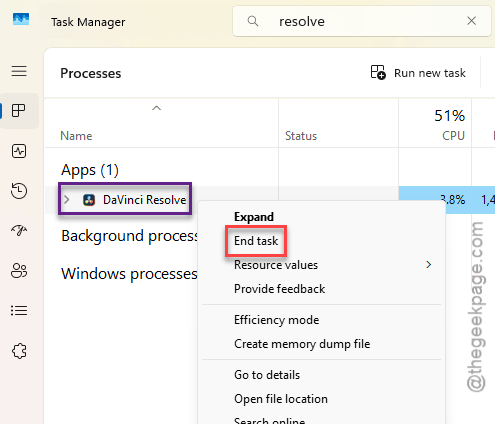
4 – Search for DPDecoder.exe and end that one too, if it shows up.
5 – Open Resolve again.
Make this a habit after any crash (it takes about ten seconds). It rules out the easiest cause before you try anything bigger.
Fix 2 – Turn Off Your VPN Before You Launch
Quick one. Did your project list show up when the VPN is off? Then the VPN was the holdup.
You don’t have to give the VPN up, though. Once your project has loaded, turn it back on. It only gets in the way while Resolve is starting.
Fix 3 – Unplug the USB Devices You Don’t Need
Having too many USB devices plugged into your system can cause such issues.
1 – Close Resolve.
2 – You should unplug every USB devices. Leave the the keyboard and mouse connected.
3 – Open Resolve again.
Check if this resolves the issue.
Fix 4 – Disconnect Shared Network Drives
Resolve may also try to scan shared folders on your network (you might see them called mapped drives or SMB drives). If one of them is slow or offline, Resolve just waits for it.
1 – Press Windows + E to open File Explorer.
2 – Click This PC in the left sidebar.
3 – Look under Network locations, below your regular drives.
4 – Right-click a network drive and select Disconnect.
5 – Open Resolve and see if it loads.
This doesn’t delete anything on the shared drive. You can map it again later, the same way it was set up the first time.
Fix 5 – Start With a Fresh Project Library
Still stuck? Then the project library itself may be damaged. That can happen after a power cut, or after a crash in the middle of a save. Resolve tries to read the broken file and never finishes.
The trick is to hide the old library so Resolve builds a new, blank one. Nothing gets deleted.
1 – Close Resolve and end any leftover processes like in Fix 1.
2 – Press Windows + R.
3 – Type this address, and press Enter.
%appdata%\Blackmagic Design\DaVinci Resolve\Support
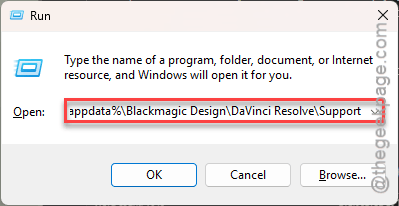
A folder window opens.
4 – Find the folder named Resolve Disk Database.
5 – Click it once, press F2, and rename it to Resolve Disk Database_OLD.
6 – Open Resolve. It builds a fresh database on its own.
Don’t panic when the Project Manager looks empty (your projects are still sitting in the _OLD folder). If Resolve opens fine now, connect your old database from the Project Manager and move your good projects over, a few at a time.
And from now on, export a copy of your important projects every so often. A damaged library hurts a lot less when there’s a backup.
Fix 6 – Move Your Plugins Out of the Way
Right before the project list appears, Resolve scans every add-on plugin on your PC. They come in two kinds: OFX (video effects) and VST (audio effects). One outdated plugin is enough to crash the whole loader. Not great design, honestly.
1 – Make a new folder on your Desktop and call it Plugins Backup.
2 – Press Windows + E to open File Explorer.
3 – Paste this into the address bar at the top and press Enter.
C:\Program Files\Common Files\OFX\Plugins
4 – Press Ctrl + A to select every folder inside.
5 – Press Ctrl + X to cut them.
6 – Open Plugins Backup and press Ctrl + V to paste.
7 – Go to C:\Program Files\Common Files\VST3 and move the .vst3 files out the same way.
8 – Open Resolve.
If it gets past the splash screen now, a plugin was to blame. But which one? Close Resolve, move one plugin back, and open it again. Keep going until the crash returns (slow, I know, but it’s the only way to catch the exact one).
Then update that plugin or uninstall it.
Fix 7 – Check Your Fusion Node Scripts
This last one only applies if you use custom scripts in Fusion (that’s Resolve’s built-in effects page). One user who hit this same crash traced it to a single Fusion node.
Their trick was to rename the folder that holds the node scripts and then open the project. It loaded. The nodes that needed those scripts all turned red, because Resolve could not find the scripts anymore. That is expected.
From there, disconnect the nodes you suspect. Give the folder its old name back. Then reconnect the nodes slowly, one by one, until the bad one shows itself.
Nothing? Export the project and ask someone on a Resolve forum to take a look at it.
People Also Ask
Why is DaVinci Resolve crashing while I’m editing?
A bad plugin is the usual suspect. Move your OFX and VST plugins out of their folders and test again. Leftover Resolve processes from an earlier crash cause trouble too, so end those in Task Manager. And if it started after a power cut, test with a fresh project library.
Is DaVinci CPU or GPU heavy?
Mostly GPU. Resolve leans on the graphics card for effects, color work and playback, more than most video editors do. The CPU still matters, though. It decodes a lot of video formats and carries much of the load on the Fusion page. A weak graphics card is what you’ll notice first.