You’re halfway down a folder. You click something, the window refreshes, and bam — you’re yanked all the way back to the top. Every single time.
So you scroll down again. It jumps again. Maddening, right? The good news: it’s almost always one small setting fighting with another. Here’s how to make it stop.
Why This Happens
It wants to follow wherever you click. And every time it re-centers itself, the whole window snaps back up.
But that’s not the only trigger. A few other things pile on.
Windows has a setting that picks an accent color from your wallpaper. If you run a slideshow background, it re-reads the color constantly — and that quietly forces Explorer to redraw. Annoying, and totally hidden.
OneDrive does it too. Every time it syncs a change, the folder refreshes under you. And if your files live on a NAS (a network drive box like a Synology), a flaky connection causes the exact same jump.
Fix 1 – Stop the Navigation Pane From Tracking You
This is the big one. You’re telling the left-side folder tree to quit chasing your current folder.
1 – Open File Explorer.
2 – Click the three dots (the ⋯ menu) at the top, then click Options.
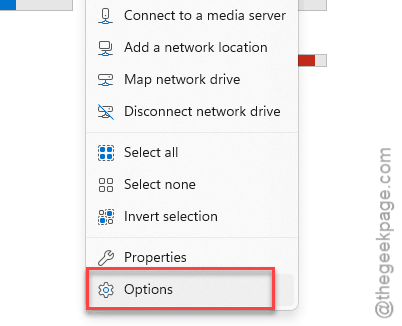
3 – Switch to the View tab at the top of the small window that opens.
4 – Scroll down to the Navigation pane section.
5 – Uncheck Expand to open folder.
6 – Uncheck Show all folders too.
7 – Click Apply, then OK.
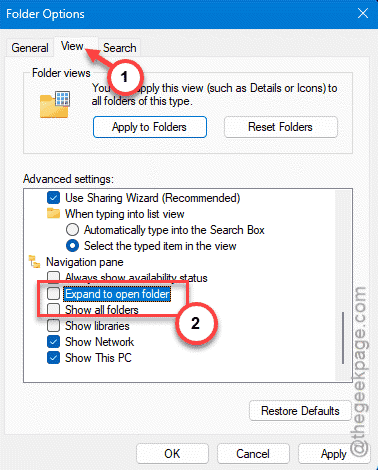
For most people, that’s the whole problem solved right there. The tree stops re-centering, so the window stops jumping. Still happening? Keep going — something else is triggering the refresh.
Fix 2 – Turn Off the Auto Accent Color
Weird one, but it’s real. If Windows is pulling its accent color from your wallpaper, it keeps re-reading the screen and nudging Explorer to redraw.
1 – Press Windows + I to open Settings.
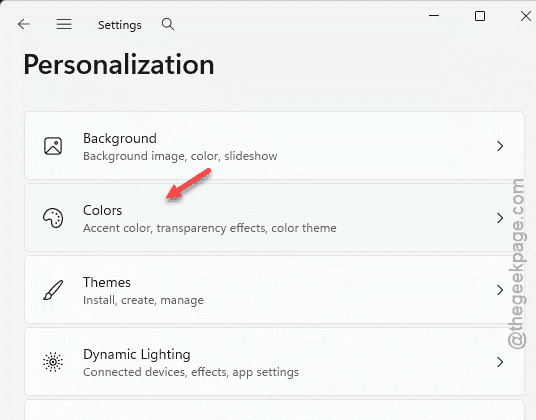
2 – Click Personalization in the left sidebar.
3 – Click Colors.
4 – Find Accent color and switch it from Automatic to Manual. That stops Windows from picking a color off your background.
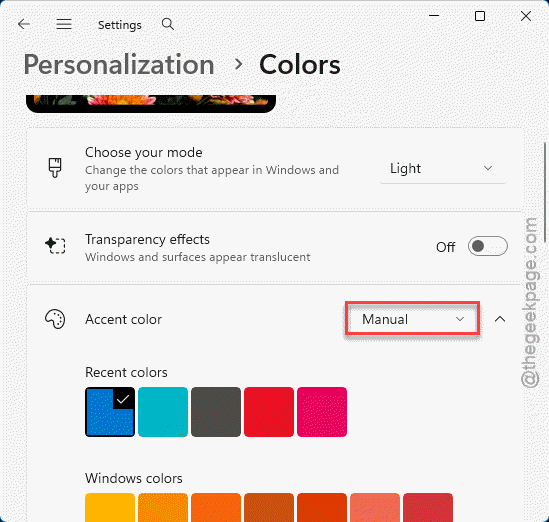
If you run a slideshow wallpaper, this matters even more — the color was changing every few minutes. Pick a fixed color and the constant redraw stops.
Fix 3 – Pause OneDrive for a Bit
Quick test.
1 – Look at the bottom-right of your taskbar and right-click the OneDrive cloud icon
2 – Click the little up-arrow first if it’s hidden). Choose Pause syncing and then, pick 2 hours.
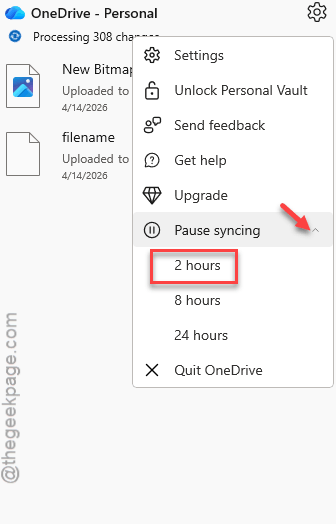
3 – Now go use File Explorer for a minute.
If the jumping stops cold, OneDrive’s refreshes were the cause. You’ll want to keep big, busy folders out of OneDrive, or pause it while you work in them.
Fix 4 – Launch Folders in a Separate Process
This gives each window its own memory space, so one glitchy folder doesn’t drag the rest down.
1 – Open File Explorer Options (the same three dots > Options window from Fix 1).
2 – Go to the View tab.
3 – Scroll down and check Launch folder windows in a separate process.
4 – Click Apply, then OK.
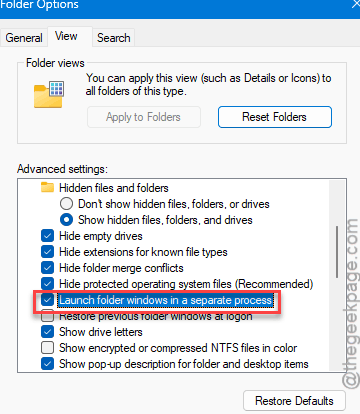
5 – Restart your PC so it takes hold.
Fix 5 – Clear the Quick Access Cache
Quick Access keeps a memory of recent folders. When that memory gets corrupted, Explorer behaves erratically — including the snap-to-top thing.
1 – Press Windows + R to open the Run box.
2 – Type and press Enter.
shell:recent\AutomaticDestinations
3 – Select everything in that folder and delete it. These are just cache files. Windows rebuilds them.
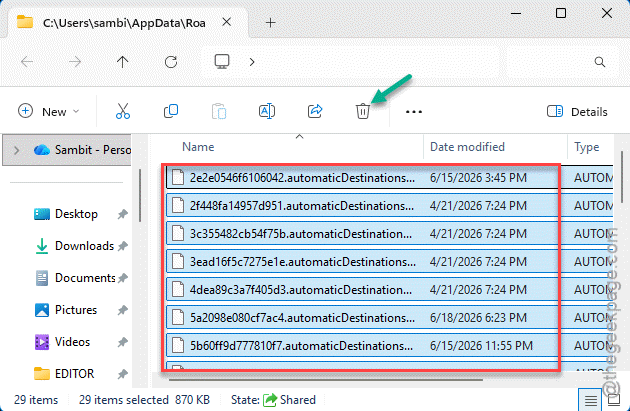
4 – Press Windows + R again, type this, and press Enter.
shell:recent\CustomDestinations
5 – Delete everything in there too.
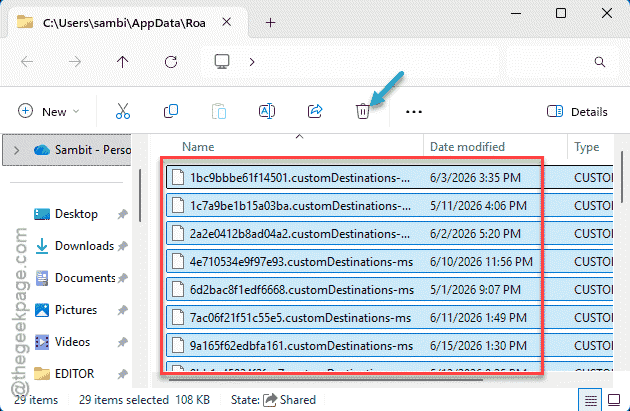
6 – Restart your PC.
Your recent-files list resets, so it’ll look empty at first. That’s expected. It fills back up as you use folders.
Fix 6 – Reconnect Your Network Drive (NAS Users)
This one’s only for you if your files sit on a network storage box like a Synology. A dropping connection makes Explorer refresh over and over.
1 – Open your Synology Drive Client (or whatever app manages your NAS).
2 – Check whether the connection shows as disconnected or failing.
3 – Re-enable the connection (for Synology, that’s QuickConnect).
4 – Reconnect the drive and make sure your sync jobs are running normally.
5 – Restart File Explorer, or just reboot.
One user said reconnecting their NAS killed the jumping completely. Worth a look if nothing else stuck.
How to Prevent This
– Leave Expand to open folder unchecked. That’s the main culprit, so just keep it off.
– Use a fixed accent color, not the auto one. Especially if you run a slideshow wallpaper.
– Keep huge, constantly-changing folders out of OneDrive. They sync too often and refresh under you.
– On a NAS? Check the connection first whenever Explorer starts acting weird. Saves you an hour of poking at settings.
People Also Ask
Why does my File Explorer keep jumping to the top?
Usually the navigation pane is set to follow your current folder, so it re-centers and snaps the window up. Turn off Expand to open folder and Show all folders in File Explorer Options. OneDrive syncing and a slideshow accent color can cause the same jump too.
Why does my screen scroll back up on its own?
Something is forcing the folder to refresh while you’re scrolling. Common causes are OneDrive syncing in the background, a dropping network drive, or the navigation pane re-centering. Pause OneDrive to test it, and turn off the nav pane’s auto-expand setting if that’s the trigger.