You drag OneNote to your second monitor. The screen flashes. The page rebuilds. Then flickers again. And again. Trying to minimize it? Worse — the whole notebook flashes through every state before settling. Painful to use.
Why This Happens
Here’s the deal. OneNote flickering on a second monitor almost always comes down to one of two things. Mismatched DPI scaling between your monitors. Or GPU hardware acceleration fighting with Windows on the redraw.
And OneNote’s hardware acceleration makes it worse. The app renders pages through your GPU, then sends them to Windows. Windows scales them. Between those two steps, the screen can flash for a single frame. Repeated dozens of times, that’s what you’re seeing.
There’s also a quieter cause. Sticky Notes, the Outlook OneNote integration, or another OneNote instance running in the background. They all share the same rendering engine. One bug in any of them and the whole thing flickers.
Fix 1 – Match Display Scaling on Both Monitors
Do this first. Fixes the flicker for the majority of people.
1 – Press Windows + I to open Settings.
2 – Click System > Display.
3 – At the top, click your primary monitor (1). Note what Scale is set to. Usually 100%, 125%, or 150%.
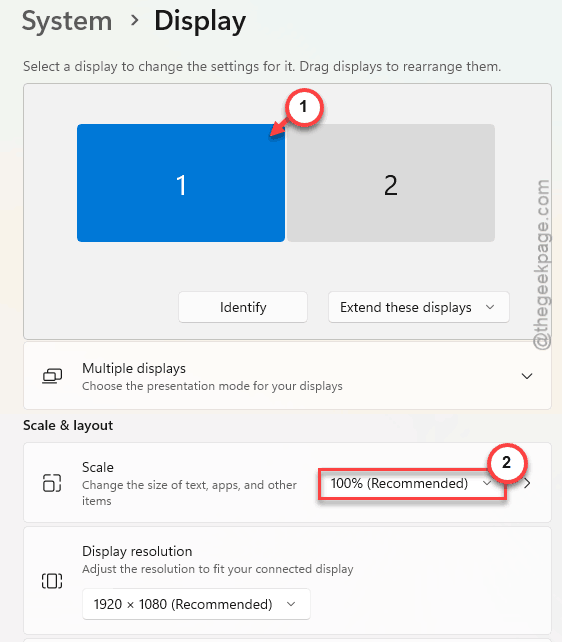
4 – Click the second monitor (2).
5 – Open the Scale dropdown. Set it to the same value as your primary.
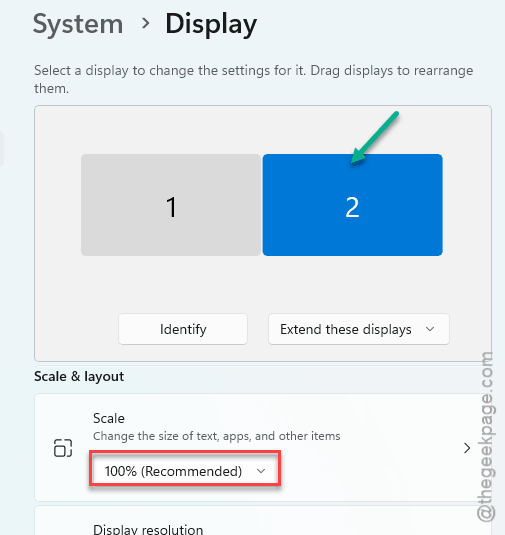
6 – Sign out of Windows when prompted. Or restart your PC.
Reopen OneNote on the second monitor. Drag it around. Resize it. The flicker is usually gone. And honestly — Windows should match these automatically. It doesn’t.
Fix 2 – Disable Hardware Graphics Acceleration
This is the magic toggle. Inside OneNote.
1 – Open OneNote.
2 – Click File at the top left.
3 – Click Options at the bottom left.
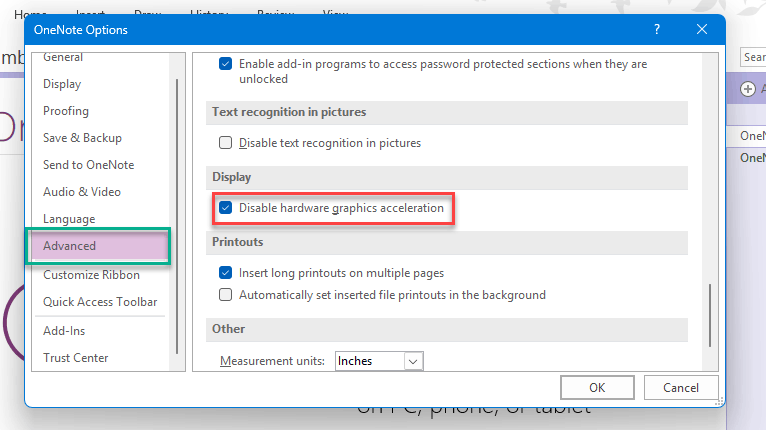
4 – Click the Advanced tab in the sidebar.
5 – Scroll down to the Display section. It’s deep in the list — keep going.
6 – Check the box Disable hardware graphics acceleration.
7 – Click OK.
8 – Close OneNote completely. Reopen it.
The app renders slightly slower. You won’t notice. But the flicker goes away. Worth the trade-off.
Fix 3 – Close Every OneNote-Related Process
Quick fix. Sounds dumb. Often works.
You might think OneNote is closed. It isn’t. Sticky Notes is OneNote under the hood. So is the OneNote add-in for Outlook. So is the “Send to OneNote” tool. All of them stay loaded.
1 – Open Task Manager with Ctrl + Shift + Esc.
2 – Click the Processes tab.
3 – Look for anything with OneNote, Sticky, or ONENOTEM in the name.
4 – Right-click each one. Click End task.
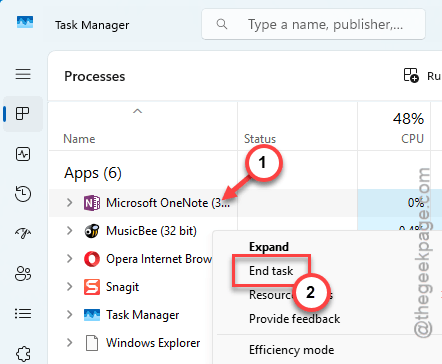
5 – Reopen OneNote.
For a lot of people, that’s the whole fix. The flicker was just one stuck background process repainting.
Fix 4 – Clear the OneNote Cache
Corrupted cache files “ghost” the UI. Especially when you minimize or move the window. Clear them out.
1 – Close OneNote completely. End all OneNote processes from Task Manager too (see Fix 3).
2 – Press Windows + R.
3 – Paste %localappdata%\Microsoft\OneNote and press Enter.
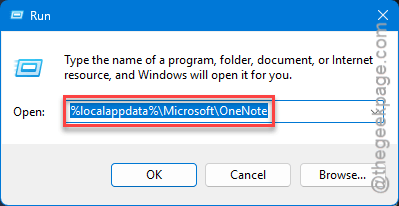
4 – Inside, you’ll see a folder named 16.0 (or 15.0 for older versions). Open it.
5 – Find the folder named cache.
6 – Right-click it. Click Rename. Change it to cache_old.
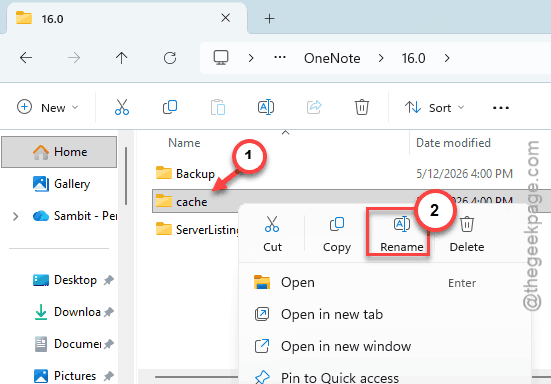
7 – Restart OneNote.
OneNote rebuilds the cache from scratch. Your notes are safe — they live on the server, not in this folder. Once you confirm everything still works, you can delete the cache_old folder.
Fix 5 – Update Your Graphics Drivers
Flickering on a second monitor is often a GPU driver issue. Old drivers don’t handle multi-monitor scaling well.
For NVIDIA:
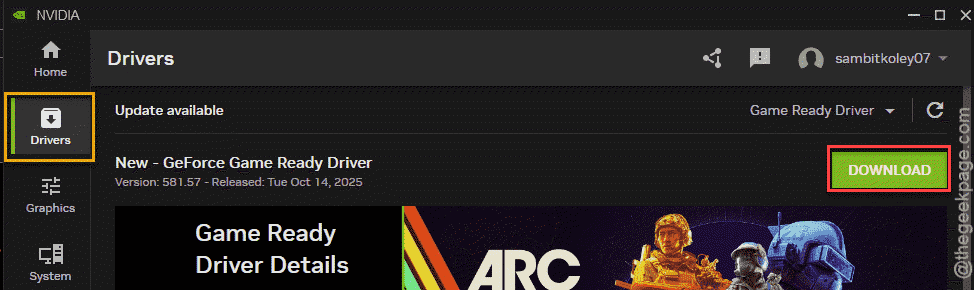
1 – Open GeForce Experience (search for it in Start).
2 – Click the Drivers tab at the top.
3 – Click Check for updates.
4 – Click Download if there’s a new version. Then Express Installation.
For AMD: open AMD Software (Adrenalin), click the gear icon, then Check for updates.
For Intel: open Intel Driver & Support Assistant. It auto-checks.
And skip Windows Update for graphics drivers if possible. Microsoft’s versions are usually months behind. Go direct to the manufacturer.
Restart after installing. Test OneNote on the second monitor again.
Fix 6 – Switch OneNote Versions
If nothing else works — try the other OneNote.
Microsoft ships two OneNote apps.
1 – Press Windows + I.
2 – Click Apps > Installed apps.
3 – Type OneNote in the search box.
4 – Check which versions are installed.
5 – Open Microsoft Store. Install whichever version you don’t currently have.
Try your notebooks in the other version. Sometimes one renders fine on multi-monitor when the other doesn’t. Especially after big Windows feature updates.
How to Prevent This
- Keep monitor scaling identical across all displays. Even if it means giving up the perfect scale for one of them. Worth it.
- Refrain from using Sticky Notes and OneNote app at the same time on your multi monitor setup. They share renderers and clash.
- Disable hardware acceleration in OneNote permanently if you frequently work across displays. The performance hit is invisible.
People Also Ask
Why does my screen flicker when I use a second monitor?
Usually mismatched display scaling between monitors. If one is at 150% and the other at 100%, Windows constantly rescales any window that crosses between them. Match the scales in Settings > Display. Restart. Beyond that, update your GPU drivers — old multi-monitor handling in drivers is a common cause.
What does Ctrl+Alt+D do in OneNote?
Docks OneNote to the side of your desktop. It snaps to the right edge in a small window, always on top. Useful for taking notes while reading something else. Press it again to undock. Not related to the flickering issue — but handy.