The DSLR or mirrorless cameras use SD cards as the main storage medium to capture video or photographs. So, if you can’t see your video footages on your computer, you can’t import them from the SD card. It can be very detrimental for the professional videographers who import lots of video footage for editing purposes. So, if you are having this problem, these solutions should help you fix the problem.
Why videos are not showing up on my computer?
There are some video formats that don’t even show up on any other devices like iPad, iPhone or android devices. The support for some of the video format is limited on these systems. But, Windows does support almost all the video formats, specially the RAW formats.
Sometimes the automatic import functionality in the Premier Pro or Lightroom doesn’t work properly. While on the other hand, restricting the storage mode can limit the access of many files stored on the SD card. Irrespective of the reasons, you can follow these steps to counter this problem.
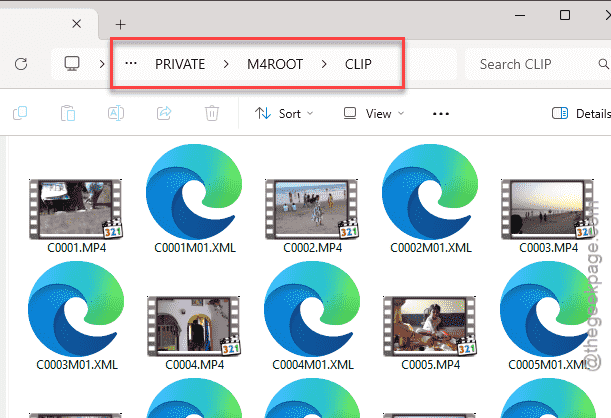
NOTE – Video files are stored in different location than where the image files are stored.
Like on Sony devices, the location of the video files is this –
E:\PRIVATE\M4ROOT\CLIP
Fix 1 – Use the in-built import tool for Davinci/ Lightroom
If you are working with DaVinci Resolve or Adobe Premier Pro, you can use the import tools to view and retrieve the video footages from the SD card.
Step 1 – Make sure the card reader is plugged into your system.
Step 2 – Then, load up the Davinci Resolve or Premier Pro or whatever tool you are using.
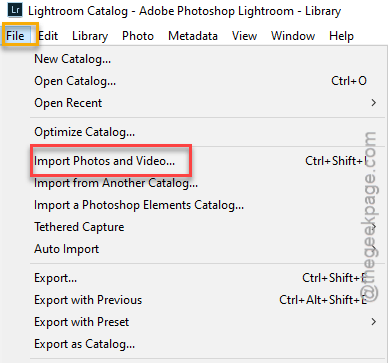
Step 3 – Go to the File menu and tap “Import files and videos“.
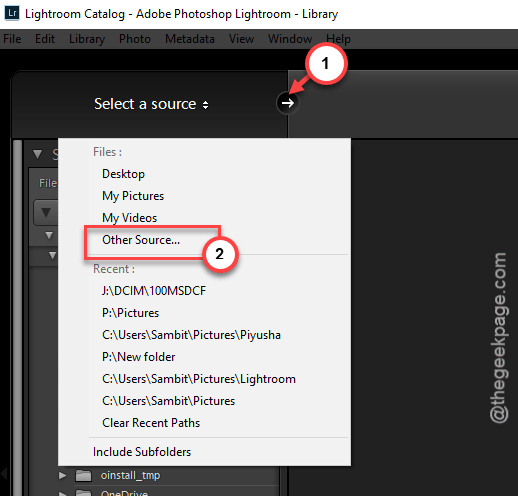
Step 4 – Later, tap the “Select a source” and tap the “Other Source” option.
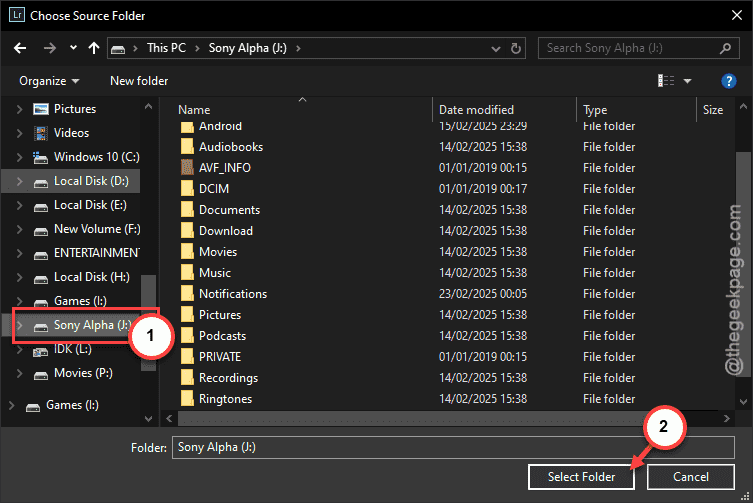
Step 5 – Then, select the SD card from the File Explorer console. Tap “Open“.
Step 6 – On the next window, you can manually select the videos that you have on your SD card and import them for your work.
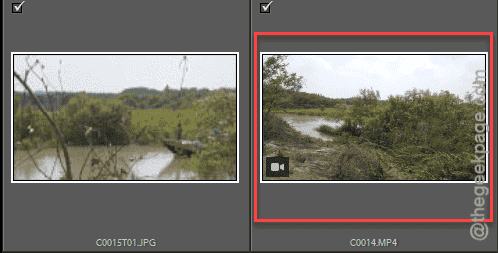
This way, you can see and import video files directly to the app and start working on them.
Fix 2 – Change the Autoplay settings
You have to make sure the autoplay lets you import the photos and video from the SD card.
Step 1 – Plug in the SD card using the card reader.
Step 2 – Then, you will get a prompt from Windows asking what to do with the memory cards.
Step 3 – Tap that once.
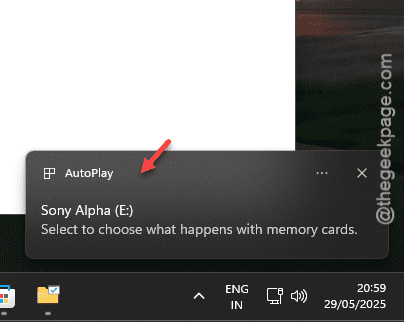
Step 4 – Now, choose either the “Import Photos and Videos” or “Open folder to view files” option.
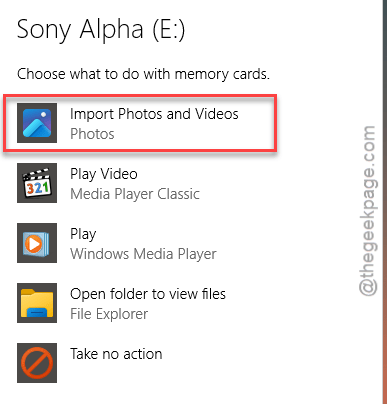
This way, you can access the videos just after the moment you have plugged into the drive.
Fix 3 – Get the Camera’s tool
Almost all the leading camera OEMs has their own dedicated Windows apps to import media files.
Step 1 – We have listed the links that take you to the software for all the leading brand of camera –
Sony – Imaging Edge
Nikon – Nikon NX
Canon – EOS Utility
FujiFilm – FujiFilm Camera AutoSave
Sigma – Sigma Photo Pro
Step 2 – Download and install the particular software.
Step 3 – Connect your camera to your Windows machine.
Step 4 – When the program detects the camera, you can import the video footages directly from the device.
Fix 4 – Check the card-reader
Card readers may malfunction upon prolonged usage over the years. So, if you are using a very old reader, it is possible that it is not reading the video footages from the SD card. Opt for a new reader, if you are having regular problems.
In some of the cases, using other USB ports on the Windows machine has helped the user detect and transfer the RAW footages from the drive. So, use another port on the device.
Fix 5 – Show all the files on the card
If some of the files on the SD card drive gets hidden, required video footages may not show up in there.
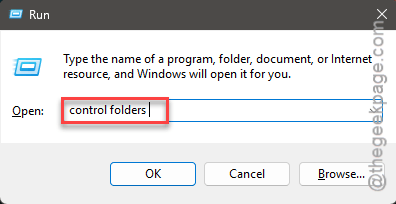
Step 1 – Hit the Win+R buttons quickly.
Step 2 – Then, input this there and click “OK“.
control folders
Step 3 – Go straight to the “View” tab.
Step 4 – Next, select the “Show hidden files, folder and drives” option.
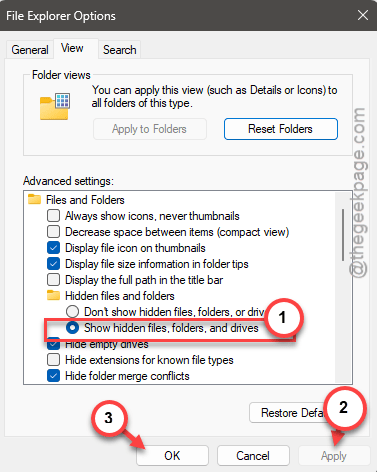
Step 5 – Save the changes.
This will be enacted on all the drives connected to the system. So, go ahead and open up the SD card drive to check for those videos.
Fix 6 – Turn off the write protection on the drive
If your SD card is write-protected, it won’t allow importing the video files.
Step 1 – Type “cmd” in the search box.
Step 2 – Next, right-click the “Command Prompt” and tap “Run as adminstrator“.
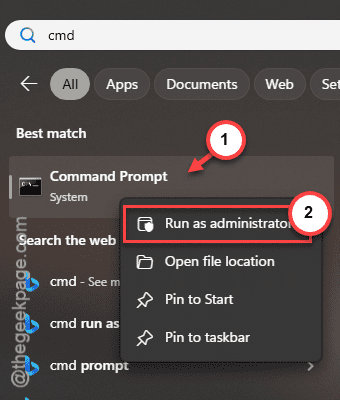
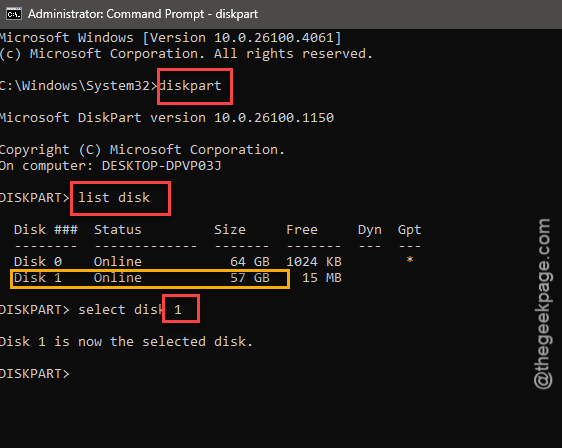
Step 3 – Execute these set of codes to enter diskpart and select your SD card.
diskpart
select disk <disk no>
Replace the <disk no> with the disk ID that belongs to the SD card.
Example –
select disk 1
Step 4 – Then, paste this code and hit Enter to clear the read-only attribute on the drive.
attributes disk clear readonly

Now, you may close the CMD terminal and proceed to the File Explorer tab to load
Fix 7 – Corruption of the video footages
If you are still not seeing the video footages, but the other images are showing up, this can be a cause of corruption of the video footages itself. You can just plug in the SD card to another computer to check whether you can view those files or not.
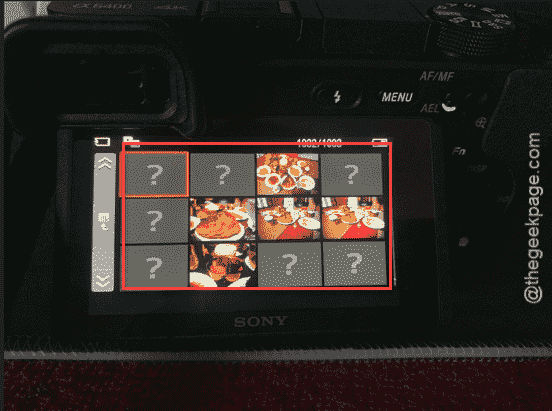
Another thing that you can do is to plug in the SD card back to the camera and try to find those video footages. If you can’t see the video footages anywhere, the footages are corrupted. On Sony devices, corrupted or removed media items shows up with a question mark.
Hope these have helped you!