Are you getting this “0x80070659 This installation is forbidden by system policy.” message during installation of the Microsoft Visual C++ Redistributable package? Microsoft Visual C++ Redistributable package files are available free to download on user computers to cater the applications use C, C++ runtime libraries. Troubleshooting this error problem won’t take many efforts.
Fix 1 – Toggle the DisableMSI value
Sometimes, the system administrators put policies on the devices to refrain the users from installing any new programs. You can easily bypass this using a simple registry hack.
NOTE – Registry edits like this one are completely harmless. But, having said that, this may lead to some complications on some of the devices. Create a system registry backup prior to applying the solution.
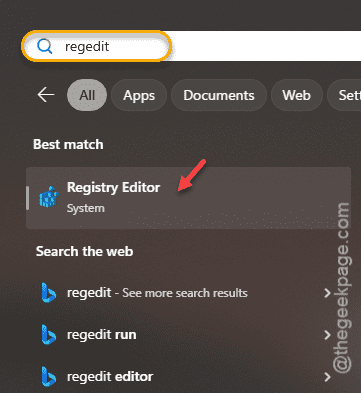
Step 1 – Type “regedit” in the search box.
Step 2 – Next, tap the “Registry Editor” to open up the Registry Editor panel.
Step 3 – Get to this region in there –
Computer\ HKEY_LOCAL_MACHINE\Software\Policies\Microsoft\Windows\Installer
Step 4 – Try to find the “DisableMSI” dword value.
Step 5 – If you can’t any such values there, right-click on the right-hand pane and tap “New>” and “Dword (32-bit) value” to create a new value.
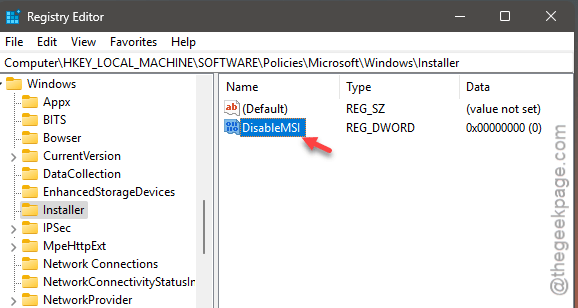
Step 6 – Name this “DisableMSI“.
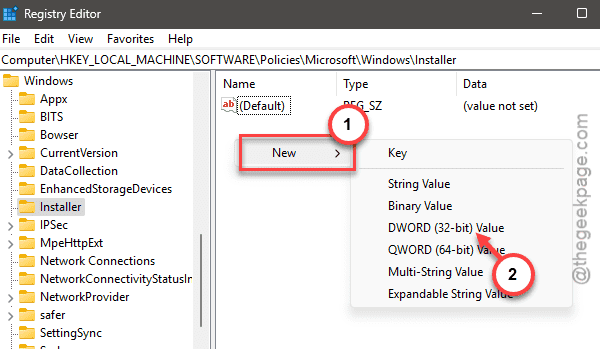
Step 7 – Double-tap the “DisableMSI” value to edit it.
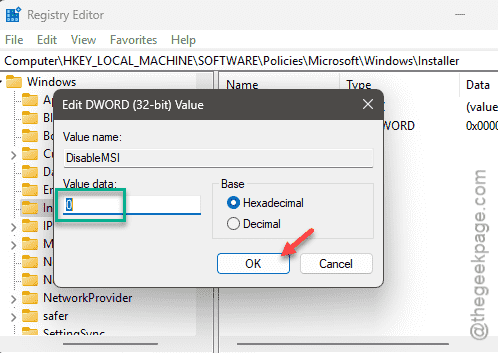
Step 8 – Later, put “0” in there. Then, tap “OK” to set the value there.
After you have changed the value, close the Registry Editor page.
Restart your computer later. When the device finally restarts, try to reinstall the MS Visual C++ Redistributable package.
You won’t see the 0x80070659 error code.
Fix 2 – Change the Windows installer policy
Apart from the registry hack, users may not be able to install Visual C++ Runtime package files due to policy restrictions imposed on the machine.
Step 1 – Quickly, search for “group policy“.
Step 2 – Then, open up the “Edit group policy” to load up the Group Policy Editor console.
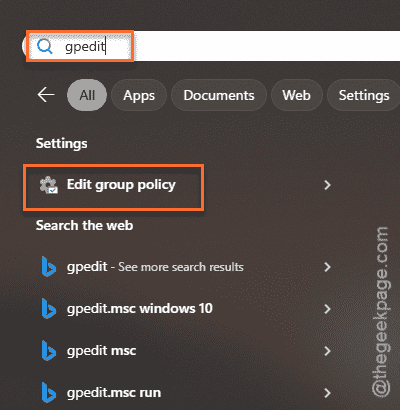
Step 3 – Take this path to reach the local group policy page –
Computer Configurations > Administrative Templates > Windows Components > Windows Installer
Step 4 – Find the “Prohibit non-administrators from applying vendor signed updates” policy on the right-hand panel.
Step 5 – Then, double-tap the policy to access it.
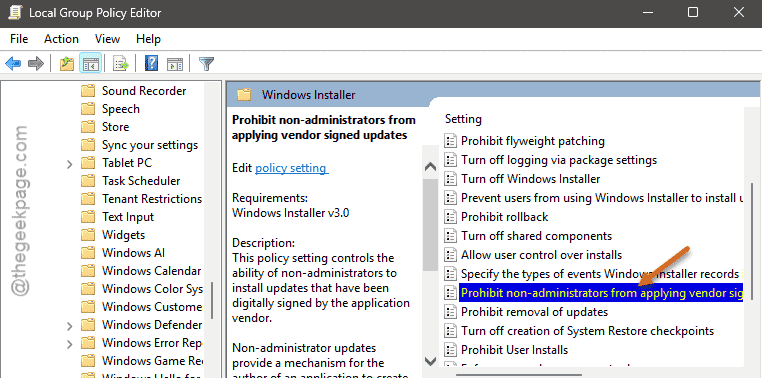
Step 6 – Set this policy setting to “Not Configured” or “Disabled” mode.
Step 7 – Tap “Apply” and “OK” in there to save the changes.

After saving these changes, you must restart your system once. Later, you can retry installing the same runtime package on your computer to complete the installation.
Fix 3 – Enable the Installer service
The Installer service handles all the package installation on the machine. So, it must be up and running for you to install the runtime libraries.
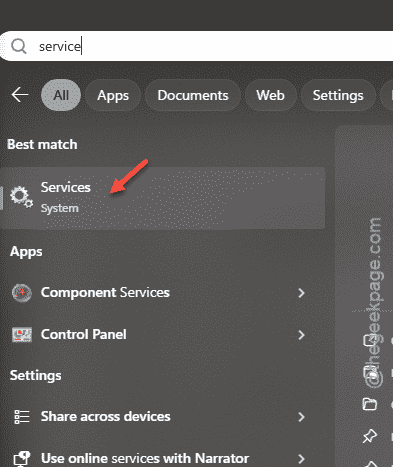
Step 1 – Run a search for “services“.
Step 2 – Open up the “Services” utility from there.
Step 3 – Find the “Windows Installer” service there.
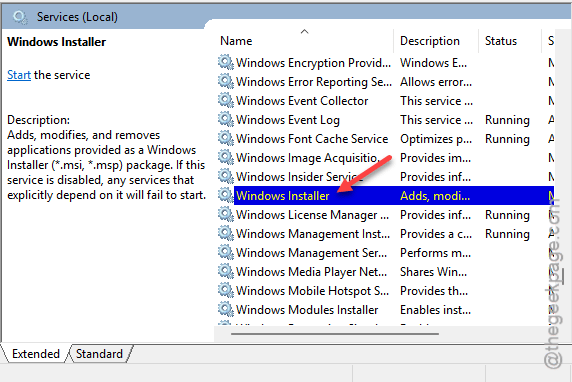
Step 4 – You must set the ‘Startup type:’ to “Manual” mode.
Step 5 – Later, tap “Apply” and “OK” to save it there.
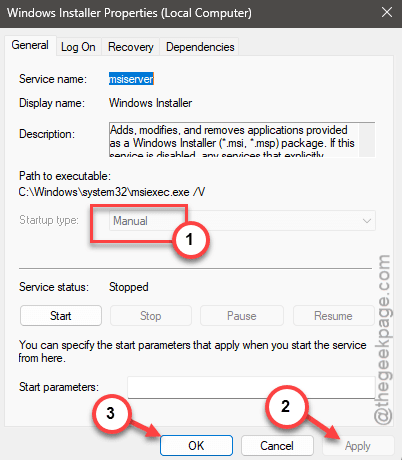
Restart the device, because this change will take effect during the system startup. Check if this works.
Fix 4 – Re-register the WMI service
You have to re-register your Windows Module Installer service.
Step 1 – Search for the “powershell” using the search box.
Step 2 – Next, right-click the “Windows PowerShell” and tap “Run as administrator“.
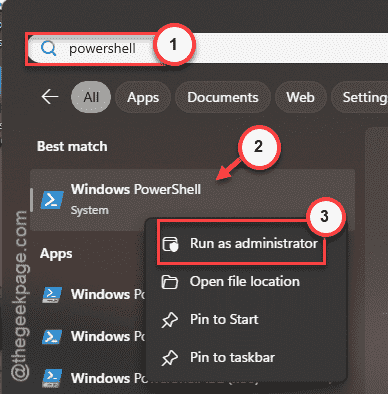
Step 3 – Use this code to unregister the installer service.
msiexec /unreg
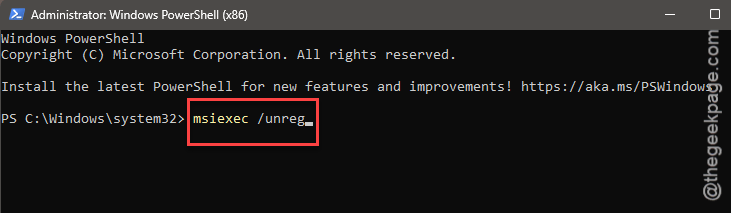
Step 4 – Later, re-register the installer service on the machine.
msiexec /regserver
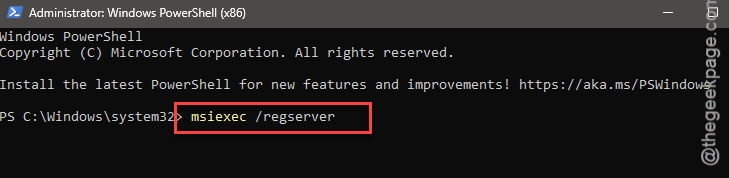
After executing these commands, close the terminal. Later, try to install the package once again.
Fix 5 – Revoke software restriction policy
If any software restriction policy has been placed on the machine, it won’t allow you to do any software-related changes on the device.
Step 1 – At first, briefly press the Win+R buttons together.
Step 2 – Next, type this there. Later, hit the Enter key to open the Local Security Policy settings.
secpol.msc
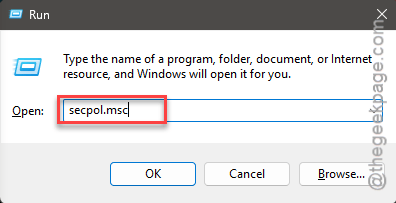
This will take you to the Local Security Policy console.
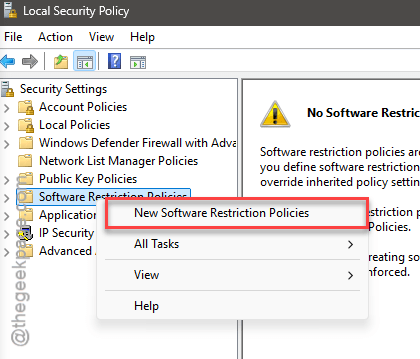
Step 3 – Find the “Software Restriction Policies” section. Right-click that and tap “New Software Restriction Policies“.
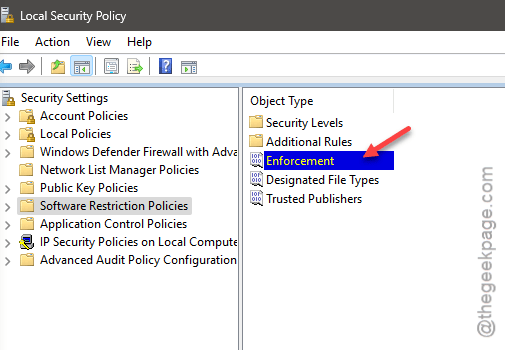
Step 4 – On the right-hand pane, double-tap the “Enforcement” module.
Step 5 – Go to the ‘Apply software restriction policies to the following users:’ and choose the “All users except local administrators“.
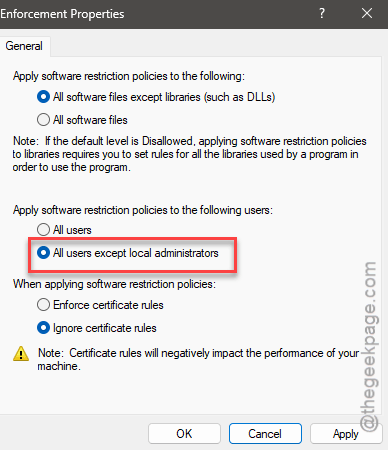
Step 6 – Finally, save the changes there using the ‘Apply’ and ‘OK’ function.
After this, close the Local Security Policy. This will solve the problem with the runtime libraries package installation.