Can’t send photos or videos from the Messenger app on your iPhone? Images and videos are an integral part of a chatting app. So, inability to transfer of such files can impair the necessity of such an app. If you are affected by this problem, these fixes can help you solve it.
Fix 1 – Change the Messenger photos permissions
You have to modify the Messenger’s permission on the photos and videos on your device.
Step 1 – You must open the iPhone Settings.
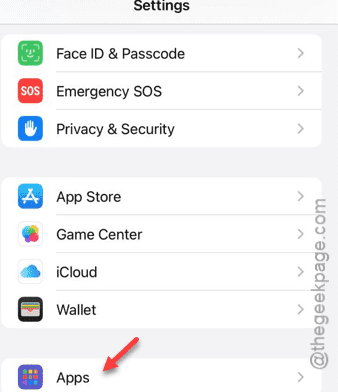
Step 2 – Later, go to the “Apps” tab.
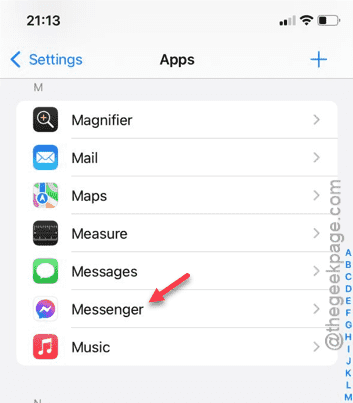
Step 3 – Find the “Messenger” app and open it up in there.
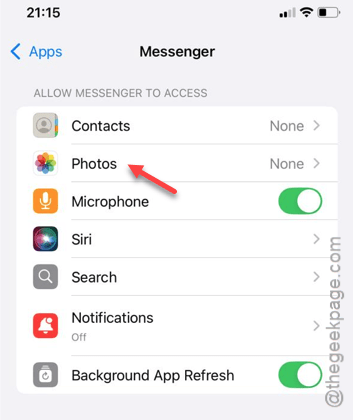
Step 4 – After this, you have to open up the “Photos” permission. Open it up*.
Step 5 – Now, it is up to you whether you permit the full or partial access to the photos and videos on your device.
Step 6 – So, choose any of the options between “Full Access” or “Limited Access” options.
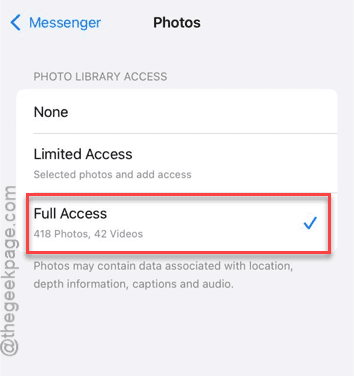
After providing the necessary permissions, you can send images or photos from the Messenger app.
[*NOTE – If you can’t see any such permission in there, you have to do this –
1. Open the Messenger app once.
2. Then, tap any of the chat heads once to open it up.
3. Later, tap the “Image” icon once.
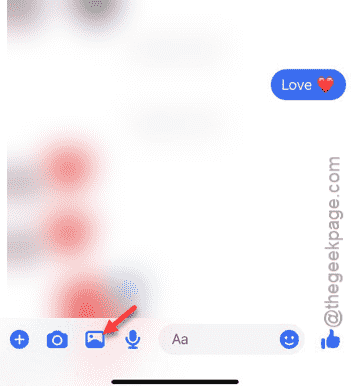
A permission panel should open up on your screen, asking for your prompt for the images.
Ignore this prompt and return to the main steps of the solution.
]
Check if this helps!
Fix 2 – Update the Messenger app
Update the Messenger application from the App Store. Updating the app should fix the issue.
Step 1 – Go to the App Store.
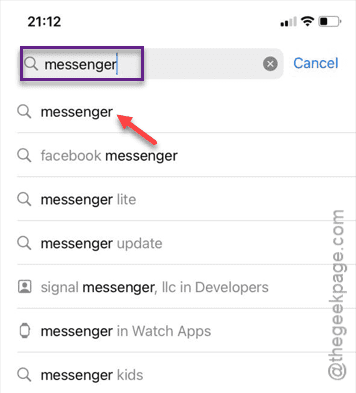
Step 2 – Search for “Messenger” app directly from there.
Step 3 – Next, load it up in Store page.
Step 4 – See whether the update is pending there or not. Next, tap “Update” to update the app.
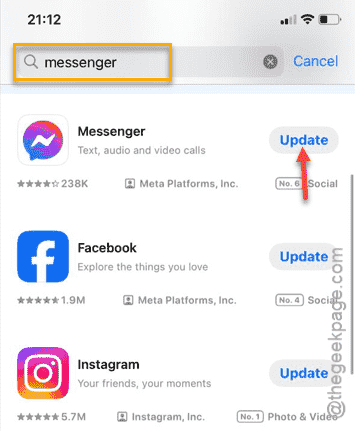
Updating the Messenger app should fix the image and video sharing issue.
Fix 3 – Offload and reinstall the Messenger app
Try offloading the Messenger app and reinstalling it. This should take care of the issue.
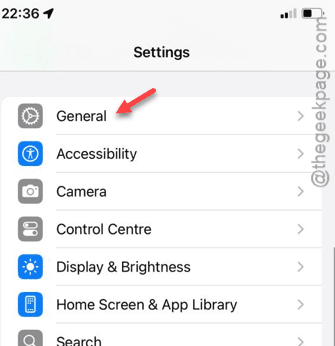
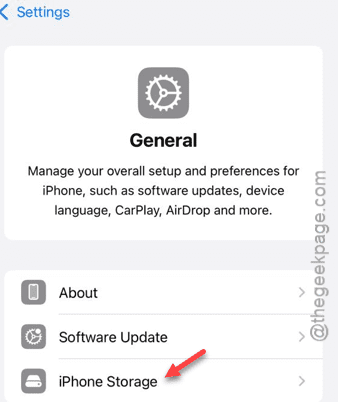
Step 1 – You must go to the Settings page. Next, open up the “General” tab.
Step 2 – Go to the “iPhone Storage” option.
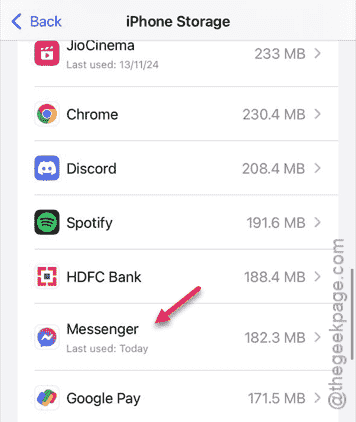
Step 3 – Open the “Messenger” app, later.
Step 4 – Tap “Offload App“. It will ask for a further verification. So, do that and offload the app.
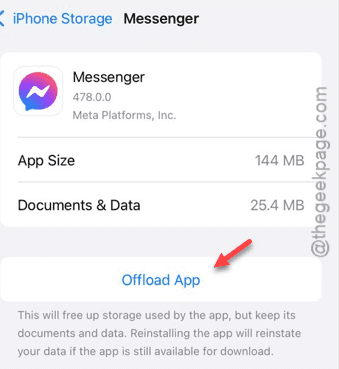
Once you have offloaded Messenger, you can’t use it unless you reinstall it.
Step 5 – Use the “Reinstall App” on the same Messenger app settings page to reinstall it.
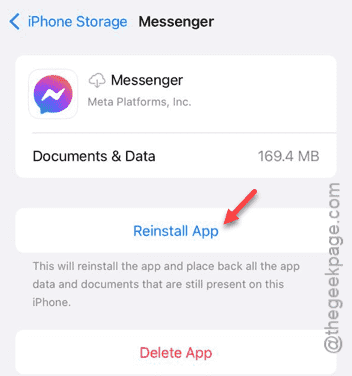
This reinstallation process may take some time. But, if it is taking unusually long time in the process, you can do this operation from the App Store directly.
Send some images and test it out!