Can’t stream videos on your Instagram app from your iPhone? Normally, you can watch reels on Instagram, irrespective of the network you are using. Except in some cases, like the Instagram servers being down or area-wide server outages, the videos on the Instagram feed or reels should be streaming normally. Whatever is the case, this guide will help you analyze the cause and remediate it as soon as possible.
Fix 1 – Let Instagram use the cellular data
You must allow the Instagram to utilize the cellular data mode on your iPhone.
Step 1 – Get to iPhone’s Settings page. Later, open the “Cellular data” or “Mobile Service” settings.
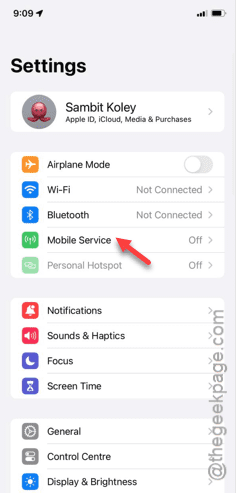
Step 2 – Swipe through the entire cellular settings page.
Step 3 – Run down through all the apps in there. Stop when you see the “Instagram” app in there.
Step 4 – Make sure the “Instagram” app is turned on.
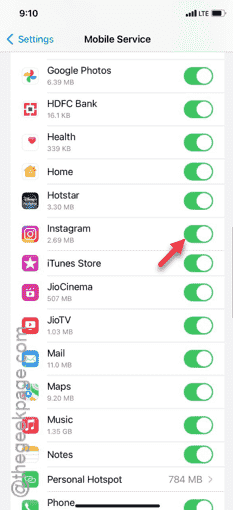
As you have now allowed Instagram to use the cellular data, there won’t be any interruptions to streaming videos on the app.
Do check if you can watch videos both on your feed and in the Reels.
Fix 2 – Force close the Instagram and test
Another preliminary workaround that you can try is to force-stop-restart the Instagram app.
Step 1 – Load up the Instagram app. There is no need to interact with any of the posts, just keep it open.
Step 2 – Swipe upwards to view the currently running apps.
Step 3 – Among all the other apps, find the Instagram app and close it.
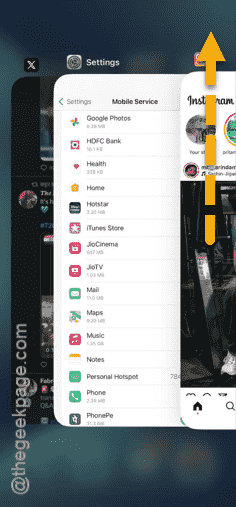
Step 4 – Wait for a few seconds and then, relaunch the Instagram app.
This time, check whether you can play the videos on Instagram or not.
Fix 3 – Update Instagram
Do test whether the Instagram app is pending or not.
Step 1 – Tap the “🅰” icon on your iPhone to get access to the App Store.
Step 2 – Next, perform a search for the “Instagram” app.
Step 3 – Open the “Instagram” in the search result to load the Instagram page.
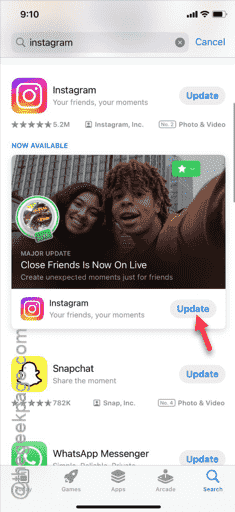
Step 4 – Install the pending update for the Instagram app.
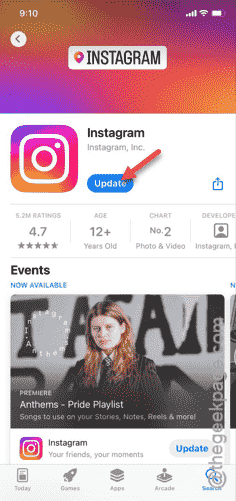
Wait for the app update process to finish. Load the home feed of the Instagram app and check it out.
See whether you can actually play the videos on Instagram.
Fix 4 – Reinstall Instagram on your iPhone
The last option that is left for you is to reinstall the Instagram client on your device.
Step 1 – You have to find the “Instagram” app on the iPhone screen.
Step 2 – All you have to do is to hold down the Instagram app and tap the “Delete App” option from the context menu.
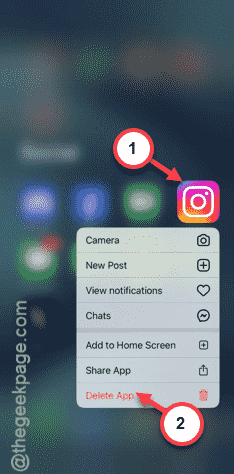
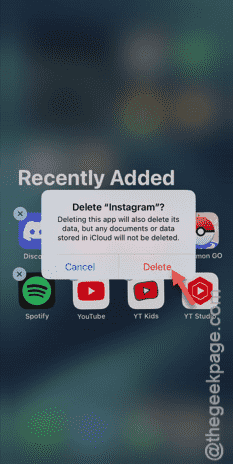
A warning message asking for your confirmation to uninstall Instagram should be on your screen.
Step 3 – So, tap the “Delete” option to finally remove the Instagram app.
You must go to the App Store, after removing Instagram from your iPhone.
Step 4 – In that App Store page, you must search for the “Instagram” app and install it.
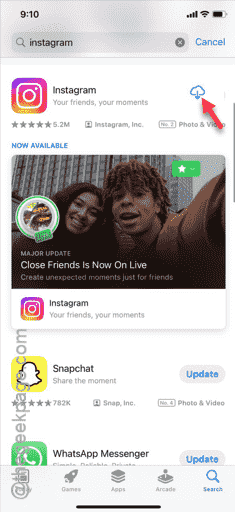
Your job is not completely done yet. You have to sign in to the Instagram app and see whether it has worked or not. Just play a random video and test it out yourself.