Can’t view or play videos on the Snapchat app on your iPhone? Alike the other social media apps, facing issues in the Snapchat is nothing new. Starting from servers issues to a bug in the installed app version on your iPhone, there are a variety of potential reasons that you can blame for this. Try out these fixes.
Fix 1 – Check the internet connection
The very first thing you should do is to check the internet connection. Low network bandwidth or stability can throw up error messages on your iPhone.
Step 1 – Just open a browser of your choice (like Safari or other browser).
Step 2 – Then, load the “fast.com” website or any other speed checking website. Run it and it will show you the network capabilities.
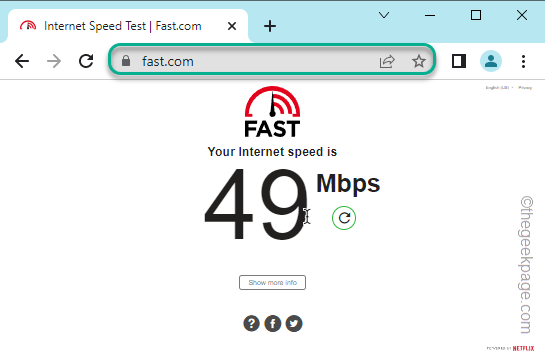
If the network is not good enough, switch to a different network. Like, use Wi-Fi, if the mobile data is not good enough or vice versa.
Fix 2 – Close the Snapchat and re-open it
We have already talked about the possibility of occasional bugs in the Snapchat app.
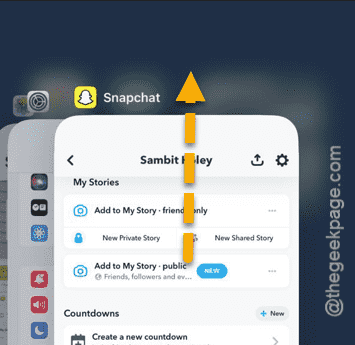
Step 1 – Simply, swipe up and hold your finger on the app screen to view all the apps.
Step 2 – Close the Snapchat app from there.
Step 3 – Later, open the Snapchat app and see whether you can use it or not.
Try to view a video on your Snapchat video feed. See whether the video is playing or buffering.
Fix 3 – Clear the cache data in Snapchat
Try removing the clogged up Snapchat cache data in the app. Check if this works.
Step 1 – To do this, you have to open the Snapchat app.
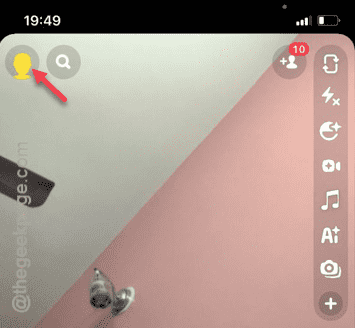
Step 2 – Next, tap the profile picture on the left-hand top.
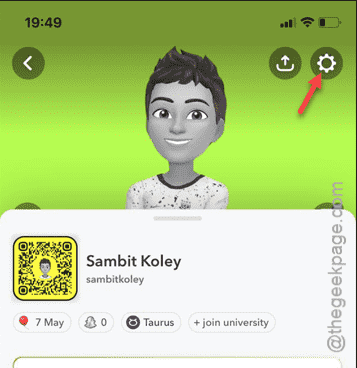
Step 3 – Then, tap the “⚙” button on the right-top corner to access the main Snapchat settings page.
Step 4 – We have to find the ‘Privacy Control’ tools. In there, tap the “Clear Data” function.
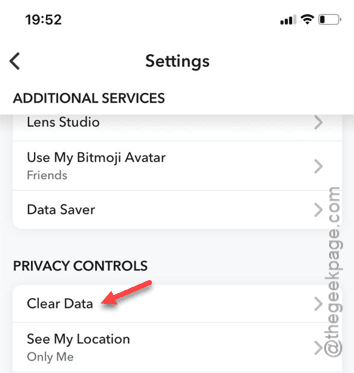
Step 5 – At the last of the options, you will find the “Clear Cache” option.
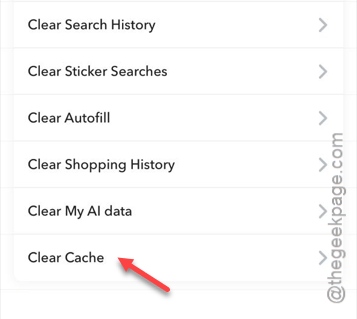
Step 6 – If a warning message prompts, tap the “Clear” button.
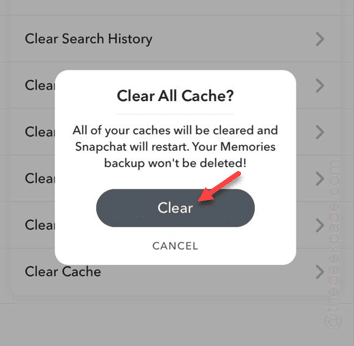
This way, you can clean up the Snapchat app cache. Later, load up the Snapchat app and look for yourself.
Fix 4 – Allow necessary permissions to Snapchat app
There are some permissions necessary for the Snapchat app to perform properly, like playing the videos on the app.
Step 1 – At first, you should go to the Settings window on your iPhone.
Step 2 – Next, you must go all the way down to the “Apps” tab. Open it up.

Step 3 – Next, scroll down and find the “Snapchat” app. Open that there.
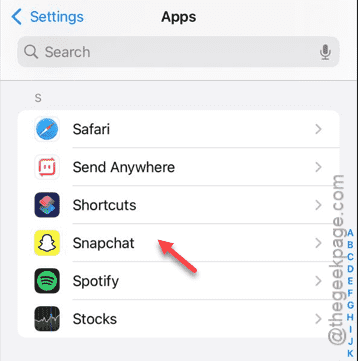
On that page, you will find several Snapchat permissions.
Step 4 – Turn on all the necessary permissions for the Snapchat app.
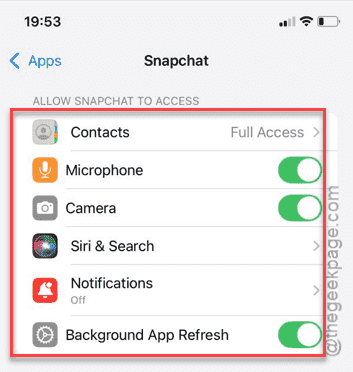
Doing this will allow you to the Snapchat app without any restrictions.
So, launch that and try to view some videos there.
Fix 5 – Do you have sufficient storage
A minimum amount of space is necessary for the apps on the iPhone to operate.
Step 1 – Go straight to the iPhone Settings window.
Step 2 – Now, you need to open the “General” tab.
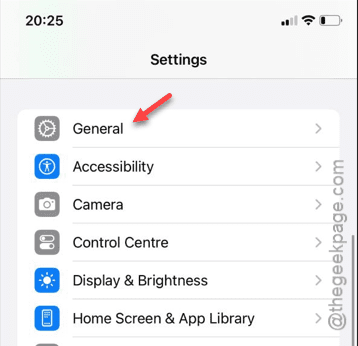
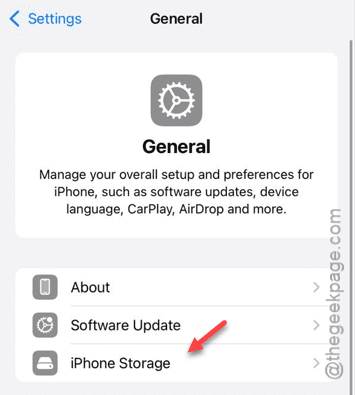
Step 3 – Open the “iPhone Storage” option to access that.
Step 4 – At first, take a look at the storage bar to know the current storage condition on your iPhone.
Step 5 – If the iPhone storage is clogged up too much with images, big video files or any other sort of big files, you have to clear it up.
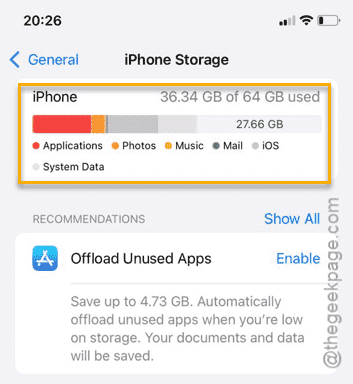
This way, removing the unnecessary big video files, you can use the Snapchat app and stream videos there as well.
Fix 6 – Update the Snapchat app
Update the Snapchat app, if applicable.
Step 1 – You can find the app updates from the App Store. So, load that up.
Step 2 – Later, tap the small Apple ID photo in the top-right corner.

Step 3 – Slide down and find the “Snapchat” app.
Step 4 – If the Snapchat app update is pending, tap the “Update” button to start updating the Snapchat app.
After updating the app, you can stream the videos once again.
Check if this helps.