You start a big file copy over your network. It shoots up fast — then drops to zero. Just hangs there at 0 bytes per second.
Sometimes it crawls back. Sometimes it stalls dead. And it all started after a Windows update. Maddening when you’re moving gigabytes across a wired LAN that should be quick.
Why This Happens
Here’s the real reason. It’s not your cable or your switch. It’s your network card offloading work it shouldn’t.
Modern network adapters try to be clever. They hand chunks of packet processing off to the hardware — features with names like Large Send Offload. Great in theory. But a Windows update can leave those features misconfigured, and the transfer just chokes.
Then there’s TCP auto-tuning. Windows constantly adjusts how much data it sends before waiting for a reply. After an update, that tuning can go haywire and throttle your speed to nothing.
One more culprit. A feature called Remote Differential Compression tries to compress data mid-transfer to “save” bandwidth. On a fast local network, it just adds overhead and slows you down. Not helpful here.
Fix 1 – Turn Off Large Send Offload and RSC
This is the main fix. You’re stopping the network card from handling packet sizing itself, which is what usually kills the speed.
1 – Press Windows + X and open Device Manager.
2 – Expand Network adapters.
3 – Right-click your LAN controller — something like Intel or Realtek 2.5GbE — and choose Properties.
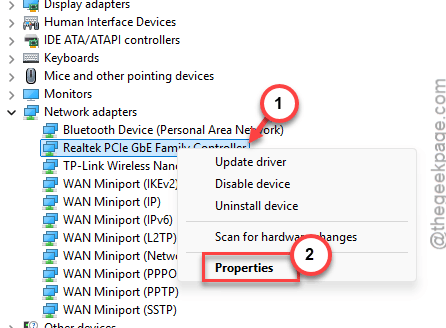
4 – Go to the Advanced tab. You’ll see a long list of settings.
5 – Click Large Send Offload v2 (IPv4) and change its value to Disabled.
6 – Do the same for Large Send Offload v2 (IPv6).
7 – Find Receive Segment Coalescing (IPv4) and set it to Disabled too.
8 – Click OK.
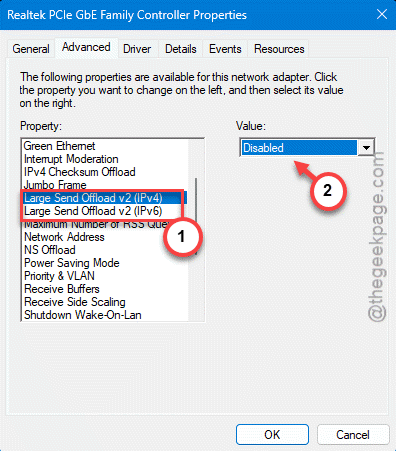
Now try your copy again. For most people, this brings the speed right back.
Fix 2 – Disable Flow Control
Still in that Advanced tab? Good. Flow Control can cause pauses that look exactly like a stall.
1 – Back on the Advanced tab of your adapter’s Properties, scroll to Flow Control.
2 – Set it to Disabled.
3 – Click OK.
Test a transfer. If it was pausing and resuming before, this often smooths it out.
Fix 3 – Fix TCP Auto-Tuning
If the speed drops partway through every large copy, TCP auto-tuning is likely misbehaving. You’ve got two options here, so try them in order.
First, reset it to normal — the setting Windows is supposed to use:
1 – Open Command Prompt (Admin). Right-click Start and pick it.
2 – Run:
netsh int tcp set global autotuninglevel=normal
3 – Test a copy.
If that didn’t help, turn it off entirely:
4 – Run:
netsh int tcp set global autotuninglevel=disabled
5 – Test again.
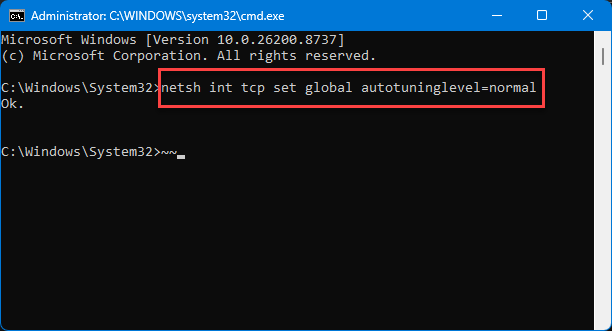
Resetting fixes most cases. Disabling is the fallback when the tuning is truly stuck.
Fix 4 – Turn Off Remote Differential Compression
This feature tries to compress data during transfers. On a fast LAN, it just gets in the way. Removing it can free up your speed.
1 – Press Windows + R, type optionalfeatures.exe, and press Enter.
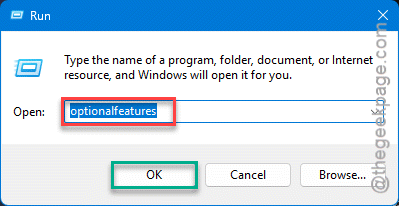
2 – Wait for the list of Windows features to load.
3 – Scroll down to Remote Differential Compression API Support.
4 – Uncheck the box next to it.
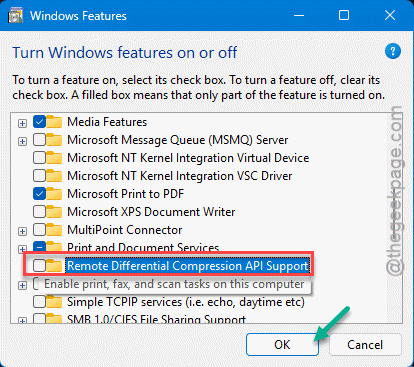
5 – Click OK and restart your PC when it asks.
Fix 5 – Flush the Network Config
Quick reset if things are still flaky after the tweaks above. This clears any stuck network state left by the update. Open Command Prompt (Admin) — same as in Fix 3 — and run netsh int ip reset, then ipconfig /flushdns.
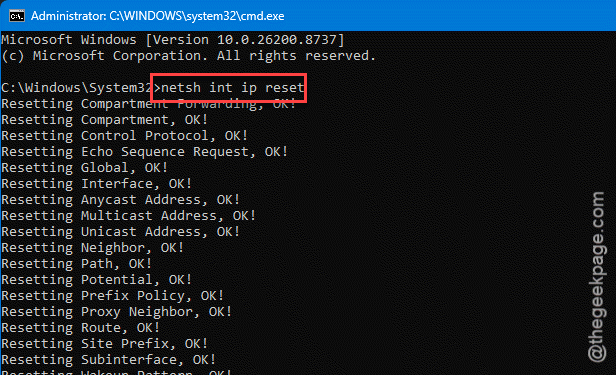
Restart your PC. It wipes the old network configuration cache clean.
How to Prevent This
– After a Windows update, do a quick large-file copy to test your LAN. Catching the slowdown early beats discovering it mid-backup.
– Keep the offload settings disabled if turning them off fixed you. They tend to flip back on after driver updates, so re-check now and then.
– Get your network driver from Intel or Realtek directly, not just Windows Update. Their versions handle these offload features more reliably.
– On a fast local network, you rarely need Remote Differential Compression at all. Leaving it off is fine for most home and office setups.
People Also Ask
Why does my network transfer speed drop to zero on Windows 11?
It’s usually the network card’s offload features misbehaving after an update. Open Device Manager, go to your adapter’s Advanced tab, and disable Large Send Offload v2 for both IPv4 and IPv6, plus Receive Segment Coalescing. That stops the stalls. Resetting TCP auto-tuning helps too.
Should I disable Large Send Offload?
If your file transfers stall or drop to zero, yes. Large Send Offload hands packet work to the network card, and a bad configuration after an update causes exactly those stalls. Disabling it in Device Manager forces Windows to handle the packets itself, which is more reliable on most home networks.