You open a shared network folder, type in the search box, and… nothing. No results. But you know the file is right there.
It worked last week. Then a Windows update landed. And now searching anything across the network just comes up empty. Frustrating when you’re trying to find one file on a server.
Why This Happens
Here’s the deal. Windows doesn’t really index files that live on another PC or a server.
Local files? Those get indexed, so search is instant. But network locations get skipped by default — Microsoft blocks it to save bandwidth. So when you search a shared folder, Windows has to crawl it live. And recent updates made that crawl flaky.
Then there’s the discovery side. Windows uses background services to find and trust other machines on the network. An update can knock those services offline. No discovery, no search results.
And newer security rules don’t help either. Windows now demands stricter handshakes with older servers. If the handshake fails? Search quietly returns nothing.
Fix 1 – Restart the Network Discovery Services
Start here. Two background services handle finding other machines, and updates love to stop them.
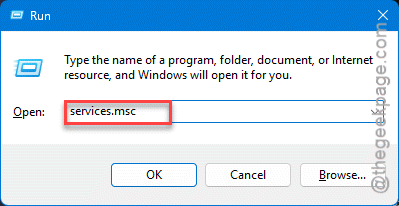
1 – Start by pressing Windows + R. Next, type services.msc, and hit Enter.
2 – Scroll down to Function Discovery Provider Host.
3 – Double-click it. Set Startup type to Automatic, then click Start (or Restart if it’s already running).
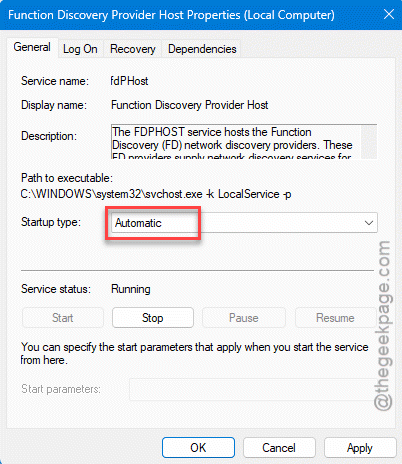
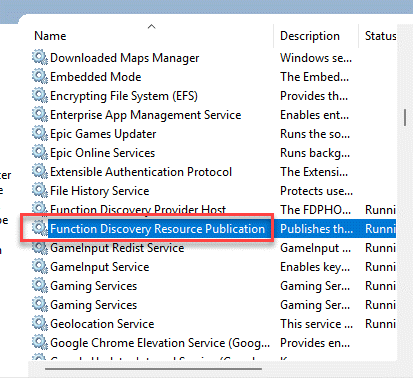
4 – Do the exact same thing for Function Discovery Resource Publication. It’s right below the first one.
5 – Click OK and close the window.
Open your network folder and try searching again. This alone fixes it for a lot of people.
Fix 2 – Let Windows Index Network Drives
Still empty? Then Windows is refusing to index the network location at all. There’s a registry switch that turns that on. It’s off by default.
1 – Press Windows + R, type regedit, and press Enter.
2 – Paste this path into the address bar at the top and press Enter:
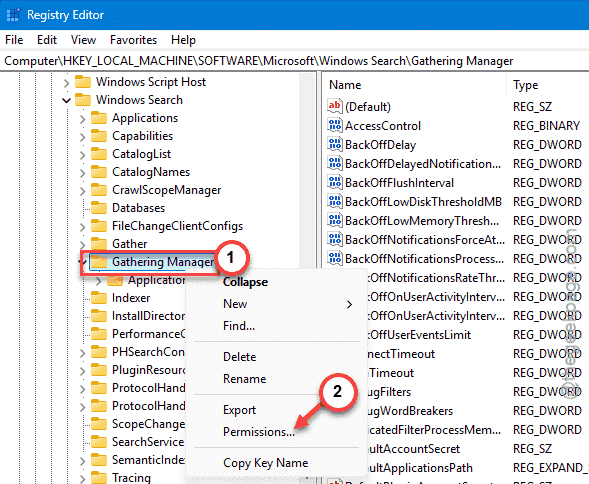
HKEY_LOCAL_MACHINE\SOFTWARE\Microsoft\Windows Search\Gathering Manager
3 – Once you are there, right-click Gathering Manager in the left pane and choose Permissions.
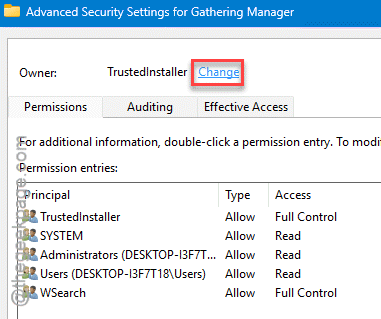
4 – Click Advanced. Next to Owner at the top, click Change, type Administrators.Then, click OK.
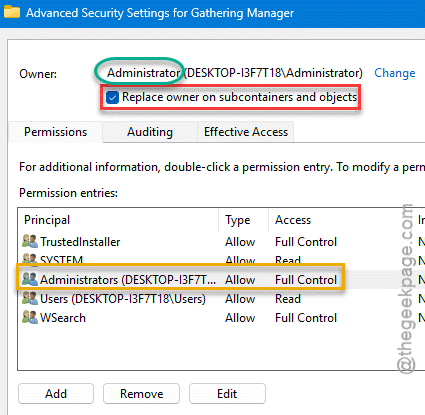
Tick Replace owner on subcontainers and objects, then grant Full Control.
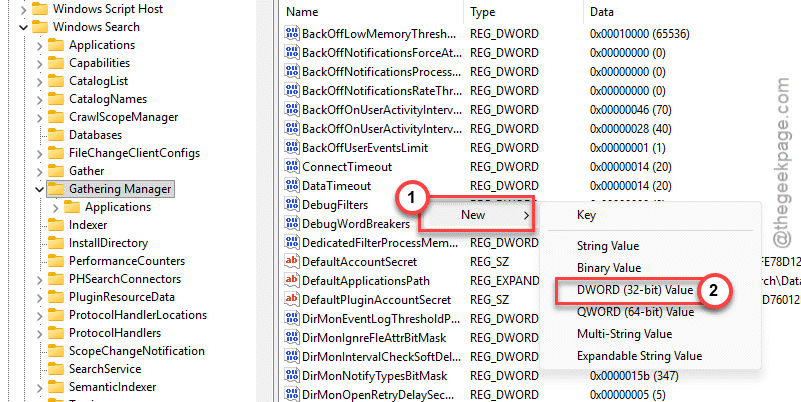
5 – Back in the right pane, right-click an empty spot and choose New > DWORD (32-bit) Value.
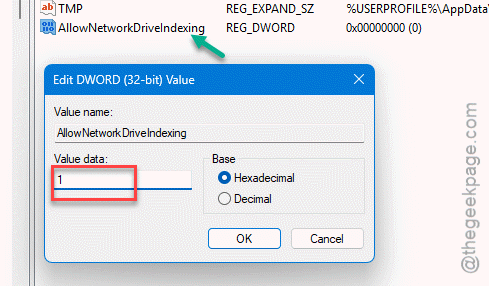
6 – Name it AllowNetworkDriveIndexing and set its value to 1.
7 – Restart the Windows Search service in services.msc — or just reboot.
This is the direct fix for network search coming up blank. It’s fiddly, but it sticks.
Fix 3 – Add the Server to Your Trusted Zone
You have to manually add the server under the Trusted Zone in local intranet zone.
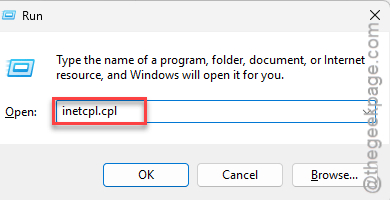
1 – Hit the Windows + R. Next, write down inetcpl.cpl in the box. Finally, press Enter.
2 – Go to the Security tab.
3 – Click Local Intranet, then the Sites button.
4 – Click Advanced.
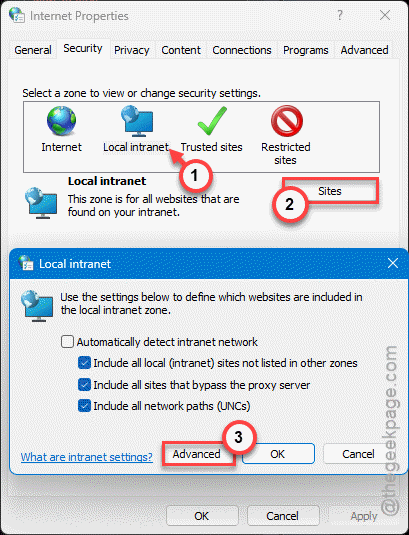
5 – In the box, type the server’s network path — like \\ServerName — and click Add.
6 – Close everything with OK.
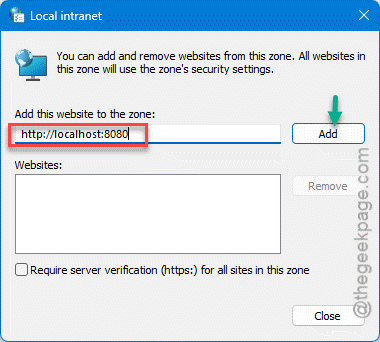
Now Windows treats that machine as trusted, and search is allowed to reach into it.
Fix 4 – Loosen the Strict SMB Handshake
Talking to an older server or NAS? The new security handshake might be the blocker. You can relax one setting so the connection goes through. SMB is just the protocol Windows uses to share files.
1 – Open regedit again, like in Fix 2.
2 – Go to this path:
HKLM\SYSTEM\CurrentControlSet\Services\LanmanWorkstation\Parameters
3 – Right-click in the right pane, choose New > DWORD (32-bit) Value.
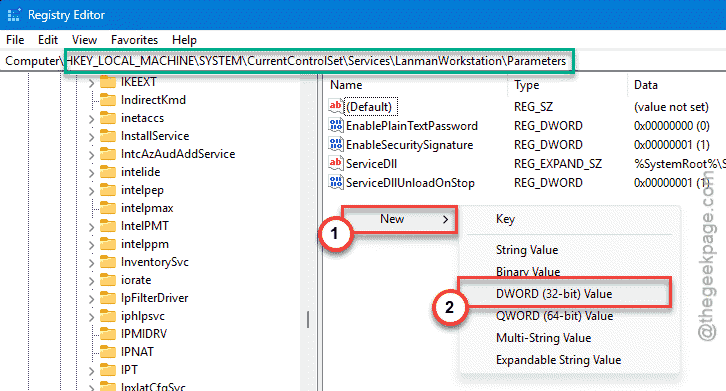
4 – Name it RequireSecureNegotiate and set it to 0.
5 – Restart your PC.
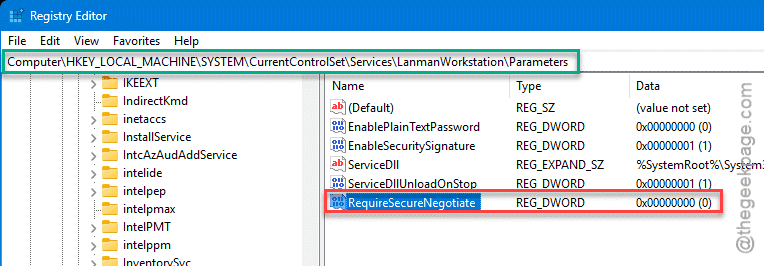
One caution — this lowers a security check, so only use it on a network you trust, like your home or office LAN.
Fix 5 – Check the Sharing Settings on the Host
NOTE – This trick is applied on on the host machine i.e., that owns the shared folder.
1 – On that PC, right-click the shared folder, open Properties.
2 – Go to the Sharing tab, click Advanced Sharing and then proceed to Caching.
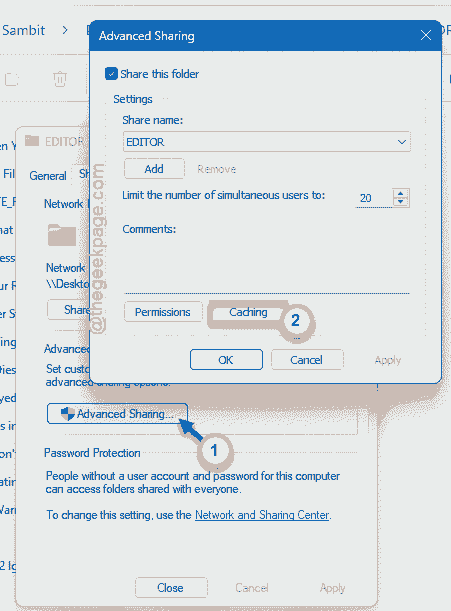
3 – Make sure Only the files and programs that users specify are available offline is picked.
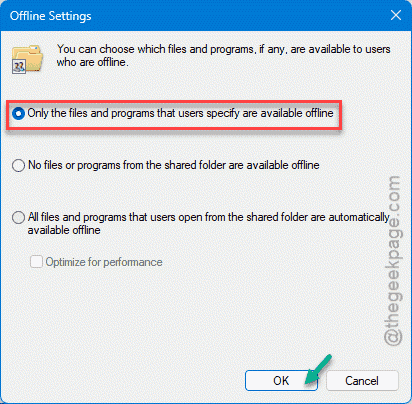
A wrong caching mode here can starve search on the other end.
How to Prevent This
– After any Windows update, quickly check that the two Function Discovery services are still running. Updates knock them out more than they should.
– Keep the AllowNetworkDriveIndexing tweak from Fix 2 in place. It survives most updates and keeps network search alive.
– Map your most-used shares as drive letters. Mapped drives behave better with search than raw network paths.
– If a specific update — like KB5079473 — breaks things right after installing, note the number. You can pause or uninstall that one while keeping the rest.
People Also Ask
What if my search is broken after a Windows Update?
For broken network search, restart the Function Discovery services in services.msc. You can uninstall the suspected update from the Windows Update page.
Is KB5079473 causing problems?
Some Windows updates, including certain 2026 packages, have broken network discovery and search on shared folders. You can opt out of the update and remove it from the Windows Update panel from Settings.