The latest version of iPhone users, iPhone 16 and 16 Pro users, have complained of having significantly slower Wi-Fi reception on their devices. The users have resorted to various forums to express their frustration as they are unable to identify the reason behind this weird behavior on their devices. So, if you are also an iPhone user and having Wi-Fi connectivity issues, like having slower speeds, bad reception, this fresh fixes will help you resolve it.
Fix 1 – Disconnect the VPN connection
Maximum users have noticed that the Wi-Fi problem is solving automatically when they are not using the VPN system to connect to the internet.
Step 1 – Go to your iPhone Settings page.
Step 2 – Then, head on to the General tab on the same Settings console. Next, load up the VPN & Device Management tab.
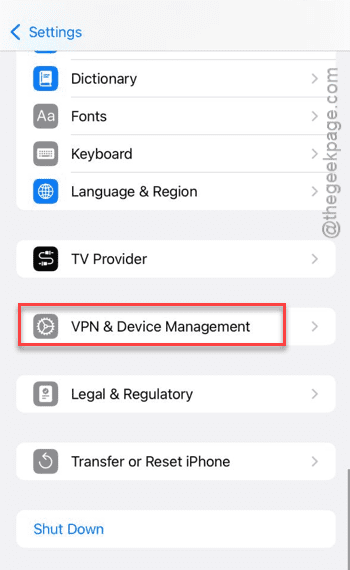
Step 3 – Turn off the VPN service from there. You can also remove the VPN service as well.
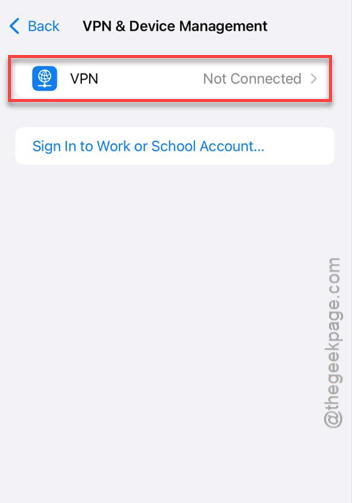
Step 4 – Additionally, if you are using any dedicated VPN app to connect to the network, disconnect and uninstall the app from your iPhone.
Disconnect and reconnect to the Wi-Fi. Check whether this fix the issue.
Fix 2 – Turn off the Wi-Fi 6e option
iPhone does connect to the Wi-Fi 6e by default. But, sometimes, this can cause some problem with the Wi-Fi.
Step 1 – Open the iPhone’s Settings utility and open up the Wi-Fi settings page.
Step 2 – You will see the list of Wi-Fi available there. Tap the ℹ️ button next to the Wi-Fi that you are currently connected to.
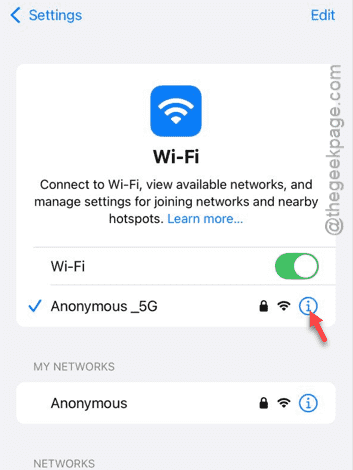
Step 3 – After opening the Wi-Fi settings, you will see the toggle the Wi-Fi 6e mode to Off mode.
After switching this one off, it will solve the Wi-Fi slow issues that you are having. You might have to reconnect to the Wi-Fi once again.
Fix 3 – Reset the network connection
Reset the iPhone’s network connection once and then, reconnect to the Wi-Fi.
Step 1 – At first, you must load up the Settings console. Then, proceed to the General settings.
Step 2 – Later, open up the Transfer or reset iPhone option. Tap the Reset option next.
Step 3 – Finally, tap the Reset Network Settings option there. If it asks for your confirmation, do that.
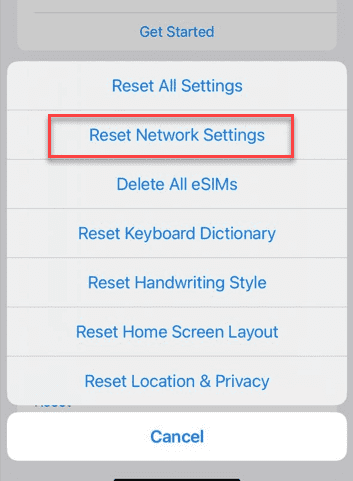
Your iPhone will now reboot once and reset all the saved network credentials from the device. Connect to the Wi-Fi using the Wi-Fi password afresh. This should have taken care of the slow speed problem on your Wi-Fi.
Fix 4 – Look for a pending iOS update
Certain bugs in the iOS can sometimes effect the Wi-Fi connection speed.
Step 1 – It is extremely easy to check whether an iOS update is pending or not. At first, reach iPhone Settings.
Step 2 – Later, tap to load up the General settings.
Step 3 – On the next step, go to the Software update section.
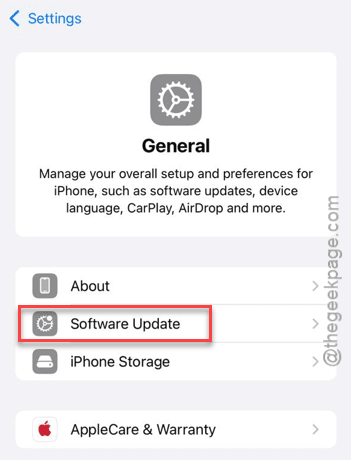
Step 4 – If you find any updates pending on your iPhone, use the Update now button to install that update instantly.
Wait for your iPhone to install the update. It should fix the Wi-Fi slow speed issue.
Check if this works out for you!