Xbox App says your download is going at 2 MB/s. But your internet is 500 Mbps. Something’s capping it. And it’s not your connection. Steam downloads fine. Browser downloads fine. Only the Xbox App crawls. Why? Windows is holding it back for you. Without asking.
Why This Happens
Basically? Windows throttles the Xbox App on purpose. Specifically through a service called Delivery Optimization.
Delivery Optimization controls how much bandwidth background downloads can use. And it leans conservative. Way too conservative. So Xbox App downloads get capped while the rest of your bandwidth sits there unused.
There’s also a TCP thing going on. Windows has an auto-tuning feature for network throughput. When it’s disabled — which happens more often than you’d think — large downloads crawl. The OS refuses to use the full pipe.
And antivirus makes it worse. Real-time protection scans every chunk of a download as it lands. On a big game? That’s millions of chunks. The scan slows everything to a crawl.
One more thing — if your WiFi connection is marked as metered for some reason, Windows caps Xbox downloads hard. By design. And most people never set that flag manually. It just happens.
Fix 1 – Stop the Delivery Optimization Service
Quick fix. Works for most people. You’re shutting down the service that’s throttling the download.
1 – Pause your current Xbox download.
2 – Press Ctrl + Shift + Esc to open Task Manager.
3 – Click Services in the left sidebar. Or the Services tab at the top depending on your version.
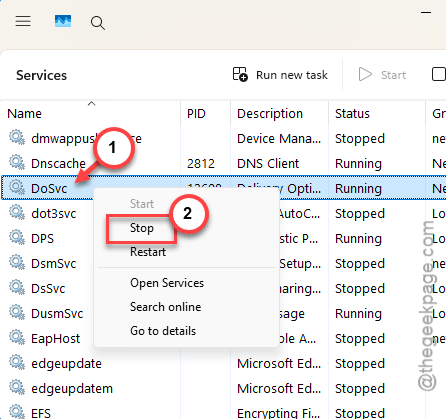
4 – Scroll until you find DoSvc (Delivery Optimization). The description column will say “Delivery Optimization“.
5 – Right-click it. Click Stop.
6 – Go back to the Xbox App. Resume the download.
Speeds should shoot up immediately. If they don’t, combine this with Fix 2.
Fix 2 – Remove the Bandwidth Cap on Delivery Optimization
If stopping the service feels too heavy-handed, lift the cap instead. Cleaner fix long-term.
1 – Close the Xbox App or pause all active downloads.
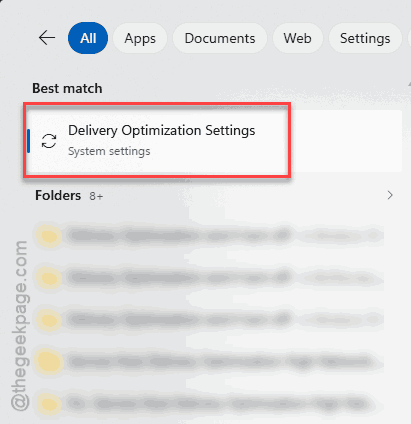
2 – Click the Start button and type “Delivery Optimization advanced settings“. Click the top result.
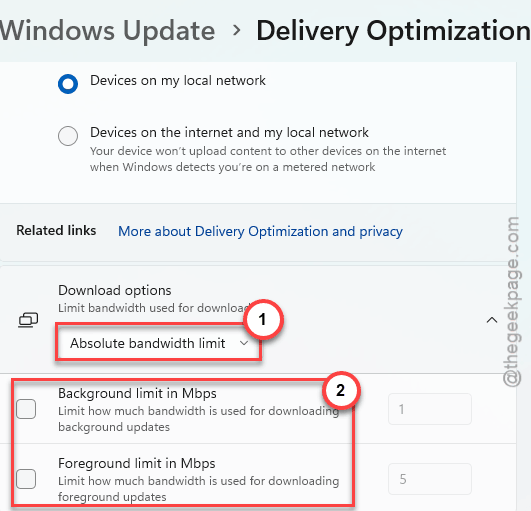
3 – Under Download settings, select Absolute bandwidth.
4 – Untick every checkbox that limits bandwidth. Both foreground and background.
5 – Close the settings window.
Reopen the Xbox App. Resume the download.
Windows now uses your full pipe. No artificial cap.
Fix 3 – Turn Off Metered Connection
Check this one first if you’re on WiFi. Takes 10 seconds. A metered flag basically tells Windows “go slow.” And the Xbox App obeys.
1 – Press Windows + I to open Settings.
2 – Click Network & internet in the left sidebar.
3 – Click Wi-Fi (or Ethernet if you’re wired).
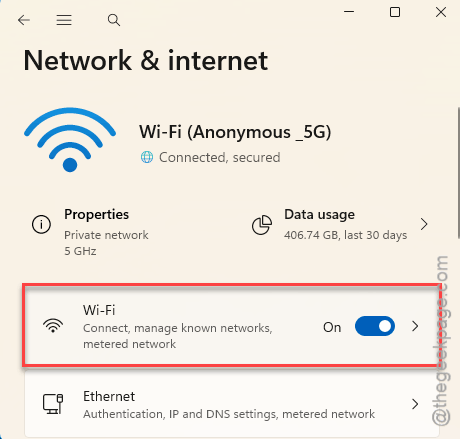
4 – Click your connected network name.
5 – Find Metered connection. Toggle it off.
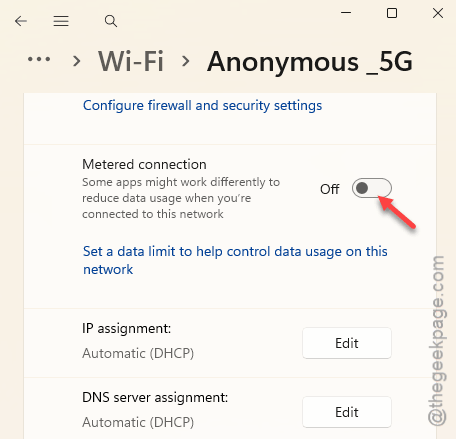
Done. Retry the download.
Fix 4 – Enable TCP Auto-Tuning
This one catches people out. Windows has a feature called TCP Receive Window Auto-Tuning. When it’s off? Downloads over long connections crawl. Even on fast internet.
1 – Click the Start button, type “PowerShell“, right-click Windows PowerShell and click Run as administrator.
2 – Click Yes on the UAC prompt.
3 – First, check the current state. Paste this and press Enter:
netsh interface tcp show global
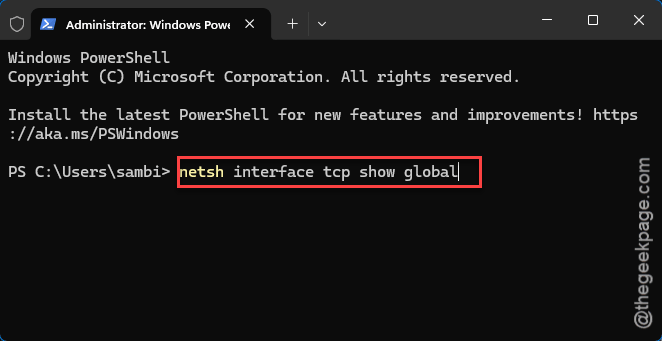
4 – Look at Receive Window Auto-Tuning Level. If it says disabled — that’s your problem.
5 – Turn it on with this command:
netsh int tcp set global autotuninglevel=normal

6 – Run the first command again to confirm it’s now set to normal.
Resume the Xbox download. Speeds should jump. Sometimes 10x or more.
Fix 5 – Reset the Network Stack
Nothing else working? The network stack itself might be gunked up. Reset it.
⚠️ You’ll lose internet between step 1 and step 3. So save any open work first.
1 – Click the Start button, type “cmd”, right-click Command Prompt, click Run as administrator.
2 – Run these commands in order. Press Enter after each:
ipconfig /release
ipconfig /flushdns
ipconfig /renew
netsh int ip reset
netsh winsock reset
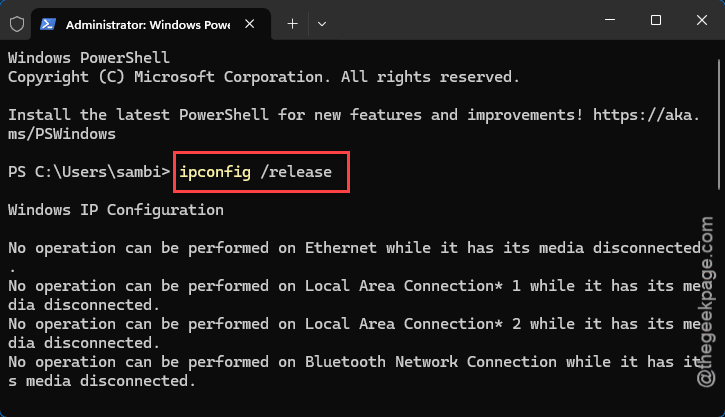
3 – Restart your PC. This matters — winsock reset doesn’t fully apply without a reboot.
After restart, try the Xbox download again.
Fix 6 – Download Through the Microsoft Store Instead
Weird trick. But it works. Microsoft Store and Xbox App use the same download backend — but the Store handles it way more efficiently for some reason. Same file. Faster result.
1 – Open the Xbox App. Pause any active downloads.
2 – Close the Xbox App entirely.
3 – Open the Microsoft Store app.
4 – Click your profile picture in the top-right, then Library.
5 – Find the game you were downloading. Click Resume or Install.
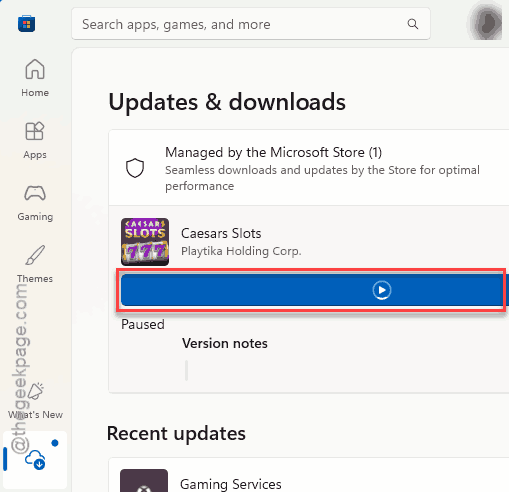
Let the Store finish the download. You can reopen the Xbox App after — the game will be there, installed.
Fix 7 – Pause Real-Time Antivirus Protection
Last resort. And only while the download runs. Real-time protection scans every file chunk as it arrives. Huge games mean huge slowdowns.
1 – Press Windows + I.
2 – Click Privacy & security in the left sidebar.
3 – Click Windows Security → Virus & threat protection.
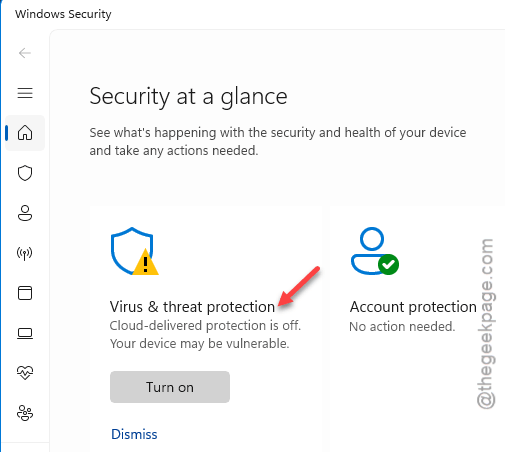
4 – Click Manage settings under Virus & threat protection settings.
5 – Toggle Real-time protection off.
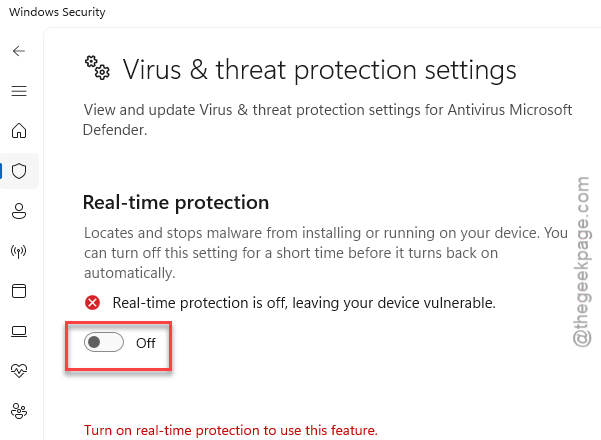
6 – Start the download.
Turn it back on the moment the game finishes. Don’t leave it off longer than you have to. If you use third-party antivirus, the toggle is in that app instead.
How to Prevent This
- Leave TCP auto-tuning set to normal. Some “network optimizer” tools flip it off. Don’t use those tools.
- Keep your WiFi connection off the metered flag unless you actually have a data cap. Easy to forget this is even a setting.
- Skip Delivery Optimization caps. Windows sets them too aggressively. Uncap them once and leave it.
- Schedule big downloads overnight. Avoids the antivirus scan slowdown and frees you from watching progress bars.
People Also Ask
Why is my Xbox App downloading so slow?
Windows’ Delivery Optimization service is the usual answer. It throttles Xbox App downloads by default. Open Delivery Optimization advanced settings, switch to Absolute bandwidth, and untick the bandwidth limit checkboxes. That alone fixes it for most people. TCP auto-tuning being off is the other common cause.
How do I speed up my Xbox App download on PC?
Three quick wins. Stop the Delivery Optimization service in Task Manager. Enable TCP auto-tuning in PowerShell (netsh int tcp set global autotuninglevel=normal). Make sure your connection isn’t marked as metered. Together they can take downloads from 2 MB/s to 50+ MB/s. On the same internet.
Why is Xbox Game Pass download speed so slow?
Same reasons as any Xbox App download. Delivery Optimization throttle. Metered connection flag. TCP auto-tuning disabled. Antivirus scanning every chunk. Game Pass uses the same download pipeline as regular purchases, so the fixes are identical. Try the Microsoft Store as a workaround if the Xbox App stays stuck.