Uploading a 500 MB folder. Progress bar barely moves. You check your internet speed. It is fine. Everything else is fast. But OneDrive? Crawling at 2 MB/s. Makes no sense. Turns out Microsoft throttles OneDrive uploads. On purpose. And the default settings do not help either.
Why This Happens
OneDrive has a built-in upload speed limiter. Sometimes it is set to a low cap by default. Other times, even with the limit turned off, users report speeds stuck around 2–5 MB/s. Microsoft seems to throttle the desktop app on their end too.
And here is the weird part. The web client — uploading through onedrive.com in a browser — is not throttled. People with fiber connections see 28 MB/s through the browser but only 2 MB/s through the app. Same files. Same connection. So yeah, Microsoft is capping the app intentionally for some reason.
Fix 1 – Remove the Upload Speed Limit in OneDrive Settings
First thing to check. OneDrive might have a bandwidth cap set.
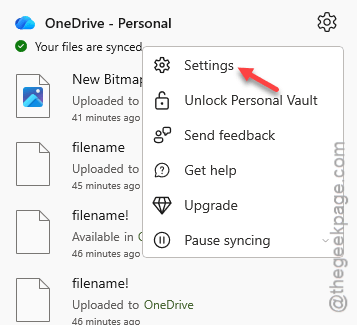
1 – Right-click the OneDrive icon in your system tray (bottom-right corner of the taskbar).
2 – Click the Gear icon and open Settings.
3 – Go to the Sync and backup tab. Toggle the Advanced settings.
4 – Set the Limit Upload rate to OFF mode.
5 – Click OK.
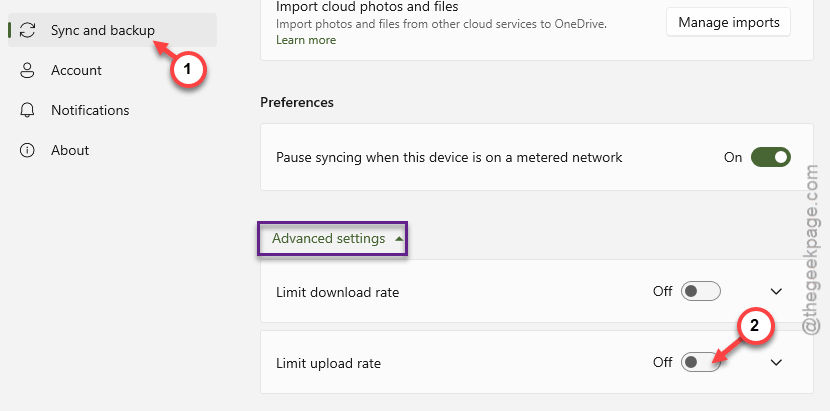
And if it was already set to “Don’t limit,” here is a trick. Change it to “Limit,” set a high number like 99999 KB/s, then switch it back to “Don’t limit.” This forces OneDrive to reset the throttle internally. Weird, but it works for some people.
Fix 2 – Upload Through the Browser Instead
If you need something uploaded fast right now, skip the app entirely.
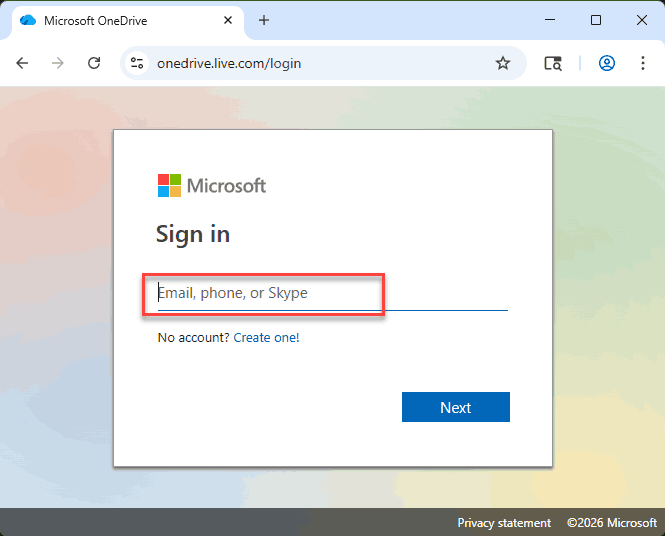
1 – Open your browser and go to onedrive.com.
2 – Sign in with your Microsoft account.
3 – Find the folder where you want to upload files.
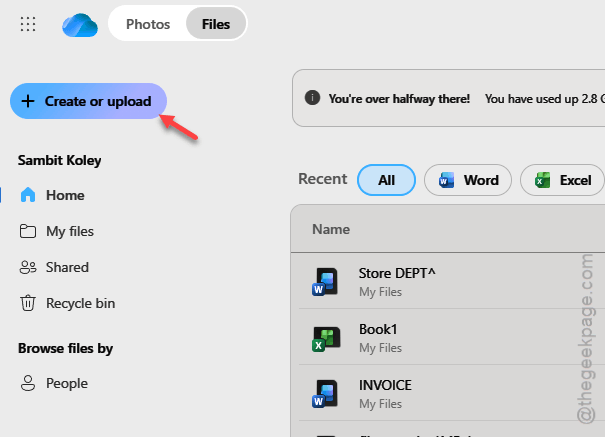
4 – Click Upload at the top. Choose Files or Folder.
5 – Select your files and let them upload.
The web client is not throttled. So you will see full upload speeds. If you have fast internet, this could be 10x faster than the desktop app. No joke.
Fix 3 – Pause and Resume OneDrive Sync
Sometimes OneDrive gets stuck in a slow sync loop. Pausing and resuming kicks it back into gear.
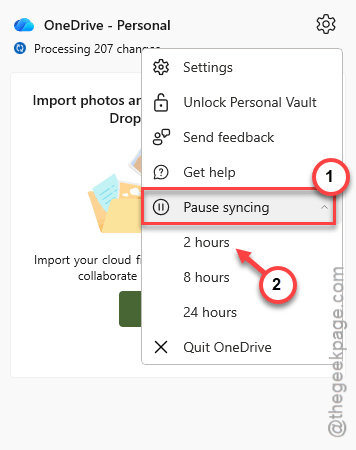
1 – Right-click the OneDrive icon in the system tray.
2 – Click Pause syncing.
3 – Pick 2 hours (does not matter which option).
4 – Wait about 10 seconds.
5 – Right-click the OneDrive icon again and click Resume syncing.
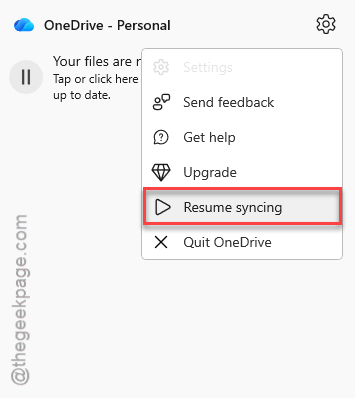
Quick reset. Takes two seconds. Sometimes that is all it needs to break out of the slow loop.
Fix 4 – Reset OneDrive
Clears the cache and sync database. Does not touch your files.
1 – Press Windows + R to open Run.
2 – Paste this and hit Enter:
%localappdata%\Microsoft\OneDrive\onedrive.exe /reset

3 – Wait. OneDrive will disappear from the taskbar for a bit.
4 – If it does not restart on its own after a minute, open Run again and type:
%localappdata%\Microsoft\OneDrive\onedrive.exe
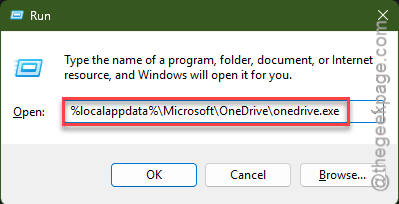
And then try uploading again. The fresh sync database often fixes speed problems.
Fix 5 – Check Your Network for Bandwidth Hogs
Other apps or devices might be eating your upload bandwidth without you knowing.
1 – Press Ctrl + Shift + Esc to open Task Manager.
2 – Click the Network column to sort by usage.
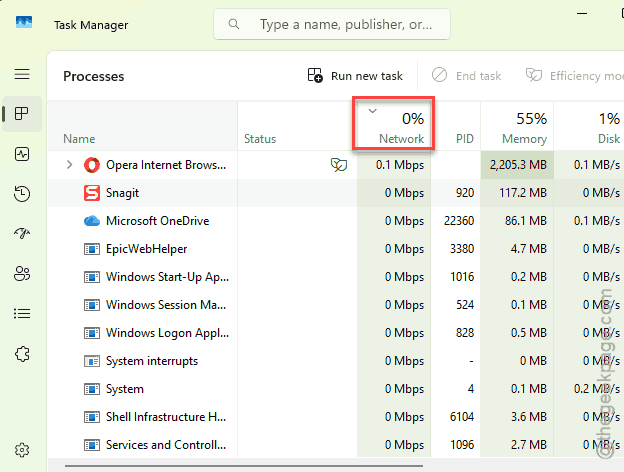
3 – Look for anything using a lot of upload bandwidth. Backup tools, cloud sync apps, game launchers.
4 – Close or pause whatever is competing with OneDrive.
Also check other devices on your network. If someone is streaming or uploading big files, your upload pipe gets shared. Not ideal, but that is how it works.
Fix 6 – Switch to a Metered Connection (Then Back)
Toggling the metered connection flag can sometimes reset how Windows prioritizes OneDrive traffic.
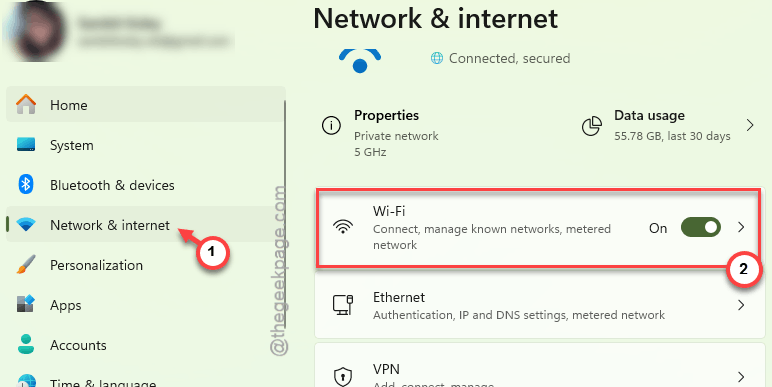
1 – Open Settings (press Windows + I).
2 – Go to Network & Internet.
3 – Click your current connection (Wi-Fi or Ethernet).
4 – Toggle Metered connection to On.
5 – Wait 30 seconds. Then toggle it back Off.
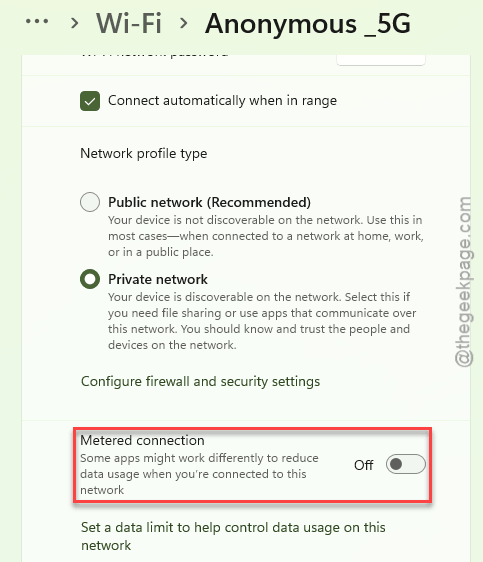
So yeah, not the prettiest fix. But it nudges Windows into re-evaluating bandwidth allocation. Some users report faster OneDrive speeds after doing this.
How to Prevent This
- Always check the Network tab in OneDrive Settings after updates. The upload limit sometimes resets.
- For large uploads, use the web client at onedrive.com. Much faster than the desktop app.
- Close other sync tools (Dropbox, Google Drive, iCloud) when uploading big files to OneDrive.
- If you are on Wi-Fi, try a wired connection. Upload speeds are more consistent over Ethernet.
People Also Ask
Why is OneDrive so slow on Windows 11?
Microsoft throttles the desktop app. Seriously. Even with the speed limit turned off, uploads cap around 2–5 MB/s for a lot of users. The browser version is way faster. Try uploading through onedrive.com instead if speed matters.
Why is my upload speed suddenly so slow?
Check OneDrive Settings first. The upload rate might be capped. If it says “Don’t limit” already, toggle it to a manual limit and back. Also check Task Manager for other apps hogging bandwidth.
Why is OneDrive processing so slow?
Processing means OneDrive is indexing files before uploading. If you dumped a huge folder in there, it has to scan everything first. Give it time. Or reset OneDrive with the /reset command to clear any stuck queue.