Small downloads in WSL2 fly. But big ones? They start fine, then just… stop. Frozen at 40%.
No error. No timeout. The transfer rate drops to zero and sits there. So annoying when you’re pulling a big image or dataset. Good news: there’s a clean fix.
Why This Happens
Here’s the deal. WSL2 runs behind a NAT — the Hyper-V virtual switch sits between your distro and the real network.
And that NAT has a bug. It mishandles TCP timestamp options (the RFC 7323 stuff) when it rewrites packets during a sustained transfer. The timestamp values get corrupted or tracked wrong. So the stream stalls.
Why only big downloads? Small ones finish before the corruption builds up. But a long, sustained transfer keeps the connection open long enough for the NAT to choke on it. That’s the giveaway.
So the fix is either: stop using TCP timestamps, smooth out how packets get offloaded, or skip the buggy NAT entirely. Let’s go through all three.
Fix 1 – Disable TCP Timestamps (Quick Test)
Fastest way to confirm this is your problem. One command, no restart.
Open your WSL2 terminal and run this:
sudo sysctl -w net.ipv4.tcp_timestamps=0
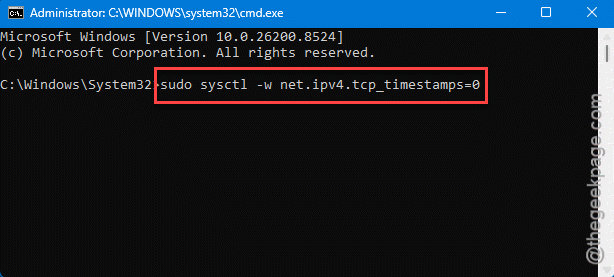
Runs to completion? Great — timestamps were the culprit. Make it permanent with Fix 2.
Fix 2 – Make the Fix Permanent in wsl.conf
The Fix 1 command resets on every restart. To make it stick, bake it into your WSL config so it runs at boot.
1 – In your WSL2 terminal, open the config file in nano:
sudo nano /etc/wsl.conf
2 – Add these lines (if a [boot] section already exists, just add the command line under it):
[boot]

command=sysctl -w net.ipv4.tcp_timestamps=0

systemd=true
3 – Save and exit. In nano that’s Ctrl + O, then Enter, then Ctrl + X.
4 – Back in Windows PowerShell (not the WSL terminal), shut WSL down fully:
wsl --shutdown
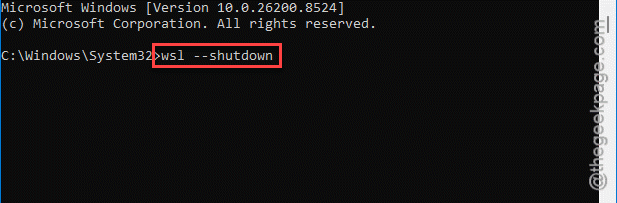
5 – Reopen your distro. The timestamp setting now applies automatically at every boot.
You should set up the systemd=true if your distro actually uses systemd. If it already had that line, leave it as-is.
Fix 3 – Disable Large Send Offload on the WSL Adapter
Still stalling? The virtual network adapter’s offload setting can make it worse. Turning off Large Send Offload forces cleaner packet handling.
1 – Press the Windows key, type Control Panel, and open it.
2 – Click Network and Internet.
3 – Click View network status and tasks.
4 – On the left sidebar, click Change adapter settings.
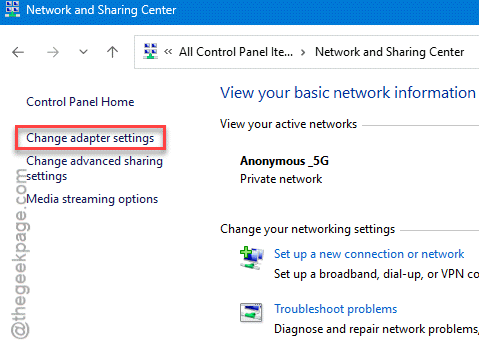
5 – Find vEthernet (WSL). Then, right-click that and tap Properties.
6 – Go to the Configure button, then open the Advanced tab.
7 – Choose the Large Send Offload Version 2 (IPv4) in the property list. Set its value to Disabled.
8 – Do the same for Large Send Offload Version 2 (IPv6). Set it to Disabled too.
9 – Click OK.
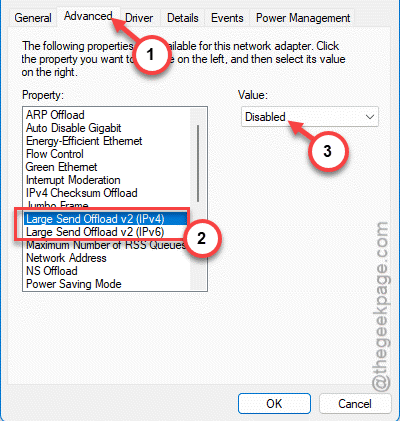
Your connection might blink for a second while it saves. Test the download again.
Fix 4 – Switch WSL to Mirrored Networking Mode
Want to skip the buggy NAT altogether? Mirrored mode makes WSL share the host’s network directly — no NAT in the middle, no timestamp bug.
1 – Load the File Explorer and go to your user folder (type %UserProfile% in the address bar).
2 – Look for a file named .wslconfig. No file there? Create one — just a plain text file named .wslconfig (no extension).
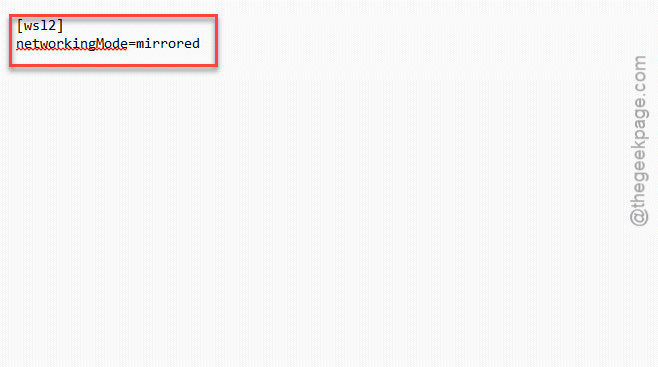
3 – Open it in Notepad and add these two lines:
[wsl2]
networkingMode=mirrored
4 – Save the file.
5 – In PowerShell, run wsl –shutdown, then reopen your distro.
This is the cleanest long-term fix since it sidesteps the NAT entirely. But it does change how WSL sees the network — so if you’ve got firewall rules or port-forwarding set up, double-check them after.
Fix 5 – Update WSL and Restart It
Microsoft patches WSL networking bugs all the time.
In PowerShell, run wsl --update to grab the newest build. Then run wsl –shutdown and reopen your distro. Sometimes that alone clears the stall — the timestamp handling has improved in newer releases. Quick, and worth doing first.
How to Prevent This
– Keep WSL current with wsl –update. Networking fixes land in nearly every release.
– If you do a lot of big transfers, just run mirrored networking mode from the start. It dodges the whole NAT problem.
– Put your tweaks in wsl.conf and .wslconfig so they survive restarts. Manual sysctl commands don’t.
– Test a large download after any major Windows update. The virtual switch behavior can shift between builds.
People Also Ask
What is a TCP timestamp?
It’s an option in the TCP header (defined in RFC 7323) that helps measure round-trip time and protect against wrapped sequence numbers. Useful normally — but the WSL2 NAT corrupts the values when it rewrites packets, which is exactly why turning timestamps off fixes the stalled downloads.
Is mirrored networking mode better than NAT for WSL2?
For transfer reliability, often yes — mirrored mode shares the host network directly and skips the buggy NAT layer. Check if this solves your issue.