You drag a PDF into NotebookLM. The progress bar spins. Spins some more. Then — error. Source upload failed. No real explanation. Just a red X.
Frustrating. Especially when the file is tiny.
Why This Happens
Basically? NotebookLM is picky about what it ingests. A lot of stuff can trip it up.
Big PDFs hit a hidden character limit (around 500,000 characters per source). And browser extensions love to block the upload script. Ghostery is a known offender. Ad blockers too.
And then there are the scanned PDFs. They look fine to you. But NotebookLM can’t actually read them — no text layer. So the upload just hangs.
Security-locked PDFs cause this too. So does spotty WiFi. Or sometimes Google’s servers just have a bad day. Not ideal, but it happens.
Fix 1 – Try an Incognito Window First
Easiest test. Takes ten seconds.
1 – Press Ctrl + Shift + N in Chrome (or Ctrl + Shift + P in Edge/Firefox). A new private window opens.
2 – Go to notebooklm.google.com.
3 – Sign in.
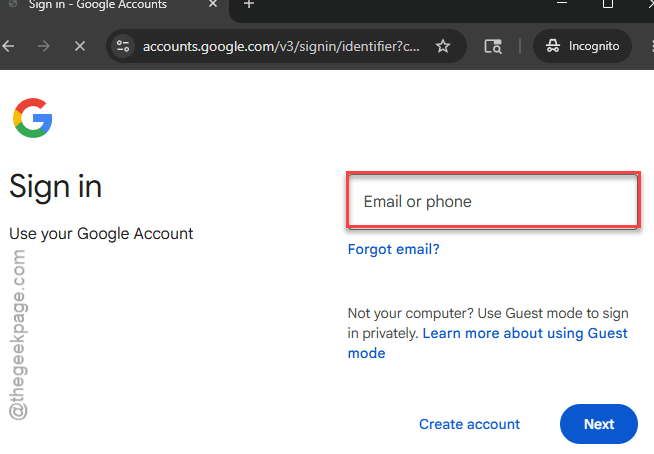
4 – Try the upload again.
If it works in Incognito? A browser extension is your problem. Move to Fix 2.
Fix 2 – Kill Browser Extensions
Ghostery, uBlock, Privacy Badger, even some VPN extensions. They block the upload script silently. No warning. Just a failed upload.
Disabling them for the site sometimes isn’t enough. You may need to fully turn them off.
1 – In Chrome, click the three dots (⋯) in the top right.
2 – Hover over Extensions and click Manage Extensions.
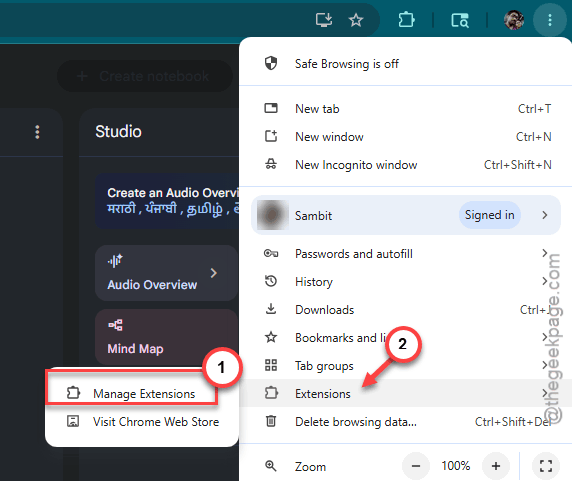
3 – Toggle off every ad blocker, privacy extension, and VPN extension. Yes, all of them.
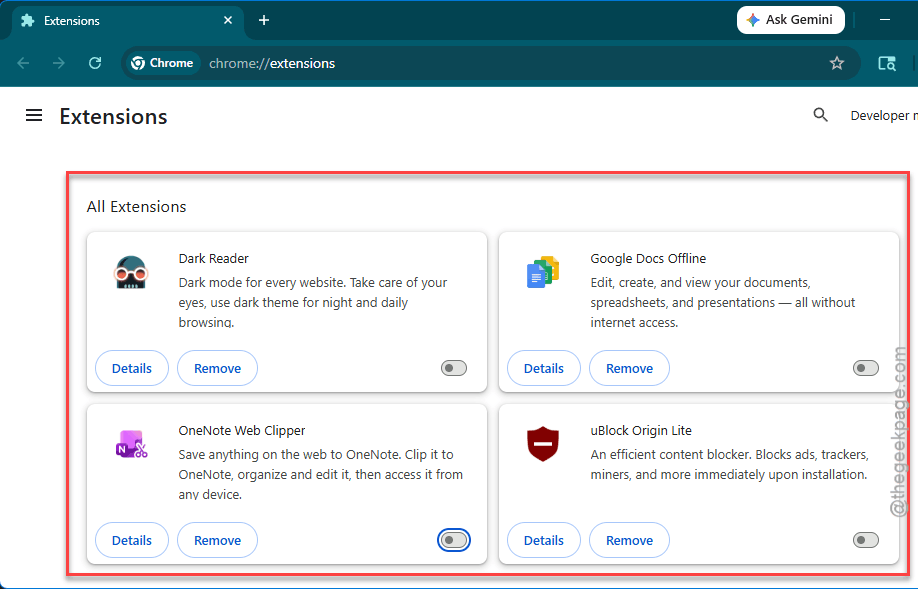
4 – Refresh NotebookLM.
5 – Try the upload.
Works? Re-enable extensions one at a time. The one that breaks the upload — that’s the culprit.
Fix 3 – Split the PDF Into Smaller Files
This is the one most people miss. NotebookLM caps each source at around 500,000 characters. That’s roughly 200-300 pages of dense text. Or a single math textbook with formulas.
Quick fix. Split the PDF.
1 – Go to a free splitter like Smallpdf/split-pdf or ilovePDF.
2 – Upload your PDF.
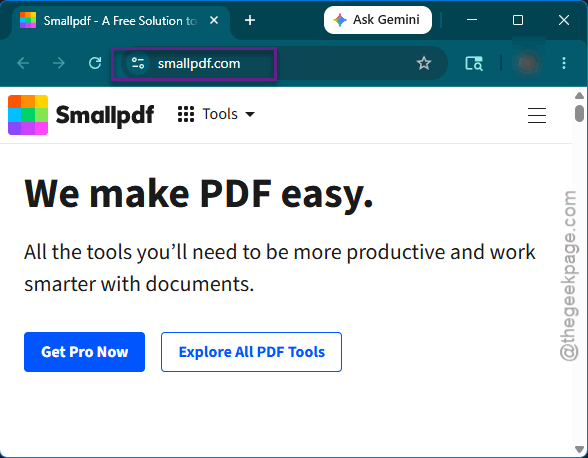
3 – Split it in half. Or thirds. Whatever fits.
4 – Download the smaller files.
5 – Upload each piece to NotebookLM separately.
Real people have fixed this exact issue by splitting an 8 MB PDF into a 5.9 MB part and a 2.1 MB part. Both went through.
Fix 4 – Clear Cache for NotebookLM Specifically
Stale session data can break uploads. You don’t need to nuke your whole browser. Just clear NotebookLM.
1 – Open NotebookLM in Chrome.
2 – Press F12 to open Developer Tools.
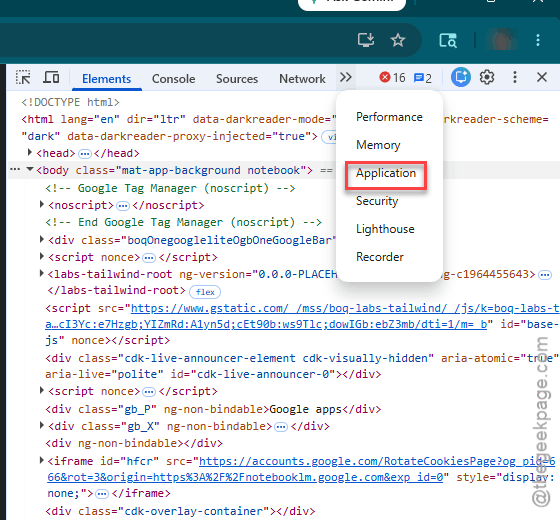
3 – Click the Application tab at the top.
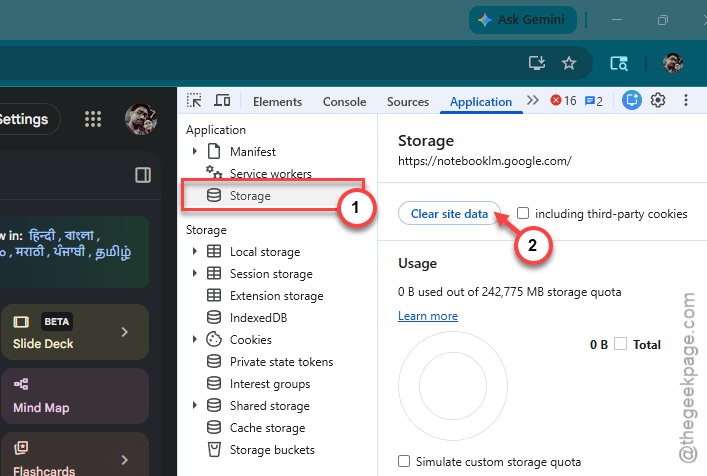
4 – On the left sidebar, click Storage.
5 – Click the Clear site data button. It’s the one with a circle-slash icon.
6 – Close Developer Tools.
7 – Refresh the page (Ctrl + F5 for a hard refresh).
8 – Sign in again and try the upload.
Fix 5 – Check the PDF Is Actually Readable
This catches a lot of people. Scanned PDFs look like normal PDFs. But under the hood? They’re just images. No text layer. NotebookLM can’t ingest them.
Quick test. Open the PDF. Try to select text with your mouse. Can’t select anything? That’s a scanned PDF.
Fix is OCR.
1 – Go to SmallPDF/ilovepdfor use Adobe Acrobat if you have it.
2 – Upload your scanned PDF.
3 – Run OCR. Takes a minute or two.
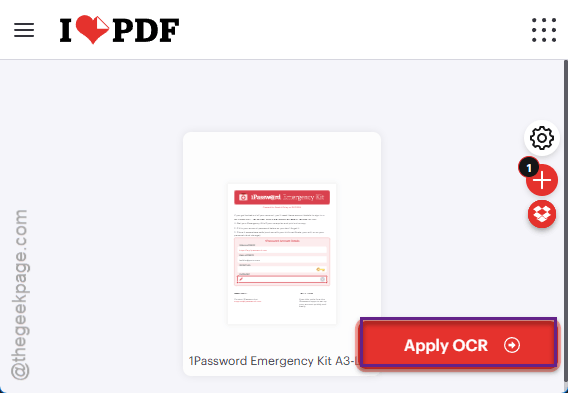
4 – Download the new searchable PDF.
5 – Upload that one to NotebookLM.
And if your PDF is password protected or has restricted permissions, NotebookLM bails too. Remove the protection first (most OCR tools strip it anyway).
Fix 6 – Try a New Notebook
Existing notebooks can get into weird states. Hit a metadata limit. Or the notebook itself gets corrupted.
1 – Go to the NotebookLM home page.
2 – Click + New notebook (or Create new depending on your version).
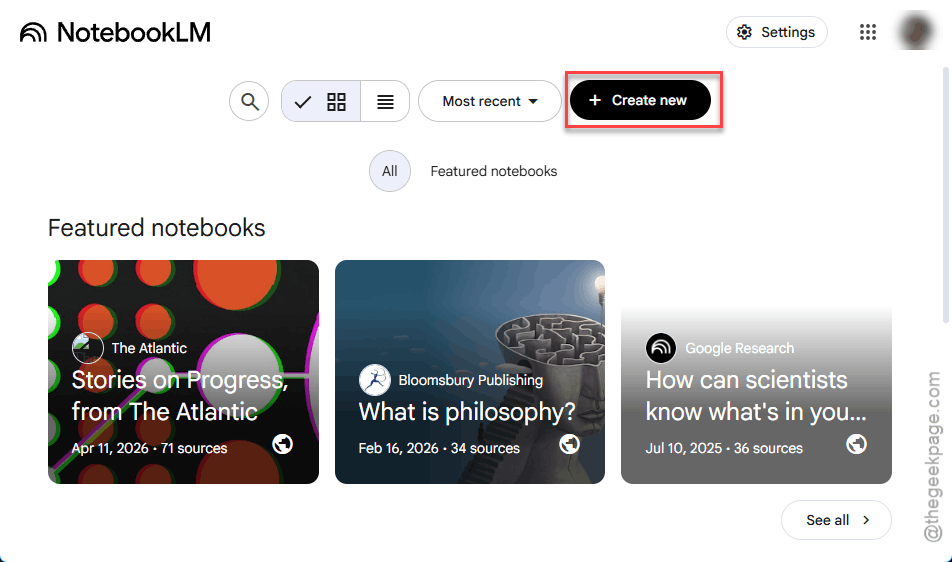
3 – Try uploading your PDF to this fresh notebook.
If it works in the new notebook but not the old one — your old notebook is the problem. Move your existing sources over and ditch the broken one.
Fix 7 – Bypass Local Upload Entirely
Sometimes the local-file uploader just refuses. Workaround: Google Drive.
1 – Open Google Drive in another tab.
2 – Upload your PDF there. Wait for it to finish.
3 – Go back to NotebookLM.
4 – Click Add source in your notebook.
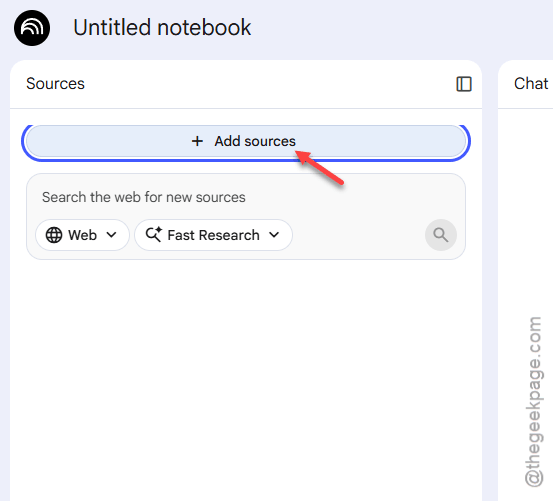
5 – Pick Google Drive instead of local file.
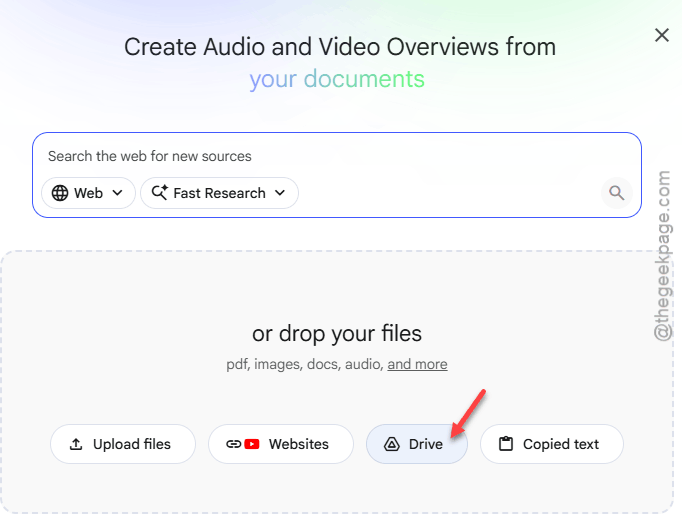
6 – Select the PDF you just uploaded.
This dodges the local file handler entirely. Different code path. Often works when direct upload doesn’t.
And if all else fails — wait an hour and try again. NotebookLM does have outages. Check Google’s Workspace Status Dashboard if you suspect that.
How to Prevent This
- Keep PDFs under 500,000 characters per source. Split big textbooks.
- Run OCR on scanned documents before uploading. Saves you the headache.
- Whitelist notebooklm.google.com in your ad blocker. Or just use Incognito for NotebookLM.
- Use Google Drive as a buffer for big files. More reliable than direct upload.
People Also Ask
Why won’t my sources upload to NotebookLM?
Usually it’s one of three things. The file is too big (over 500,000 characters). The PDF is scanned and has no text layer. Or a browser extension is blocking the upload. Try Incognito first — that rules out extensions in ten seconds.
How to fix error uploading file?
Try splitting the file. Or run OCR if it’s a scanned PDF. Clear the site cache from Developer Tools. And if nothing else works, upload to Google Drive first, then import from Drive into NotebookLM. That skips the buggy local uploader.
Is there a problem with NotebookLM today?
Could be. Check Google’s Workspace Status Dashboard. Also check Reddit’s r/notebooklm — people post outage reports fast. If everyone’s complaining, just wait an hour or two. Server-side issues clear up on their own.