You open the Microsoft Store. “Account not available. Error 0x803f8001”. And whatever you were trying to grab? Dead in the water.
Apps won’t update. Purchases won’t load. The Store basically forgot who you are.
Why This Happens
And a few things cause that. A corrupted Store cache is the usual suspect. Damaged system files can do it too. Sometimes the Store app just glitches after an update.
There’s also a sneaky one. Certain OEM utilities — Alienware Command Center is a known offender — clash with the Store and trigger this exact error. Who’d guess? But it happens, and it’s caught plenty of people out.
The good part? Most of the time it’s a five-minute fix (signing out and back in clears it more often than not). You rarely need the heavy stuff.
Fix 1 – Sign Out and Back Into the Store
Start here. This simple procedure should help you resolve the issue.
1 – Open the Microsoft Store.
2 – Then, tap the profile picture in the top-right corner.
3 – Thereafter, tap your account and select Sign out.
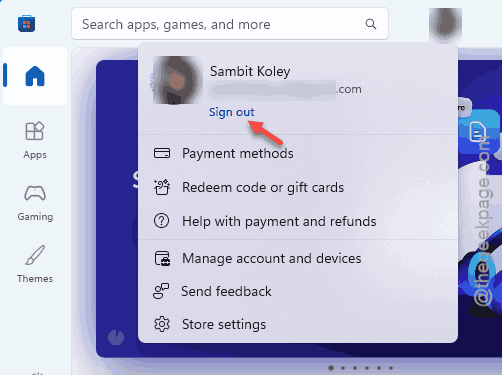
4 – Close the Store completely, then reopen it.
5 – Click the profile picture again and Sign in with your Microsoft account.
So if it was just a confused session, this sorts it instantly. Try it before anything else. No reason to go nuclear yet.
Fix 2 – Reset the Store Cache With wsreset
Quick one. Resetting the Store cache should resolve the issue.
1 – Press Windows, type wsreset, and click the result.
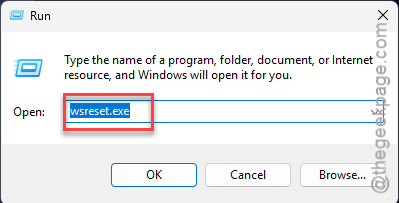
2 – A blank command window pops up. Leave it alone (it’s working, even though nothing seems to happen).
3 – Wait a few moments.
And that’s it. No restart, no settings to dig through. If a corrupted cache was the issue, you’re already done.
Fix 3 – Uninstall Conflicting Software
Did this start right after you installed an OEM utility? That might be your answer. Some of them genuinely break the Store.
1 – The big confirmed culprit is Alienware Command Center.
2 – Open the Windows Settings. Then, go to the Apps tab. Load up the Installed apps section from the right-hand pane.
3 – Locate the the Alienware app, click the three dots (⋯), and choose Uninstall.
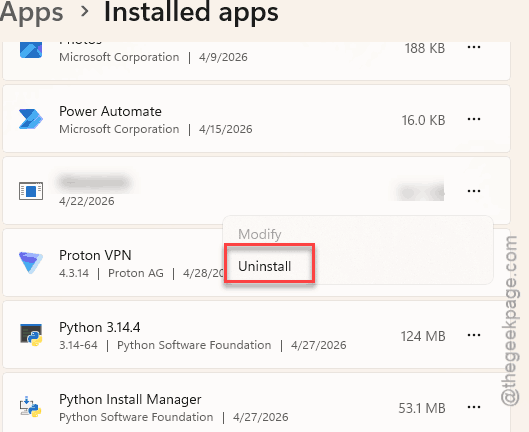
4 – Restart and check the Store.
But there’s a trade-off here. Uninstalling something like Command Center means losing fan and lighting control (annoying, no question). So look for an updated version of the tool, or reinstall it later once the Store’s working again.
Fix 4 – Repair, Then Reset the Store App
If the Store app itself is glitching, Windows can fix it two ways. Repair is gentle. Reset is the heavier hammer. So try Repair first.
1 – Right-click Start and open Settings.
2 – Thereafter, proceed this way –
Apps > Installed apps
3 – Search for Microsoft Store. click the three dots (⋯) next to it, and choose Advanced options.
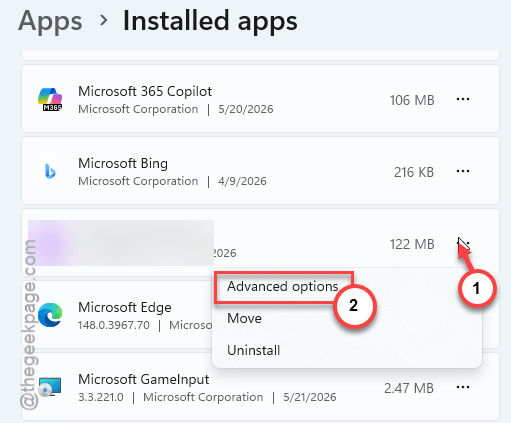
4 – Scroll to the reset section and click Repair first. This fixes the app without deleting your preferences or sign-in.
5 – Still broken? Now click Reset. But heads up — this wipes the app’s local data and signs you out.
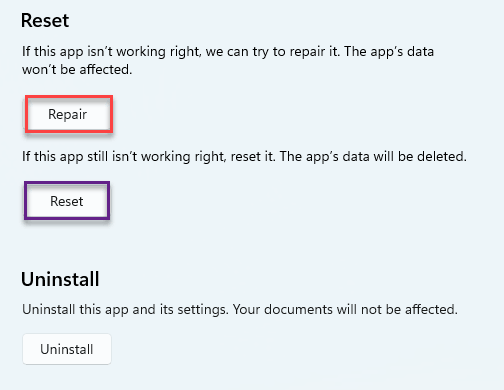
So always do Repair before Reset. Reset works, but you’ll be signing back in and reconfiguring after. No need for that if Repair handles it.
Fix 5 – Run an SFC Scan
Possible corruption in the Microsoft Store files can cause this issue.
1 – Start by typing cmd in the search box,
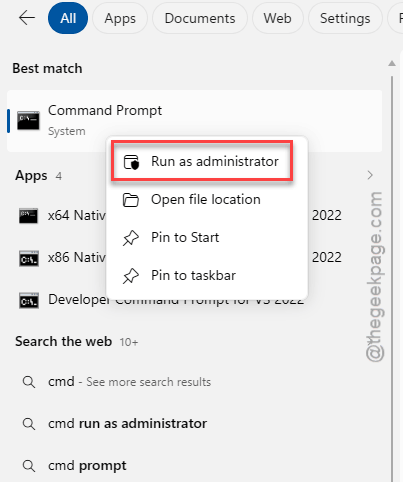
2 – Thereafter, right-click Command Prompt, and choose Run as administrator.
3 – Paste this code in the terminal and press Enter.
sfc /scannow
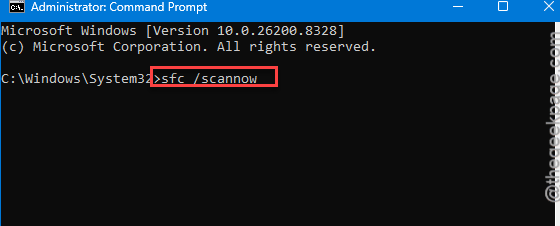
4 – You can leave it running in the background.
And give it time — the scan can take ten minutes or more.
Fix 6 – Re-register the Store With PowerShell
Cache reset didn’t stick? You can force-reinstall the Store framework with one command.
1 – At first, start to type PowerShell in the search box, right-click Windows PowerShell, and choose Run as administrator.
2 – Copy and paste this exactly, on one line:
Get-AppXPackage -AllUsers -Name Microsoft.WindowsStore | Foreach {Add-AppxPackage -DisableDevelopmentMode -Register "$($_.InstallLocation)\AppXManifest.xml" -Verbose}
3 – Press Enter and let it run. You’ll see a progress bar.
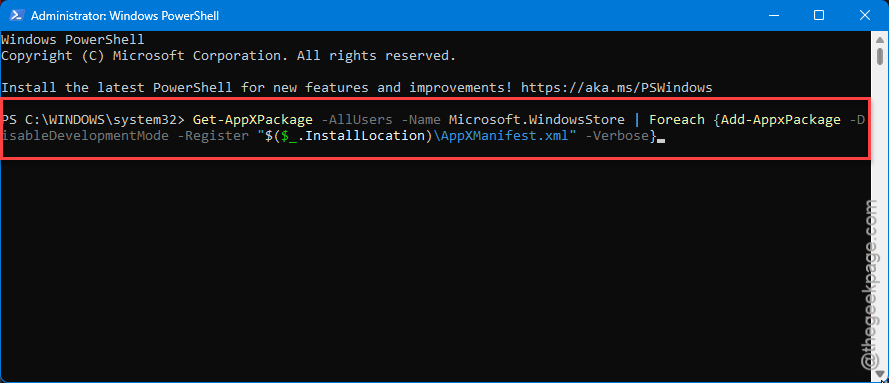
4 – When it finishes, restart your PC.
So this rebuilds the Store’s registration from scratch. It’s the go-to when the simpler fixes don’t take. Nothing gets deleted in the process.
How to Prevent This
- Run wsreset now and then if the Store acts up. Clearing the cache early stops small glitches from becoming this error.
- Keep Windows updated. A lot of Store account bugs get quietly patched in cumulative updates.
- Be picky with OEM utilities. If a tool starts breaking the Store, check for a newer build before reinstalling.
- Stay signed in with one Microsoft account. Juggling several is a fast way to confuse app licensing.
People Also Ask
How do I fix Microsoft Store error code 0x803f8001?
Run wsreset to wipe the cache, then Repair the Store app. SFC and a PowerShell re-register handle the stubborn cases. Recently installed OEM software? Try uninstalling it.
What is error code 0x803f8001?
The Store can’t verify that your Microsoft account owns the licenses for what you’re trying to download or open. Usually it’s a corrupted cache or a confused sign-in session — not an actual problem with your purchase.