You hit Play on Black Ops 6. Error pops up. Code 0xfffffffe. 0x1 0x2. Game won’t launch. And the Xbox app just sits there. Frustrating, especially when the install looked fine yesterday.
Why This Happens
Basically? The Xbox app is looking for game files on the wrong drive. Black Ops 6 expects a very specific folder path. And when the bootstrapper can’t find what it needs there, you get this error.
It usually starts after one of three things. A Game Pass install that got interrupted halfway through. A drive letter change. Or a Windows update that re-shuffled where the Xbox app thinks your games live.
The game file randgrid.sys is the usual offender. It ends up on one drive while the bootstrapper hunts for it on another. No warning. Just the error code. Annoying.
Fix 1 – Repair the Game From Windows Settings
Start here. Quick. Painless. Doesn’t redownload everything.
1 – Press Windows + I to open Settings.
2 – Click Apps on the left.
3 – Click Installed apps.
4 – Type Call of Duty in the search box at the top.
5 – Click the three dots (⋯) next to it. Click Advanced options.
6 – Scroll down to the Reset section. Click Repair.
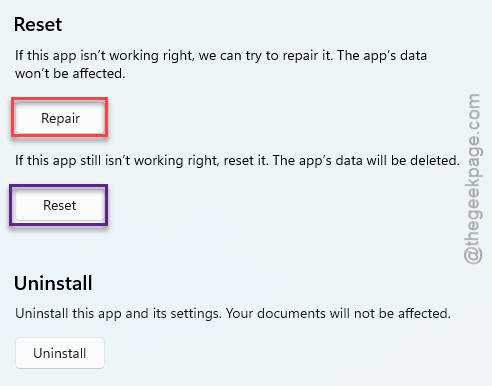
Wait for it to finish. Launch the game again. For a lot of people, that’s the whole fix. Done.
Fix 2 – Find the Real Error in the Bootstrapper Log
This is where the truth is. The log tells you exactly which file BO6 is hunting for, and where.
1 – Open File Explorer.
2 – Go to your Call of Duty install folder. Usually XboxGames\Call of Duty\Content.
3 – Find the file named bootstrapper.log.
4 – Right-click it. Click Open with, then Notepad.
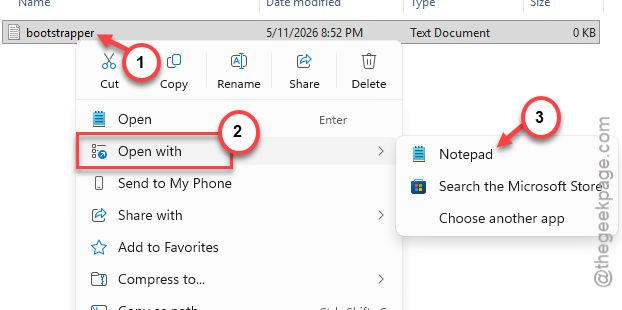
5 – Look for a line that says failed to open followed by a file path.
That path is your clue. You’ll usually see the game searching on a drive that isn’t where you actually installed it. Like the log expects D:\XboxGames\Call of Duty\Content\randgrid.sys but your game is on the C: drive. That’s the disconnect causing the error.
Keep the log open. You’ll need that exact path for the next fix.
Fix 3 – Create the Missing Folder Path Manually
Sounds hacky. It works.
1 – Open the drive your log mentioned (the wrong one).
2 – Create a folder named XboxGames. Capitalization matters. Match the log exactly.
3 – Inside that, create Call of Duty.
4 – Inside that, create Content.
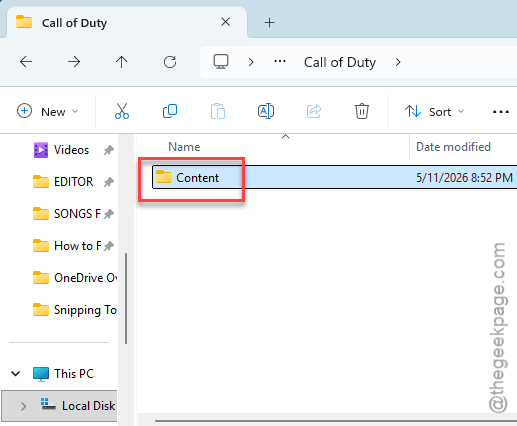
5 – Go back to your real install folder.
6 – Find randgrid.sys. Copy it (don’t move it).
7 – Paste it into the new Content folder you just made on the other drive.
8 – Launch BO6 through the Xbox app.
The game stops complaining. It finds what it’s looking for, and the bootstrapper moves on. Yeah, it’s a workaround. But it’s faster than reinstalling 200+ GB.
Fix 4 – The Rename and Reinstall Trick
If the repair didn’t help and you can’t be bothered with logs — try this.
1 – Open the Xbox game install directory. Usually something like D:\XboxGames or D:\Xbox Game Platform.
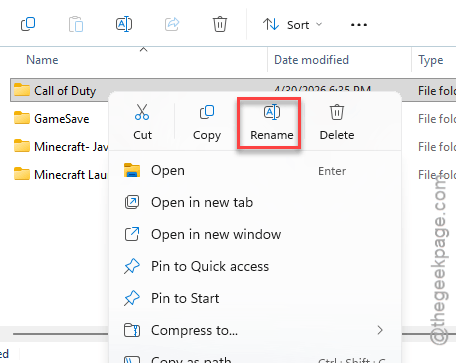
2 – Rename the Call of Duty folder to anything else. Call of Duty_old works.
3 – Press Windows + I, go to Apps, then Installed apps.
4 – Find Call of Duty in the list. Uninstall it.
5 – Go back to the install directory. Rename the folder back to Call of Duty.
6 – Open the Xbox app.
7 – Install the game. Point it to the same directory.
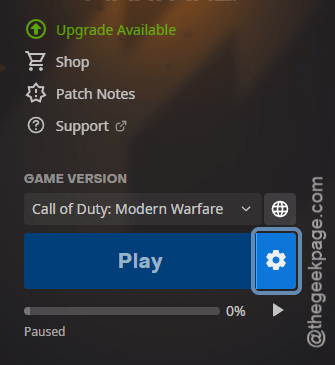
This is the best method to fix the issue.
Fix 5 – Verify and Run as Admin (Steam / Battle.net)
If you’re on Steam or Battle.net instead of Game Pass, the path is slightly different. Same idea.
1 – Open your game launcher.
2 – Right-click Call of Duty in your library.
3 – Click Properties.
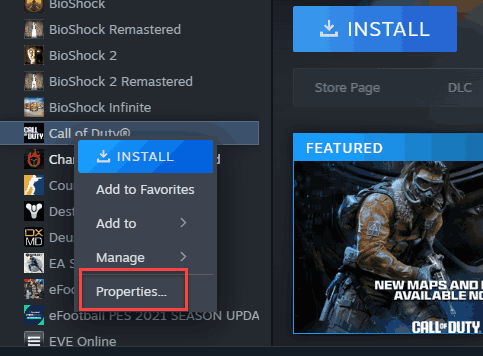
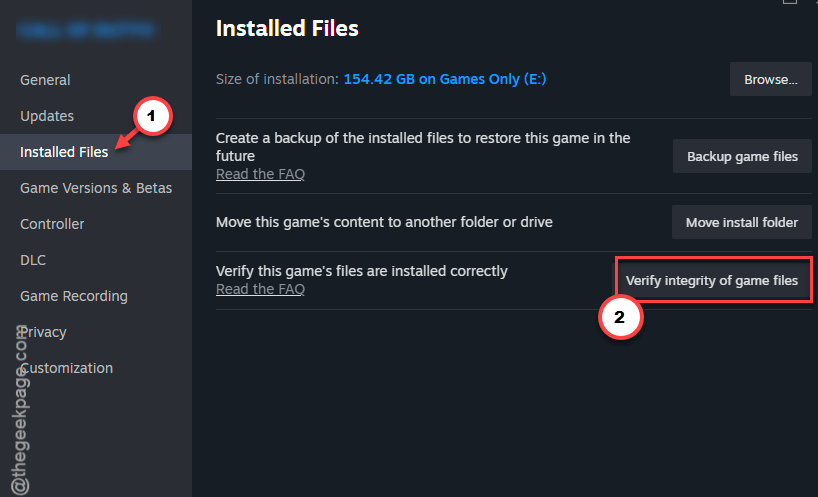
4 – Go to the Installed Files tab.
5 – Click Verify integrity of game files. Let it finish.
Not done? Try compatibility mode too.
1 – Still in Properties, click Browse to open the game folder.
2 – Find cod.exe.
3 – Right-click it. Click Properties.
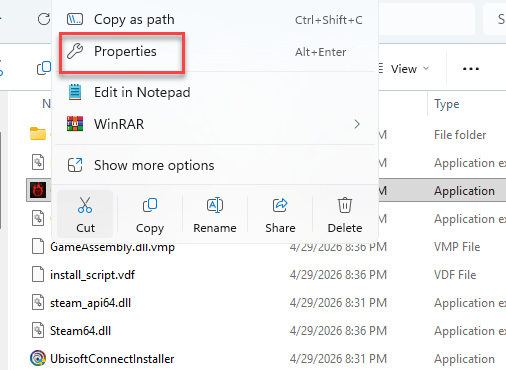
4 – Go to the Compatibility tab.
5 – Check Run this program in compatibility mode for and pick Windows 8 from the dropdown.
6 – Also check Run this program as an administrator.
7 – Click Apply, then OK.
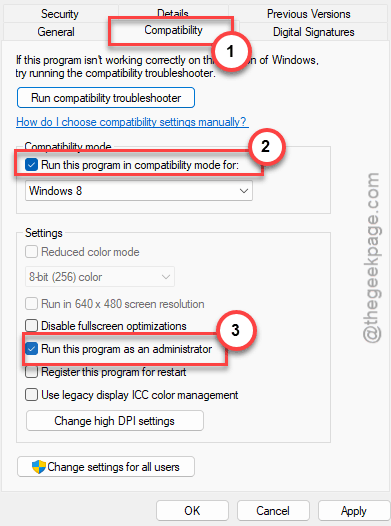
Launch the game. Some weird driver and permission conflicts go away with this combo.
How to Prevent This
- Install all Xbox games to the same drive. Mixing drives is where this error starts.
- Don’t change drive letters after installing big Game Pass titles. Windows doesn’t always update the app’s internal paths.
- Let the Xbox app finish installs fully. Don’t pause halfway. Half-installs are the #1 cause of bootstrapper errors.
- Keep the Xbox app updated through Microsoft Store. Older builds have known path-handling bugs.
People Also Ask
What is error 0xfffffffe?
It’s the Xbox app’s generic way of saying “I can’t find a game file I expected.” The bootstrapper points to a folder on one drive. The file lives on a different drive. So the launch fails before the game even starts. Usually triggered by an interrupted install or a drive letter change.
How to fix join failed different version error in Black Ops 6?
Different issue. That one means you and the lobby host are on different game versions. Update Call of Duty from the Xbox app or your launcher. Restart the game. If it still says different version? Verify game files. One player on an outdated build breaks the whole match.