You plug your audio interface into your shiny new AM5 build. And Windows throws “Device Descriptor Request Failed.” The interface just won’t show up.
If you’re cursing at your motherboard right now — you’re in good company. This is a known quirk on AMD’s AM5 boards, and tons of people have hit it. It’s fixable. Let’s get your sound working.
Why This Happens
Short version: the USB controller on AM5 boards is touchy about power and timing. Audio interfaces need a steady, clean connection. AM5 doesn’t always give them one.
A big culprit is deep CPU sleep. When the chip dives into a low-power state, the voltage to the USB ports dips — and that starves the interface mid-connection. Then it drops.
Port choice matters too. AM5 boards split their USB ports between two sources. Some run straight from the CPU. Others route through a separate chipset. Audio gear hates the chipset path.
And sometimes the controller just gets into a bad state. Stuck. A full power drain is the only thing that snaps it out.
Fix 1 – Fully Drain the Motherboard’s Power
This was the single most-thanked fix in the community threads, so try it first. You’re clearing the stuck USB controller by killing all residual power.
1 – Shut down the PC completely.
2 – Flip the power supply switch off (the switch on the back of the PSU).
3 – Unplug the power cable from the wall.
4 – Disconnect every USB device except your keyboard and mouse.
5 – Hold the PC power button down for 20 to 30 seconds. Nothing will turn on — that’s the point. You’re bleeding off leftover charge.
6 – Wait a full minute.
7 – Plug the power back in, flip the PSU switch on, and boot Windows.
8 – Now plug your audio interface back in.
For a lot of people, that’s the whole fix. The controller wakes up clean and the interface enumerates right away.
Fix 2 – Use a Rear CPU-Direct USB Port
Front-panel ports and chipset-routed ports are where most failures happen. The ports wired straight to the CPU are the steadiest. So switch to one of those.
1 – Unplug the audio interface.
2 – Remove any extension cable or USB hub. Plug the interface straight into the board.
3 – Use a rear USB port, not a front-panel one.
4 – Pick a CPU-direct port. Your motherboard manual labels these — they’re usually the top USB ports near the BIOS Flashback button.
5 – Try a plain USB 2.0 port first. Audio interfaces often enumerate more reliably on those than on the faster ones.
6 – Reboot and check.
Avoid any port the manual marks as running through the chipset hub. That’s the exact path that tends to fail.
Fix 3 – Turn Off Global C-States in the BIOS
Remember the deep-sleep voltage dip from earlier? This is where you stop it. Disabling C-States keeps the USB controller fed with steady power.
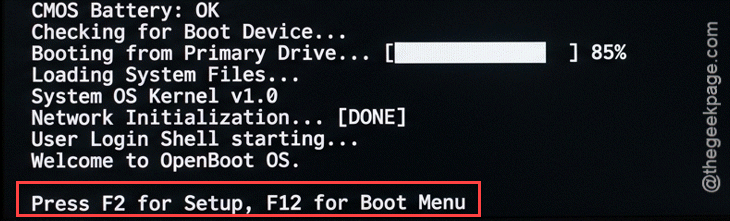
1 – Restart and tap Del or F2 as it boots to enter the BIOS.
2 – Switch to Advanced Mode (often F7).
3 – Find AMD CBS or CPU Common Options.
4 – Locate Global C-State Control and set it to Disabled.
5 – Save and exit with F10.
Heads up — disabling C-States slightly raises idle power draw and temps. Small trade-off for an interface that actually stays connected. You can flip it back later if you ever stop using the interface.
Fix 4 – Stop Windows From Suspending the USB Ports
Windows likes to power down idle USB ports to save juice. For an audio interface, that’s a disaster — it kills the connection.
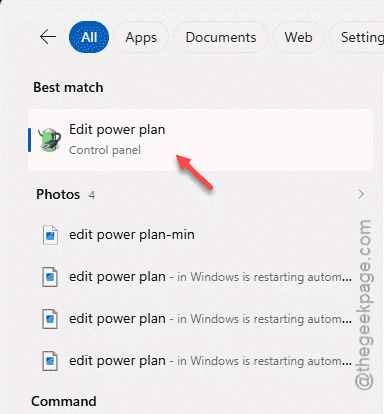
1 – Click Start, type Edit Power Plan, and open it.
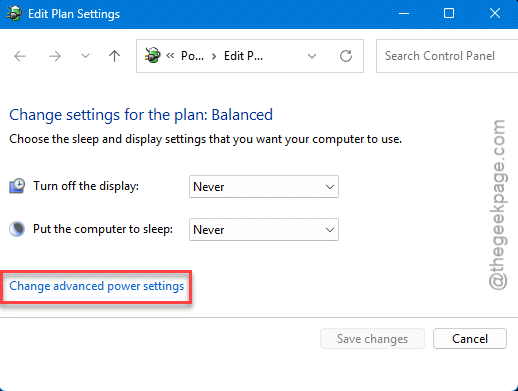
2 – Click Change advanced power settings.
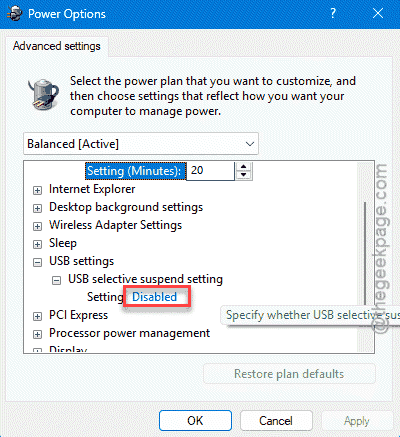
3 – In the list, expand USB settings, then USB selective suspend setting.
4 – Set it to Disabled.
5 – Click Apply, then OK.
If your system drive is an NVMe SSD, also expand PCI Express > Link State Power Management and turn it Off while you’re in there.
Fix 5 – Drop PCIe Speed to Gen 3 (If It Still Fails)
Last-resort tweak, and only if the interface still won’t behave. High-speed PCIe lanes can throw electrical interference onto the USB traces, scrambling the audio signal. In the BIOS, find PCIe Configuration (sometimes under Onboard Device Configuration), and change your main slot speeds from Auto or Gen 4/5 down to Gen 3. It costs you almost nothing in real-world performance, and on some boards it’s what finally steadies the rear USB ports for audio.
How to Prevent This
– Plug audio gear into a rear CPU-direct port. Skip the front panel and chipset ports — they’re the flaky ones.
– Keep USB selective suspend off for your interface. Windows powering down the port is a constant troublemaker.
– Update your motherboard BIOS now and then. AMD has shipped USB fixes for AM5 in newer versions.
– If you tour or move the rig a lot, a powered USB hub on a CPU port adds a buffer against power dips.
People Also Ask
How do I fix ‘Device Descriptor Request Failed’?
Start by fully draining the board’s power — shut down, switch off the PSU, unplug, and hold the power button 30 seconds. Then plug the device into a rear CPU-direct USB port. On AM5, turning off USB selective suspend and C-States stops the connection from dropping.
Why does my audio interface only fail on AM5?
AM5 boards are sensitive about USB power and timing, and they split ports between the CPU and a separate chipset. Audio interfaces need a steady feed, which the chipset ports don’t always provide. Using a CPU-direct rear port and disabling deep CPU sleep states usually sorts it.
Should I use USB 2.0 or USB 3.0 for my audio interface?
Try USB 2.0 first, especially if it keeps failing. Many audio interfaces don’t need USB 3 speeds, and they often enumerate more reliably on a 2.0 port. If your interface specifically calls for USB 3, use a rear CPU-direct port rather than a front-panel or hub connection.