You’re sharing your audio — two pairs of earbuds, or a headset and a speaker. And it stutters. Cuts out. One side drops the connection completely.
Frustrating, especially mid-song or mid-call. The good news? It’s almost always a settings problem, not a hardware one. Here’s how to smooth it out.
Why This Happens
What’s going on? A few different things, honestly.
Windows lets one app grab total control of your audio device — it’s called Exclusive Mode. Handy sometimes. But when you’re streaming to two devices at once, it chokes the second stream. That’s your stutter.
Then there are the so-called audio enhancements. Windows layers its own processing on top of your sound. Meant to help. Often just adds lag and glitches instead.
And if you’re going wireless, Bluetooth has its own headaches. Some radios can’t dual-stream at all without LE Audio support. Others nod off to save power and choke the connection. So yeah — a few suspects to work through.
Fix 1 – Turn Off Exclusive Mode
Start here. This stops any single app from hijacking your audio device, which is the usual cause of a dropped second stream.
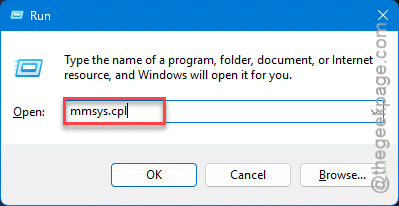
1 – Press Windows + R, type mmsys.cpl, and press Enter.
2 – Right-click your active audio device — the one with the green checkmark — and choose Properties.
3 – Go to the Advanced tab.
4 – Under Exclusive Mode, uncheck Allow applications to take exclusive control of this device.
5 – Click Apply, then OK.
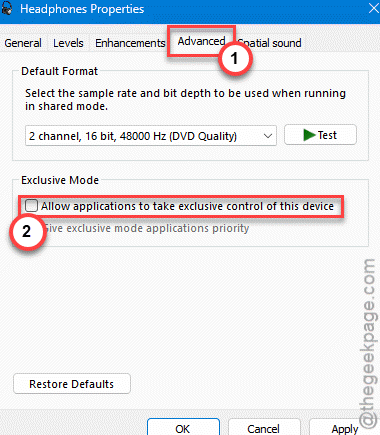
With that off, no single app can lock everyone else out. The shared stream finally gets to breathe.
Fix 2 – Disable Audio Enhancements
Quick follow-up, same window. Those built-in “enhancements” are a common stutter source.
1 – Back in the device Properties, stay on the Advanced tab. Some PCs have a separate Enhancements tab instead — use that if you see it.
2 – Find Enable audio enhancements. On some systems it’s labeled Signal Enhancements.
3 – Uncheck it.
4 – Click Apply, then OK.
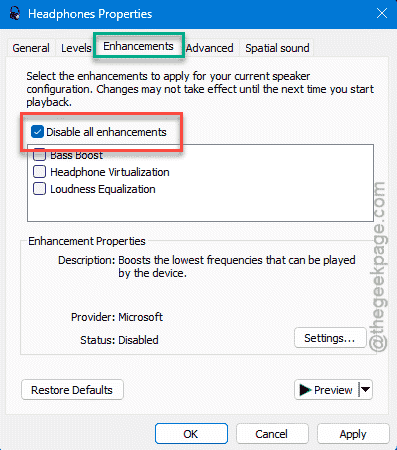
Test your audio now. No more extra processing means one less thing tripping up the stream.
Fix 3 – Restart the Audio Services
Sometimes the audio system just gets wedged. Restarting its background services clears that without a full reboot.
1 – Press Windows + R, type services.msc, and press Enter.
2 – Scroll down to Windows Audio.
3 – Right-click it and choose Restart.
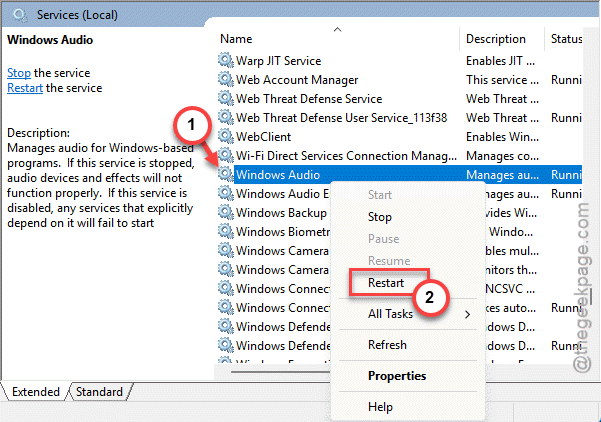
4 – Do the same for Windows Audio Endpoint Builder.
5 – And once more for Remote Procedure Call (RPC).
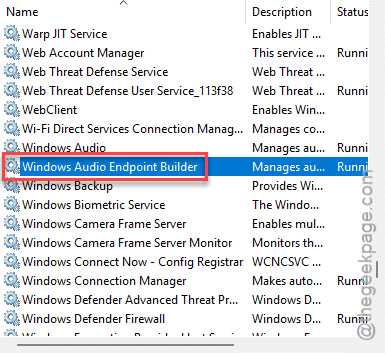
All three work together to run your sound. Restarting them in that order often clears a stutter that showed up out of nowhere.
Fix 4 – Keep Bluetooth Awake and Check LE Audio
On wireless? Two Bluetooth issues cause most of the cut-outs. Let’s rule out both.
First, make sure your Bluetooth can even share to two devices:
1 – Press Windows + X and open Device Manager.
2 – Expand Bluetooth.
3 – Look for Bluetooth LE Audio in the list. No mention of it? Your radio likely can’t dual-stream standard Bluetooth devices — and that’s a hardware limit, not something a setting can fix.
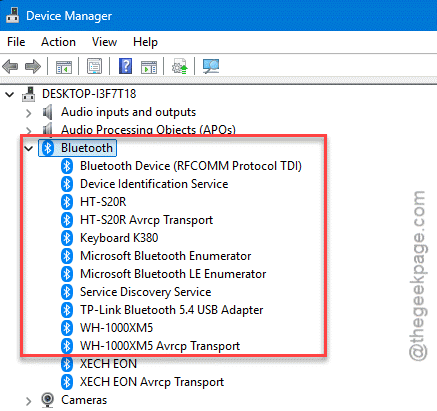
Then stop Windows from putting Bluetooth to sleep:
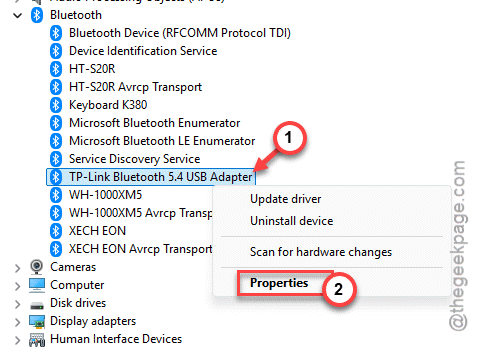
4 – Still in Device Manager, right-click your Bluetooth adapter and choose Properties.
5 – Open the Power Management tab.
6 – Uncheck Allow the computer to turn off this device to save power.
7 – Click OK.
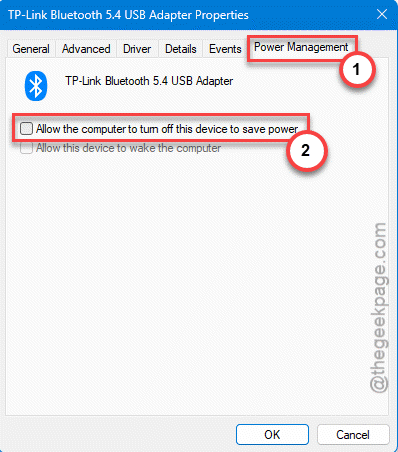
That keeps the radio from dozing off and choking the second stream halfway through a song.
Fix 5 – Bump Audio Priority in the Registry
Still stuttering under load? You can tell Windows to treat audio as high-priority work, so it doesn’t get starved when the CPU is slammed.
1 – Press Windows + R, type regedit, and press Enter.
2 – Go to this path:
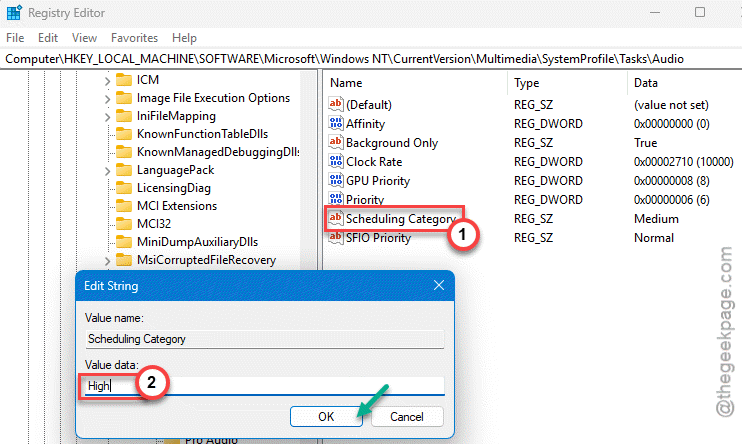
HKEY_LOCAL_MACHINE\SOFTWARE\Microsoft\Windows NT\CurrentVersion\Multimedia\SystemProfile\Tasks\Audio
3 – On the right, double-click Scheduling Category and set it to High.
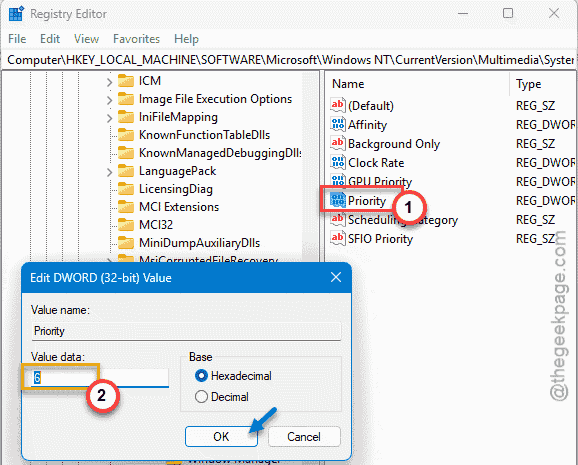
4 – Double-click Priority and set it to 6.
5 – Close regedit and restart your PC.
This nudges audio to the front of the line when your system’s under strain. The kind of tweak that smooths out the last stubborn bit of stutter.
How to Prevent This
– Leave Exclusive Mode off if you share audio often. It’s the setting most likely to break a second stream.
– Buy Bluetooth gear that supports LE Audio if dual streaming matters to you. Older standard Bluetooth just wasn’t built for it.
– Keep your audio and Bluetooth drivers current. A lot of stutter fixes ship quietly inside driver updates.
– Don’t pile heavy CPU tasks on top of wireless audio. Big exports and games can starve the sound, LE Audio or not.
People Also Ask
How do I fix audio stuttering in Windows 11?
Turn off Exclusive Mode and audio enhancements first — open mmsys.cpl, right-click your device, and find both under the Advanced tab. That clears most stutter on its own. If it continues, restart the Windows Audio service from services.msc. For wireless, stop Windows from powering down your Bluetooth adapter.
Why does my sound cut out when sharing to two devices?
Usually it’s Bluetooth. Sharing to two devices needs LE Audio support, and if your radio doesn’t have it, the second stream drops. Power saving makes it worse — Windows puts the adapter to sleep mid-stream. Check for LE Audio in Device Manager and turn off the adapter’s power management.
How do I fix sound problems on Windows 11?
Restart the three audio services — Windows Audio, Windows Audio Endpoint Builder, and Remote Procedure Call — from services.msc. That alone fixes a surprising number of glitches. If sound is still rough, disable audio enhancements and update your audio driver. A registry priority tweak can help under heavy load.