Do all your calls switch automatically to speaker mode on your iPhone after the iOS 26 update? Many users have complained in various forums about how all of their calls are activating the speaker mode without their manual input. This can cause a terrible privacy issue, even humiliating in some scenarios. There are some iOS 26 settings modifications that can glitch out to activate the call in the speaker mode instead of the usual earpiece mode. Here is the list of recommended solutions considering every possible reason for this issue.
Fix 1 – Rectify the Call Audio Route settings
The iOS 26 update may have routed the default audio call settings to speaker mode.
Step 1 – Open the Accessibility tab in the iPhone’s Settings.
Step 2 – Next, open the Touch settings.
Step 3 – Find and open up the Call Audio Routing settings.
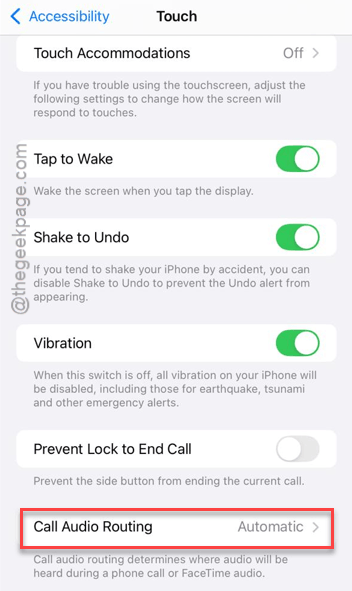
Step 4 – Set it to Automatic mode. If it is already set to Automatic mode, then switch it to Bluetooth Headset and then set it back to Automatic mode.
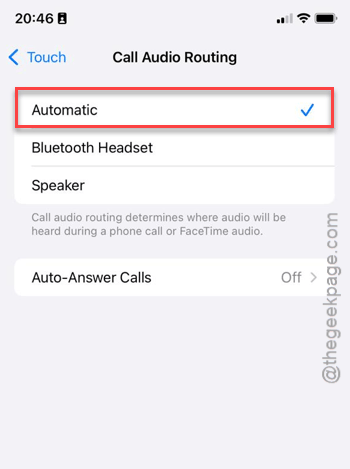
After refreshing these settings, the calls will not be routed directly to the speaker.
Fix 2 – Disable Keep Audio in Headphones Feature
The new iOS 26 feature called Keep Audio in Headphones can glitch out and activate the speaker during calls.
Step 1 – Proceed to the General tab.
Step 2 – Then, proceed to the Airplay & Continuity section.
Step 3 – Turn off the Keep Audio in Headphones feature.
Then, go ahead and restart the iPhone.
Fix 3 – Change VoiceOver Audio Settings
The voiceover audio settings can force some of the calls to sound in speaker mode.
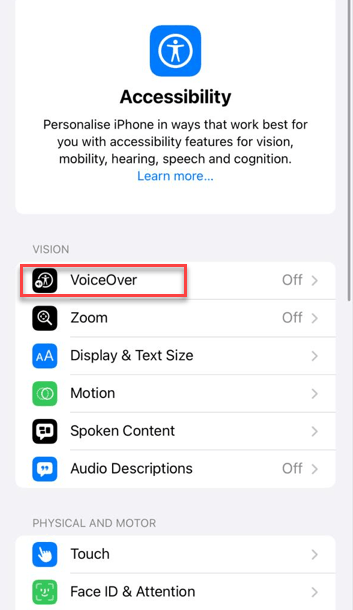
Step 1 – Proceed to the Accessibility tab in iPhone Settings.
Step 2 – Then, open the VoiceOver settings. Don’t turn it On, just tap it to load up the voiceover settings.
Step 3 – Tap the Audio button and open the Sound and Haptics settings.
Step 4 – Look for the Auto-select Speaker in Call. Set it to OFF.
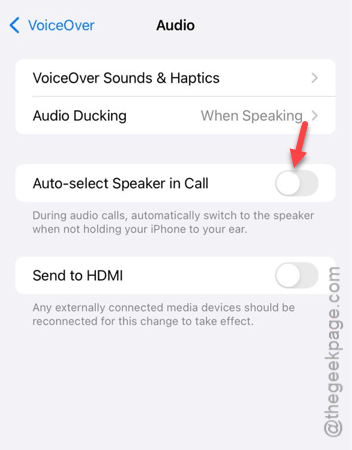
Check whether this works out.
Fix 4 – Restrict Cross-Device Interference
Sometimes the continuity feature that allows you to receive calls on your other Apple devices can mistrigger it to play it in loudspeaker mode.
Step 1 – Load up the Apps tab in your iPhone Settings.
Step 2 – Then, open up the Phone app settings.
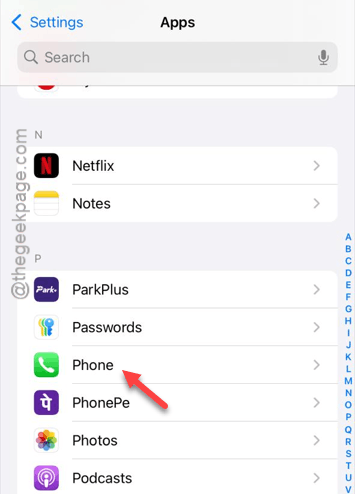
Step 3 – Tap the Calls on Other Devices tab. Set the Allow Calls on Other Devices to OFF mode.
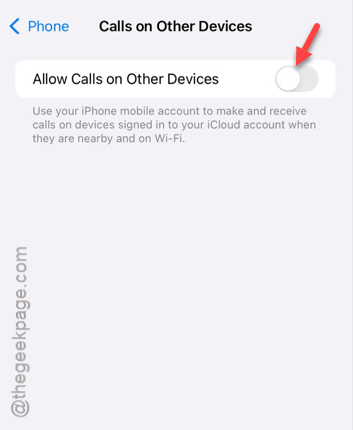
This will prevent the iOS 26 from handing off the calls to other devices, where the call will be put to speaker mode.
Fix 5 – Reset All iPhone’s Settings
If the calls are still loading up with the iPhone’s speaker, you should try resetting the entire iPhone’s settings.
NOTE – Resetting your entire iPhone’s settings means that it will delete all the network credentials and settings modifications from the device.
Step 1 – At first, go to the iPhone Settings. Then, proceed to the General tab.
Step 2 – Then, follow this path –
Transfer or reset iPhone > Reset
Step 3 – Next, click the Reset All Settings option.
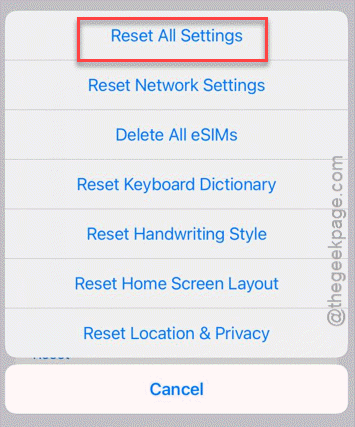
It will prompt for your Apple passcode. Once you do that, the iPhone settings will be reset to the default setting.
Respond to someone’s call, and it won’t go into the speaker mode.
Hope these have helped you!