You fire up Remote Desktop. It connects. Then it hangs on Estimating connection quality and just dies there.
No error. No timeout message. It either spins forever or drops you back to the login box. Frustrating, especially when the same machine worked yesterday. Good news — this one usually comes down to a single setting. Here’s how to get past it.
Why This Happens
Basically? Before it shows you the desktop, RDP runs a quick test of your network. It’s trying to figure out how fast the link is so it can dial the visuals up or down.
And it does this test over UDP (a fast, no-handshake way of sending data). Most of the time, fine. But if something blocks or mangles that UDP traffic — a firewall, a VPN, a flaky network — the test never finishes. So it freezes right there at “Estimating connection quality.”
There’s a second sneaky cause. If the clock on the remote machine is off by more than a few minutes, the secure handshake fails and you stall at the same spot. Weird, but true.
So we’ve got a few angles. Skip the UDP test. Turn off the auto-detection on the server. Fix the clock. One of them clears it.
Fix 1 – Force RDP to Skip the UDP Test
This is the fix that nails it for most people.
1 – Press Windows + R, type regedit, and press Enter to open the Registry Editor.
2 – In the left sidebar, follow this path down, one folder at a time:
HKEY_LOCAL_MACHINE\SOFTWARE\Policies\Microsoft\Windows NT\Terminal Services\Client
3 – If the Client folder isn’t there, right-click Terminal Services, choose New > Key, and name it Client.
4 – Right-click the empty space on the right, choose New > DWORD (32-bit) Value, and name it fClientDisableUDP.
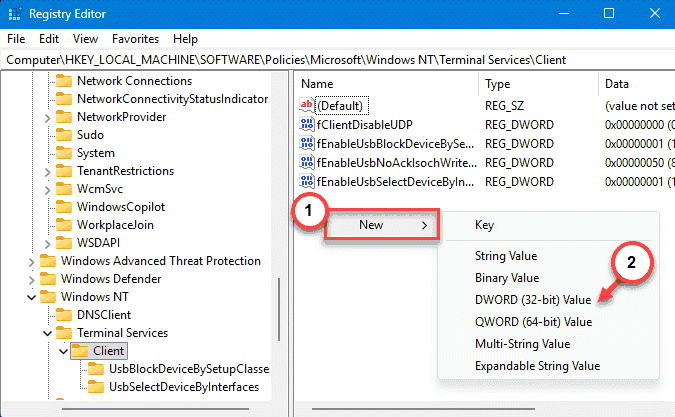
5 – Double-click it and change the Value data from 0 to 1. Click OK.
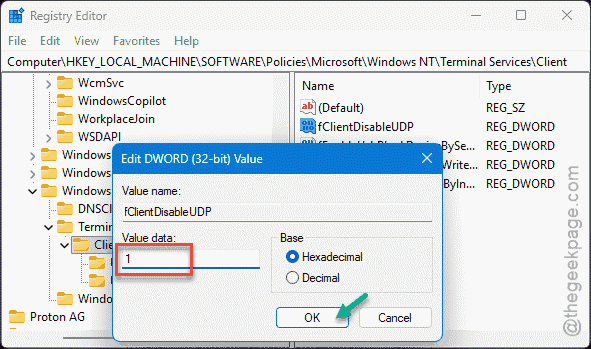
6 – Close the editor and restart your PC.
After the reboot, RDP connects over TCP and never runs that test. The “Estimating connection quality” step? Gone entirely.
Fix 2 – Turn Off Network Detection on the Server
You should change the group policy that is causing this mayhem.
1 – Press Windows + R, type gpedit.msc, and press Enter to open the Group Policy Editor.
2 – In the left pane, expand down to:
Computer Configuration > Administrative Templates > Windows Components > Remote Desktop Services > Remote Desktop Session Host > Connections
3 – Find Select network detection on the server and double-click it.
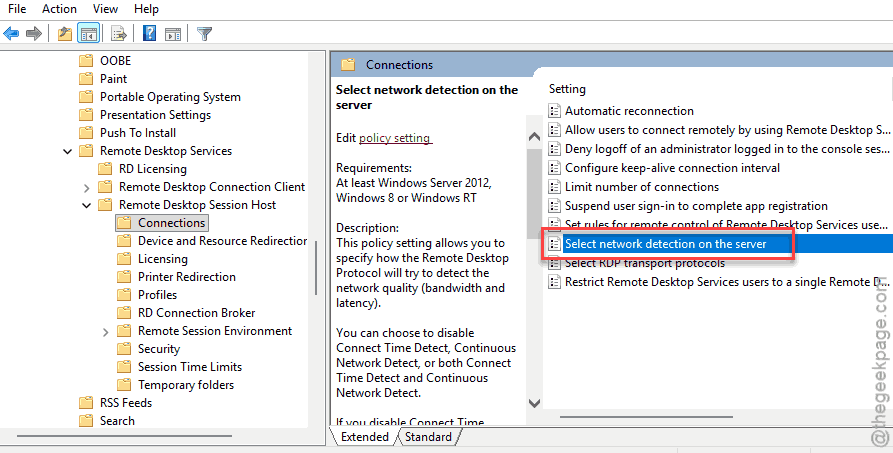
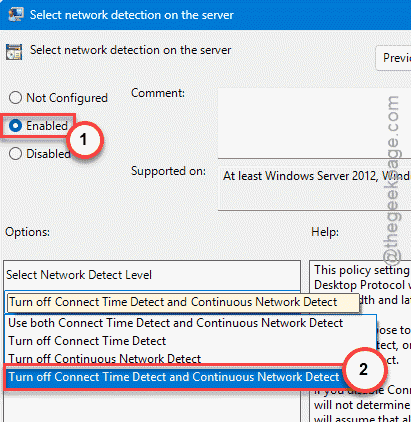
4 – Set it to Enabled.
5 – Under Options, choose Turn off Connect Time Detect and Continuous Network Detect.
6 – Click Apply, then OK.
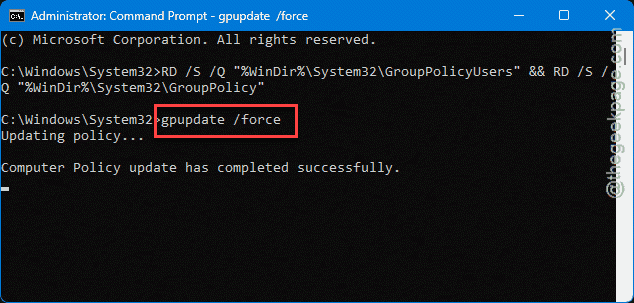
7 – Open Command Prompt and run this to apply it right away.
gpupdate /force
Note: gpedit.msc only exists on Windows Pro and higher. On Home edition, stick with the registry fix in Fix 1.
Fix 3 – Sync the Remote Machine’s Clock
If the time on the server has drifted, the secure handshake breaks and you stall at the same screen. Fixing the clock fixed it outright for some people.
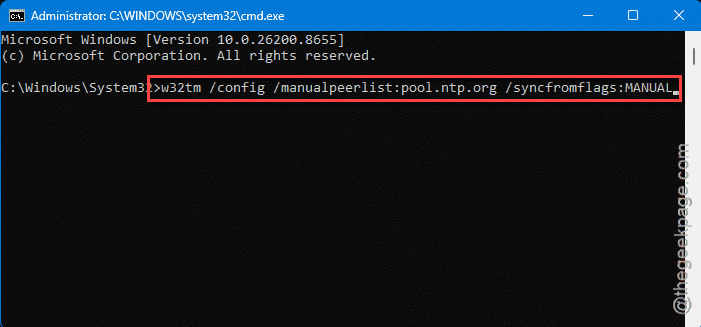
1 – On the remote machine, open Command Prompt as administrator.
2 – Type and press Enter.
w32tm /config /manualpeerlist:pool.ntp.org /syncfromflags:MANUAL
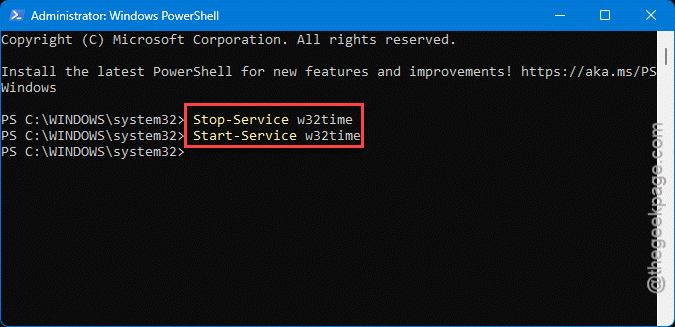
3 – Type these two codes back to back in PowerShell and press Enter to stop and start the time service.
Stop-Service w32time
Start-Service w32time
5 – Try connecting again.
Check the date and time on that machine while you’re at it. If it’s off by more than a few minutes, that was almost certainly your problem.
Fix 4 – Update Your Remote Desktop Client
Quick one. An old client can mishandle modern encryption and compression, which makes it choke on that quality test. You can update the Windows from Windows Settings,
Fix 5 – Check Your VPN and Firewall
A VPN reroutes your traffic and can scramble the UDP test. A firewall can block the port RDP needs. Rule both out fast.
1 – Disconnect your VPN completely, if you’re on one.
2 – Temporarily turn off your firewall, or third-party security suite, just for the test.
3 – Make sure TCP port 3389 is open — that’s the port RDP runs on.
4 – Try the connection again.
If it works with the VPN or firewall off, you found the culprit. Don’t leave them off, though — add an exception for Remote Desktop instead, then switch protection back on.
Fix 6 – Try a Different Network
Sometimes it really is the network underneath. If you’re on Wi-Fi, plug in an Ethernet cable instead — wired connections handle RDP’s traffic far more smoothly.
How to Prevent This
– Set fClientDisableUDP to 1 on machines you connect from often. It skips the flaky test for good.
– Keep the remote machine’s clock synced. A drifting clock quietly breaks RDP’s handshake.
– Use a wired connection for remote sessions when you can.
People Also Ask
How do I stop RDP from freezing?
The most reliable fix is disabling UDP for the Remote Desktop client. Add a DWORD called fClientDisableUDP set to 1 under the Terminal Services Client registry key, then reboot. That forces RDP to connect over TCP and skip the connection-quality test that usually causes the freeze.
Why is my RDP stuck on estimating connection quality?
RDP runs a UDP-based network test before showing the desktop, and if that traffic is blocked or unstable, it hangs there. A firewall, a VPN, or a flaky connection is the usual cause. A wrong clock on the remote machine can stall it at the same spot too.