Does the Microsoft Teams audio is cutting out during a team meeting? This particular problem with the MS Teams audio glitching while a meeting is ongoing can be a frustrating experience, where your crucial inputs are restricted just because of a microphone glitch. There is a possible issue with the microphone that is causing such nuances. These are the solutions that can solve these issues.
Preliminary Fixes –
1. Check the network that you are currently connected to. Slow, unstable network connection may sometimes lead to audio issues in MS Teams.
2. Close any other conflicting apps, like Zoom or other apps with microphone access, that may cause such disturbances.
Fix 1 – Lower the Output Sample Rate
If the Output Sample Rate is set to a higher value, like 48kHz, lowering the value will help.
Step 1 – At first, press the Win+R buttons together.
Step 2 – Then, input this in the Run box, and click OK.
mmsys.cpl
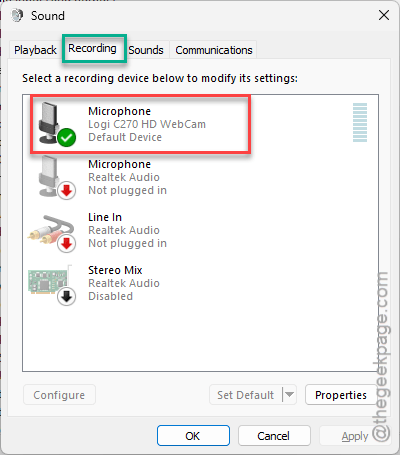
Step 3 – Go to the Recording tab.
Step 4 – Next, double-tap the microphone that you are using there.
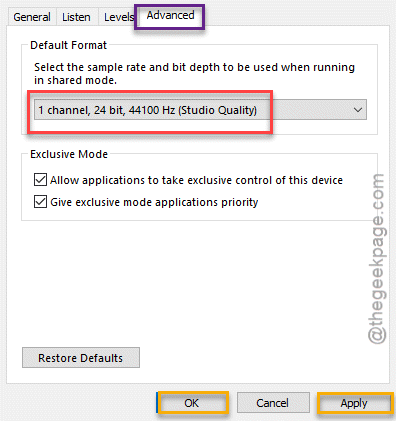
Step 5 – In that microphone Properties page, go to the Advanced tab.
Step 6 – Set the Default Format to 1 Channel, 24 bit, 44100 Hz (Studio Quality) from the drop-down button.
Step 7 – Then, tap Apply and OK buttons to apply that change.
After saving these changes, try to use the same microphone in the meeting and ask others to check the output.
Fix 2 – Turn off Spatial Audio
The Spatial Audio enhancements for the headphone may cause this sound glitch.
Step 1 – To do this, go to Windows Settings.
Step 2 – Next go this way –
System ⇾ Sound
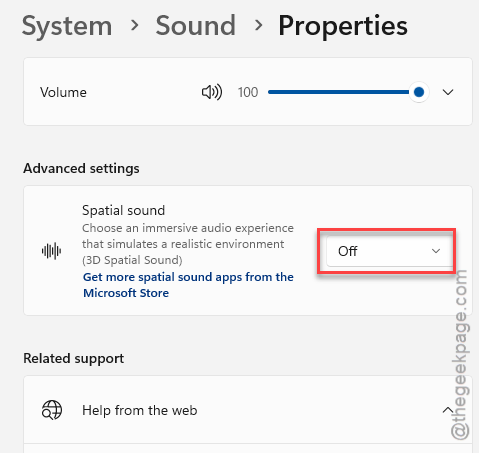
Step 3 – In the Output section, your current sound device should be visible. Tap the Device Properties there.
Step 4 – On the next page, disable the Spatial Sound feature.
Test the microphone once again. Check whether the MS Teams audio is still glitching or cutting out.
Fix 3 – Update the Audio Drivers
If you have not updated the audio drivers in a while, you should update them to the latest version to write off any possibility of driver conflict.
Step 1 – At first, right-click the Start button and tap Device Manager.
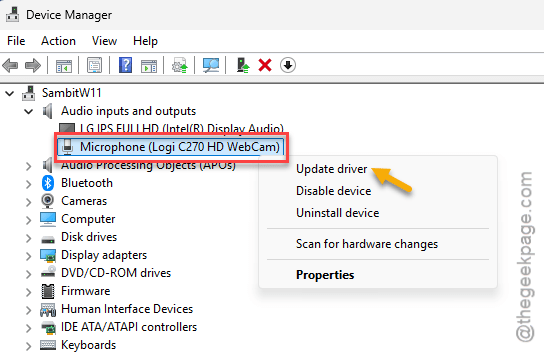
Step 2 – Next, expand the Audio inputs and outputs section. Locate the microphone or the audio device you are using.
Step 3 – Right-click that device and tap Update driver.
Step 4 – Choose the Search automatically for drivers option.
Wait for Windows to find the latest audio driver for the device and install it.
You can also download and install the latest version of the device driver from the respective device manufacturer website as well.
Additionally, some of these updates are also listed in the Optional updates page in Windows Update. You may find them here –
Windows Settings ⇾ Windows Update ⇾ Advanced Options ⇾ Optional Updates
Look for the audio driver update, and install it from there.
Fix 4 – Disable the Audio Enhancements
The audio enhancements of the microphone can sometimes cause the microphone to glitch out.
Step 1 – Open the Windows Settings and go this way –
System ⇾ Sound
Step 2 – Then, find the microphone in the Input section to load it up.
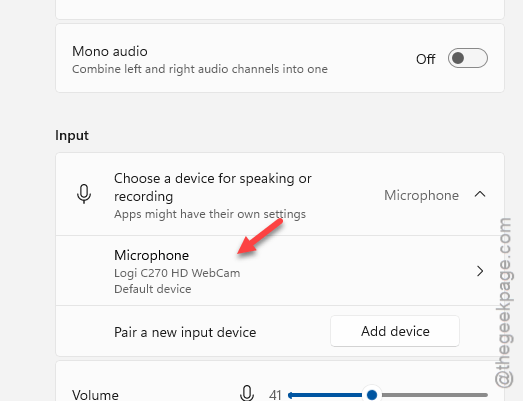
Step 3 – Set the Audio Enhancements to Off mode.
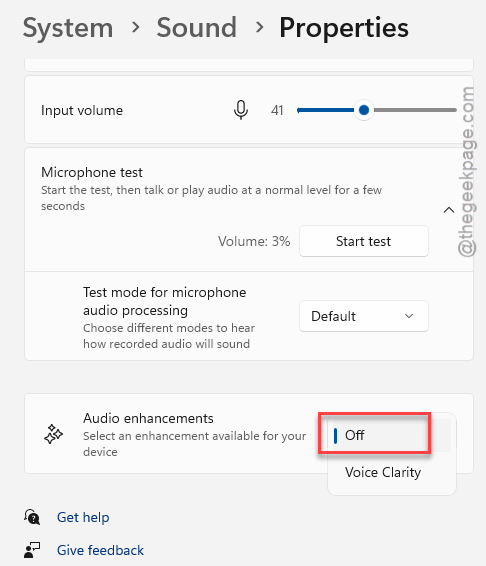
After applying these changes, relaunch the Teams client. There won’t be any further issues with the microphone in the Teams meetings.