When pasting texts or objects directly from the web or external apps like Excel or PDFs, MS Word tries to preserve the original format of the copied content. This can sometimes lead to weird fonts, wrong background details, and broken spacing between characters, fonts, and paragraphs. There are multiple ways to tackle this problem. Here are the five detailed fixes that you can enact to solve this issue at your end.
| Issue | Recommended Fix |
| Random Extra Spaces | Turn Off Smart Cut & Paste inFile > Options > Advanced (Fix 2) |
| Text is in weird snap-in box | Paste Special > Unformatted Text (Fix4) |
| Fonts change every line | Ctrl+Shift+V (Fix 1) |
Fix 1 – Use the Universal Paste Without Formatting Shortcut
While pasting the copied content, you must use the Ctrl+Shift+V instead of the usual Ctrl+V method.
Step 1 – Remove the deformed content that you have pasted in MS Word.
Step 2 – Next, copy the content once again from the original source.
Step 3 – Go to the document and use the Ctrl+Shift+V buttons to paste without formatting.

This way, the text that you have added to Word will only be in the default format. You can format it to match with the document.
Fix 2 – Set Keep Text Only to Default
If you are forced to use the Keep Text Only again and again, you can set the Keep Text Only as the default in MS Word.
Step 1 – Proceed to the File tab in the Word document. Open the Options tab there.
Step 2 – Go to the Advanced tab.
Step 3 – Scroll down to the Cut, copy and paste section. Find the Pasting from other programs and set it to Keep Text Only mode.
Step 4 – Uncheck the Use smart cut and paste option. Tap OK to save the changes.
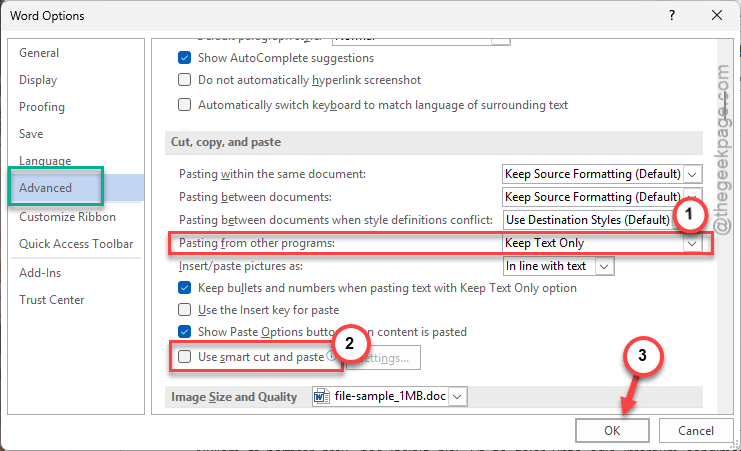
Once you have made these changes, copy-paste the selected portion to test if this works or not.
Fix 3 – Reset Clear All Formatting
If you have already pasted the text and modified a few lines of text, clear all the formatting for the text and re-format it in accordance with the document.
Step 1 – Select the problematic text/object that you have pasted in the document.
Step 2 – Then, use the Clear All Formatting option in the Home tab to clear the formatting from the selected text. Otherwise, you can use Ctrl+Spacebar to do the same.
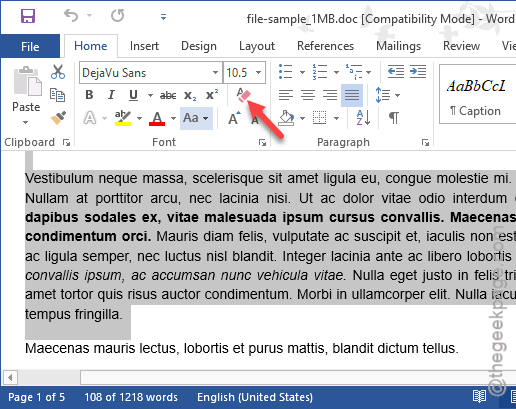
Now you can just reapply the formatting of your choice to align it with the rest of the document.
Fix 4 – Use the Paste Special Dialogue box
Sometimes, the shortcut Ctrl+V is not able to catch all the hidden links or text modifications. Use the Paste Dialogue box to
Step 1 – While pasting the selected text, use the Ctrl+Alt+V buttons to open the Paste Special dialog box.
Step 2 – Use Unformatted Text or Unformatted Unicode Text mode.
Step 3 – Tap OK to paste it.
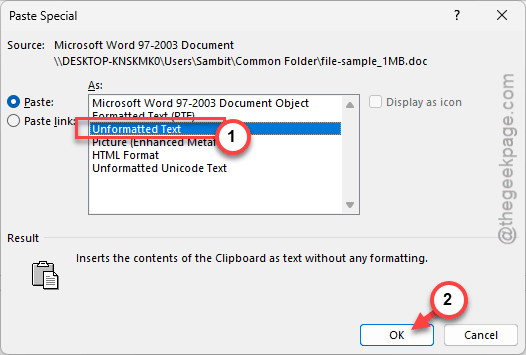
This will remove any residual metadata associated with the copied text, allowing you complete control over its formatting.
Fix 5 – Copy to NotePad and re-copy to Word
Sometimes copy-pasting objects directly from the source may not show up properly, even with the workarounds we have mentioned. In that case, there is a trick you can implement –
Step 1 – Simply open a blank Notepad page, and paste the copied text in there.
Step 2 – Then, copy the text from the Notepad and paste it in your original document in MS Word.

Notepad can’t hold or attach formatting information to the text. You are rinsing it in Notepad before sending it to the document in MS Word.
Hope these tricks have helped you solve the formatting issue in Word!