After receiving the iOS 26 update, many users have noticed very weak haptic feedback on their iPhones. The haptic feedback provides a touch of finesse to the iPhone users, where the device responds to their touch inputs. So, losing the haptic feedback can be detrimental to user experience. Usually, this is just a bug in the iOS 26 that is causing such issues with the haptic feedback. You can easily solve this problem enacting these solutions.
Fix 1 – Switch Haptics to Prominent
Setting the haptics and vibration to prominent will provide a more robust vibration from the iPhone.
Step 1 – Go to the Sounds & Haptics settings on the iPhone.
Step 2 – Next, tap the Ringtone button.
Step 3 – You will find the Haptics button at the very top. Set it to Prominent mode.
This will give you a more enhanced vibration from the iPhone.
Fix 2 – Refresh the Haptics Vibration of iPhone
After installing the update, refresh the haptic vibration settings of the iPhone by tweaking it Off and On.
Step 1 – Get to the Accessibility page of the iPhone Settings.
Step 2 – Next, go to the Touch tab.
Step 3 – Set the Vibration to Off mode.
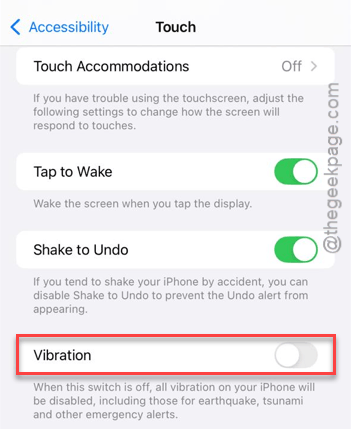
Step 4 – Then, restart the iPhone once.
Step 5 – After the iPhone restarts, return to the same settings –
Accessibility > Touch
Step 6 – Toggle the Vibration to ON.
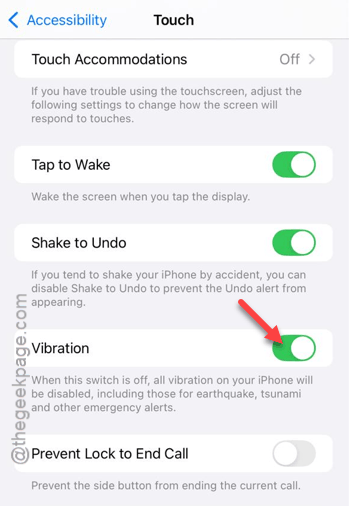
This refresh should clear out any bug that is prohibiting the prominent haptic feedback on the iPhone.
Fix 3 – Use the Fast Haptic Touch
Sharpen the haptic feedback if you feel it has lowered after the iPhone received the iOS 26 update.
Step 1 – Get to the Accessibility tab on the iPhone once again.
Step 2 – Then, load up the Haptic Touch settings.
Step 3 – Next, choose the Fast mode from there.
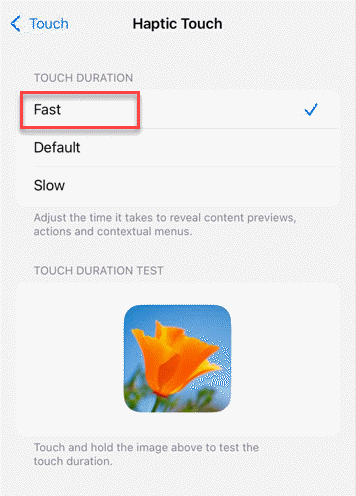
You can try the Touch Duration Test image from the settings below to test it out.
The haptic feedback will feel snappier.
Fix 4 – Refresh the Keyboard Haptics
Change the keyboard haptic settings if you get less or absolutely no haptic feedback from the keyboard.
Step 1 – Go to the Sounds & Haptics tab. Choose to the open the Keyboard Feedback section.
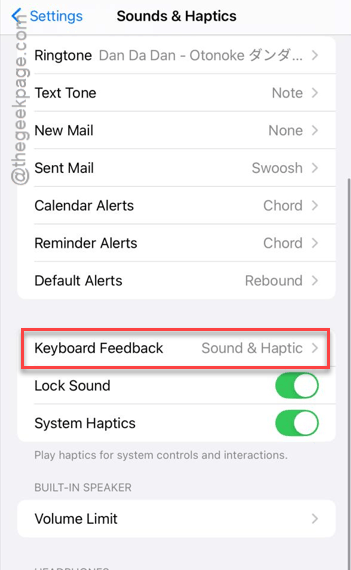
Step 2 – Turn the Haptic to OFF mode.
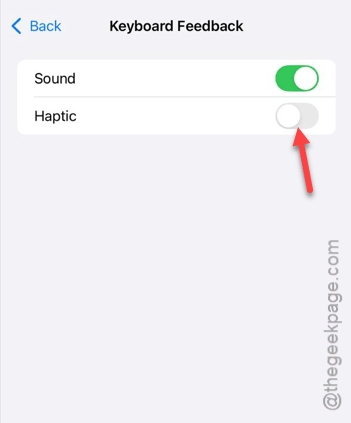
Step 3 – Now, press and release the Volume Up button. Do the same thing with the Volume Down button.
Step 4 – Finally, hit the Side button until the Apple logo shows up on the iPhone screen.
Step 5 – After force-restarting the iPhone, turn the Haptic toggle back to ON mode.
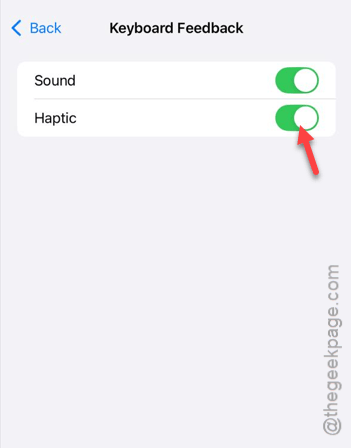
Check if this helps.
Fix 5 – Set the Haptics to Always Play
Switch the haptics to Always Play mode so that iOS 26 does not dampen them too much.
Step 1 – Proceed to the Sound & Haptics settings one more time on iPhone.
Step 2 – Next, tap the Haptics menu at the top of the screen.
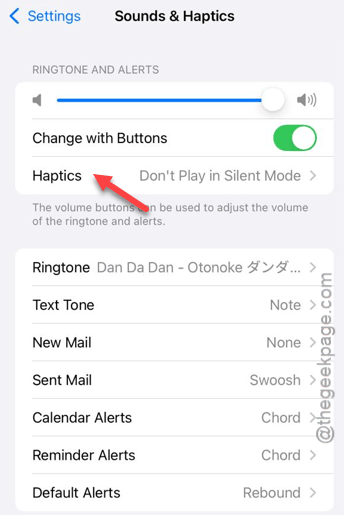
Step 3 – Set it to Always Play mode.
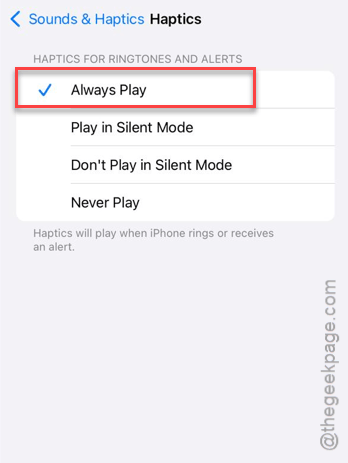
This way, the iPhone will always provide the haptic feedback.