Conditional formatting to color-code an Excel spreadsheet does take its fair share of time. So, it can be an extremely frustrating experience for you to do conditional formatting and lose all of it at the next file startup. Usually, this happens due to either rule fragmentation or file-format incompatibilities. These are the only fixes you will need to fix this problem yourself.
Quick Fix Table ~
| Issue | Recommended Fix |
| Rules gone after saving | Fix #1: Ensure you are saving as .xlsx or .xlsb, not .csv |
| Formatting files on some rows | Fix #2: File Rule Fragmentation by resetting “Applies to” range |
| Rules vanish in shared files | Fix: Check for Overlapping Ranges in Conditional Formatting Manager |
Fix 1 – Change the File Format (Avoid .CSV)
The most common reason for this issue is saving the file as a CSV (Comma Separated Values). These files cannot store formulas.
Step 1 – Complete the conditional formatting code that you want to do on the spreadsheet.
Step 2 – In the Excel spreadsheet, go to the File menu. Tap the Save As button.
Step 3 – Make sure the file type is set to Excel Workbook (.xlsx) or Excel Binary Workbook (.xlsb) and tap Save to save the file.
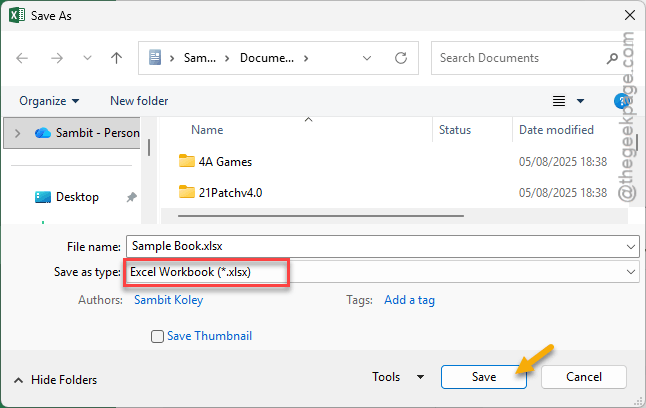
After saving the file, all the formatting data will be saved properly.
Fix 2 – Consolidate Fragmented Rules
Excel has a habit of splitting single rules into many smaller rules if you insert rows in the document.
Step 1 – Go to the Home tab. Then, tap the Conditional Formatting box. Select to Manage Rules feature.
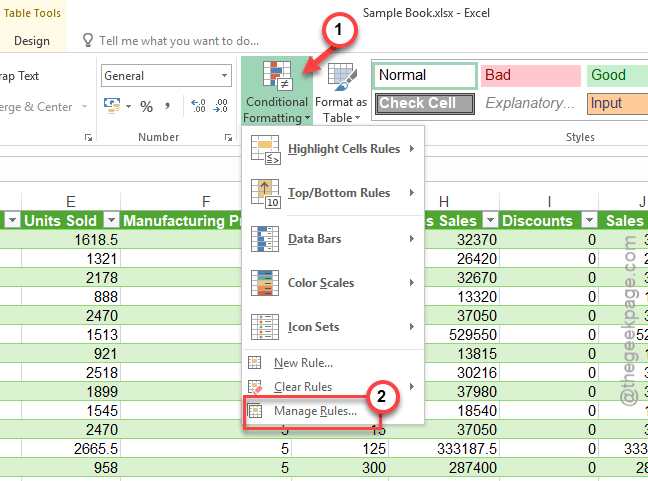
Step 2 – Change the drop-down to This Marksheet feature.
Step 3 – Look for any duplicate rules in there and delete them.
Step 4 – Set the Applies to box to the full range to cover everything you want in a single shot.
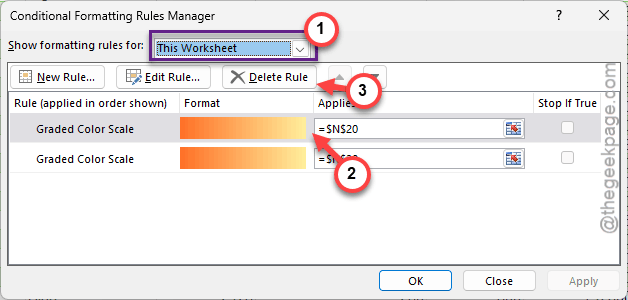
This should eradicate the possible conflict between the rules.
Fix 3 – Use Paste Values or Paste Formulas Feature
When you copy a cell and paste it over a formatted area, Excel also pastes the formatting of the source cell in there as well.
Step 1 – Instead of using the Ctrl+V to paste directly in the Excel sheet, right-click and tap Paste Formulas or Paste Values.
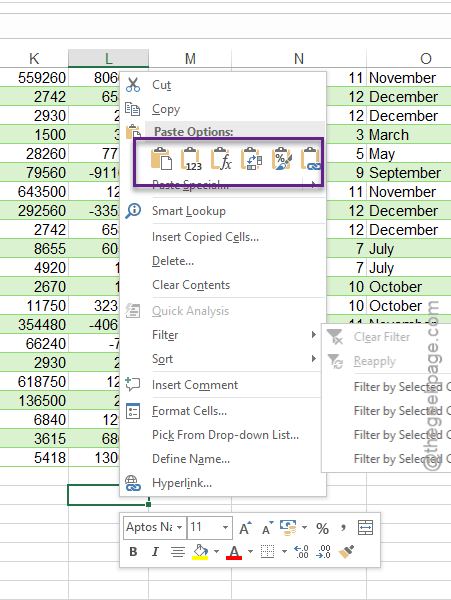
This updates the data without interfering with the conditional formatting system.
Fix 4 – Adjust the Stop if True Settings
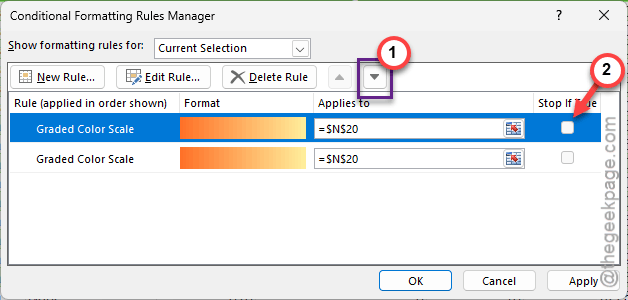
If you have too many rules in place, there is a chance that they are conflicting with each other. Disable the Stop if True settings in the Excel settings.
Step 1 – Go to the Home tab and open up the Conditional Formatting box. Tap the Manage Rules again.
Step 2 – Review the order of your rules in there. Use the Up/Down arrow keys to reorder them according to the priority you want to enact.
Step 3 – Uncheck the Stop If True for all the rules where you want the logic to end.
Check if this works out for you.
Fix 5 – Check for Protected View/ Trust Settings
If the rules disappear only when opening files from email or on the web, Excel might be loading up the document in Protected View mode.
Step 1 – If you see a yellow bar at the top, tap Enable Editing.
Step 2 – This will open up the file in regular, editable mode in Excel.
The conditional formatting rules won’t disappear unexpectedly again.