If your Roblox is crashing and showing up the ‘An unexpected error occurred and Roblox needs to quit. We’re sorry‘ message, you are not the only one who is facing this problem. This error usually sterns from corrupted Roblox cache, old graphics driver or some software overlays. Here are some solutions that are widely adopted by users across varies platforms such as Roblox community, Reddit and countless Roblox support pages.
Here is the quick fix table that you should give a brief overlook on the issue along with the easy steps to fix it.
| Issue Cause | Quick Fix | Time Needed |
|---|---|---|
| Corrupted Roblox cache files | Clear the Windows drive with Disk Cleanup.
Win+R > %localappdata%\Roblox Clear the Roblox folder. |
5 minutes |
| Overlay Conflicts | Terminate any of the overlay 3rd party tools like MSI AfterBurner, Rivatuner, etc. | 2-3 minutes |
| Dispute with Core Isolation program | Windows Security > Device Security > Core Isolation > Disable Memory Integrity | 2 minutes |
We have discussed these solutions in details below~
Fix 1 – Clean up the junk files from the Windows drive
You should clear up all the junk or temporary files from your Windows drive (It will eventually clear local Roblox files as well).
Step 1 – Press the Win+R buttons together.
Step 2 – Then, paste this in the box and hit Enter.
cleanmgr
Step 3 – Choose the drive where you have Windows installed and open it up.
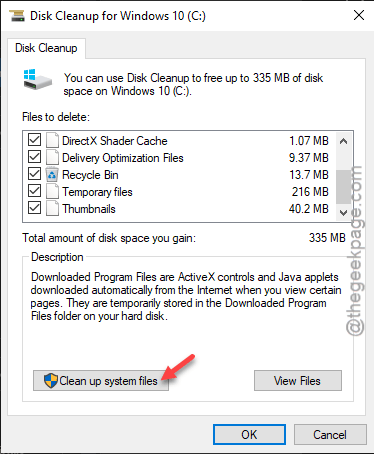
Step 4 – Next, check all the boxes there, like ~
Recycle Bin,
Temporary Files
Thumbnails
Step 5 – Tap the Clear up system files option.
Step 6 – Next, check all the boxes further in the next page and tap OK to start the disk clearing process.
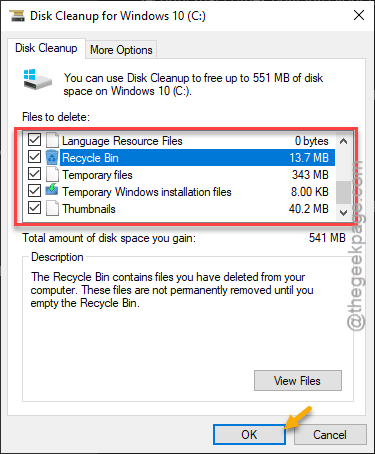
After Windows has cleared up the drive, relaunch Roblox and check.
Fix 2 – Delete Roblox cache and do a clean installation of Roblox
Remove the Roblox local cache files manually and then, do a fresh installation of the game.
Step 1 – Open a Run box using the Win+R buttons at once.
Step 2 – Next, put this there and click OK.
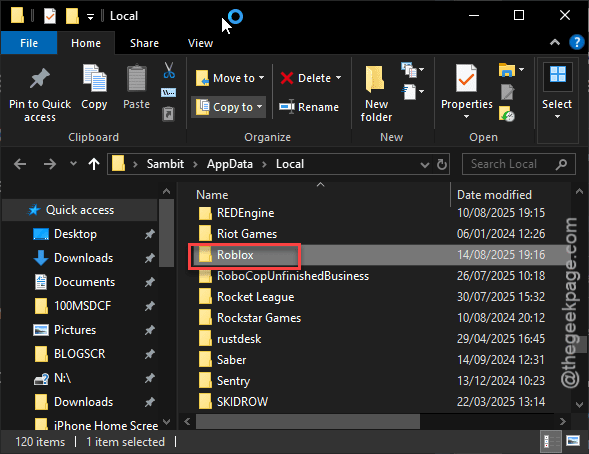
%localappdata%\Roblox
Step 3 – Delete the Roblox folder from there.
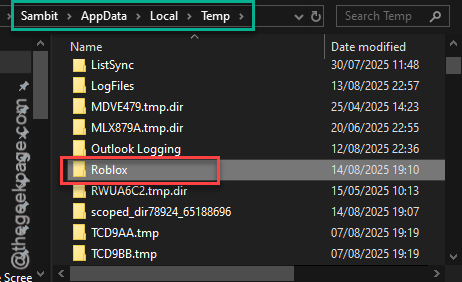
Step 4 – Next, put this in a new Run dialogue box and open up the Temp folder.
%temp%
Step 5 – Remove the Roblox folder from there as well.
Step 6 – After you have removed the folder, open Windows Settings and follow this path~
Settings > Apps & Features > Installed Apps
Step 7 – Locate the Roblox app and uninstall it from there.
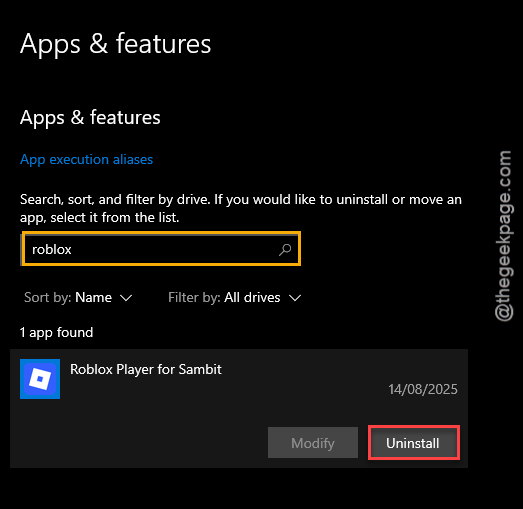
Now, it is time for you to do a clean installation of Roblox.
Step 8 – Download the latest version of Roblox and install it on your computer. You may get the Roblox from Microsoft Store as well.
After you have installed Roblox, test whether you can play it or not.
Fix 3 – Turn off Memory Integrity in Windows Security
The memory integrity feature can cause some issue with the Roblox game.
Step 1 – Open the Windows Security from the search box.
Step 2 – Then, load up the Device Security tab. Next, tap the Core Isolation details.
Step 3 – Turn off the Memory Integrity function there.
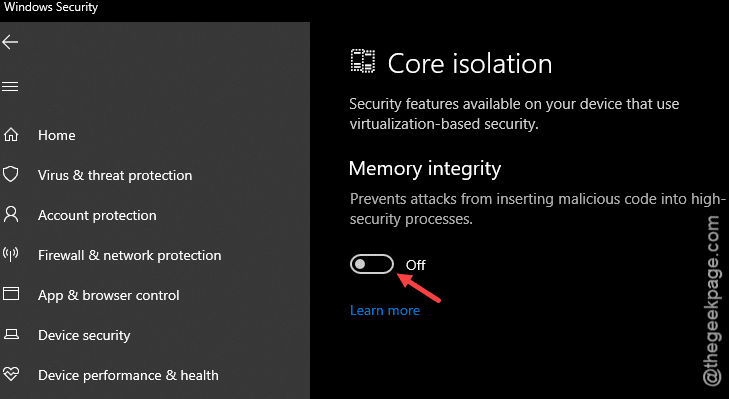
After turning off the memory integrity feature, try Roblox once again.
Fix 4 – Disable the RTSS/MSI Afterburner or any other overlays
Third party tools like MSI Afterburner, RivaTuner Statistics Server has certain overlay that can induce this crash while launching Roblox.
Step 1 – Shut down any external overlays like MSI Afterburner on your system.
Step 2 – Next, disable any other type of performance metrics overlays (like NVIDIA overlay).
Hyperion, the Roblox’s anticheat may mistake the hooks from these overlays and block them, that may lead to this crash.
Check if this helps!
FAQs –
1. Why does Roblox keep crashing with ‘An unexpected error occurred’ message?
Corruption in the Roblox cache files located on your computer usually cause the Roblox to crash with the ‘An unexpected error occurred…’ message. Overlay conflicts or outdated GPU drives can also cause this issue as well. Removing the corrupted cache files can help you resolve the issue.
2. Will reinstalling Roblox fix the unexpected error message?
Yes. The unexpected error message is linked directly with the corrupted Roblox cache files on your local drive. Deleting those local Roblox cache files and uninstalling, reinstalling Roblox will fix the problem. But, if the problem has originated from having third-party overlays or outdated GPU drivers, you have to try other methods.
3. Can outdated GPU drive cause the Roblox to crash?
Yes. Though Roblox does not demand high graphics requirements, outdated GPU drivers or overheating of the GPU can result into such errors.