Seeing blurred out apps on your Windows machine? The main reason behind the blurriness that you are witnessing on the applications is the DPI of the display that you are using. Apart from that, the sudden change in the display settings can interfere with the blurriness in the applications. These fixes will help you solve the problem on your device.
Fix 1 – Allow Windows to fix the blurry apps automatically
Windows can recognize the blurry apps automatically and show you a prompt that allows the device to fix the issue on its own.
Step 1 – Open the Windows Settings.
Step 2 – Then, go to the “System” settings and open up the “Display” section.
Step 3 – Later, tap the “Advanced scaling settings” section.
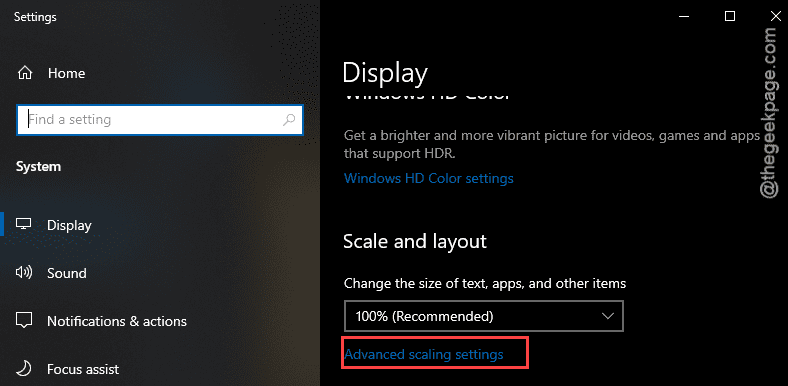
Step 4 – Turn on the “Let Windows try to fix apps so they’re not blurry” option.
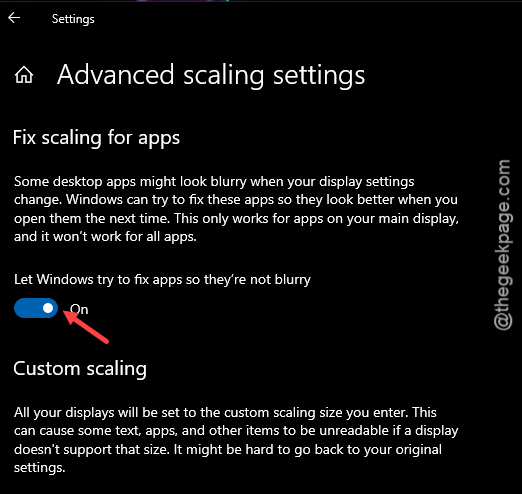
While this feature is enabled, Windows will automatically show up a prompt to fix the scaling problem to get rid of the blur issues on the applications.
Additional Tips : Adjust ClearType fonts in Windows 11
Fix 2 – Edit the registry to enforce DPI Awareness
You have to modify a certain section of your system registry to enhance the DPI awareness of all the applications.
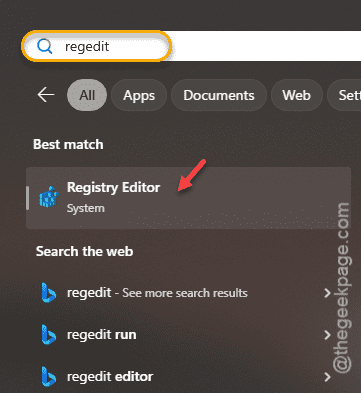
Step 1 – Hit the Windows button and search for “regedit“.
Step 2 – Next, tap to load up the Registry Editor.
Step 3 – Reach this location in the Registry Editor console –
HKEY_LOCAL_MACHINE\SOFTWARE\Microsoft\Windows NT\CurrentVersion\Image File Execution Options
Step 4 – Now, right-tap the “Image File Executions” key and tap the “New>” and “Key” option to create a new key.
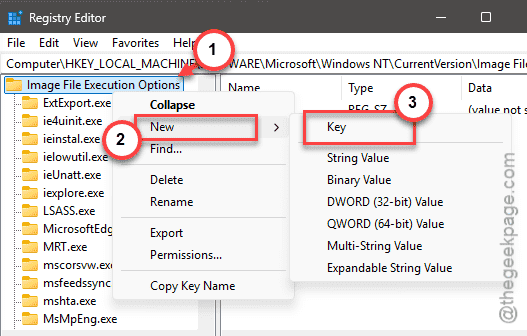
Step 5 – Name this key exactly the same as the application name along with .exe extension. Suppose, you are having this problem with Chrome.exe, the name of the key will be – chrome.exe.
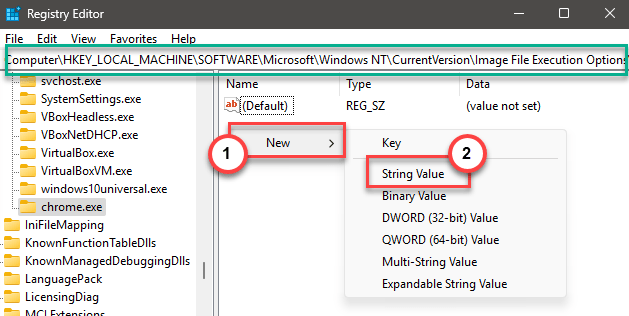
Step 6 – Now, while selecting the new key, right-click on the space and tap “New>” and “String Value” to make a new string value.
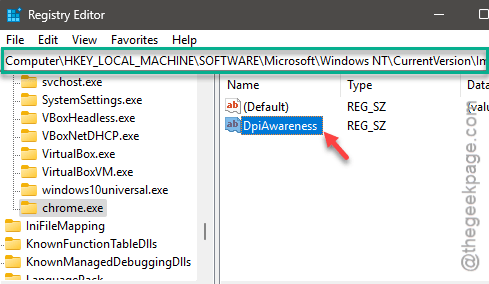
Step 7 – Name this “DpiAwareness“. Double-tap the same value.
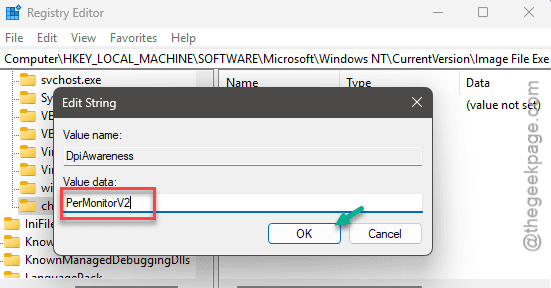
Step 8 – Set the value of this particular string to “PerMonitorV2” and tap “OK“.
Close the system registry. Then, go ahead and restart your device once.
Fix 3 – Don’t use custom scaling
The custom scaling feature works to provide a better viewing experience to the users. But, the same feature work may cause problems with the app scaling.
Step 1 – Load up the Settings on your Windows machine.
Step 2 – Next, open up the “System” settings. Load up the “Display” settings.
Step 3 – Find the “Scale” option there. Tap to open it up there.
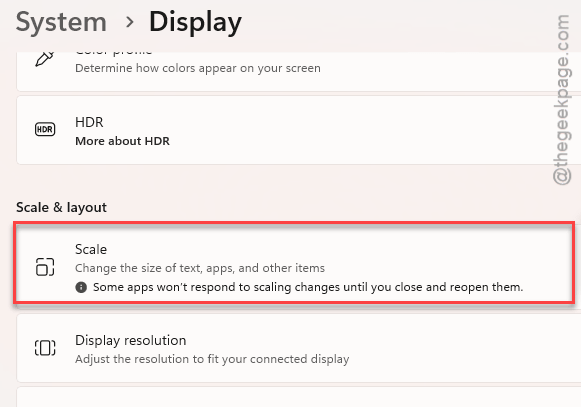
Step 4 – Write “100” in the box, hit the Enter key, and tap the sign in the display settings.
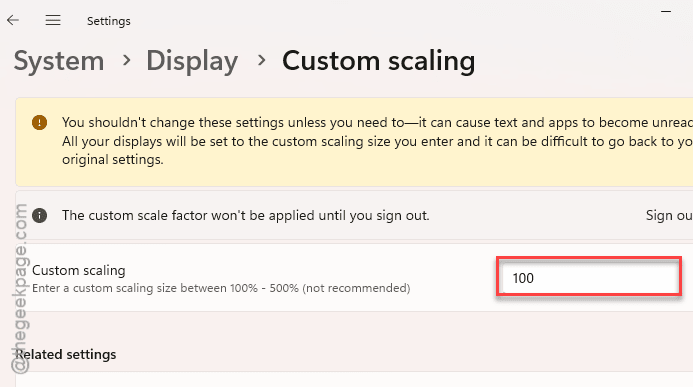
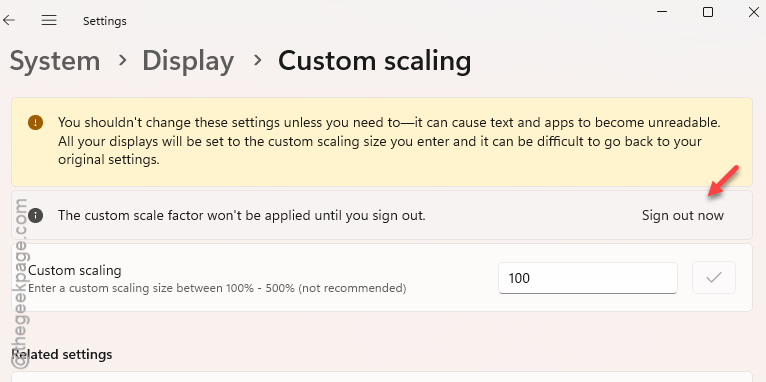
After changing the scaling factor, you may get the prompt to restart or sign out from your computer to apply that change.
Step 5 – Tap to sign out from your computer. Then, sign into your account later.
NOTE – If you have multiple monitors on your setup, make sure that you have not opted for the custom scaling for all the displays connected to your computer.
Fix 4 – Change the High DPI settings of the app
If you are having this problem with a specific application, you can change the DPI settings for the app individually.
Step 1 – Search for the application from the search box.
Step 2 – Then, right-click the application and tap “Open file location“.
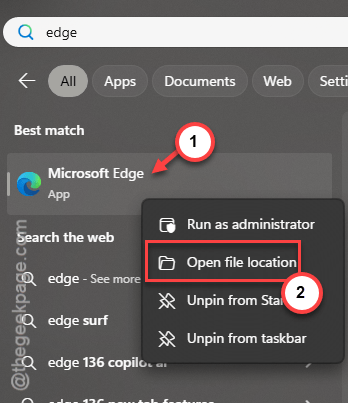
Step 3 – If this doesn’t take you to the exact location of the application packages, right-click the same application, and tap “Open file locations“.
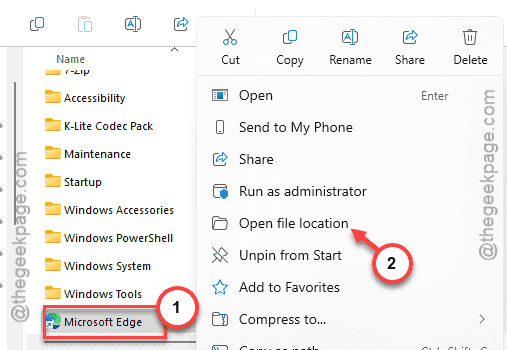
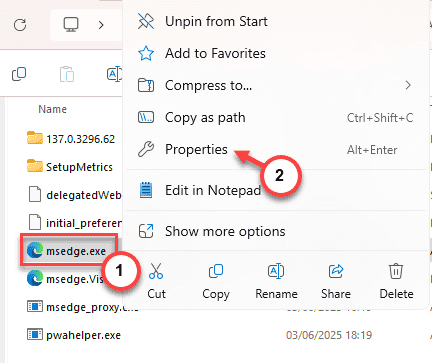
Step 4 – Next, right-click the app executable and tap “Properties“.
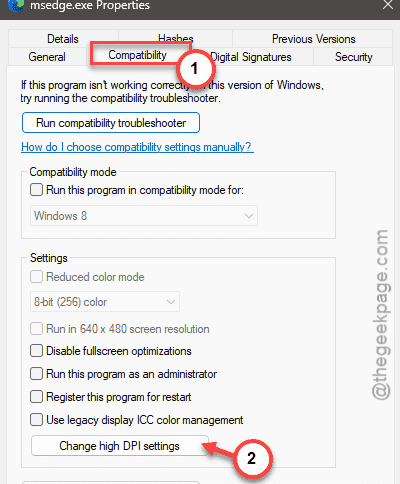
Step 5 – Reach the “Compatibility” tab.
Step 6 – Tap the “Change high DPI Settings” to load that up.
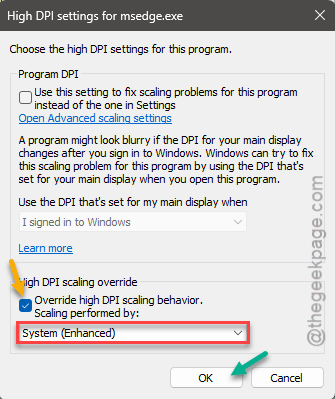
Step 7 – Go to the ‘High DPI scaling override’ section, check the “Override high DPI scaling behavior. Scaling performed by:” option.
Step 8 – Choose the “System(Enhanced)” from the drop-down option.
Step 9 – Tap “OK” to save the changes.
After saving this change, relaunch the application, and check whether you are still getting any blurry views or not.
Fix 5 – Use the optimal resolution
If you have modified your desktop screen resolution manually, set it to the recommended module to fix the problem.
Step 1 – At first, load up the Windows Settings.
Step 2 – Then, open up the “System” settings. Go to “Display” section.
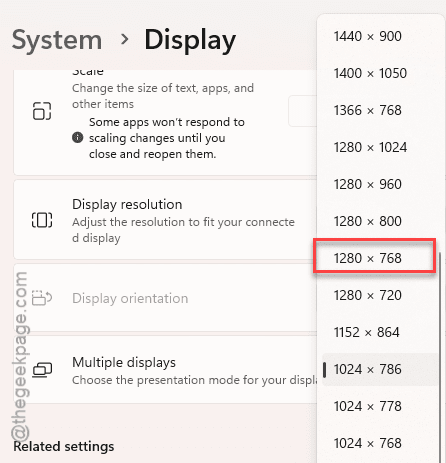
Step 3 – Later, select an optimal resolution from the drop-down list.
After setting the resolution, test the problematic apps once more. Check whether you are noticing the same blurriness or not.