You open Widgets. And the weather tile just says “Unable to load weather information.” Maybe the other widgets are blank too. Nothing loads.
Usually a location services thing. Or a third-party app interfering. Frustrating, but fixable.
Why This Happens
Here’s the deal. The weather widget needs your location to pull weather data. If Location Services are turned off? It can’t get anything. Just shows that error message.
But the bigger cause, and this trips up a lot of people, is ExplorerPatcher. It’s a popular third-party tool that restores the old Windows 10 taskbar style in Windows 11. But the latest versions completely break Windows 11 Widgets. Uninstall it? Widgets come right back. Reinstall it? Broken again.
And sometimes the Widgets process just gets stuck after an update. A quick restart fixes that. So yeah. Three possible causes.
Fix 1 – Uninstall ExplorerPatcher
If you have ExplorerPatcher installed, this is almost certainly the cause. Confirmed by multiple users — it conflicts with the widget rendering engine.
1 – Press Windows + I to open Settings.
2 – Click Apps from the left sidebar.
3 – On the right side, click Installed apps.
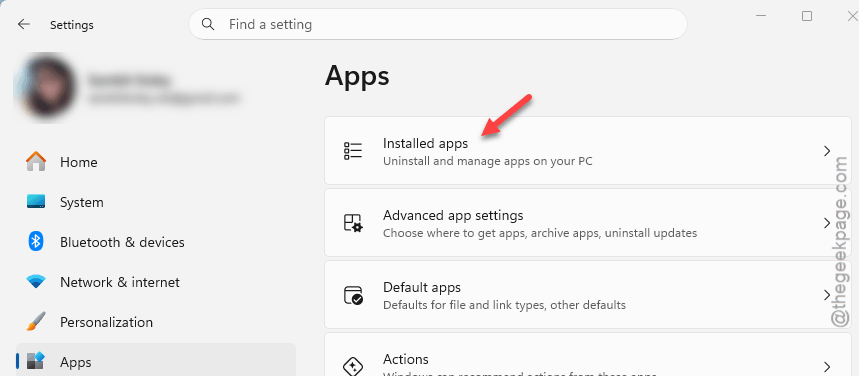
4 – Type “ExplorerPatcher” in the search box at the top.
5 – Click the three dots (⋯) next to it.
6 – Click Uninstall.
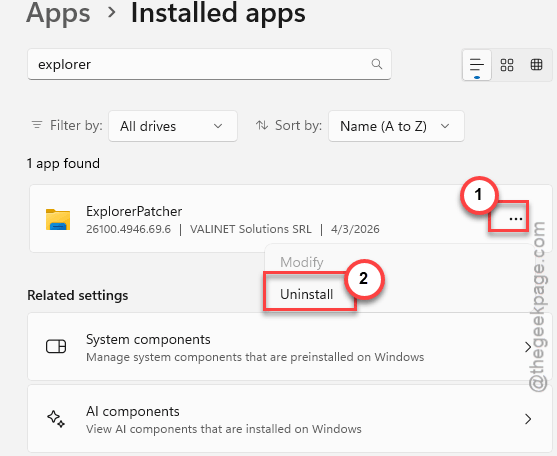
7 – Restart your PC.
And Widgets come right back. Weather loads. Everything works. For now, you have to pick one or the other — ExplorerPatcher or Widgets. Annoying, I know. But that’s how it is until the ExplorerPatcher devs fix the conflict.
Fix 2 – Turn On Location Services
The weather widget needs location access. If it is off, nothing loads.
1 – Press Windows + I to open Settings.
2 – Click Privacy & security from the left sidebar.
3 – On the right side, click Location.
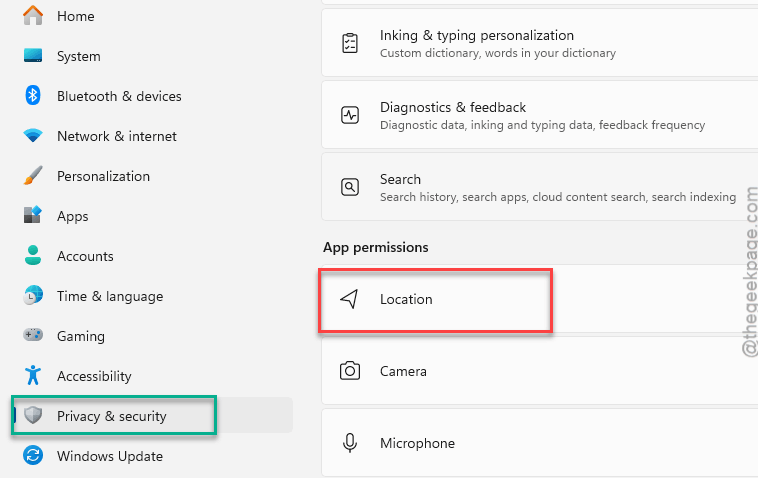
4 – At the top, make sure Location services is toggled on.
5 – Scroll down and make sure the Weather app has that necessary location services permissions too.
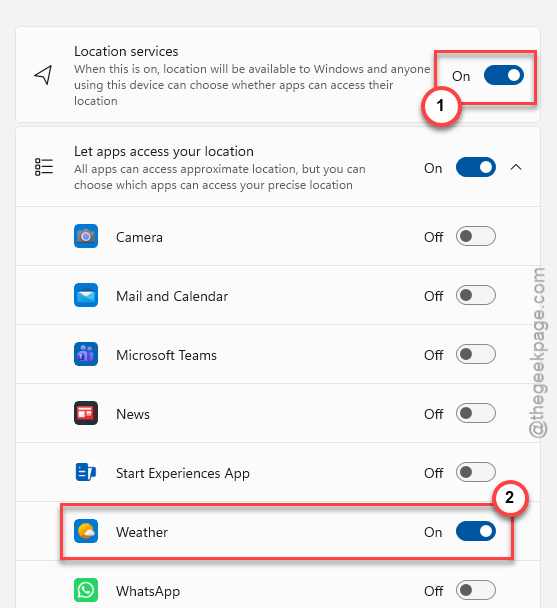
Try the weather widget again. If location was off? That’s the whole problem. Done.
Fix 3 – End the Widgets Process in Task Manager
Quick fix. The process might just be stuck from a bad update.
1 – Press Ctrl + Shift + Esc to open Task Manager.
2 – In the Processes tab, look for Windows Widgets. You can type “widgets” in the search box at the top to find it faster.
3 – Right-click it.
4 – Click End task.
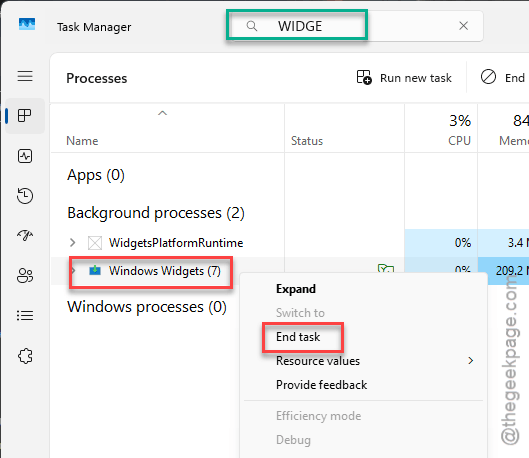
5 – Wait a few seconds. It restarts on its own.
6 – Click the Widgets button in the taskbar again.
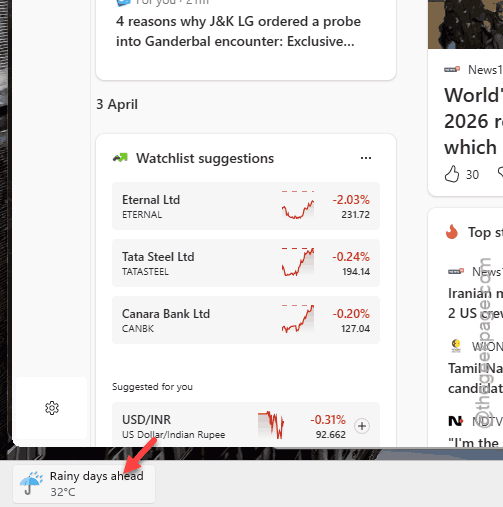
If the weather loads now? The process was just stuck. Happens after updates sometimes. No big deal.
Fix 4 – Restart Windows Explorer
Sometimes the whole shell needs a refresh. Not just the Widgets process.
1 – Press Ctrl + Shift + Esc to open Task Manager.
2 – In the Processes tab, find Windows Explorer. It’s usually near the bottom of the Apps section.
3 – Right-click it.
4 – Click Restart.
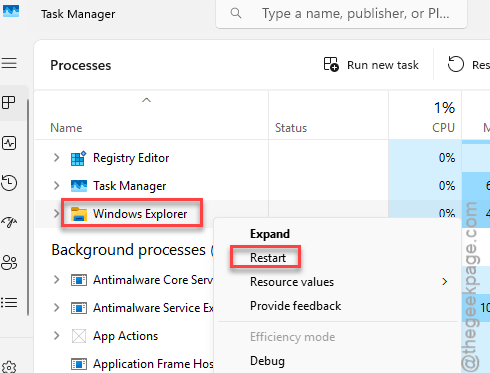
Taskbar flickers and comes back. Try Widgets after. If the weather loads now, Explorer is in a bad state.
Fix 5 – Reinstall the Web Experience Pack
This is the component that powers all widget content. If it’s corrupted, nothing loads — weather, news, none of it.
1 – Click Start and type cmd in the search bar.
2 – Right-click Command Prompt in the results.
3 – Click Run as administrator.
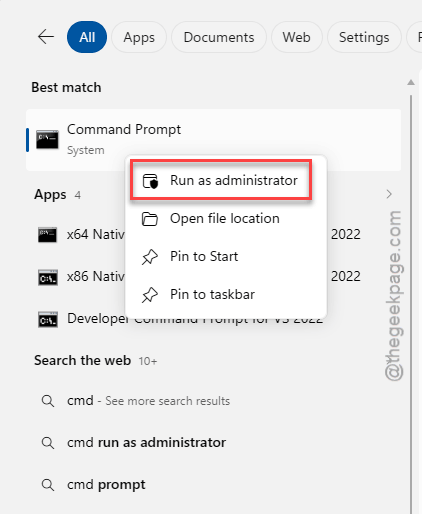
4 – Type this command and press Enter:
winget uninstall "Windows Web Experience Pack"
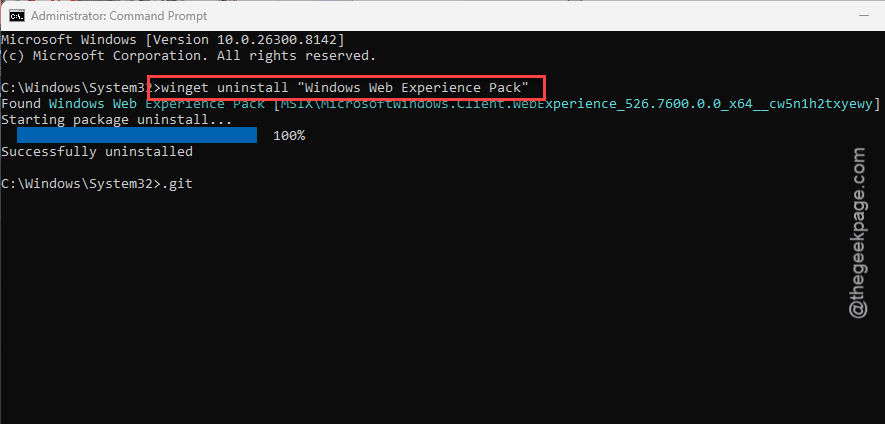
5 – Wait for it to finish uninstalling.
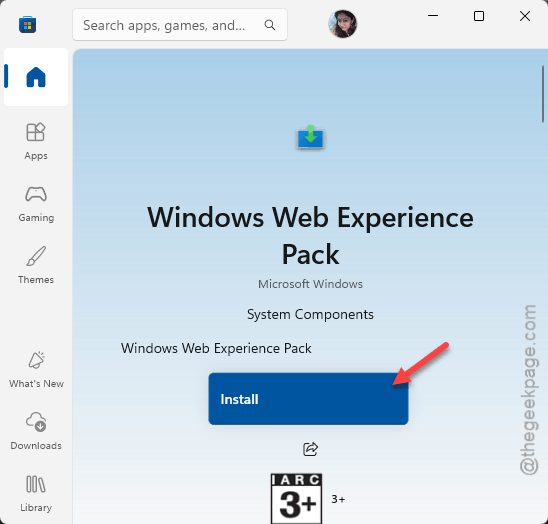
6 – Now, go to this Windows Web Experience page on Microsoft Store. Tap to allow it to load up the Store console.
8 – Click Install.
9 – Restart your PC.
Fresh install of the widget engine. And this fixes persistent loading issues that the simpler fixes don’t catch.
Fix 6 – Check for Windows and Store Updates
Microsoft has patched widget issues in several updates. Make sure you’re current on both Windows updates and Store updates.
1 – Press Windows + I to open Settings.
2 – Click Windows Update from the left sidebar.
3 – Click Check for updates on the right side.
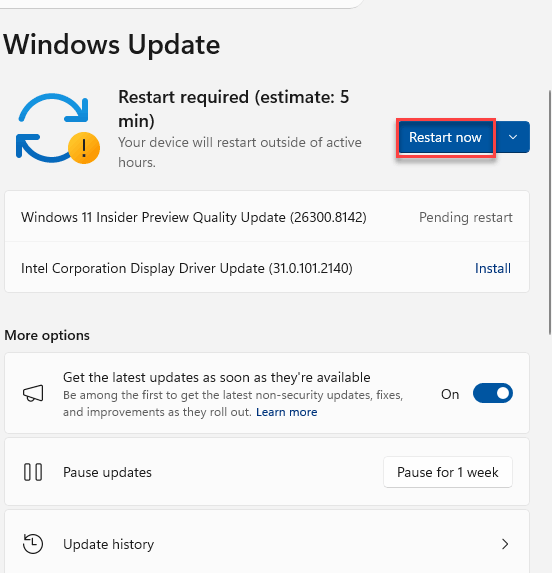
4 – Install everything available. Use the Restart now button to restart the device.
5 – Now open the Microsoft Store.
6 – Click Downloads at the bottom left.
7 – Click Check for updates at the top right.
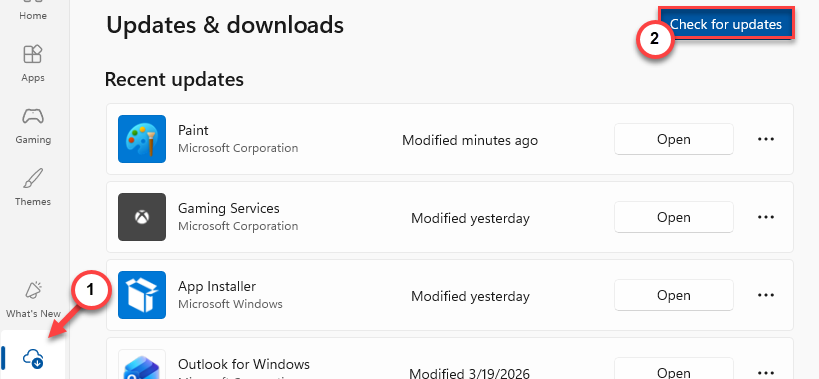
Widget components update through the Store, not Windows Update. So you need to check both. For some reason, Microsoft split it this way.
How to Prevent This
- Keep Location Services on if you use the weather widget. Without it, nothing loads.
- Do not use ExplorerPatcher if you rely on Widgets. They don’t work together right now.
- Keep Edge and Web Experience Pack updated through the Store.
- After Windows updates, check Widgets immediately. Catch issues early.
People Also Ask
Why does my widget not show weather?
Usually it’s Location Services being turned off. Go to Settings > Privacy & security > Location and make sure it’s enabled. If location is on but weather still won’t load, check if you have ExplorerPatcher installed — it breaks Widgets on the latest Windows 11 versions.
How to fix Windows 11 widgets not working?
Most likely a stuck process or corrupted Web Experience Pack. Kill the Widgets process in Task Manager first. If that doesn’t help, uninstall and reinstall the Windows Web Experience Pack using the winget command. And uninstall ExplorerPatcher if you have it.
How to enable weather widget in Windows 11?
Click the Widgets button in the taskbar (or press Windows + W). If the button isn’t there, right-click the taskbar, open Taskbar settings, and toggle Widgets on. Make sure Location Services are enabled in Settings so the weather widget can pull your local forecast.