You open Copilot. Type something. And instead of an answer: “It’s not you, it’s me. I’m having trouble right now.” Every single time. Usually a VPN blocking the connection, antivirus interfering, or a temporary server outage.
Why This Happens
Short version: Copilot can’t reach its servers. Something is blocking the connection. VPNs are the biggest cause, Copilot blocks certain regions and VPN IP ranges.
Antivirus software can do it too. Norton in particular blocks copilot.microsoft.com by default in some configurations. And sometimes it’s just Microsoft’s servers being down. The error message doesn’t tell you which one it is. Just “it’s me.” Not helpful. So yeah.
Fix 1 – Turn Off Your VPN
VPNs are the number one cause of this error.
1 – Disconnect your VPN.
2 – Try Copilot again.
Works without VPN? That’s the issue. Some VPN providers let you switch server locations — try a US or UK server instead of completely disabling it.
Fix 2 – Exclude Copilot from Your Antivirus
Norton and some other antivirus programs block Copilot’s website.
1 – Open your antivirus software.
2 – Go to Settings or Web Protection (varies by program).
3 – Find the Exclusions or Safe Web section.
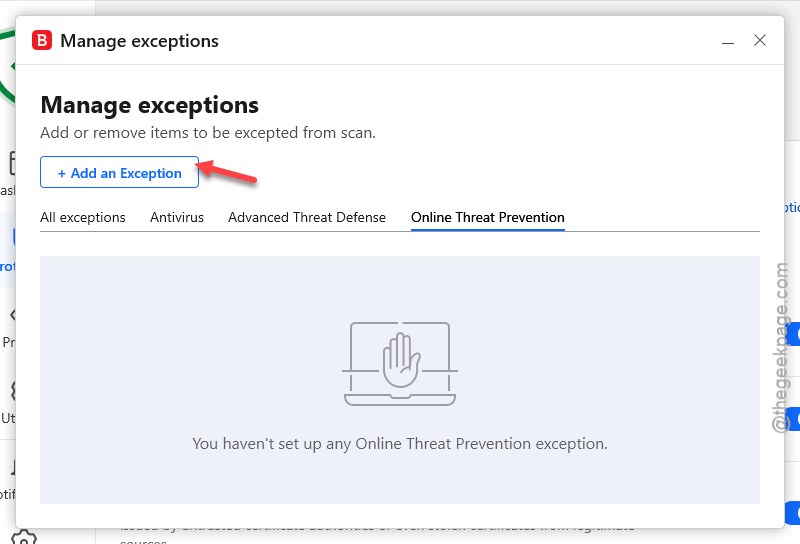
4 – Add this URL:
copilot.microsoft.com
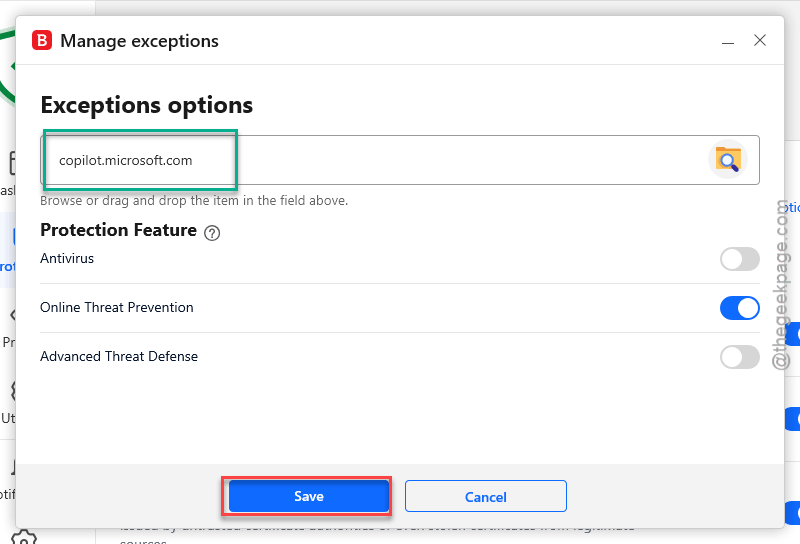
5 – Save your changes.
6 – Try Copilot again.
For Norton specifically: go to Security > Advanced > Web > Safe Web > Exclusions and add the URL there. Easy to miss because it’s buried in the menus.
Fix 3 – Clear Browser Cache and Cookies
Stale cookies or cached data can break the Copilot connection.
1 – Open Edge.
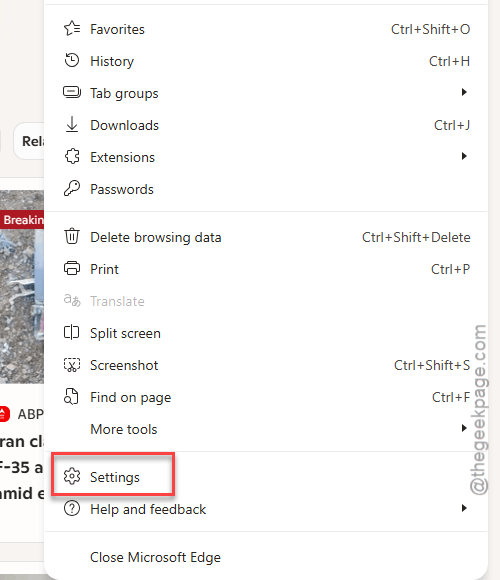
2 – Click the three dots (…) in the top right.
3 – Click Settings.
4 – Click Privacy, search, and services from the left sidebar.
5 – On the right side, scroll to Clear browsing data.
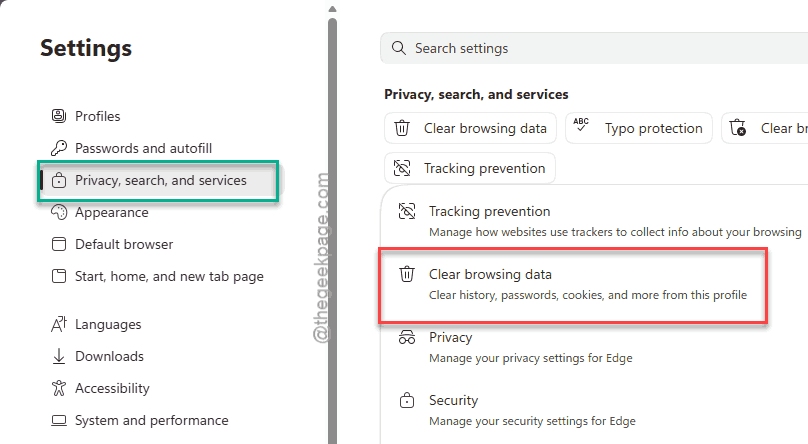
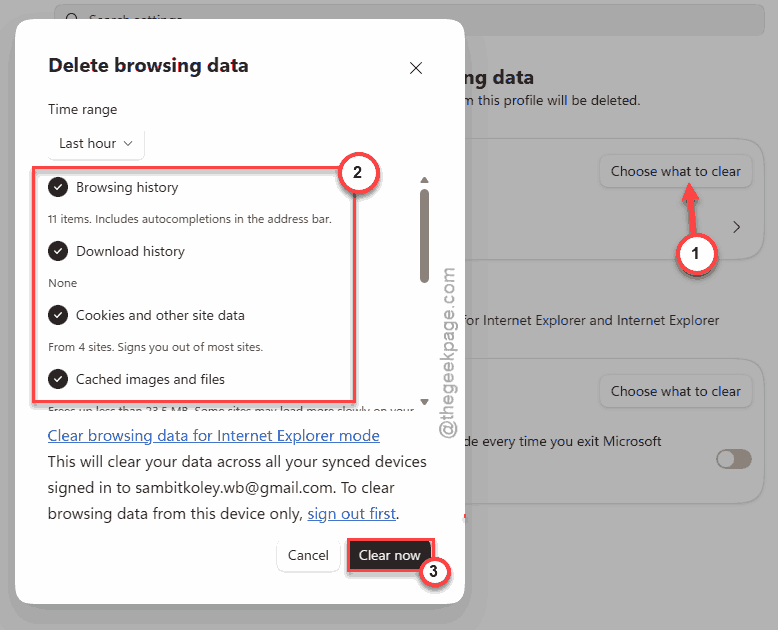
6 – Click Choose what to clear.
7 – Check Cached images and files.
8 – Check Cookies and other site data.
9 – Click Clear now.
10 – Try Copilot again.
Fix 4 – Sign Out and Sign Back In
Authentication tokens can get stale. Quick re-sign fixes that.
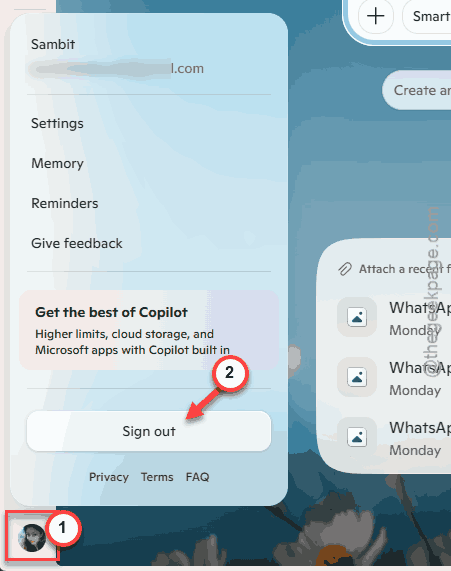
1 – In Edge (or the Copilot app), click your profile icon in the bottom left.
2 – Click Sign out.
3 – Close the browser completely.
4 – Reopen Edge.
5 – Sign back in with your Microsoft account.
6 – Try Copilot.
Fix 5 – Wait and Try Again
Sometimes it really is Microsoft’s problem. Copilot has server outages.
Check downdetector.com to see if others are reporting issues. If the service is down, all you can do is wait. Usually comes back within an hour or so. Not ideal. But it happens.
How to Prevent This
- If you use a VPN, add copilot.microsoft.com to the split tunnel list so it bypasses the VPN.
- Whitelist copilot.microsoft.com in your antivirus.
- Clear Edge cache periodically.
- Keep Edge updated.
People Also Ask
How to fix Microsoft Copilot not working?
Usually it’s a VPN or antivirus blocking the connection. Turn off your VPN first. If that fixes it, add copilot.microsoft.com to your VPN’s split tunnel list. Also whitelist the URL in your antivirus and clear your browser cache.
Why is Copilot saying I don’t have a valid license?
Most likely a stale authentication token. Sign out of your Microsoft account in Edge, close the browser completely, reopen it, and sign back in. If you’re on a work account, check with IT — your organization may not have Copilot enabled.
Why is Copilot saying “sorry I wasn’t able to respond”?
Probably a VPN or antivirus blocking the connection. Or a server outage on Microsoft’s end. Turn off your VPN first to test. If that’s not it, check downdetector.com to see if Copilot is down for everyone.