Are you getting this error “Unable to load storage info in iCloud” message on your iPhone screen? This error prompt appears only when your iPhone can’t fetch the storage information from the iCloud page. The possible reason in this case may vary from network problem, iCloud backend problems, etc. Solving this problem won’t take much time, and you can do it following these solutions.
Fix 1 – Test the network, reconnect to another one
In most of these cases, the problem is network-oriented. iCloud needs to fetch the information from the cloud (server) to show you that.
Step 1 – Open up the Control Center. A simple swipe from the right-top side of the screen should show you that up.
Step 2 – Now, make sure Wi-Fi or Cellular data is turned on there.
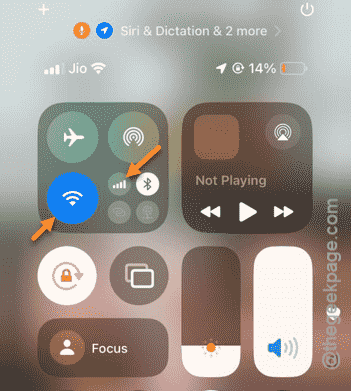
Return to the iCloud page on your iPhone Settings screen and see whether you can view the current storage status or not.
Fix 2 – Do a force-restart
Execute a force-restart procedure, if you still can’t view the iCloud storage information.
Step 1 – For the beginning, hold and release the Volume Plus button once.
Step 2 – Then, do that same to the Volume Minus button as well.
Step 3 – Later, start pressing the same Power button and keep holding to it until the iPhone restarts. While the iPhone is rebooting, you will see the usual Apple logon on the screen.
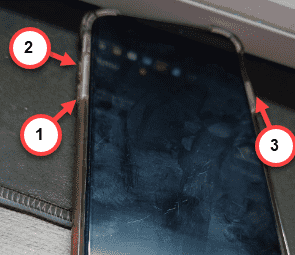
After the device restarts successfully, go ahead to the iCloud page and check this out yourself.
Fix 3 – Reset all the settings
Resetting the iPhone settings can help you fix the iCloud settings on the device.
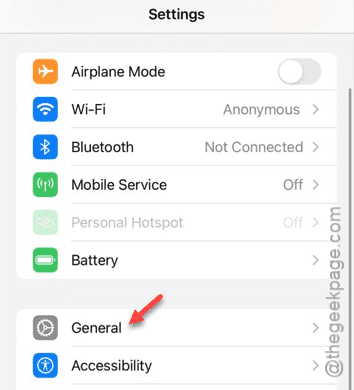
Step 1 – Get down to the iPhone Settings page.
Step 2 – Later, go to the “General” point.
Step 3 – Thereafter, slide down and open up the “Transfer or reset iPhone“.
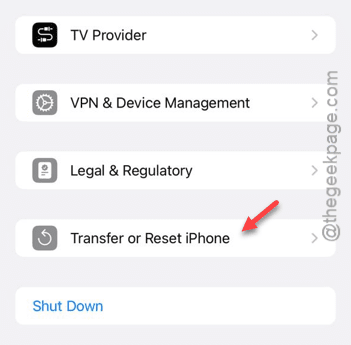
Step 4 – After this, tap the “Reset” button in there.
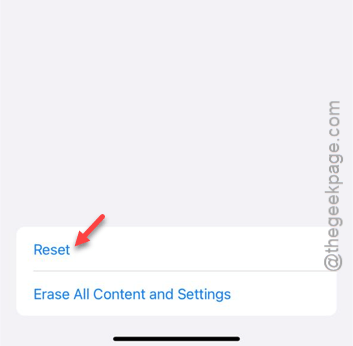
Step 5 – You will notice the resetting tools right in that page. Tap the “Reset All Settings” option.
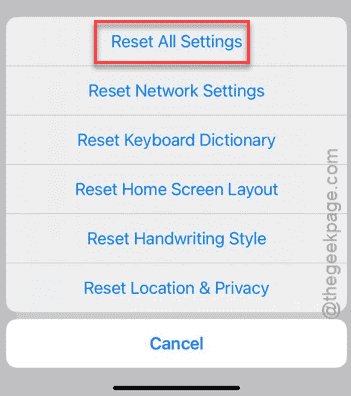
Your iPhone won’t let you reset the iPhone unless you input the security key.
Step 6 – Once you do that, touch the “Reset Settings” option to reset the device settings.
iPhone can’t reset all the settings to the default settings right way. So, your iPhone will get rebooted in the due process.
Unlock your iPhone and reconnect the iPhone to the Wi-Fi or use the cellular network to check out whether you can view the present iCloud condition.
Fix 4 – Sign out of iCloud and sign back in
Signing out from the iCloud account and signing back to it can fix the issue that you are facing.
Step 1 – To do this, you should move to the Settings page.
Step 2 – Next, tap the Apple ID banner.
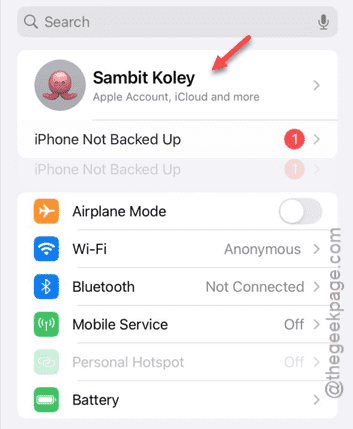
As the iCloud is directly linked to your Apple ID, signing out from the Apple ID should do the trick.
Step 3 – Tap the “Sign out” feature in that page to sign out of the Apple ID.
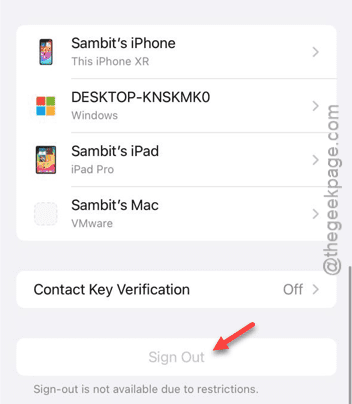
This process requires a verification and may ask you to provide the Apple Passkey.
So, follow the rest of the steps to complete the singing out process.
Step 4 – Once you have signed out, go back to the Settings page.
Step 5 – You will find the “Sign in with Apple ID” at the top. Tap that once.
Step 6 – Provide necessary information such as the email ID or associated phone number and password to log into it.
Step 7 – Apple will send a notification to your other Apple devices. You have to verify this.
Once you are done, you can check the iCloud storage condition easily.
See if this works.