You open Edge. And the Copilot sidebar slides open on its own. Every time. Nobody asked for it. Nobody clicked anything. Microsoft keeps pushing Copilot harder with every Edge update. Annoying, I know. But you can stop it.
Why This Happens
Here’s the deal. Edge has “contextual insights” settings that automatically open Copilot when you visit certain pages. Email links. Shopping sites. News articles. Edge decides you need help and opens the pane without asking.
And every Edge update seems to re-enable these settings. You turn it off. The update comes. It’s back on. For some reason, the setting doesn’t stick. So yeah.
Fix 1 – Turn Off Copilot and Sidebar in Edge Settings
This disables the Copilot button and prevents the sidebar from auto-opening.
1 – Open Microsoft Edge.
2 – Click the three dots (…) in the top right corner.
3 – Click Settings.
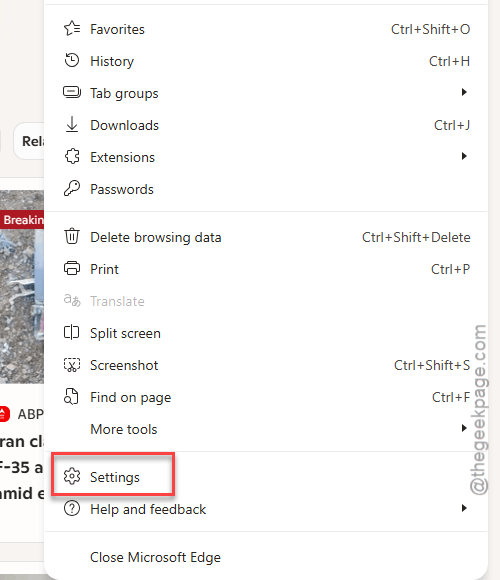
4 – Click Appearance from the left sidebar.
5 – Scroll down on the right side to the Copilot and sidebar section.
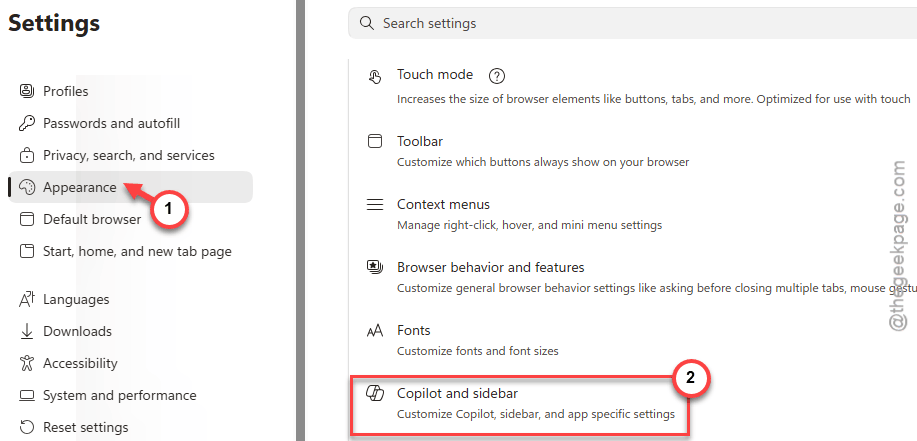
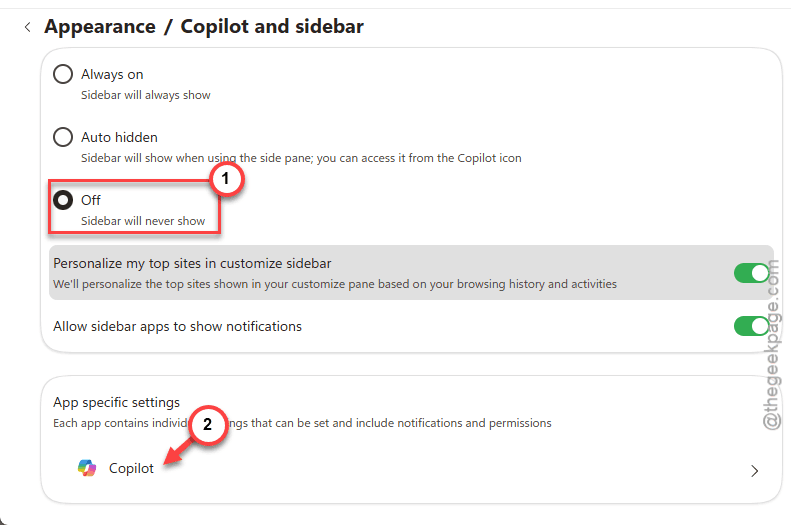
6 – Toggle the switch to Off. Then, load up the App Specific settings in there.
7 – Also find Show Copilot button and turn that off too.
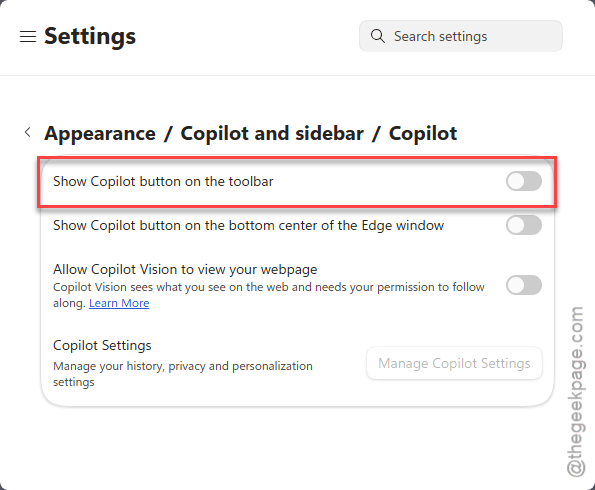
And that should stop it from opening on its own. But check again after Edge updates — it tends to re-enable itself.
Fix 2 – Disable via Registry (Home Users)
This is the quickest way to resolve this issue.
1 – Press Windows + R to open Run.
2 – Type regedit and press Enter.
3 – In the left panel, go to:
HKEY_LOCAL_MACHINE\SOFTWARE\Policies\Microsoft\Edge
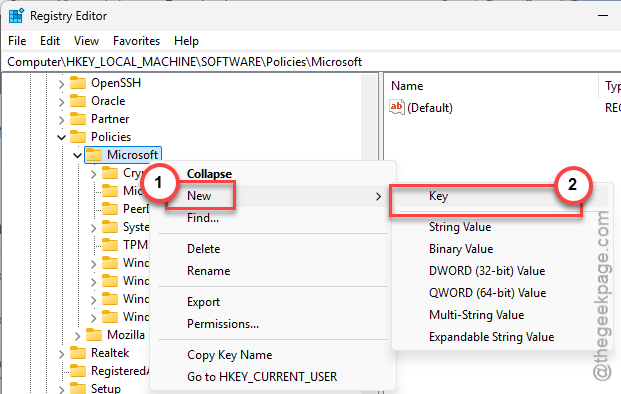
4 – If the Edge key doesn’t exist, right-click Microsoft, select New, then Key, and name it Edge.
5 – Click the Edge key.
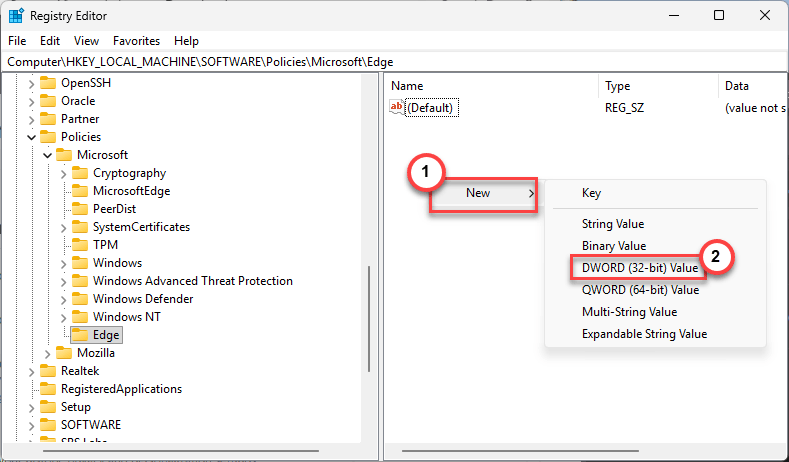
6 – Right-click empty space on the right side.
7 – Select New.
8 – Select DWORD (32-bit) Value.
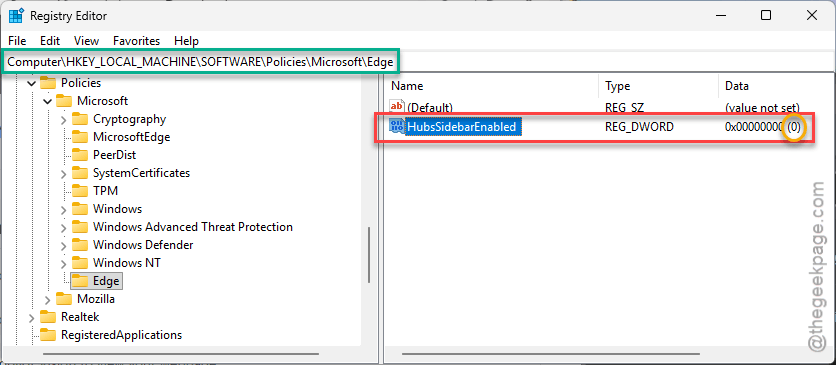
9 – Name it HubsSidebarEnabled
10 – Leave the value at 0.
11 – Restart Edge.
Done. Sidebar gone permanently. And it survives Edge updates.
Fix 3 – Disable via Group Policy (Permanent)
Permanent fix. Prevents Edge from showing the sidebar at all. Even after updates. [This only works on Windows Pro/Enterprise editions.]
1 – Press Windows + R to open the Run dialog.
2 – Type gpedit.msc and press Enter.
3 – In the left panel, expand Computer Configuration > Administrative Templates.
4 – Open Microsoft Edge.
5 – Find Show Hubs Sidebar on the right side.
6 – Double-click it.
7 – Select Disabled.
8 – Click Apply.
9 – Click OK.
10 – Restart Edge.
This blocks the sidebar and all sidebar apps. Update-proof. Edge can not re-enable it.
Fix 4 – Disable Auto-Open in Sidebar Settings
Edge has a separate settings page for the sidebar that controls auto-open behavior.
1 – Open Edge.
2 – Click the address bar at the top.
3 – Type edge://settings/appearance/copilotAndSidebar and press Enter.
4 – Turn off anything related to contextual insights or automatically open. Turn these to off mode –
Always show sidebar
Personalize my top sites in customize sidebar
Allow sidebar apps to show notifications
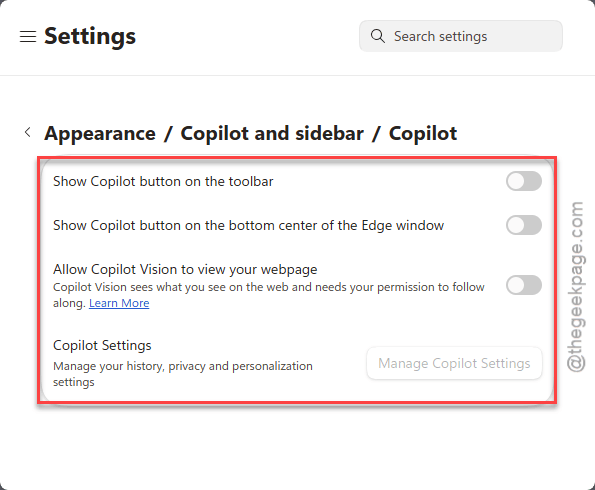
5 – Click App specific settings on the right side.
6 – Find the Copilot app in the list.
7 – Toggle off Show Copilot button on the toolbar.
8 – Remove Copilot from the sidebar entirely if the option is there.
How to Prevent This
- After every Edge update, check Settings > Appearance for re-enabled Copilot toggles.
- Use the Group Policy or registry fix for a permanent solution.
- If you do not use Copilot at all, disable the sidebar entirely.
- Consider using a different browser if Edge keeps re-enabling things you turned off.
People Also Ask
How to stop Copilot from opening automatically?
Usually it’s the sidebar auto-open setting. Go to Edge Settings > Appearance and turn off Copilot and sidebar. Also check edge://settings/sidebar for contextual insight toggles. For a permanent fix, use Group Policy or the registry.
How do I remove Copilot from the Edge sidebar?
Go to edge://settings/sidebar, then App specific settings, find Copilot, and remove or disable it. Or disable the entire sidebar via Group Policy (gpedit.msc > Microsoft Edge > Show Hubs Sidebar > Disabled).
How do I stop Microsoft Edge from automatically opening?
Go to Settings > Apps > Startup and disable Edge. Also check Task Scheduler for hidden Edge launch tasks. And in Edge settings, disable “Continue running background extensions and apps when Microsoft Edge is closed.”