The Weather app can get stuck in an older location on some iOS 26 devices. There have been such reports in various Reddit threads and Apple Community forums where the users have struggled with the basic weather information on the Weather app. In most of the cases, it is just a glitch where the app still shows the information from the old location, while there are some angles to this predicament as well. Here are some tips to fix this problem.
Fix 1 – Enable Precise Location for Weather
If ‘Precise Location’ is disabled on your iPhone, the Weather app may show the wrong location and the regional forecast instead of localized weather.
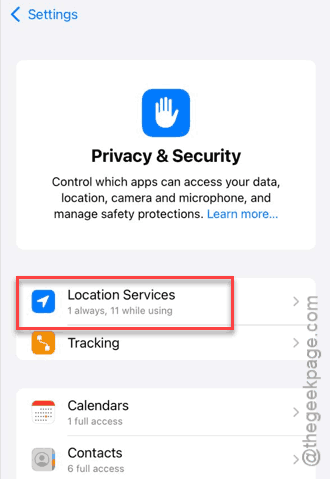
Step 1 – Go to the iPhone Settings. Then, go to the Privacy & Security tab.
Step 2 – Next, load up the Location Services.
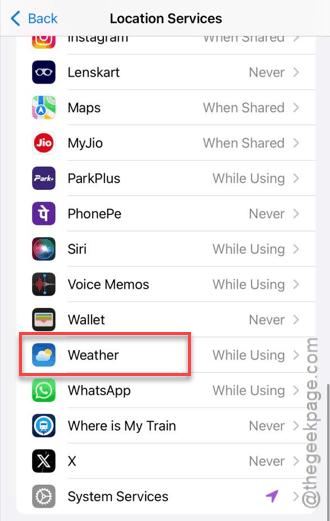
Step 3 – Find the Weather app there and open it.
Step 4 – Make sure the Allow Location Access is set to Always mode. Set the Precise Location to ON mode.
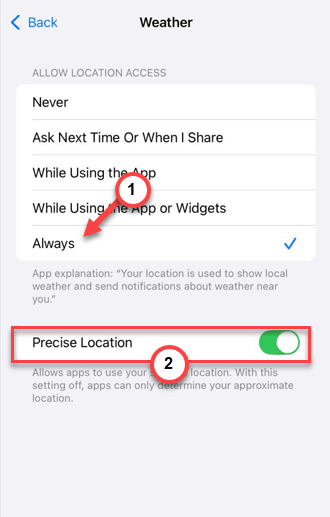
This should kick-start the GPS sensor and fix the problem that you are having.
Fix 2 – Reset the System Customization, Setting Time Zone
There is a background location system service that controls the location feature that retrieves your location information and shows up the weather info based on it.
Step 1 – Load up the Privacy & Security settings. Go to the Location Services menu.
Step 2 – Scroll to the bottom and open up the System Services menu.
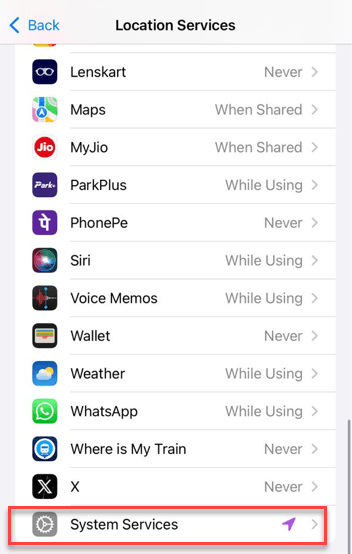
Step 3 – Locate the System Customization and Settings Time Zone settings.
Step 4 – Turn both of these to OFF mode. Wait for 10 seconds. Then, turn them back ON.
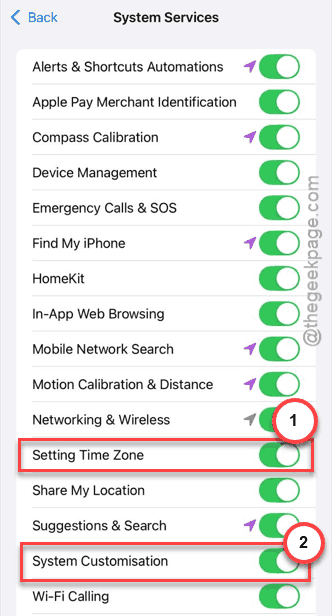
Return to the Weather app and check the weather data again.
Fix 3 – Clear the Weather List Cache
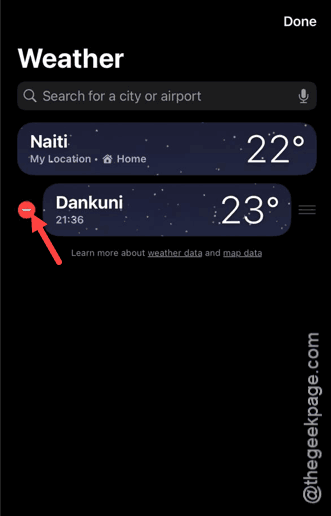
Sometimes, the ‘My Location’ entry in the Weather app can become corrupt and show up as the name of your location but entirely different weather data from another location.
Step 1 – Open the Weather app.
Step 2 – Then, tap the List icon in the bottom-right corner.
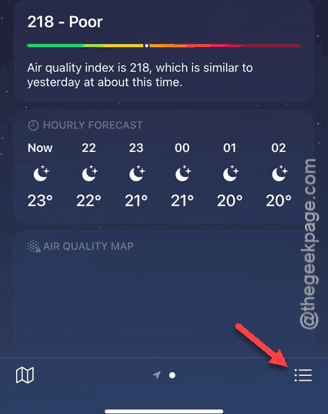
Step 3 – Find any duplicate entries or incorrect locations. Swipe left and tap the 🗑️ icon to delete them.
Step 4 – Force-close the Weather app.
It will detect your location again and show up the weather data correctly.
Fix 4 – Update the My Card
On iOS 26, the device uses the Work and Home address in the ‘My Contact’ cards to show the weather information according to those.
Step 1 – Open the Contacts app. Tap on the My Card option there.
Step 2 – Then, tap Edit. Make sure your current home address is correctly showing up there.
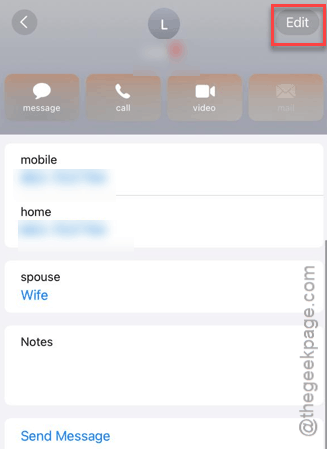
Step 3 – Otherwise, update the address there.
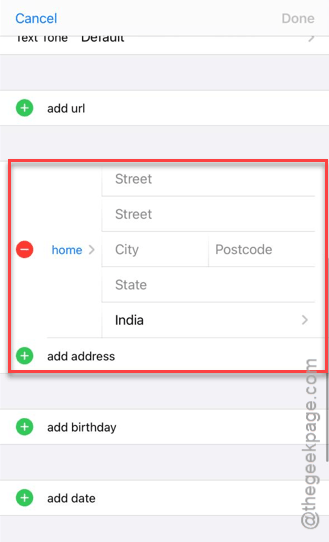
The Weather app will now sync this new Home address data and show the relevant weather data for this location.
Fix 5 – Reset Location & Privacy Settings
If the Weather app is still showing the wrong location, you must reset the location and privacy settings on the iPhone to fix the issue.
Step 1 – At first, load up the General tab in the iPhone Settings.
Step 2 – Proceed this way –
Transfer or reset iPhone > Reset
Step 3 – Then, use the Reset Location & Privacy option there.
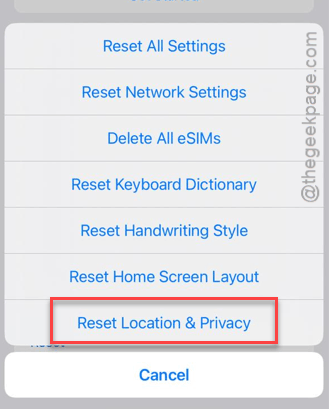
After resetting the location and privacy settings, your iPhone may reboot once.
Once it is operational, return to the Weather app and do check whether it is showin you the correct weather information or not.