You open File Explorer. And there are two OneDrive folders. Both called “OneDrive – Personal.” Or one personal, one with your work account name. Either way — two. When there should be one.
This is a registry issue. And it’s been bugging people for ages.
Why This Happens
Short version: the Windows registry has entries that tell File Explorer which folders to pin in the sidebar. OneDrive creates one entry per account. But sometimes — after updates, account changes, or OneDrive resets — a duplicate entry gets created.
The old entry stays. The new one shows up next to it. And Windows doesn’t clean up the old one. For some reason. So you end up with two identical-looking OneDrive folders. Annoying. And confusing.
Fix 1 – Remove Duplicate via Registry Editor
This is the fix that actually works. You find the duplicate entry in the registry and delete it.
1 – Press Win + R.
2 – Type:
regedit
3 – Press Enter.
4 – Go to this path in the left panel:
HKEY_CURRENT_USER\Software\Microsoft\Windows\CurrentVersion\Explorer\Desktop\NameSpace
5 – You’ll see several subfolders with long random names (GUIDs). Click through each one.
6 – In the right pane, check the Default value. Look for ones that say “OneDrive” or your OneDrive account name.
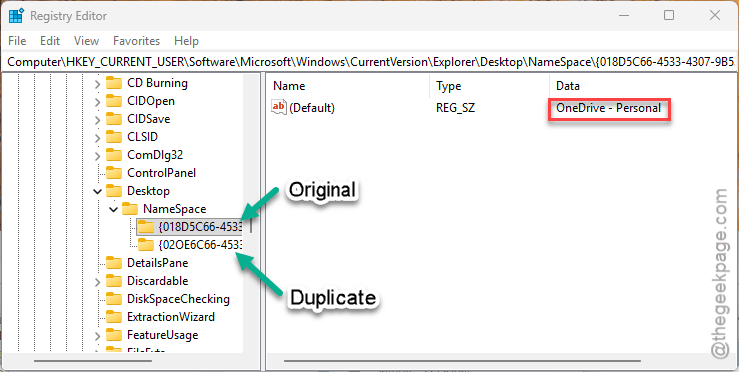
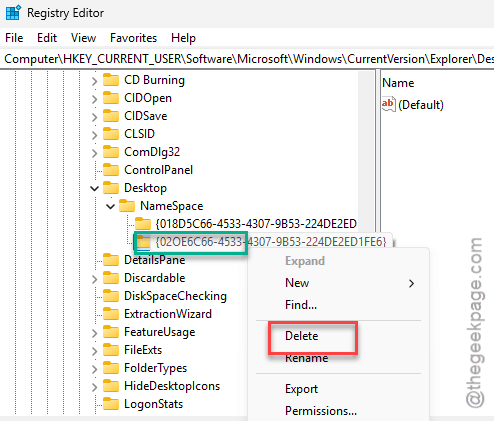
7 – If you find two that point to OneDrive, right-click one of them.
8 – Click Delete. Keep the other one.
9 – Close Registry Editor.
10 – Restart File Explorer. Press Ctrl + Shift + Esc, find Windows Explorer, right-click, click Restart.
And the duplicate should be gone. If you’re nervous about deleting the wrong one, use the alternative method below first.
Fix 2 – Hide the Duplicate Without Deleting
Safer option. Instead of deleting the registry key, you can hide it.
1 – Open Registry Editor (same as Fix 1).
2 – Go to the same NameSpace path:
HKEY_CURRENT_USER\Software\Microsoft\Windows\CurrentVersion\Explorer\Desktop\NameSpace
3 – Find the duplicate OneDrive GUID folder.
4 – Click it.
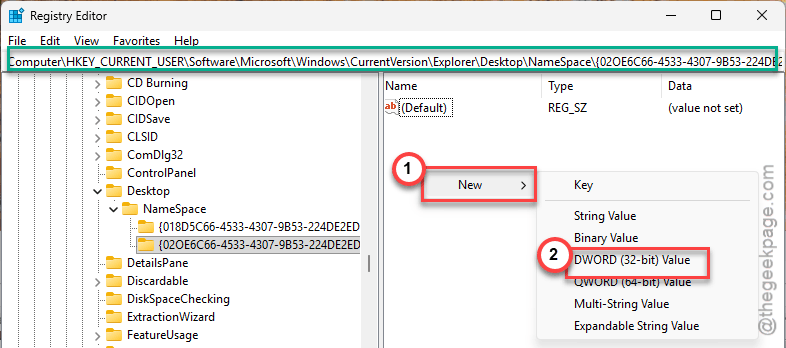
5 – In the right pane, right-click empty space.
6 – Select New.
7 – Select DWORD (32-bit) Value.
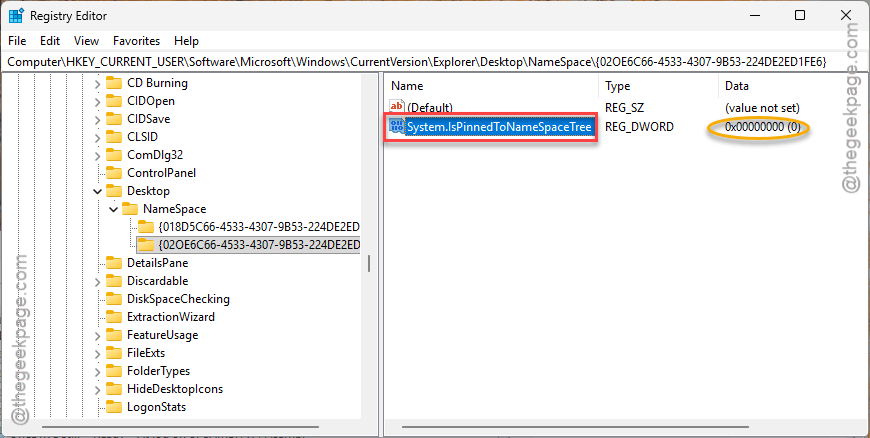
8 – Name it System.IsPinnedToNameSpaceTree
9 – Leave the value at 0.
10 – Restart File Explorer.
This hides the folder from the sidebar without deleting anything. And if you ever need it back, just change the value to 1.
Fix 3 – Unlink and Relink OneDrive
If the registry feels too scary, try this instead. Unlinking resets the File Explorer integration.
1 – Right-click the OneDrive cloud icon in the system tray.
2 – Click the gear icon.
3 – Click Settings.
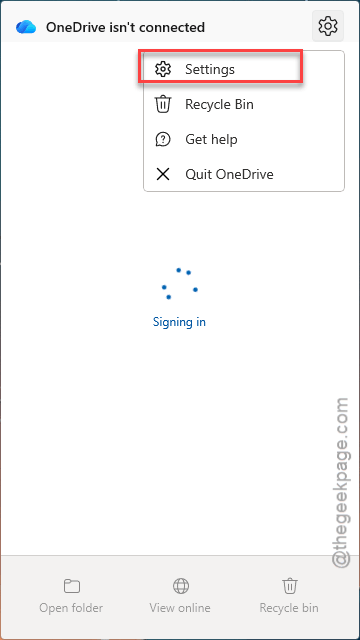
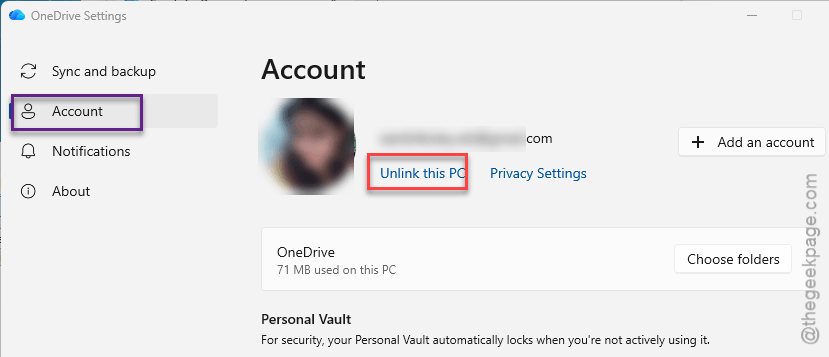
4 – Go to the Account tab.
5 – Click Unlink this PC.
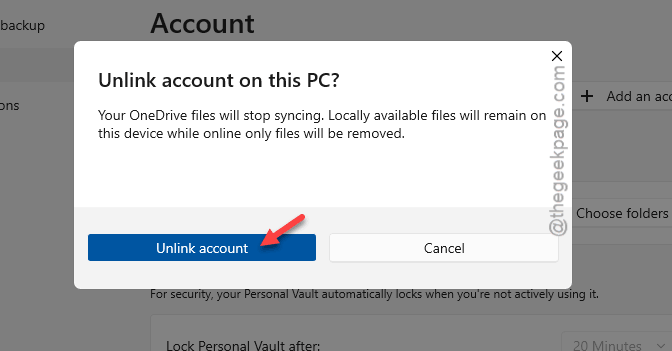
6 – Click Unlink account to confirm.
7 – Restart your computer.
8 – Open OneDrive again.
9 – Sign back in and relink your account.
This rebuilds the OneDrive integration from scratch. And usually removes the duplicate folder in the process. But check after relinking — if it’s still there, the registry fix is your best bet.
Fix 4 – Reset OneDrive
Full reset. Doesn’t delete files — just resets the sync app.
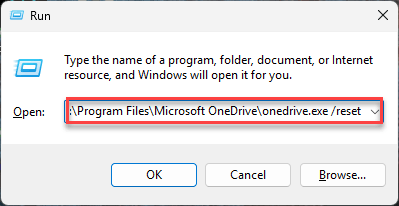
1 – Press Win + R.
2 – Paste this and press Enter:
%localappdata%\Microsoft\OneDrive\onedrive.exe /reset
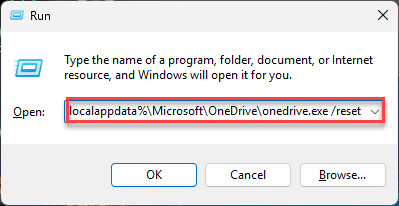
3 – If you get a “Windows cannot find” error, try:
C:\Program Files\Microsoft OneDrive\onedrive.exe /reset
4 – Wait about 30 seconds for OneDrive to restart.
5 – Check File Explorer. The duplicate should be gone.
And no — this will not delete your files. It just disconnects sync and reconnects. Your stuff is still in the cloud.
How to Prevent This
- Don’t sign into multiple OneDrive accounts unless you need to. Each account creates its own sidebar entry.
- After OneDrive updates or resets, check File Explorer for duplicates right away.
- If you unlink and relink OneDrive, check the registry for leftover entries.
- Back up your registry before making changes. Just in case.
People Also Ask
Why does my OneDrive Personal show up twice in File Explorer?
Duplicate registry entry. Go to regedit > HKCU > Explorer > Desktop > NameSpace. Find the duplicate GUID. Delete it or set IsPinnedToNameSpaceTree to 0.
How to fix two OneDrive folders in File Explorer?
Registry Editor. Find the duplicate under NameSpace. Delete it. Or unlink OneDrive and relink. Either works.
How to fix duplicate OneDrive folders?
Same fix. Registry or unlink/relink. If neither works, reset OneDrive with the /reset command.