The part of OneDrive cloud storage solution that lets users access their files on the cloud directly is known as the ‘File on demand’ service. But, some of the users are getting this “OneDrive couldn’t start file on demand” message while trying to access some of the files on their accounts. The users don’t have to download the files, while they can have their file according to their preferences.
Initial Workarounds –
1. These occasional issues can be solved with a simple system restart. Just reboot the system, and the next time you restart it, the ‘File on demand’ should work just normal.
2. Check the internet connection as well. A better internet connection should work in your favor while accessing the files over the air.
Fix 1 – Uninstall and reinstall OneDrive
Uninstall the OneDrive app from your computer, wipe out any remaining cache from your local drives and, then reinstall OneDrive.
Step 1 – At first, hit the Win+R buttons.
Step 2 – Next, type this and hit Enter.
appwiz.cpl
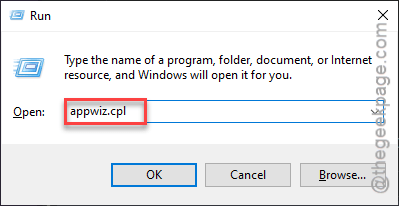
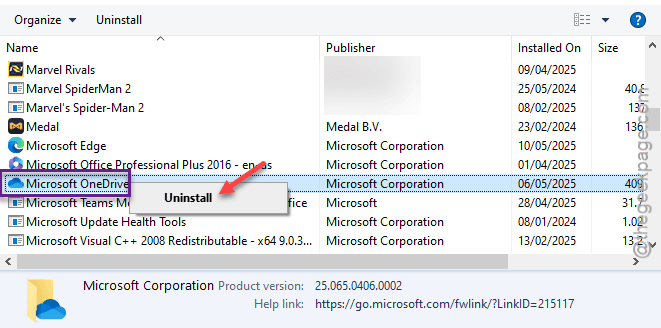
Step 3 – In the Programs & Features page, find “OneDrive” and uninstall it from your computer. There is nothing to worry as all of your files are safely stored in the OneDrive servers.
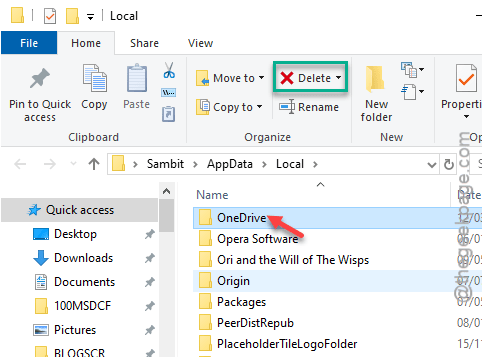
Step 4 – Delete the “OneDrive” folder in this location –
(You may use a Run dialog box to reach the location directly.)
C:\Users\%username%\AppData\Local\
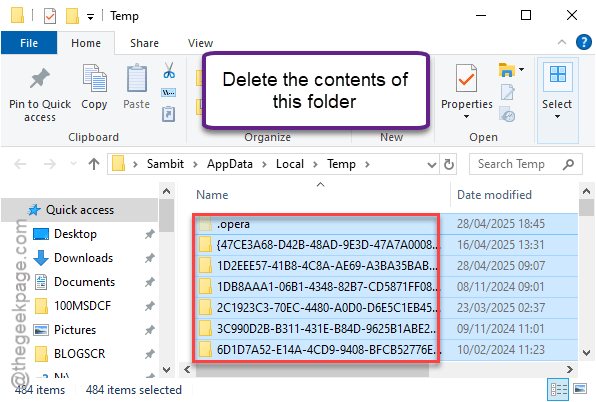
Step 5 – Empty out the Temp folders in these locations –
C:\Users\%username%\AppData\Local\Temp
C:\Users\%username%\AppData\LocalLow\Temp
C:\Windows\Temp
[NOTE – You may not be able to delete all the files in the Temp folder. Ignore them and proceed to the next step.]
Step 6 – Now, finally restart your computer.
Step 7 – Load up OneDrive site and tap “Download OneDrive” option to load up the OneDrive Setup.
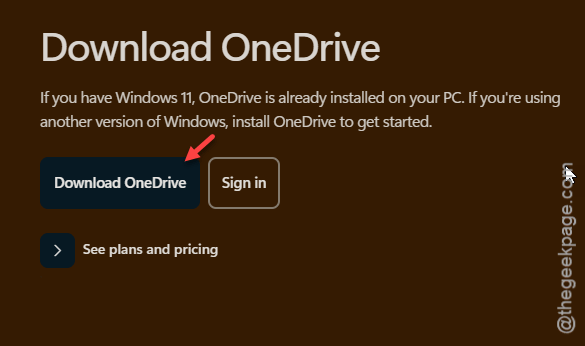
Step 8 – Use the OneDrive Setup file to reinstall OneDrive on your computer.
Step 9 – Later, log into your OneDrive account and complete the process.
OneDrive should be useful again. You can use the ‘File On Demand’ feature of the drive.
But, sometimes it may take a bit of time before the ‘Files On Demand’ becomes operational again.
Fix 2 – Use an NTFS formatted drive
Sometimes, the exFAT formatted drives can cause problem for the ‘File On Demand’ feature on the OneDrive. If you have an exFAT drive, and you are trying to upload files or download files to the drive, we recommend you format the drive.
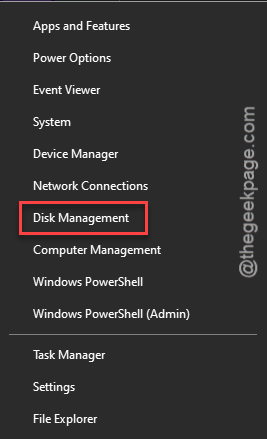
Step 1 – At first, press the Win+X keys buttons together.
Step 2 – Next, load up the “Disk Management” tab.
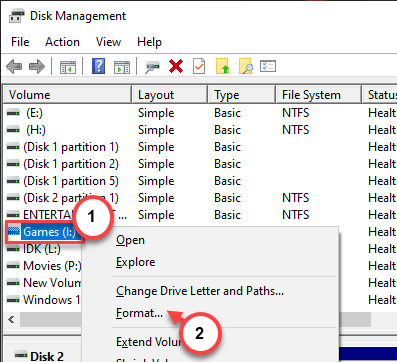
Step 3 – In the Disk Management page, find the exFAT format drive.
Step 4 – Right-tap such drive and click “Format” to format the drive.
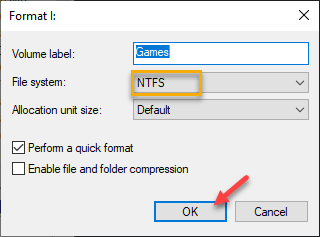
Step 5 – Select the “NTFS” drive.
Step 6 – Tap “OK” to start formatting the drive.
After formatting the drive, link it up in the OneDrive settings page. Later, you can use the ‘File On Demand’ on the new NTFS formatted drive.
Fix 3 – Download all the files
You can update the OneDrive settings.
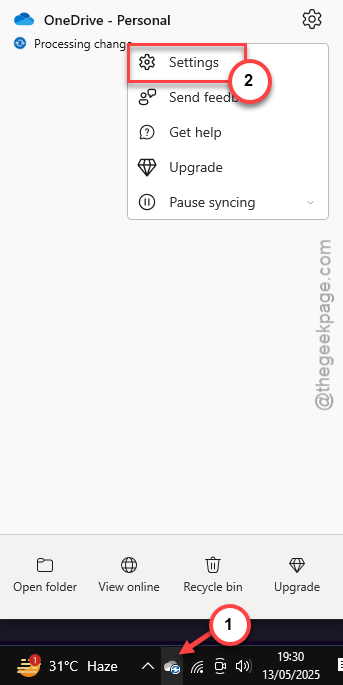
Step 1 – Launch the OneDrive app on your computer.
Step 2 – Later, right-click the OneDrive icon on the taskbar, and tap “Settings” to load up the OneDrive settings.
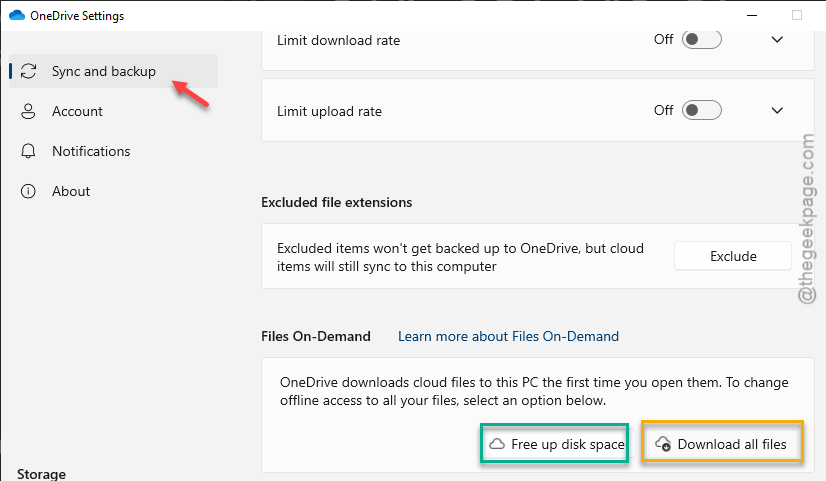
Step 3 – Go to the “Sync and Backup” tab.
Step 4 – On the right-hand tab, find the “File On-Demand” section.
Step 5 – You may either use the “Free up disk space” or “Download all files“.
This is the way you can fix the problem.
Fix 4 – Reset the network components
You can refresh network components, if the problem is occurring due to a network restriction.
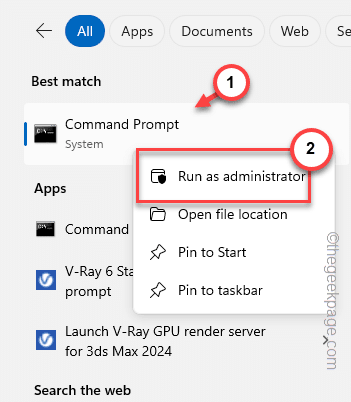
Step 1 – Write “cmd” in the search box.
Step 2 – Next, right-click the “Command Prompt” there, and click “Run as administrator” to run the cmdlet with administrative rights.
Step 3 – Execute these commands one after the other to refresh the network components.
netsh int ip reset
netsh winsock reset
ipconfig /release
ipconfig /renew
ipconfig /flushdns
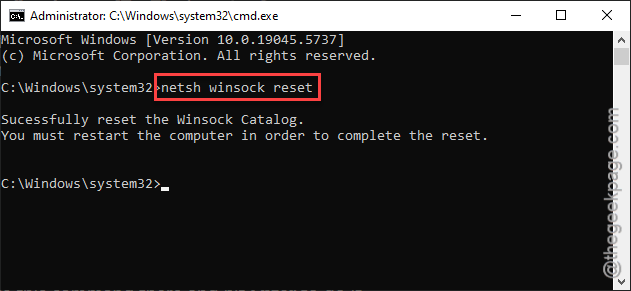
The result of some of these commands only work when you restart the computer.
Close the terminal and restart the computer. You can access the ‘File On Demand’ service on OneDrive now.
See if this helps!