OneDrive asks you to sign in. You sign in. It asks again. And again. Stuck in a loop. Never actually connects. This is a known issue. And it usually comes down to cached credentials or a corrupted OneDrive installation.
Why This Happens
Basically? OneDrive stores login tokens locally. When those tokens expire or get corrupted, the app tries to use them, fails, asks you to sign in again, gets the same bad token, and loops. Forever.
Windows updates can corrupt the token cache. So can switching between work and personal accounts. And if OneDrive’s local data gets out of sync with the cloud, the sign-in process just hangs and restarts.
Microsoft should handle token refresh better. But they don’t. So here we are.
Fix 1 – Reset OneDrive
The fix that works most often. Resets the app without deleting any files.
1 – Press Win + R.
2 – Paste this and press Enter:
%localappdata%\Microsoft\OneDrive\onedrive.exe /reset
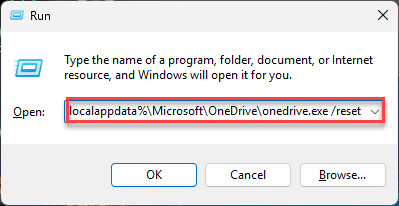
3 – If you see a “Windows cannot find” error, try this instead:
%programfiles(x86)%\Microsoft OneDrive\onedrive.exe /reset
4 – Wait about 30 seconds.
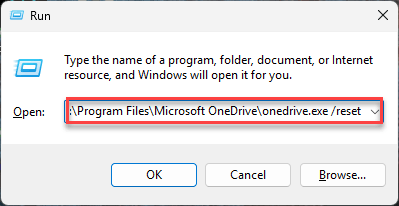
5 – OneDrive should restart on its own and ask you to sign in.
6 – Sign in. This time it should actually connect.
And no, this doesn’t delete your files. It just resets the app’s local state. Your stuff is still in the cloud.
Fix 2 – Unlink Your Account and Relink
If reset didn’t work, try a full unlink.
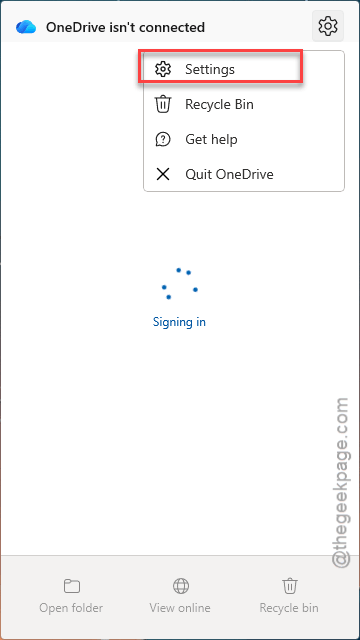
1 – Right-click the OneDrive cloud icon in the system tray.
2 – Click the gear icon.
3 – Click Settings.
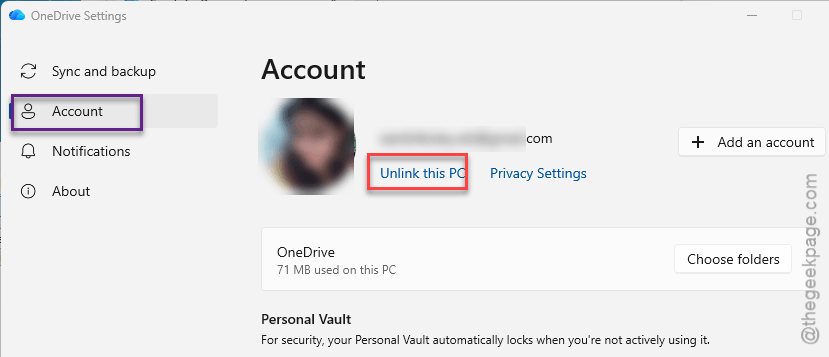
4 – Go to the Account tab.
5 – Click Unlink this PC.
6 – Click Unlink account to confirm.
7 – Restart your computer.
8 – Open OneDrive.
9 – Sign in with your Microsoft account.
This clears the old link completely and creates a fresh connection. If the loop was caused by a stale account binding, this fixes it.
Fix 3 – Clear OneDrive Credentials
Stale tokens stored in Windows Credential Manager. Clear them out.
1 – Click Start.
2 – Type credentials
3 – Click Credential Manager.
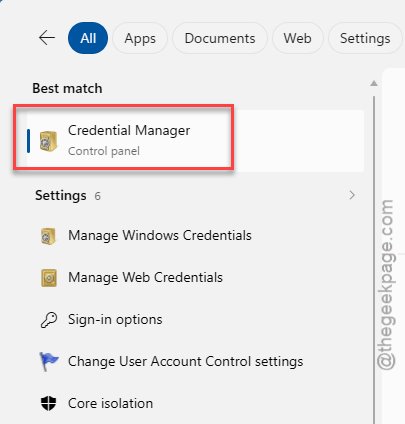
4 – Click the Windows Credentials tab.
5 – Look for entries containing “OneDrive” or “Microsoft Account.”
6 – Click each one.
7 – Click Remove.
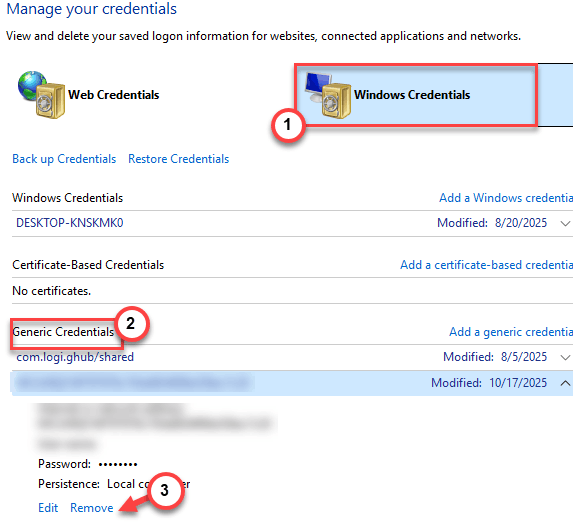
8 – Restart OneDrive and sign in again.one
This forces a completely fresh authentication. No stale tokens to confuse things.
Fix 4 – Reinstall OneDrive
Nothing else working? Full uninstall and reinstall.
1 – Open Settings.
2 – Click Apps.
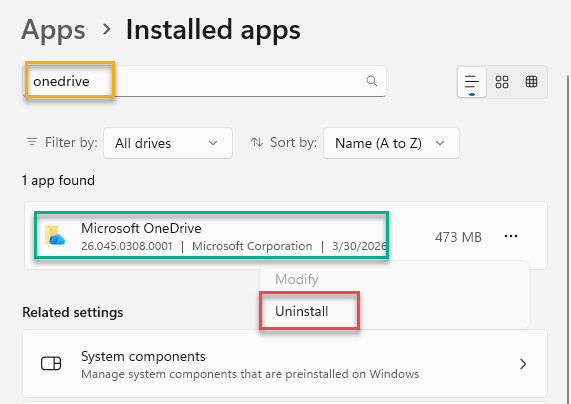
3 – Click Installed apps.
4 – Find Microsoft OneDrive.
5 – Click the three dots.
6 – Click Uninstall.
7 – Restart your PC.
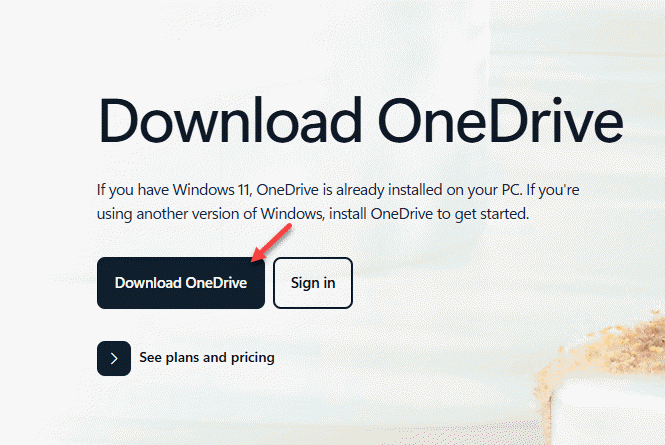
8 – Download OneDrive from Microsoft’s website.
9 – Install it.
10 – Sign in.
Fresh install with fresh credentials. This is the nuclear option. But it breaks the sign-in loop every time.
Fix 5 – Check Your Network
Sometimes the loop isn’t OneDrive’s fault. VPNs, firewalls, and DNS issues can block the sign-in server.
Disable your VPN temporarily. Switch to a different WiFi network or use a mobile hotspot. Try signing in again. If it works on a different network? Your original network is blocking something.
How to Prevent This
- Keep OneDrive updated. Sign-in bugs get patched in newer versions.
- Don’t switch between work and personal accounts on the same PC unless you have to.
- Clear Credential Manager entries for OneDrive after major Windows updates.
- Avoid VPNs when signing into OneDrive for the first time.
People Also Ask
How do I fix OneDrive stuck on signing in?
Reset it. Win + R, paste the /reset command. Wait 30 seconds. Sign in again. Usually fixes it.
Why is OneDrive taking so long to sign in?
Probably stale credentials or a network issue. Clear OneDrive entries in Credential Manager. Disable VPN. Try again.
How to stop Windows 11 from asking for OneDrive?
Unlink the account. OneDrive settings > Account > Unlink this PC. Or uninstall OneDrive entirely through Settings > Apps.