You open Task Manager. Go to Startup apps. And the list is empty. Or some apps you know run at startup just aren’t showing up. This happens when the startup folder path in the registry gets messed up. Or when apps launch from Task Scheduler instead.
Why This Happens
Here’s the deal. Task Manager reads startup entries from a few places—the registry, the startup folder, and its own internal list. If the registry path pointing to the startup folder is wrong, Task Manager can’t find anything.
Some apps also register their startup through Task Scheduler instead of the normal startup list. Task Manager doesn’t always show those. So the app launches at boot. But Task Manager has no idea.
And sometimes it’s just a glitchy Explorer process. A restart fixes it. But if it keeps happening, the registry path is probably wrong. So yeah.
Fix 1 – Fix the Startup Folder Path in Registry
This is the fix for most people. The registry value pointing to the startup folder got changed or corrupted.
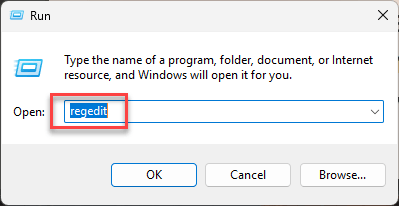
1 – Press Win + R.
2 – Type:
regedit
3 – Press Enter.
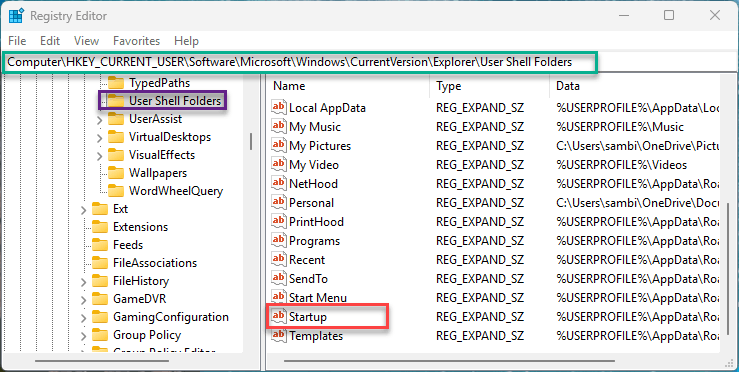
4 – Go to this path:
HKEY_CURRENT_USER\SOFTWARE\Microsoft\Windows\CurrentVersion\Explorer\User Shell Folders
5 – In the right pane, find the entry called Startup.
6 – Double-click it.
7 – Check the value. It should be:
C:\Users\%USERPROFILE%\AppData\Roaming\Microsoft\Windows\Start Menu\Programs\Startup
8 – If you have found any discrepancy, replace %USERPROFILE% with your actual Windows username.
9 – If the value is different, fix it. Paste the correct path.
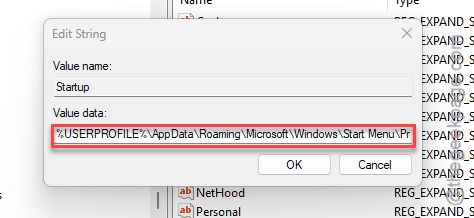
10 – Click OK.
11 – Close Registry Editor.
12 – Open a new Task Manager window. Startup apps should appear now.
And that’s usually the whole fix. If this path was wrong, Task Manager couldn’t find the startup folder. Fixing it brings everything back.
Fix 2 – Check the Startup Folder Directly
Some startup apps exist as shortcuts in the startup folder. Task Manager shows them separately.
1 – Press Win + R.
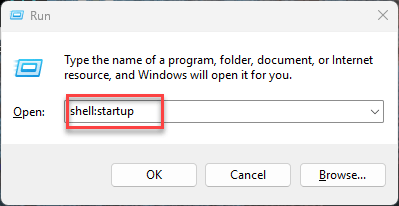
2 – Type
shell:startup
3 – Press Enter. This opens your personal startup folder.
4 – Check what’s in there.
5 – For system-wide startups, press Win + R again.
6 – Type
shell:common startup
7 – Press Enter.
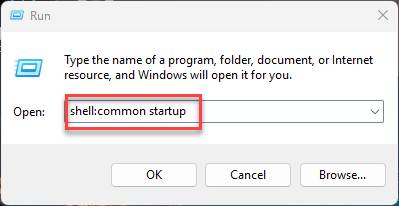
These folders contain shortcuts for apps that launch at boot. If your apps are here but not in Task Manager, the registry path from Fix 1 is the problem.
Fix 3 – Check Task Scheduler
Some apps don’t use the startup folder at all. They use Task Scheduler instead. And Task Manager doesn’t always show those.
1 – Press Win + R.
2 – Type taskschd.msc
3 – Press Enter.
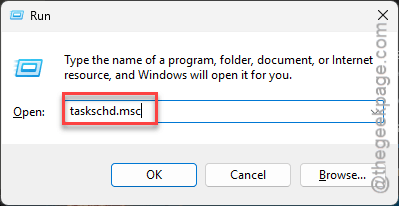
4 – Click Task Scheduler Library in the left panel.
5 – Look through the list for tasks with the trigger “At log on” or “At startup.”
6 – These are your hidden startup apps.
If you want to disable one, right-click it and click Disable.
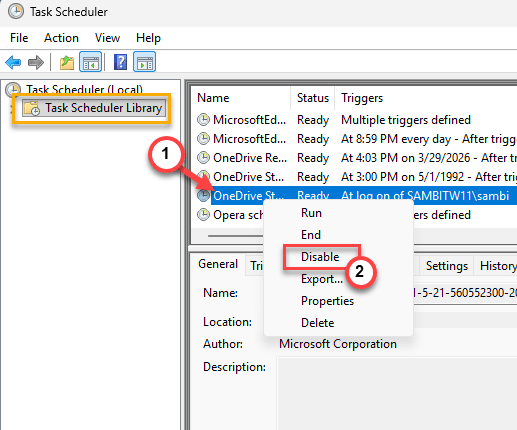
For some reason, a lot of apps use this method instead of the normal startup registration.
Fix 4 – Restart Windows Explorer
Quick fix. Sometimes Task Manager just needs a refresh.
1 – Press Ctrl + Shift + Esc to open Task Manager.
2 – Click the Processes tab.
3 – Find Windows Explorer.
4 – Right-click it.
5 – Click Restart.
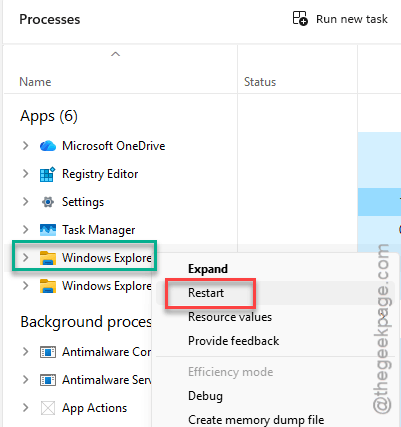
Open Task Manager again after. Check the Startup apps tab. If they’re back, Explorer was just in a bad state.
Fix 5 – Check Settings for Startup Apps
There’s another place to view startup apps that sometimes shows entries Task Manager misses.
1 – Open Settings.
2 – Click Apps.
3 – Click Startup.
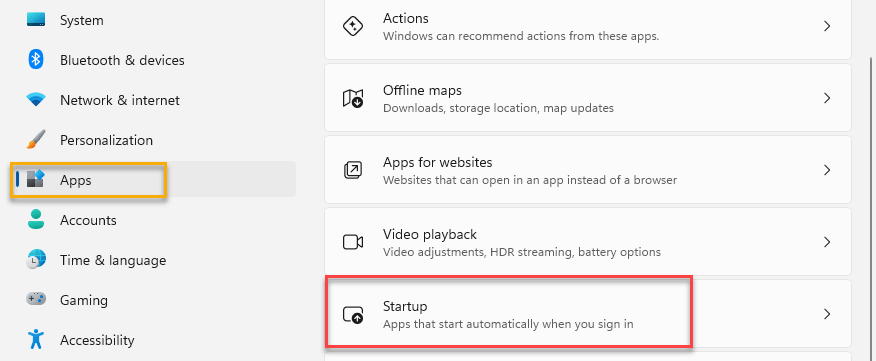
This list sometimes shows apps that Task Manager’s Startup tab doesn’t. Worth checking to compare.
How to Prevent This
- Don’t manually edit the User Shell Folders registry key unless you know what you’re doing.
- After system restores or profile migrations, check that the Startup path is correct.
- Use Settings > Apps > Startup as an alternate view if Task Manager’s tab is empty.
- Check Task Scheduler periodically. That’s where sneaky startup entries hide.
People Also Ask
How to find startup apps in Task Manager?
Ctrl + Shift + Esc. Click the Startup apps icon on the left (gauge icon). If it’s empty, check the registry path for User Shell Folders.
Why can’t I see my startup apps?
Probably a wrong registry path. Check HKCU > Explorer > User Shell Folders > Startup. Make sure it points to the correct folder. Fix it and restart Task Manager.
How to enable Startup in Task Manager?
It should always be there. If the tab is missing or empty, fix the registry path. Or check Settings > Apps > Startup as an alternative.