You open File Explorer. It just hangs. OneDrive folders load at a crawl. Thumbnails take forever to show up. Right-clicking a file? Laggy. Even scrolling feels broken.
And it wasn’t like this before. So what gives?
Why This Happens
Basically? OneDrive hooks deep into File Explorer. Every folder view checks sync status. Every icon. Every thumbnail.
A few things break that. iCloud being installed is a huge one. iCloud and OneDrive fight over the same sync hooks in Windows. Neither one wins. File Explorer just stalls in the middle.
But that’s not the only cause. Corrupted telemetry logs in the OneDrive cache pile up over time. OneDrive keeps trying to upload them in the background. Everything else slows to a crawl.
And if you’re on an old version of App Installer, OneDrive updates fail silently. You end up stuck on a buggy build. No warning. Just lag.
Honestly, this should not happen on a clean install. But Windows layers so many sync services on top of each other (OneDrive, iCloud, Dropbox, Google Drive) that conflicts are pretty much inevitable.
Fix 1 – Uninstall iCloud for Windows
This is the sneaky one. If you’ve got both iCloud and OneDrive installed, they fight. File Explorer suffers.
Try uninstalling iCloud first. If your slow File Explorer problem vanishes, you found the culprit.
1 – Press Windows + I to open Settings.
2 – Click Apps in the left sidebar.
3 – Click Installed apps.
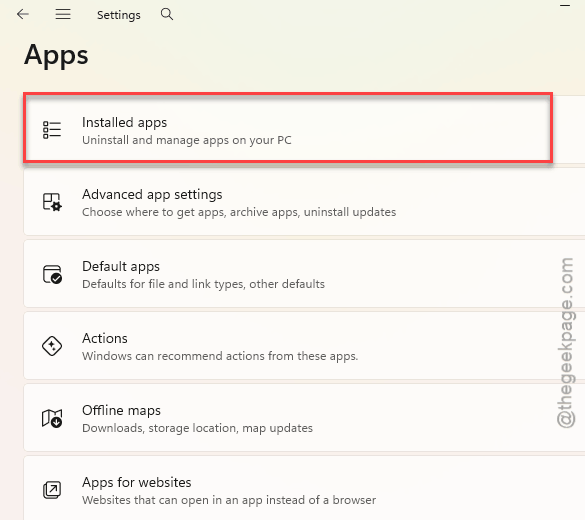
4 – Type “iCloud” in the search box at the top. Faster than scrolling through the whole app list.
5 – Click the three dots (⋯) next to iCloud. Then click Uninstall.
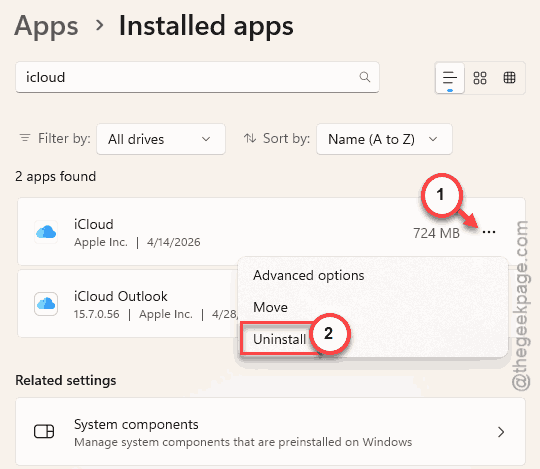
6 – Confirm and let it finish.
7 – Restart your PC. This part matters. The sync hooks don’t release properly without a reboot.
Open File Explorer after the reboot. If OneDrive folders feel snappy again? Done. You were stuck in a sync war.
Fix 2 – Force-Quit OneDrive, Then Reopen It
Quick one. Sometimes OneDrive gets stuck on a bad sync job and drags File Explorer down with it. Killing the process clears it.
1 – Press Windows key and type “cmd“.
2 – Right-click Command Prompt in the results and pick Run as administrator.
3 – Click Yes on the UAC prompt.
4 – Type this exactly and press Enter:
taskkill /f /im OneDrive.exe
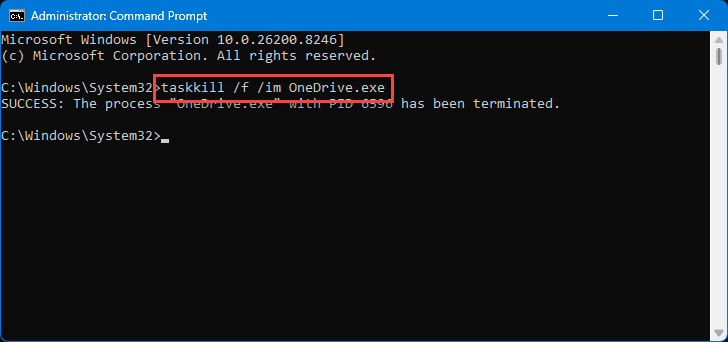
OneDrive dies. The cloud icon disappears from the taskbar.
5 – Press Windows again. Type “OneDrive” and launch it from the search results.
Now check File Explorer. If it feels normal, that was it. If not — keep going.
Fix 3 – Clear OneDrive’s Telemetry Cache
OneDrive writes log files in the background. Tons of them. When the cache corrupts, OneDrive loops trying to upload bad data. That eats CPU and makes File Explorer crawl.
Nuking those cache files usually fixes it.
1 – Press Windows + E to open File Explorer.
2 – Click View at the top. Hover over Show. Click Hidden items so it’s checked. The AppData folder is hidden by default (no idea why Microsoft does this).
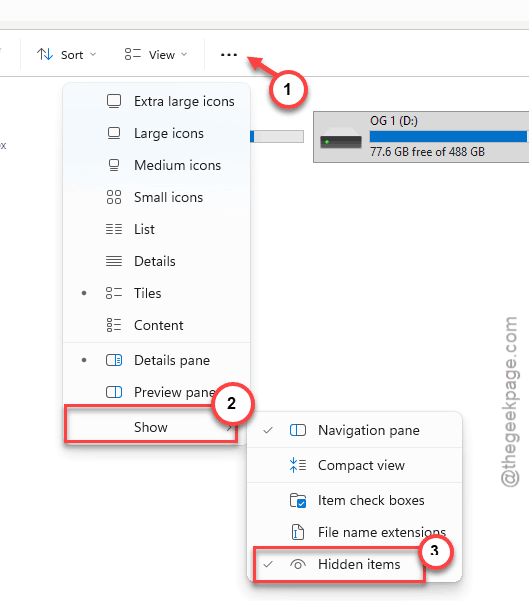
3 – Paste this into the address bar at the top of File Explorer. Replace [YourUsername] with your actual Windows username:
C:\Users\[YourUsername]\AppData\Local\Microsoft\OneDrive\setup\logs
4 – Press Enter. You should see a bunch of .otc files.
5 – Back up these files first if you’re nervous. Copy them to your desktop. Then come back.
6 – Delete these files:
• userTelemetryCache.otc
• userTelemetryCache.otc.session (if it exists)
• parentTelemetryCache.otc (if it exists)
Not all three will always be there. Just delete the ones you see.
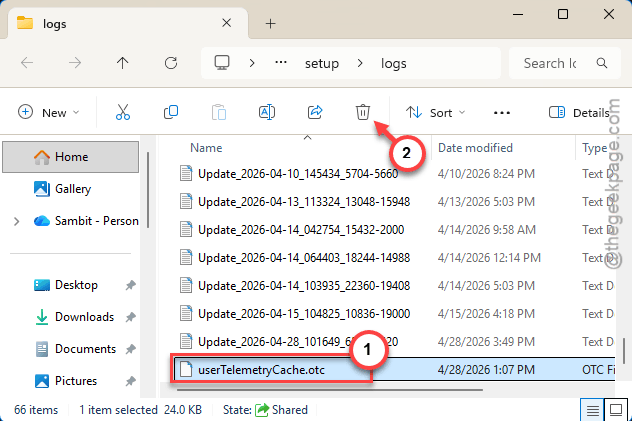
7 – Restart OneDrive. Or just reboot the PC.
OneDrive rebuilds the cache from scratch. Slow start for about a minute. Then File Explorer usually feels normal again.
Fix 4 – Update App Installer From the Microsoft Store
OneDrive uses App Installer under the hood for updates. If that’s broken or outdated, OneDrive keeps running on a buggy old build. And buggy builds are slow.
1 – Open the Microsoft Store from the Start menu.
2 – Click the search bar at the top and type “App Installer“.
3 – Click the App Installer result.
4 – If you see an Update button — click it. If you see Get instead, click that. Either way, you end up with a fresh copy.
Wait for it to finish. No need to restart, usually.
Fix 5 – Fully Reinstall OneDrive With Winget
Nuclear option. But if nothing else worked, this wipes OneDrive completely and drops in a fresh copy. Your actual files in the OneDrive folder stay put. Only the app gets replaced.
1 – Press Windows and type “powershell“.
2 – Right-click Windows PowerShell in the results. Pick Run as administrator.
3 – Click Yes on the UAC prompt.
4 – Paste this command and press Enter:
winget uninstall Microsoft.OneDrive
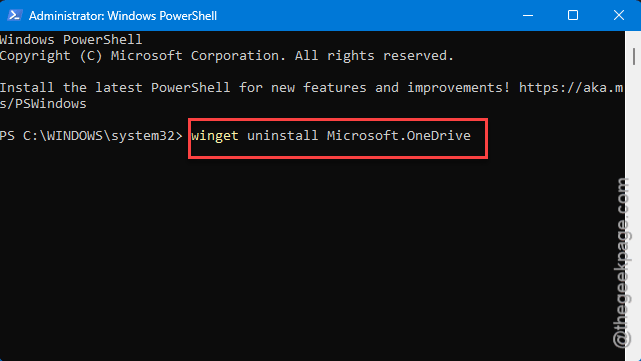
Wait for it to finish. Could take a minute. The OneDrive icon vanishes from the taskbar.
5 – Now paste this command and press Enter:
winget install Microsoft.OneDrive
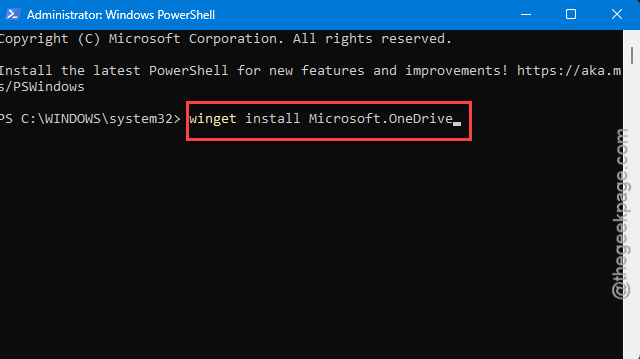
Winget pulls the latest version from Microsoft and installs it.
6 – Restart your computer. Don’t skip this. The shell integration won’t load right without a reboot.
Sign back into OneDrive when it starts. Give it a few minutes to re-sync. Then try File Explorer. Should feel night and day.
Fix 6 – Pause Syncing to See If That’s the Slowdown
Still laggy after all that? Try this quick test. Pausing sync tells you if OneDrive is the actual problem or if File Explorer is slow for a different reason entirely.
1 – Click the OneDrive cloud icon in the taskbar. It’s usually on the right side near the clock. Might be hidden under the small up arrow.
2 – Click the gear icon in the top right of the OneDrive popup.
3 – Click Pause syncing. Pick 8 hours.
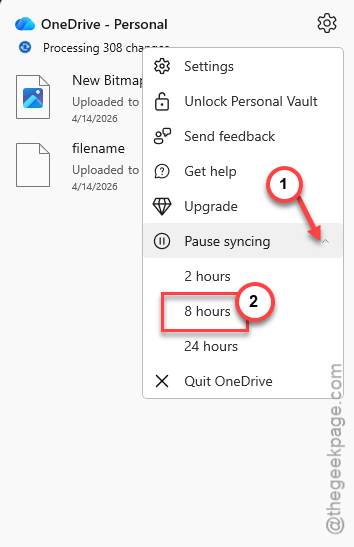
Now open File Explorer. Browse your OneDrive folder. Is it fast?
If yes — OneDrive sync was the bottleneck. Try the earlier fixes again.
If it’s still slow? Something else is wrong with File Explorer itself. Probably not OneDrive.
How to Prevent This
- • Don’t install iCloud and OneDrive on the same PC. They fight. Pick one.
- • Keep OneDrive updated. Let it auto-update — don’t block Microsoft Store updates.
- • Clear the telemetry cache every few months. Takes two minutes.
- • Avoid syncing huge folders with thousands of tiny files. Breaks File Explorer. Always has.
- • Turn off sync for folders you don’t actually need on every PC. Less work for OneDrive means a snappier File Explorer.
People Also Ask
Why is OneDrive so slow in File Explorer?
Nine times out of ten? A sync conflict. iCloud installed alongside OneDrive is the usual suspect. Corrupted OneDrive telemetry files cause it too. Plus outdated builds. Uninstall iCloud first, clear the telemetry cache, then see if File Explorer feels normal again. Usually does.
Why is OneDrive so slow now?
Recent Windows updates keep tweaking how OneDrive syncs. A lot of people noticed slowdowns after mid-2025 updates. It hits PCs with other cloud apps harder. Reset OneDrive with the winget commands and clear the telemetry cache. That fixes most cases. Annoying that it keeps coming back, though.
How to make OneDrive run faster?
Turn off syncing for folders you don’t need. Use Files On-Demand so everything isn’t downloaded locally. Close OneDrive while doing heavy File Explorer work. Keep the app updated. And if things still feel sluggish? Reinstall OneDrive with winget. Fresh install beats a corrupted one every time.