You click a folder. File Explorer hangs for five seconds. Sometimes ten. Everything just stops responding. Then it comes back like nothing happened. If OneDrive is syncing in the background, this is almost certainly the problem. And it is way more common than Microsoft wants to admit.
Why This Happens
OneDrive hooks into File Explorer at a deep level. When you open a folder, Explorer tries to fetch metadata and sync status for every file. If OneDrive is struggling — slow connection, large sync queue, corrupted cache — it drags the whole Explorer down with it.
But there is another culprit too. The Details Pane in File Explorer. It tries to preview and load info for selected files. Combined with OneDrive sync? Total freeze. And weirdly, iCloud installed alongside OneDrive makes it even worse.
Fix 1 – Hide the Details Pane
Sounds too simple. But this fixed it for a ton of people. The Details Pane forces Explorer to load extra metadata. Turn it off and the freezing stops almost instantly.
1 – Open File Explorer (press Windows + E).
2 – Look at the toolbar at the top. On the right side, below the search bar.
3 – Click the Details button to toggle it off. If it looks highlighted or pressed, that means it is on.
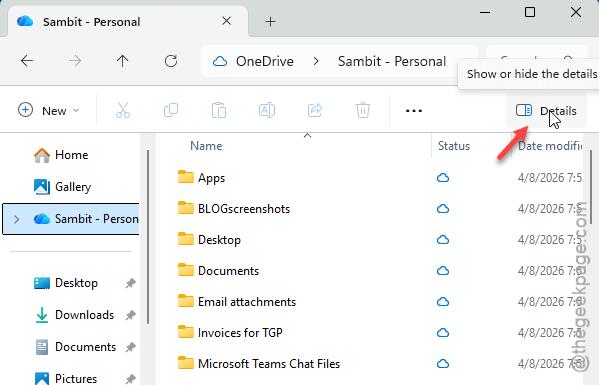
4 – Try opening folders again.
Seriously. That is it. Five-second freeze goes down to under a second. Weird fix, but it works.
Fix 2 – Reset OneDrive
Clears the local cache and forces OneDrive to rebuild its sync database. Does not delete your files (yes, really).
1 – Use the the Windows + R to load up the Run dialog.
2 – Just copy-paste this command from below and press Enter:
C:\Program Files\Microsoft OneDrive\onedrive.exe /reset

3 – Wait a moment. Tap the system tray icon. The OneDrive icon should not appear there.
4 – You have to manually reboot the OneDrive application. Open a Run panel and use this code –
C:\Program Files\Microsoft OneDrive\onedrive.exe
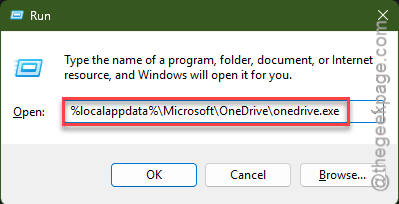
5 – Let OneDrive restart and re-sync.
And check File Explorer after that. The freezing should be gone. Takes about 30 seconds total.
Fix 3 – Stop OneDrive from Backing Up Desktop/Documents
OneDrive stores up your Desktop, Documents, and Pictures stuff directly to the clodu. These folders and subfolders are all time scanned for new entries and it backs them up automatically. So opening them in Explorer becomes painfully slow.
1 – At first, just find the OneDrive cloud icon in the system tray (bottom-right corner of the taskbar). Then, right-click that.
2 – Tap the ⚙️ to load up the Settings.
3 – In the OneDrive settings panel, choose the Sync and Backup from the left section.
4 – Click Manage Backup.
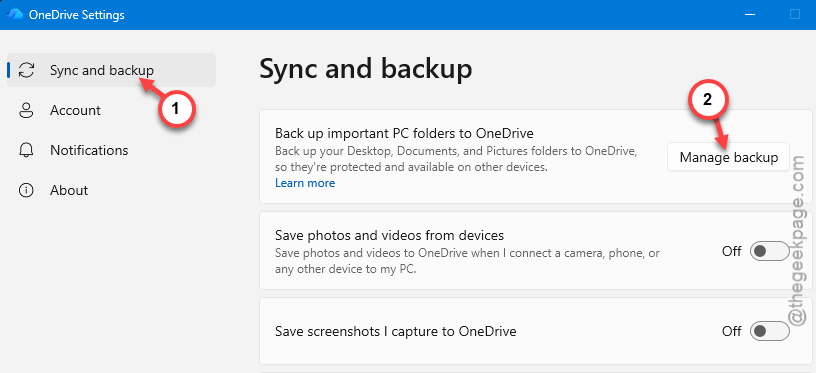
5 – Turn off the Desktop, Documents, and Pictures.
6 – Click Save Changes.
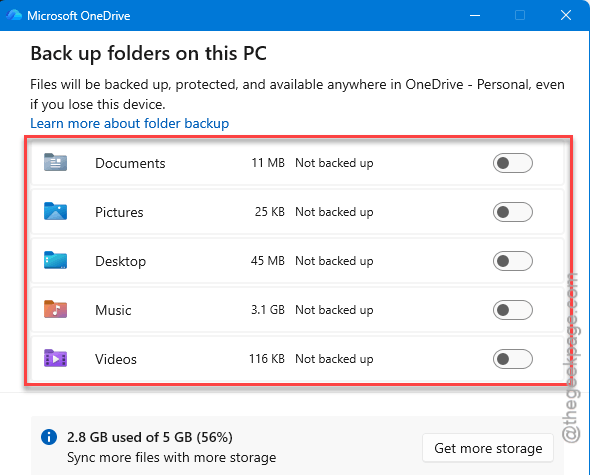
Your files stay on your PC. They just stop syncing to the cloud. And Explorer stops choking every time you open those folders.
Fix 4 – Unlink OneDrive from This PC
Nuclear option for OneDrive. Disconnects it from your machine completely. Your cloud files stay safe online.
1 – Go look for the OneDrive cloud icon in the system tray. Next, right-click that and tap the Gear icon and open Settings.
2 – Proceed to the Account tab.
3 – Click Unlink this PC.
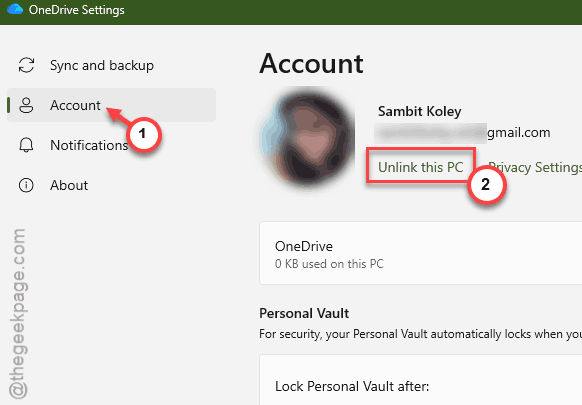
4 – Confirm when prompted.
NOTE: You will not have local access to your OneDrive files once you have unlinked the OneDrive from your PC. You can always re-link later if you want.
Fix 5 – Uninstall iCloud (If Installed)
iCloud and OneDrive fighting over the same Explorer hooks? Bad combo. They cause sync conflicts that freeze everything.
1 – Open Settings (press Windows + I).
2 – Go to Apps.
3 – Click Installed Apps.
4 – Search for iCloud.
5 – Click the three dots next to it and hit Uninstall.
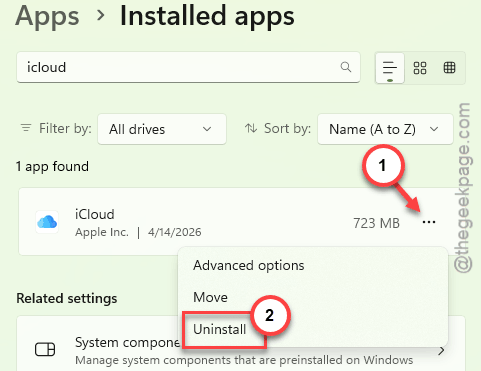
6 – Restart your PC.
If you do not actually use iCloud on Windows, just remove it. Problem solved. If you do need it, well. That is a tough call.
How to Prevent This
- Keep the Details Pane off in File Explorer. There is no real downside.
- Limit how many folders OneDrive backs up. Less syncing means less freezing.
- Do not run iCloud and OneDrive at the same time if you can avoid it.
- Reset OneDrive after major Windows updates. Clears out stale cache data.
People Also Ask
How to fix OneDrive stuck on sync pending?
Resetting the OneDrive will fix it. Press Windows + R, paste the C:\Program Files\Microsoft OneDrive\onedrive.exe /reset command, hit Enter. It does clear the synchronization chain and start it from the scratch. This takes about a minute to finish the re-syncing process.
How to fix your OneDrive is frozen?
Start by closing OneDrive from the system tray, then reset it using the /reset command. If that does not help, unlink your PC from OneDrive in Settings and then sign back in. This is a bit annoying, but it will resolve the issue.
How do I turn off autosync for OneDrive?
Just right-click the OneDrive icon in the system tray. Click the gear icon, go to Sync and Backup, then Manage Backup. Toggle off whatever folders you do not want syncing. This way, OneDrive will stop auto-syncing those folders.