You press the bottom-right corner of the touchpad. You expect the right-click menu. Instead the thing just clicks.
Files open when you meant to rename them. Links open when you meant to copy them. And it worked fine last week.
Why This Happens
Your touchpad has no physical right button. It’s one flat sheet of glass.
So what changed? Windows 11 added a setting that controls how big that rectangle is. And on a lot of machines it defaults to Small — a strip so narrow you’d have to aim at it. Miss by a hair and Windows honestly believes you wanted a left-click. It’s not ignoring you. It just thinks you pressed somewhere else.
The other cause is drivers. A Windows update swaps in a generic touchpad driver, the corner mapping gets wiped, and the corner does nothing special at all.
Fix 1 – Turn On Corner Right-Click
Check this before anything else. The feature can simply be switched off.
1 – Press Windows + I to open Settings.
2 – Click Bluetooth & devices in the left sidebar.
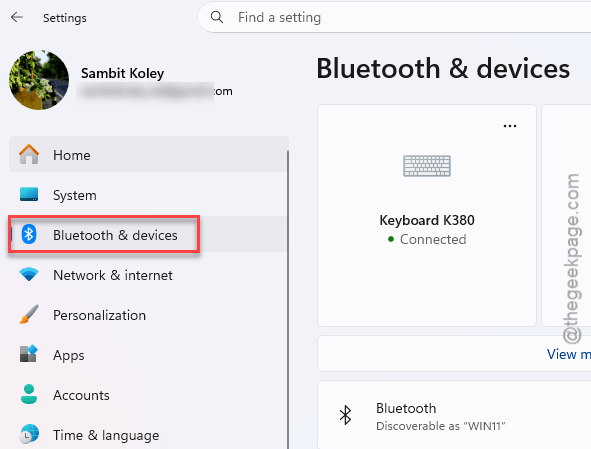
3 – Click Touchpad.
4 – Click Taps to expand that section. It’s the second dropdown down.
5 – Tick the box next to Press the lower right corner of the touchpad to right-click.
Try the corner now. No restart needed.
Fix 2 – Make the Right-Click Zone Bigger
This is the fix for most people on Windows 11. The corner is enabled, it’s just too small to hit reliably.
1 – Stay in Settings > Bluetooth & devices > Touchpad from Fix 1.
2 – Look for a dropdown labelled Right-click zone. It sits just under the corner checkbox.
3 – Change it from Default or Small to Large.
4 – Press the bottom-right corner to test it.
No Right-click zone dropdown at all? Then your laptop is on an older build or a non-Microsoft driver, and Fix 4 sets the same thing by hand.
Fix 3 – Use a Two-Finger Tap Instead
Worth knowing while you fix the real thing. Rest two fingers anywhere on the touchpad and tap once. That’s a right-click, and it works no matter what the corner is doing.
If the tap does nothing, go back to Settings > Bluetooth & devices > Touchpad > Taps and tick Tap with two fingers to right-click. Honestly, once you get used to it, you stop reaching for the corner altogether.
Fix 4 – Set the Zone Size in the Registry
For when the dropdown is missing. You’re writing the same values Windows would have written, straight into the registry. The number is a percentage — 50 means the zone covers half the touchpad’s width and height in that corner. Generous, but you’ll never miss it again.
1 – Press Windows + R, type regedit, and press Enter. Click Yes.
2 – Paste this into the address bar at the top and press Enter:
HKEY_CURRENT_USER\Software\Microsoft\Windows\CurrentVersion\PrecisionTouchPad
3 – Look in the right pane for RightClickZoneWidth and RightClickZoneHeight.
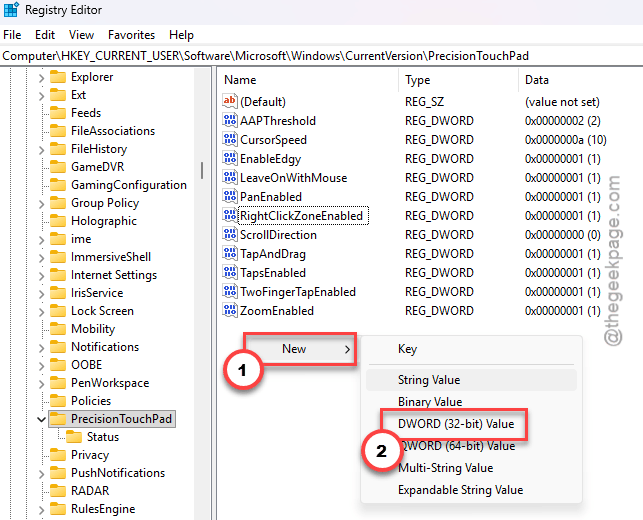
4 – If either one is missing, right-click an empty spot in the right pane, choose New > DWORD (32-bit) Value, and type the name exactly as spelled above.
5 – Double-click RightClickZoneWidth.
6 – Under Base, select Decimal. Do this before typing the number, or Windows reads it as hexadecimal.
7 – Type 50 in the Value data box and click OK.
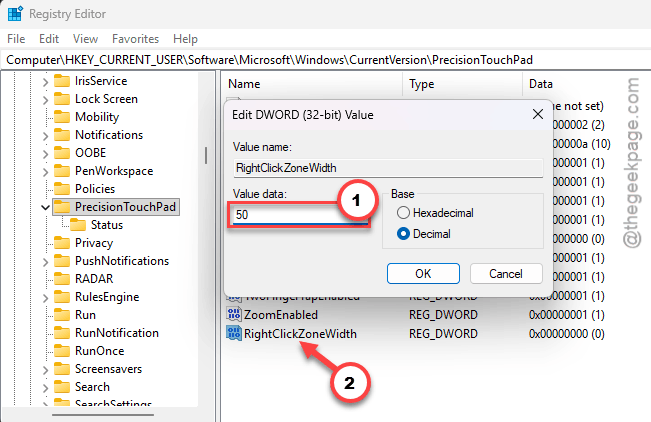
8 – Repeat steps 5 to 7 for RightClickZoneHeight.
9 – Restart your PC.
Zone still feels off after the reboot? Drop both numbers to 30 and try again. It’s a matter of taste.
Fix 5 – Reload the Touchpad Driver
If the corner does nothing at all — no left-click, no right-click, nothing — the driver is the problem, not the zone.
Before you start: plug in a USB mouse. You’re about to uninstall the touchpad, and you’ll need a way to click.
1 – Right-click the Start button and choose Device Manager.
2 – Click the arrow next to Human Interface Devices to expand it.
3 – Find I2C HID Device in the list. On some laptops it’s named HID-compliant touch pad.
4 – Right-click it and choose Uninstall device.
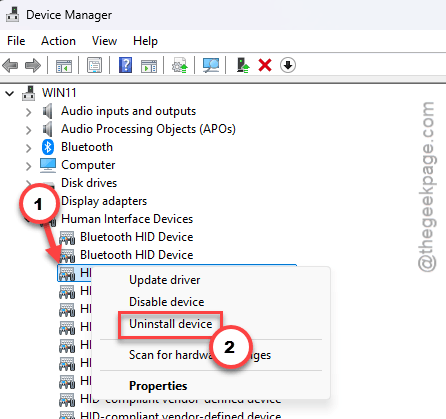
5 – Confirm. Your touchpad goes dead. That’s expected.
6 – Click Action in the menu bar at the top, then click Scan for hardware changes.
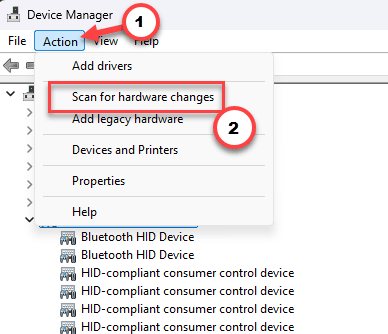
7 – Wait about ten seconds. Windows reinstalls the driver and the touchpad wakes up.
8 – Restart your PC, then run through Fix 1 and Fix 2 again — the uninstall wiped those settings.
Fix 6 – Get the Driver From Your Laptop Maker
Windows Update hands out generic drivers. They work, mostly. But the gesture settings that come with them are stripped down, which is exactly why your zone dropdown went missing.
Go to your laptop maker’s support site — Dell, HP, Lenovo, ASUS, whoever — and look up your exact model number. It’s printed on the sticker underneath the laptop. Download the touchpad driver, install it, reboot.
Then check the Touchpad settings page again. The full set of options usually comes back with it.
How to Prevent This
– Learn the two-finger tap. It survives every driver update, every reset, every reinstall.
– Check your touchpad settings after each big Windows update. They get quietly reset.
– Get touchpad drivers from your laptop maker, not Windows Update. The generic one drops half the settings.
– Set the right-click zone to Large and leave it there. Nobody has ever complained the zone was too easy to hit.
People Also Ask
How to fix touchpad not registering?
First, check the touchpad isn’t switched off — many laptops toggle it with Fn plus one of the F keys, and it’s easy to hit by accident. Then reload the driver from Device Manager under Human Interface Devices. Plug in a USB mouse before you do that.
Where is the right click zone on a touchpad?
Bottom-right corner. It’s invisible — no line, no marking, nothing to aim at. Its size is set under Settings, Bluetooth & devices, Touchpad. On Small it’s a thin sliver you’ll miss constantly. Set it to Large and the whole corner responds.