You sign in. Then, right-click on the desktop. The menu hangs. Spinning wheel of death.
And then Explorer crashes. Taskbar disappears. Or the whole right-click just refuses to show up. Painfully slow either way.
Why This Happens
Here’s the deal. Right-click menus in Windows aren’t just one thing. They’re a collection of “context menu handlers” from every app you’ve ever installed. WinRAR adds its options. iCloud adds its options. Foxit, 7-Zip, Dropbox — all stuffed in there.
And if any one of those handlers is broken or slow? The whole menu freezes waiting for it.
On Windows 11 it’s worse. The new context menu loads in two phases. If a third-party app fails the first phase, Explorer can crash. Sometimes it just hangs. No error.
Sometimes it’s not a third-party app at all. Search indexing gets stuck. Or a Windows update broke a shell component. Explorer doesn’t know what to do. So it freezes.
Fix 1 – Restart Windows Explorer
Quick fix. Works half the time.
Press Ctrl + Shift + Esc to open Task Manager. Find Windows Explorer in the list. Right-click. Click Restart.
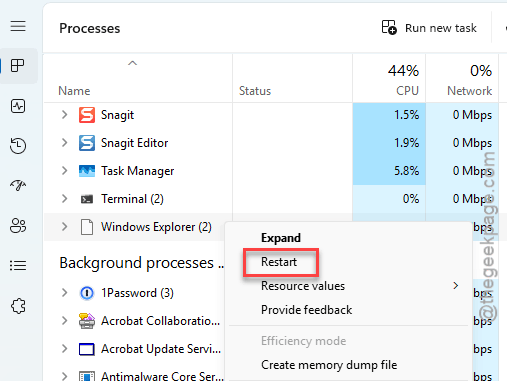
Your taskbar disappears for a second. Then comes back. Try right-clicking now.
Done? Great. If the freeze comes back every sign-in, you need a deeper fix.
Fix 2 – Find and Remove the Bad Context Menu Handler
This is THE fix. Specific apps are known to break right-click on Windows 11. If you have any of these — uninstall them and the problem usually disappears.
Common culprits:
– Foxit PDF Editor — well-documented Explorer crash on right-click
– iCloud for Windows — the ContextMenuHandler Class is the problem
– Microsoft Copilot 365 task in some configurations
– Old versions of WinRAR, 7-Zip, Dropbox, OneDrive shell extensions
To remove the offender:
1 – Press Windows + I to open Settings.
2 – Click Apps > Installed apps.
3 – Find the suspect app from the list above.
4 – Click the three dots (⋯). Click Uninstall.
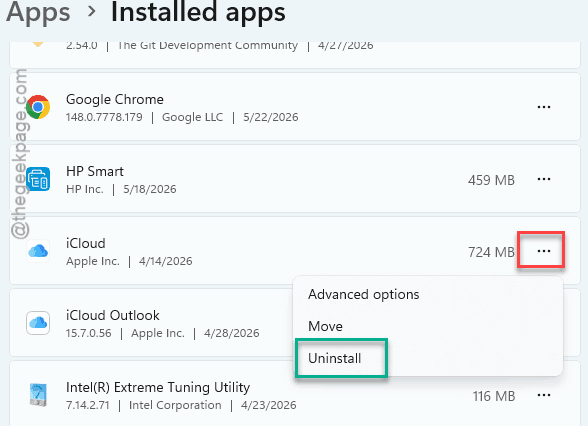
5 – Restart your PC. Test the right-click.
If you actually need iCloud or Foxit, see Fix 3 — you can disable just the shell extension without uninstalling the app.
Fix 3 – Disable Specific Shell Extensions With ShellExView
Don’t want to uninstall the whole app? Disable just its context menu handler. Free tool from Nirsoft does exactly this.
1 – Go to NirSoft in your browser.
2 – Download ShellExView. Extract the zip file anywhere.
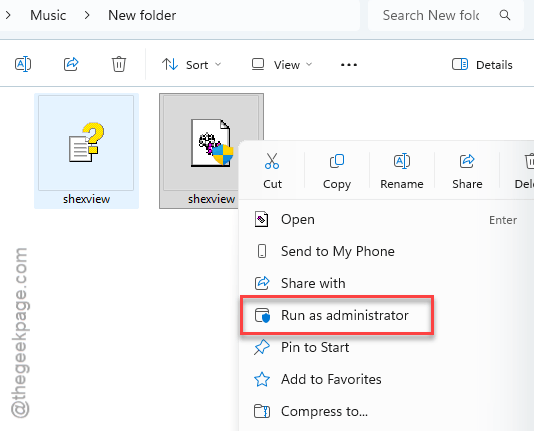
3 – Right-click shexview.exe. Click Run as administrator.
4 – Click the Type column header to sort by type. Look for Context Menu entries.
5 – Click the Company column to find non-Microsoft handlers. They’re highlighted in pink.
6 – Right-click a suspect entry — like ContextMenuHandler Class from Apple, or any Foxit entry.
7 – Click Disable Selected Items.
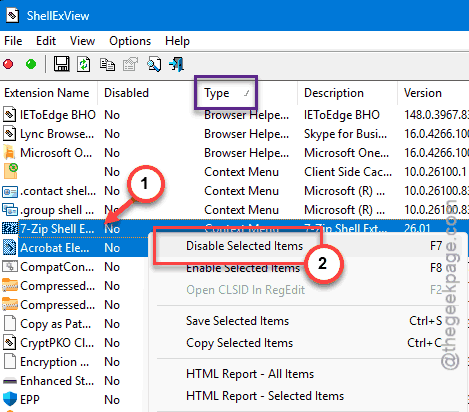
8 – Restart Windows Explorer (Fix 1) or restart your PC.
9 – Test the right-click menu.
If it works now — you found the bad handler. Leave it disabled. The rest of the app still works fine. You just lose the right-click integration.
Fix 4 – Run a Clean Boot to Isolate the Problem
If you don’t know which app is breaking right-click, a clean boot tells you fast.
1 – Press Windows + R.
2 – Type msconfig and press Enter.
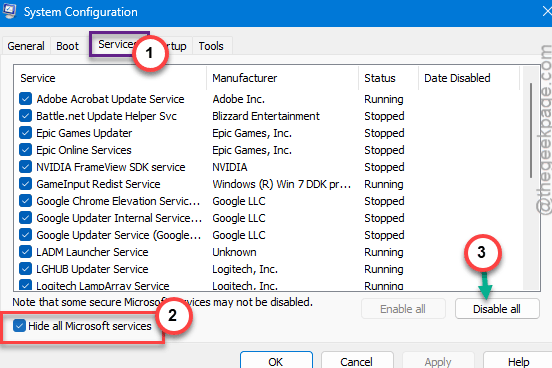
3 – Click the Services tab at the top.
4 – Check the box at the bottom that says Hide all Microsoft services. Critical — don’t skip this.
5 – Click Disable all.
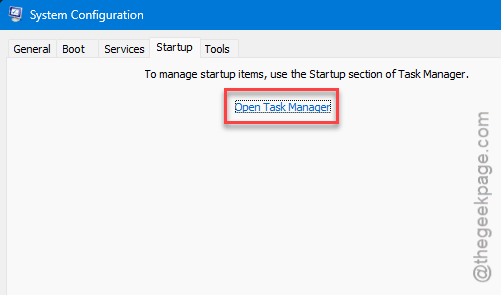
6 – Click the Startup tab. Click Open Task Manager.
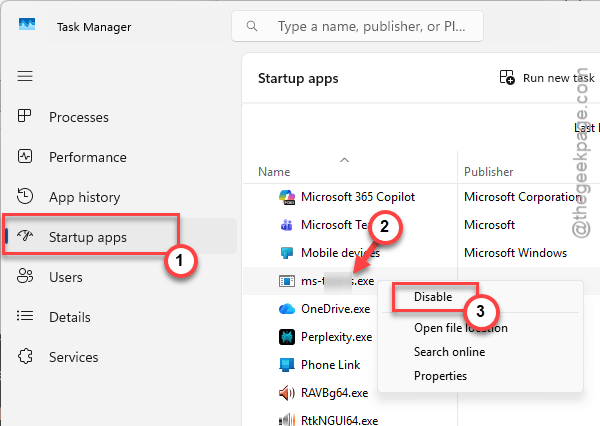
7 – Disable every non-Microsoft startup item.
8 – Close Task Manager. Back in System Configuration, click Apply then OK.
9 – Restart your PC.
10 – Sign in. Try the right-click. If it works perfectly now — a third-party service was the cause.
Re-enable services in small batches (4-5 at a time) until right-click breaks again. That batch contains the offender. Tedious. But surgical.
Fix 5 – Run the Search and Indexing Troubleshooter
Sometimes right-click hangs because indexing is stuck on a corrupted file. The troubleshooter can find it.
1 – Press Windows + I to open Settings.
2 – Click System on the left sidebar.
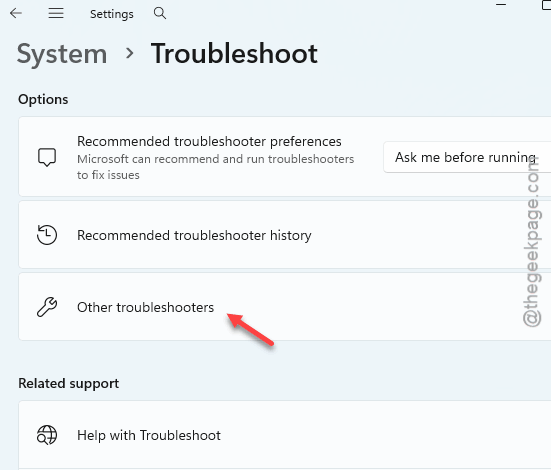
3 – Scroll down to Troubleshoot. Click it.
4 – Click Other troubleshooters.
5 – Scroll down to Search and Indexing.
6 – Click Run next to it.
7 – Follow the prompts. Restart your PC.
Fix 6 – Run SFC and DISM to Repair Windows Files
If shell files are corrupted, no app-level fix will work. SFC and DISM repair them.
1 – Click the Start menu. Type CMD.
2 – Right-click Command Prompt. Click Run as administrator.
3 – Type this and press Enter:
sfc /scannow
4 – Wait. Can take 10-20 minutes. Don’t close the window.
5 – When it finishes, type this and press Enter:
DISM /Online /Cleanup-Image /RestoreHealth
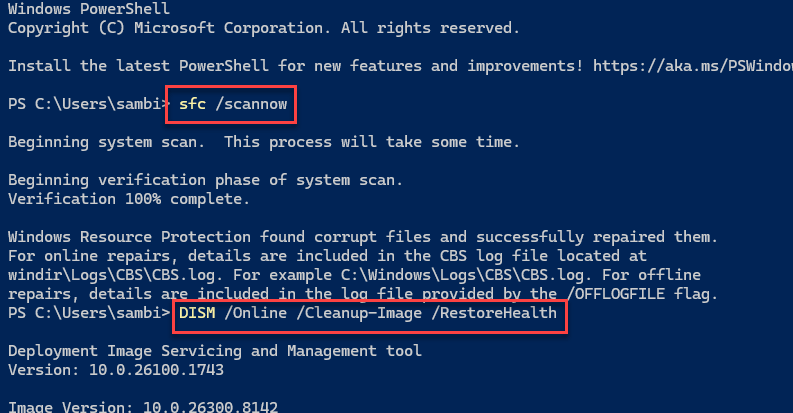
6 – Wait again. Could be another 10-30 minutes.
7 – Restart your PC when both are done.
Fix 7 – Install Pending Windows Updates
Microsoft pushes shell stability fixes constantly. Update Windows. Sometimes that’s literally the fix.
Open Settings with Windows + I. Click Windows Update on the left. Click Check for updates. Install everything that shows up — even optional driver updates. Restart.
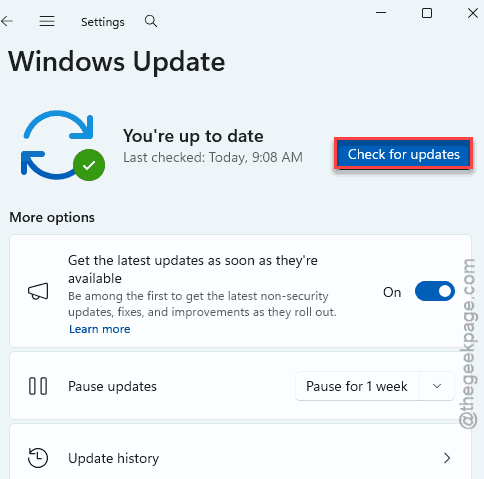
Worth trying before any uninstalls. Five minutes of your time.
How to Prevent This
– Be picky about which apps add right-click options. Every shell extension is a potential failure point.
– If you must use Foxit or iCloud — disable their shell extensions with ShellExView. Keep the app, drop the right-click integration.
– Keep Windows updated. Shell stability gets patched in almost every cumulative update.
– Avoid “tweaker” apps that mess with Explorer.
People Also Ask
Why does my file explorer keep crashing when I right click?
A context menu handler is broken. Either an app like Foxit PDF Editor or iCloud added a bad one. Uninstall the most recently added app first. Or use ShellExView to disable individual shell extensions until the crash stops. Microsoft Copilot 365 has also been a culprit lately.
Why is my right click freezing on Windows?
Too many context menu handlers — or one slow one. The right-click context menu can get heavier with each third-party handler inclusions. ShellExView shows you every handler. Disable suspicious ones one at a time.