Your backup software ran fine last month. Now it dies halfway through. Some error about shadow copies, or a snapshot that never finishes.
And nothing else on the PC looks broken. Files open. Drive works. Just the backup quits.
Why This Happens
Short version: your backup program isn’t really doing the backup. Windows is.
There’s a built-in service called VSS — Volume Shadow Copy Service. It takes a frozen snapshot of your drive so files can be copied even while they’re open and in use. Macrium, Veeam, Acronis, Windows Backup — they all lean on it.
So when VSS chokes, your backup tool is the one that shows the error. But the actual break is underneath it.
What kills it? A few different things. One of VSS’s helper components (Microsoft calls them “writers”) can get stuck in a failed state and never reset itself. The reserved snapshot space on your drive can be too small, so the snapshot fills up and collapses mid-copy. And sometimes a Windows update just breaks the plumbing — update KB5083769 did exactly that to a lot of third-party backup apps.
The frustrating bit? The error message never tells you which one you’re dealing with. So you check them in order.
Fix 1 – Find Out Which Part of VSS Is Broken
Start here. One command tells you whether a writer has failed, and that saves you from trying five fixes you don’t need.
1 – Press the Windows key, type cmd, then right-click Command Prompt and choose Run as administrator.
2 – Type this command and press Enter:
vssadmin list writers
3 – Wait a few seconds. A long list scrolls past, and each entry has a State line and a Last error line.
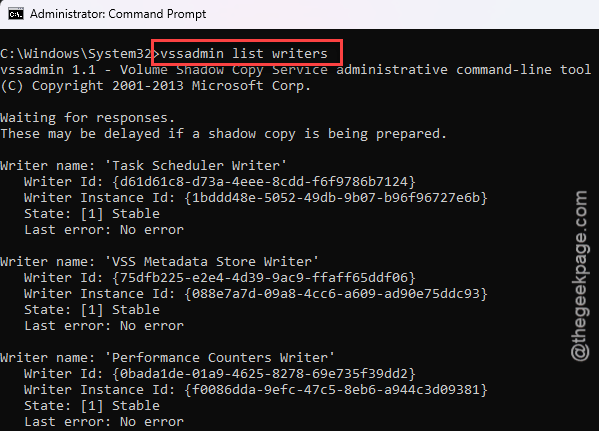
4 – Read the State lines. You want every one to say Stable. Anything showing [11] Failed or [5] Waiting for completion is your culprit.
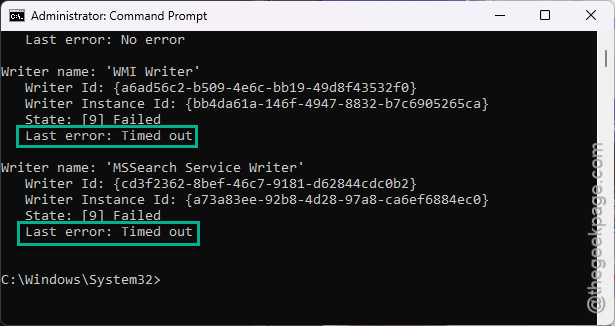
5 – Restart your PC and run the command again.
A restart alone clears a stuck writer surprisingly often. If everything now says Stable, run your backup and see. Still failing, or a writer still shows Failed? Keep going.
Fix 2 – Re-Register the Shadow Copy Components
This rebuilds the internal links Windows uses to talk to VSS. It does not touch your files.
1 – Open Command Prompt as administrator again, the same way as in Fix 1.
2 – Type each of these lines one at a time, pressing Enter after each:
net stop vss
net stop swprv
regsvr32 /s ole32.dll
regsvr32 /s vss_ps.dll
vssvc /register
net start vss
net start swprv
3 – The two regsvr32 lines print nothing at all. That’s normal — the /s means silent.
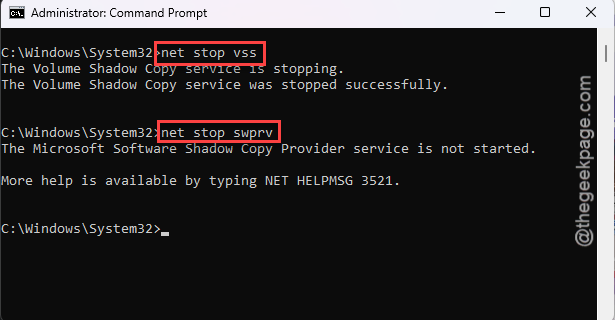
4 – Run your backup again.
Fix 3 – Make Sure the Service Runs as Local System
If someone (or some software) changed which account the shadow copy service signs in with, it loses permission to read your drive. Backup tools then fail with a vague access error.
1 – Press Windows + R, type services.msc, and press Enter.
2 – Scroll down the list to Volume Shadow Copy. The list is alphabetical, so it’s near the bottom.
3 – Right-click it and choose Properties.
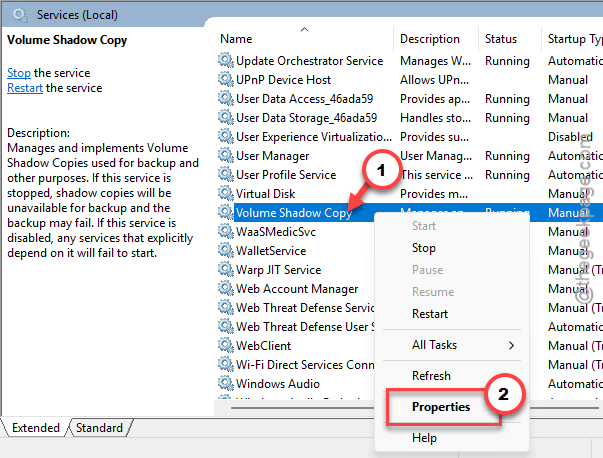
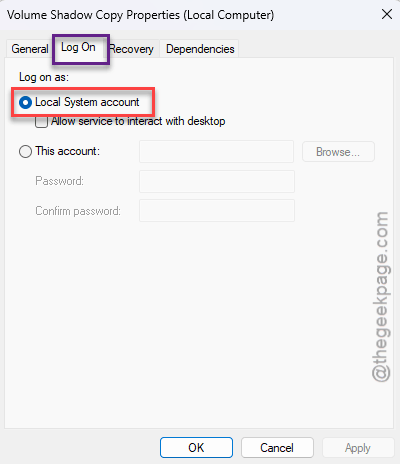
4 – Click the Log On tab at the top.
5 – Select Local System account.
6 – Click OK.
7 – Right-click Volume Shadow Copy once more and choose Restart.
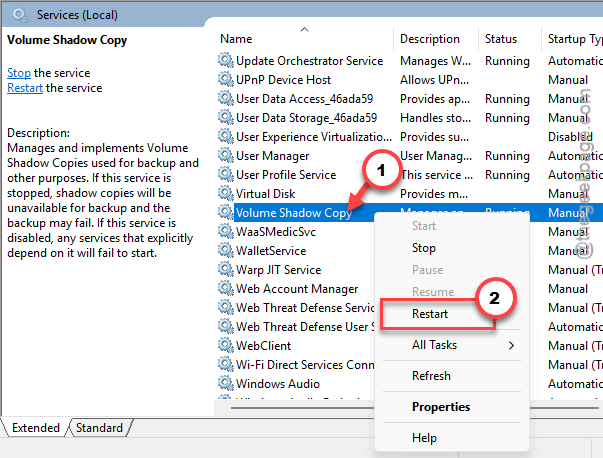
Check if this works.
Fix 4 – Clear Out Old Stuck Snapshots
Quick one. Old snapshots that never finished can block new ones from starting. Open Command Prompt as administrator and run this:
vssadmin delete shadows /all /quiet
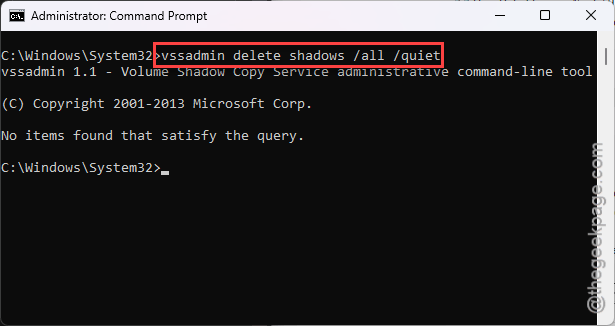
That wipes every existing shadow copy on the machine. Your actual files are untouched (snapshots are not backups), but any System Restore points you had will be gone. Fair trade if your real backup is broken.
Fix 5 – Give Snapshots More Room to Work
Windows reserves a slice of your drive for snapshots. If the slice is too small, the snapshot runs out of space partway through and the backup crashes with it. Bigger drive, bigger files, same tiny reservation — that’s when it shows up.
1 – Open Command Prompt as administrator.
2 – Run this command to reserve 15% of the drive:
vssadmin resize shadowstorage /for=C: /on=C: /max=15%
3 – If you’re backing up a drive other than C:, swap both C: letters for the right one.
4 – You should see “Successfully resized the shadow copy storage association.“
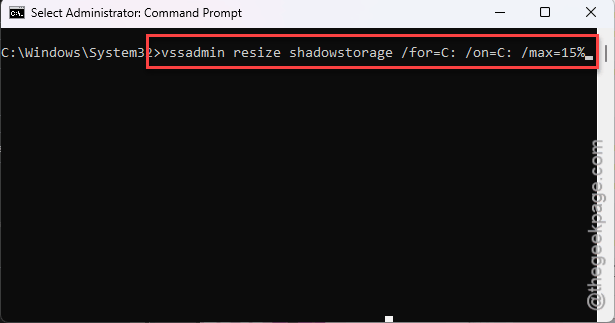
Then run the backup. On a big drive, 15% is generous — you can go higher if you have the space to spare.
Fix 6 – Roll Back the Update That Broke It
Did this start right after a Windows update? Then the update is the suspect, and KB5083769 is the one that hit third-party backup apps hardest.
1 – Press Windows + I to open Settings.
2 – Click Windows Update in the left sidebar.
3 – Click Update history.
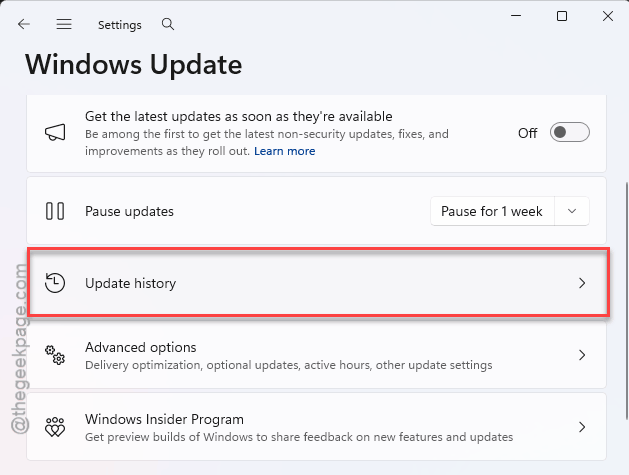
4 – Scroll all the way to the bottom and click Uninstall updates.
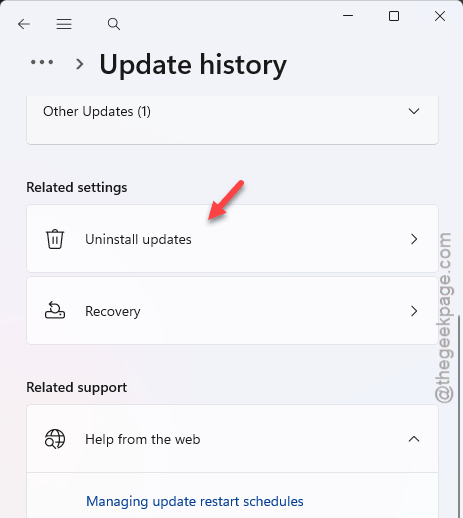
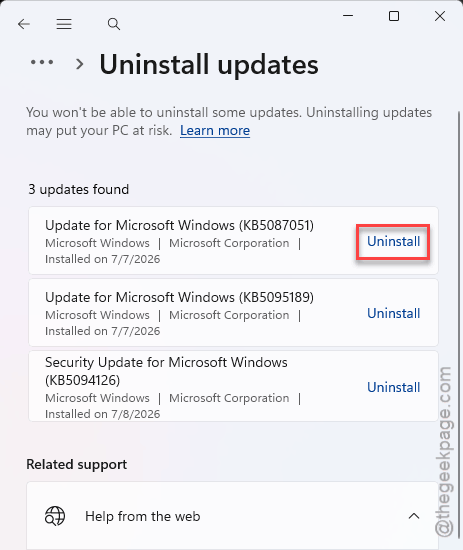
5 – Find the update in the list. Check the KB number and the install date against the day your backups started failing.
6 – Click Uninstall next to it, then restart when prompted.
Windows will try to reinstall it in a week or two. So treat this as breathing room, not a cure — check your backup vendor’s site for a patched version in the meantime.
How to Prevent This
– Run vssadmin list writers once a month. Takes ten seconds and it catches a stuck writer before your next backup dies on it.
– Leave shadow storage at 10-15% of the drive. The Windows default is stingy on large disks.
– Don’t run two backup programs on a schedule at the same hour. They fight over the same snapshot. Stagger them.
– Keep your backup software updated. Vendors ship VSS compatibility patches after big Windows updates, usually within days.
– Actually test a restore now and then. A backup you’ve never restored from is a guess, not a backup.
People Also Ask
How to remove shadow copies in Windows 11?
Open Command Prompt as administrator and run vssadmin delete shadows /all /quiet. Every snapshot on the machine is deleted, quietly, in about a second. Your files and programs stay put — but your System Restore points go with them. Windows creates fresh shadow copies the next time it needs one.
Why does my Windows backup keep failing?
Nine times out of ten it’s not the backup app. It’s the Volume Shadow Copy Service underneath. A writer component gets stuck, or the snapshot storage is too small for the job. Run vssadmin list writers as admin and look for anything that doesn’t say Stable.
What Microsoft update causes third-party backup application failures?
KB5083769 is the one people keep pointing at — it broke shadow copy behavior for several third-party backup tools. You can uninstall it under Settings, Windows Update, Update history, Uninstall updates. But check your backup vendor first. Most of them shipped a compatibility fix instead.