Having problem with the mouse right-click toggle and drop-down menu on Microsoft Edge? Some users have complained about having some issues with the mouse right-click, and it’s subsequent drop-down menu on the MS Edge browser. It seems that it is an old problem, and the recent introduction of the Copilot plug in has complicated the situation further. If a recent update has caused this issue, you can just downgrade to a working MS Edge version.
Quick Workarounds –
1. Close the Microsoft Edge browser once. Then, relaunch it and check whether the right-click is working or not.
2. Open another website (such as Google search) and check whether the problem is universal or just limited to specific website.
Fix 1 – Repair the Microsoft Edge application
You can repair the current instance of Microsoft Edge application installed on your system.
Step 1 – Open the Windows settings using the Win+I button.
Step 2 – Next, go this way –
Apps & Features > Installed Apps
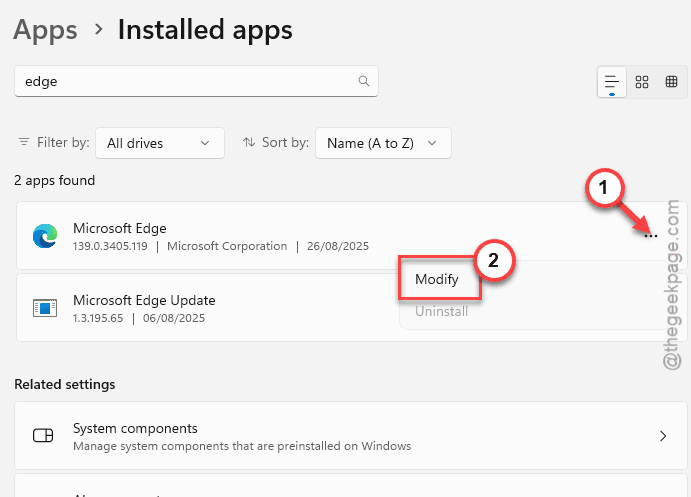
Step 3 – Locate the Microsoft Edge app there. Next, tap the three dot button and tap Modify.
Step 4 – In the Repair Microsoft Edge toggle, tap Repair to repairing the current version of MS Edge installed on your device.
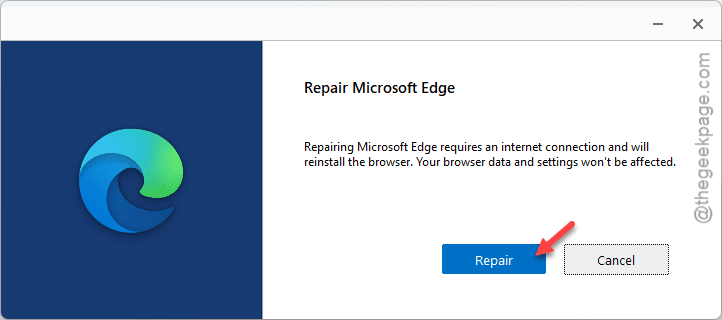
See if the issue still persists.
NOTE – If the ‘Modify’ button is blurred or greyed out for Microsoft Edge, rectify the source of the Microsoft Edge browser. This option doesn’t show up if you have got MS Edge from anywhere other than the Microsoft Store. (Follow Fix4 for further references).
Fix 2 – Disable the AMD display driver
Users have reported a bug in the current Microsoft Edge version that conflicts with the AMD display driver. If you have dual graphics card on your machine, disabling the AMD display driver will help.
Step 1 – Start by right-clicking the Windows icon, and tap Device Manager.
Step 2 – Expand the Display Adapters section.
Step 3 – Detect the AMD Display Driver there. Right-click that driver and tap Disable device.
Your screen might black out briefly for a few seconds, but it will be normal and functional again. Restart the laptop or PC once. Try using the right-click action in MS Edge again.
Fix 3 – Run a simple DISM tool checker scan
Put your system files through a simple Deployment scan so that it takes care of any corrupted system files.
Step 1 – At first, write cmd in the search icon. Then, right-tap the Command Prompt there, and tap Run as administrator option.
Step 2 – Then, paste this simple line of code there, and hit Enter.
DISM.exe /Online /Cleanup-image /Restorehealth
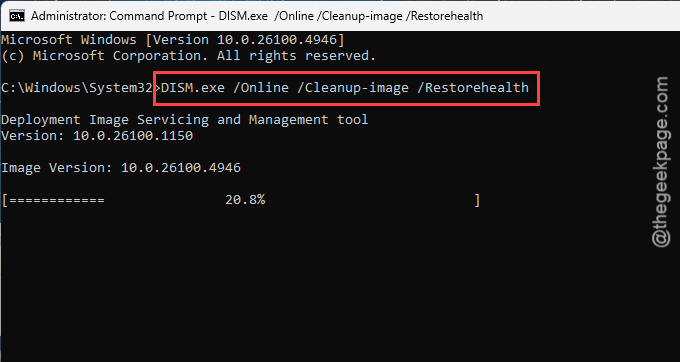
The Deployment Imaging scan will repair any system file corruption on your device.
Once it has completed, restart your machine. Then, retry using the Microsoft Edge browser.
Fix 4 – Update the Microsoft Edge to the latest version
If this is a widespread issue for many users, look out for a pending Edge update.
Step 1 – Open a new tab on Edge and paste this there, and hit Enter to reach the About page.
edge://settings/help
[Or, you can follow this path –
three dot button > Help & Feedback > About Microsoft Edge
]
Step 2 – If any update is pending, Edge will automatically download and install the same.
Step 3 – When it requests a restart, tap Restart to reboot the MS Edge browser.
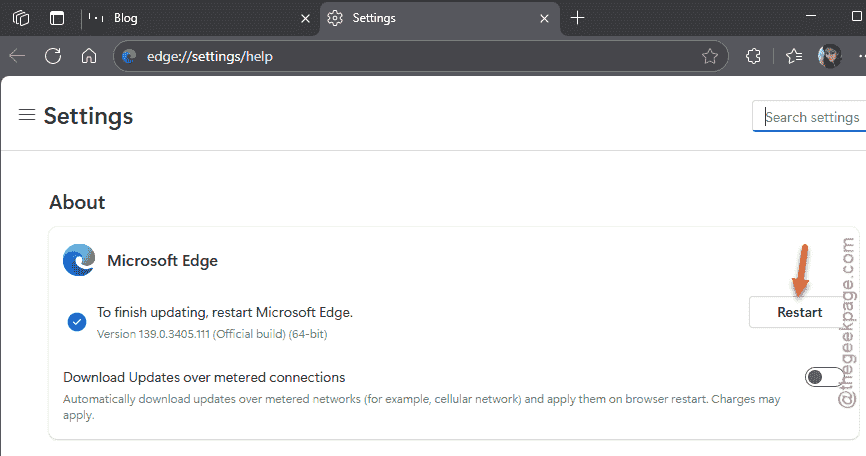
This right-click issue won’t be there in this latest version of MS Edge.
Fix 5 – Protected website data that you can’t copy
There are some websites where the owner itself restricts the usage of right-click or copy-paste functionality using JavaScript. This way, any visitor (in this case it is you) can not copy any of the items from the website directly. On the other hand, some websites also present the text as an image, restricting further edits or copy-pasting. The certain portion of the right-click context menu will be blurred out in that case.