Seeing a Hollow arrow icon on the top of the iPhone screen? Don’t worry. The arrow icon that you are seeing beside the clock is the location icon. Whenever an app or a native Apple service is accessing your location data, this icon will show up. The explanation with detailed solution is provided below. You should go through the note below to make a better understanding why this arrow icon has shown up on your screen.
Why am I seeing a hollow arrow icon on iPhone?
The hollow arrow icon on the iPhone status bar denotes the location service usage by one or multiple apps on the device. This arrow can be a point of distraction and become the point of concern at the same time. If you are using a Weather widget or map application on the device, the arrow should show up and it is completely normal. Even while using other maps, the same arrow can show up on the status bar.
But, what if you are not using any application that may don’t need any location access? This is a danger sign that you should not ignore. An application might be sending your location data to their external server from the background.
Fix 1 – Check the Location Services access data
See whether any app is requesting your location data in the background.
Step 1 – To do this, open the iPhone Settings.
Step 2 – Next, load up the “Privacy & Security” settings.
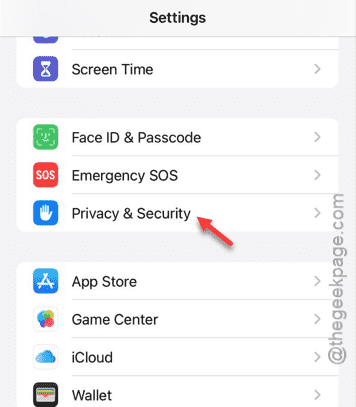
Step 3 – Open the “Location Services” option there.
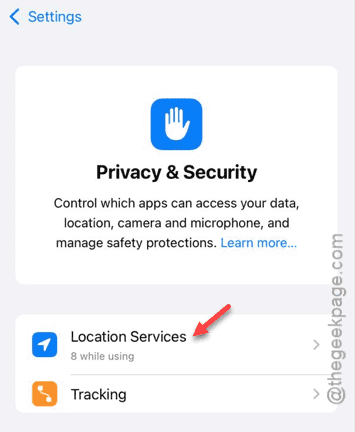
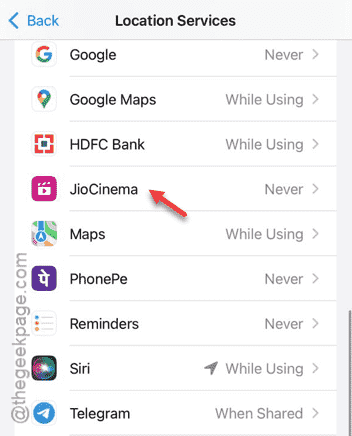
Step 4 – On the subsequent page, you can see the apps that have access to the location services.
Step 5 – If you see any suspecting app there, you can change the application settings. Tap to open the application from there.
Step 6 – Set the “Never” option from the list.
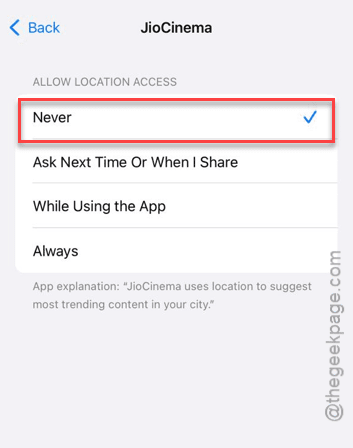
You will see the hollow arrow icon has disappeared from the iPhone status bar.
Fix 2 – Disable the Status Bar Icon
There is another solution to this. You can just turn off the ‘Status Bar’ icon on the iPhone settings.
Step 1 – On the iPhone Settings page, open the “Privacy & Security” tab.
Step 2 – Go to the “Location Services” panel.
Step 3 – In the Location Services panel, scroll down and open up the “System Services” option.
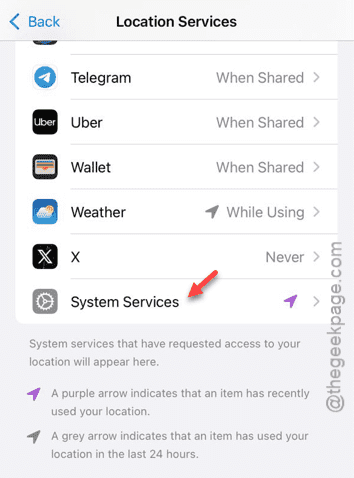
Step 4 – On the System Services page, turn off the “Status Bar Icon” option in there.
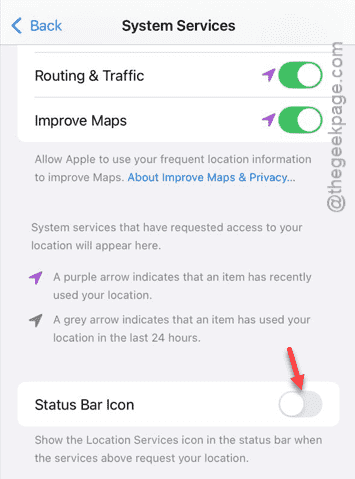
The hollow arrow icon on the status bar should disappear from your iPhone. It won’t show up even when the services request your location data.
Hope these fixes have worked out for you!