You click the notification area. Nothing. Click again. Nothing. Action Center won’t open. No panel. No response. Dead.
Windows 11 bug that shows up after certain updates. More common than Microsoft wants to admit.
Why This Happens
Basically? There’s a registry key called DisableNotificationCenter. When it’s set to 1, the Action Center is completely dead. And some updates set it to 1 without telling you. No warning. No prompt. Just silently disabled.
But it’s not always the registry. Sometimes the Shell Experience Host is corrupted. Or system files are damaged. Either way, the button looks clickable, but Windows just ignores it.
No idea why this keeps happening. But it does. So yeah.
Fix 1 – Restart Windows Explorer
Quick fix. Five seconds.
1 – Press Ctrl + Shift + Esc to open Task Manager.
2 – Find Windows Explorer in the Processes tab.
3 – Right-click it.
4 – Click Restart.
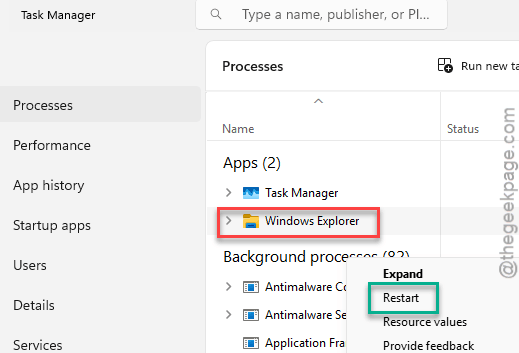
Done. Try the Action Center. Still dead? Keep going.
Fix 2 – Check the Registry for DisableNotificationCenter
This is the fix most people miss. A registry value might be silently blocking everything.
1 – Press Win + R.
2 – Type regedit
3 – Press Enter. Click Yes on the UAC prompt.
4 – In the left panel, go to this path:
HKEY_CURRENT_USER\Software\Policies\Microsoft\Windows
5 – Look for a key called Explorer. If it’s not there, right-click Windows, select New, then Key, and name it Explorer.
6 – Click the Explorer key.
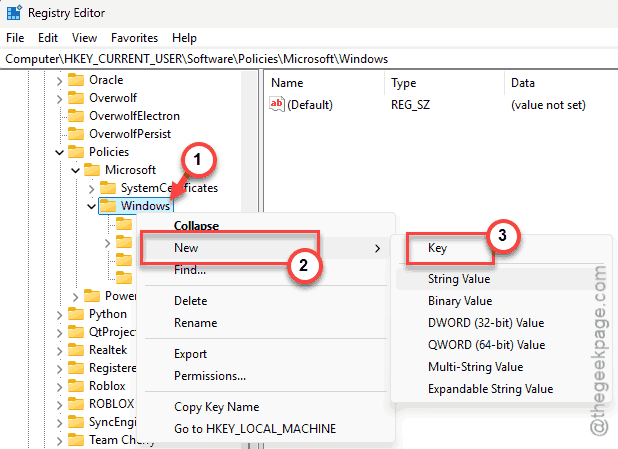
7 – In the right pane, look for DisableNotificationCenter. If it’s not there, right-click the empty space, select New, then DWORD (32-bit) Value, and name it DisableNotificationCenter.
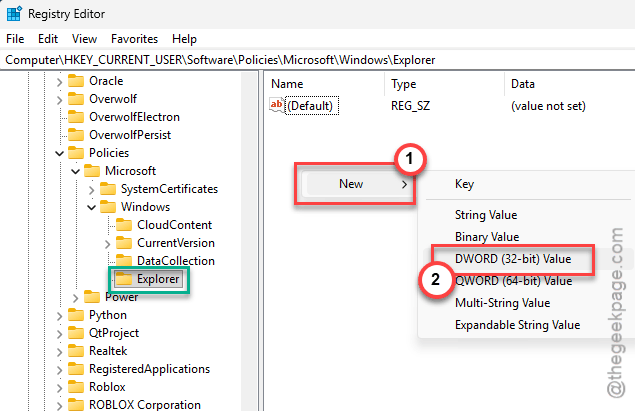
8 – Double-click DisableNotificationCenter.
9 – Set the value to 0.
10 – Click OK.
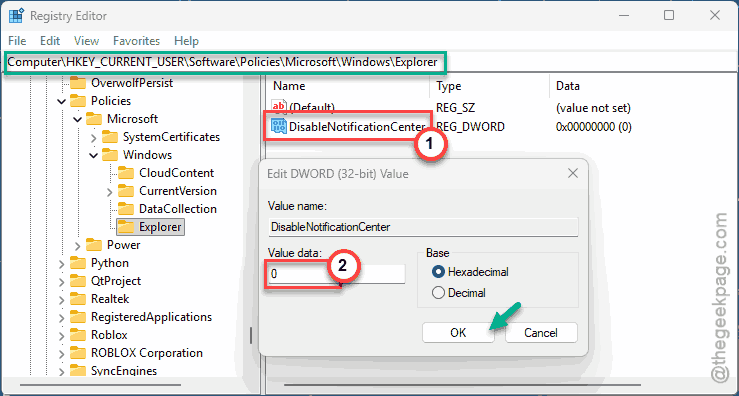
11 – Close Registry Editor.
12 – Restart your PC.
And that’s usually the whole fix. If this were set to 1 — which updates and Group Policy changes do quietly—the Action Center would be completely disabled. Setting it to 0 brings it back. That’s it.
Fix 3 – Re-register Action Center via PowerShell
Registry was already 0? Then the component itself might be corrupted.
1 – Click Start.
2 – Type Terminal.
3 – Right-click Terminal and select Run as administrator.
4 – Paste this command and press Enter:
Get-AppxPackage -AllUsers Microsoft.Windows.ShellExperienceHost | Foreach {Add-AppxPackage -DisableDevelopmentMode -Register "$($_.InstallLocation)\AppXManifest.xml"}
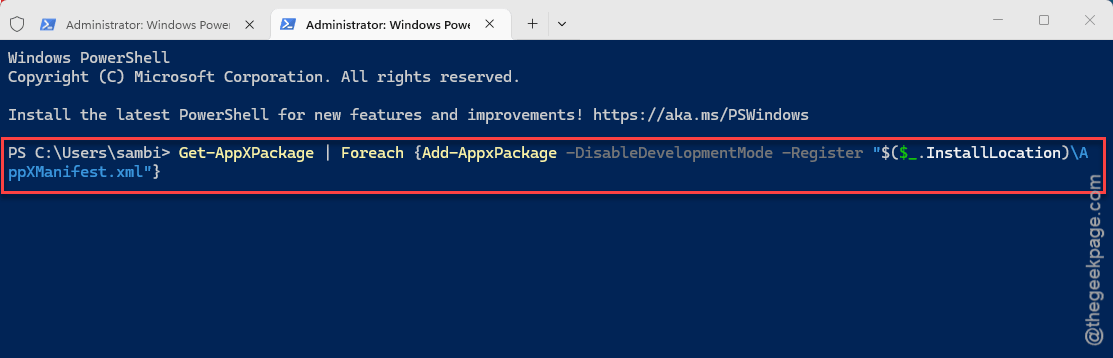
5 – Ignore red error text.
6 – Restart your PC.
Re-registers the shell component. Doesn’t touch your files or settings.
Fix 4 – Run SFC and DISM
Deeper corruption. These tools find and fix it.
1 – Click Start and type Terminal.
2 – Right-click it and select Run as administrator.
3 – Type this command and press Enter:
sfc /scannow
4 – Wait for it to finish.
5 – Now type this and press Enter:
DISM /Online /Cleanup-Image /RestoreHealth
6 – Wait again.
7 – Restart.
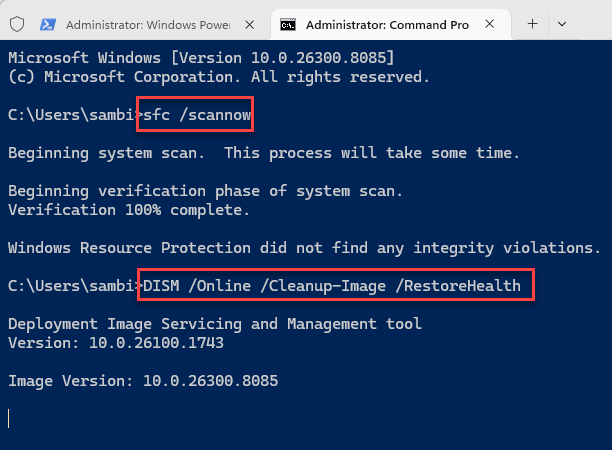
Takes a few minutes. Not fast. But catches what other fixes miss.
Fix 5 – Check for Windows Updates
If an update caused this, another might fix it.
1 – Open Settings.
2 – Click Windows Update.
3 – Click Check for updates.
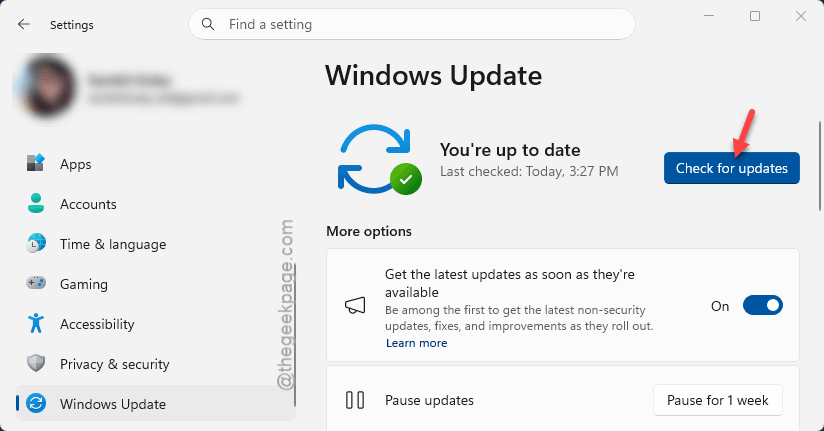
4 – Install everything.
5 – Restart.
Microsoft has patched this specific issue multiple times. So yeah. Update.
How to Prevent This
- Don’t manually edit registry keys unless you know what they do.
- After updates, click the notification area to check it still works.
- Avoid third-party taskbar tools. They love breaking shell components.
- Run SFC scans periodically.
People Also Ask
How do I fix the Action Center not opening in Windows 11?
Check the registry. DisableNotificationCenter should be 0. If it is, re-register Shell Experience Host via PowerShell.
How to fix not being able to click on the Windows 11?
Restart Explorer in Task Manager. Still broken? SFC and DISM. Then PowerShell re-registers.
How to fix the Action Center not opening?
Three things. Registry key to 0. Re-register the shell. SFC and DISM. One of those fixes it almost every time.