Can’t install any third-party apps on your Apple Watch? Users can easily install third-party apps directly from the App Store on their Apple Watch. The failure of such app installations can stem from a credential mismatch or handoff error between the iPhone and Apple Watch. Here are some tips that you can use to solve the issue.
Fix 1 – Use the Sign In Verification
The App Store on the Apple Watch sometimes may lose the authentication, which can be easily solved by simply signing in to your account.
Step 1 – On the Apple Watch, open the ⚙ button to load up the Watch Settings.
Step 2 – Then, open up the App Store.
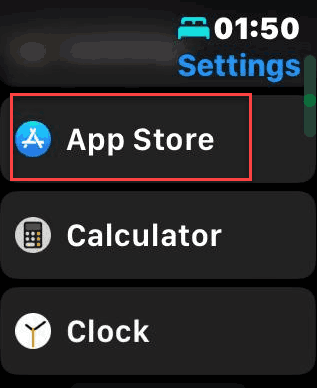
Step 3 – If you see a Sign In button there, use that and sign in using your Apple ID and password to the Apple Watch.
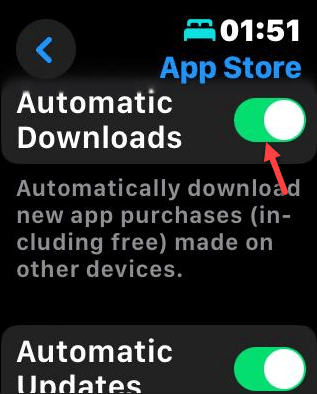
Step 4 – If you are already signed on, scroll down and find the Automatic Downloads module. Make sure it is turned ON.
If you are still having the same issue, follow the next solution to fix the issue.
Fix 2 – Install Directly from Apple Watch
If the apps are not failing to install via the iPhone, try to directly install them on the Apple Watch.
Step 1 – Open the App Store on the Apple Watch.
Step 2 – Search for the app that you want to install.
Step 3 – Tap the cloud button or the Get button there to install the app.
You may have to confirm the installation using the double-tap action on the crown button on the Apple Watch.
Fix 3 – Apply the Delete and Swap Method
If the app is already present on your iPhone, reinstall the same app on it and then try to push it to the Apple Watch.
Step 1 – At first, delete the app from your iPhone.
Step 2 – Go to the App Store on the iPhone and re-download the same app.
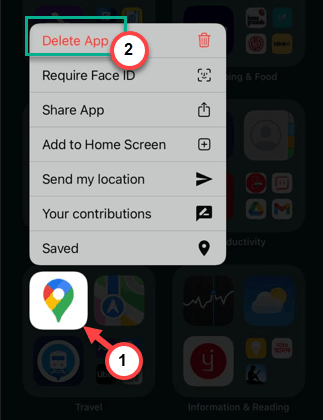
Step 3 – Once it is installed on the device, go to the Watch app.
Step 4 – Now, proceed to the My Watch tab. Find the app there and tap the Install icon there to reinstall the app.
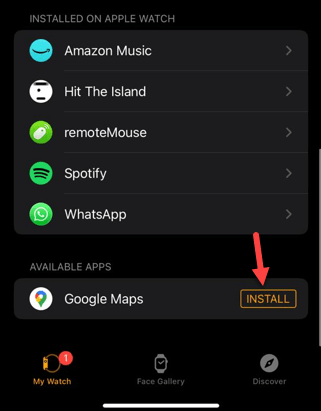
The app will be installed on your Apple Watch.
Fix 4 – Turn OFF VPN and DNS Filters
App Store access and app installations may get blocked if the iPhone is using any VPN or DNS filters. Disabling such network
Step 1 – On your iPhone, proceed to the Settings page. Go to the General tab. Open up the VPN & Device Management settings.
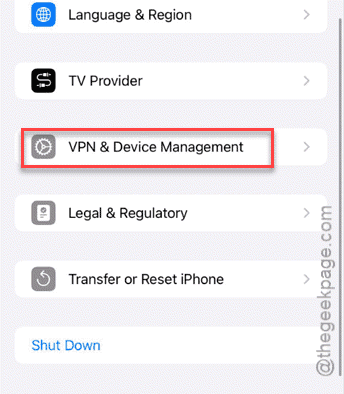
Step 2 – Check whether the device is connected to any VPN service.
Step 3 – If you have a configuration profile there, try to remove it from there temporarily.
Restart your iPhone and Apple Watch, both, to check if this works.
Fix 5 – Clear the Apple Watch App Cache
If the apps are stuck installing (the spinning wheel never stops), it’s often a hung process that can be solved by clearing Apple Watch App Cache.
Step 1 – On your iPhone, go to the Watch app. Load up the General tab. Open up the Storage settings.
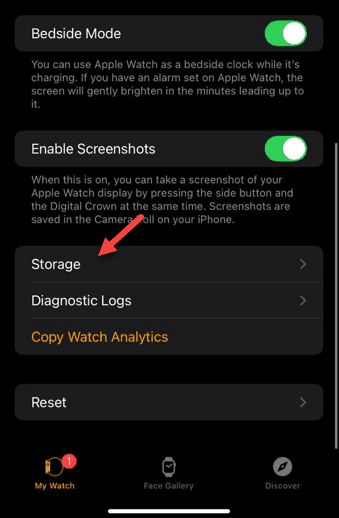
Step 2 – Look for any pending update files or large app data blocks.
Step 3 – If you see any entry that looks like a watchOS update, or any such specific app taking up too much space, swipe left to Delete it.
This should resolve the issue on your Apple Watch.