When using high-resolution (4K or 5K) monitors with Windows 11, Microsoft Word may struggle trying to scale the Word interface and document content simultaneously. Usually this is a type of graphics rendering error that produces such issues in Microsoft Word on high-resolution 4K displays. Here are some counteractions you can put on your device to troubleshoot this issue yourself.
| Issue | Recommended Fix |
| Blurry text on 2nd monitor | Fix #2: Optimize for compatibility |
| Flickering/Black boxes | Fix #3: Disable Hardware Acceleration |
| Images looks pixelated | Fix #4: Enable High Fidelity resolution |
Fix 1 – Change High DPI Scaling Settings
Sometimes the conflict is not with any of the MS Word settings but with how Windows tries to stretch the application to fit right into the screen resolution.
Step 1 – Close the Microsoft Word application.
Step 2 – Then, proceed to the root location of Word executable file, that is by default located in here –
C:\Program Files(x86)\Microsoft Office\root\Office 16
Step 3 – Then, right-click the Word executable and tap Properties.
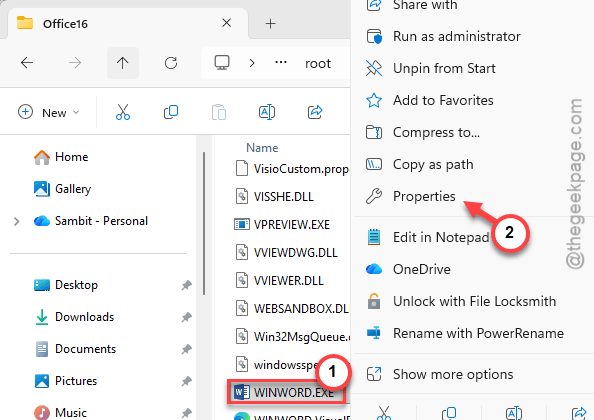
Step 4 – Go to the Compatibility tab. Tap the Change high DPI settings.
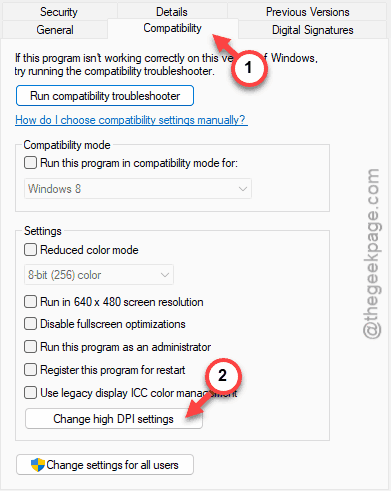
Step 5 – Check the Override high DPI scaling behavior option. Set the ‘Scaling performed by:’ to System (Enhanced) mode.
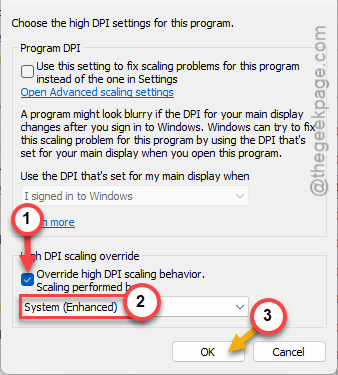
This way, Windows will handle the layering and texts more instantly than before.
Fix 2 – Switch to Optimize for Compatibility
Word has a built-in toggle specifically for the multi-monitor setups where one screen is high-resolution and the other one is a standard (1080p) display.
Step 1 – In the Microsoft Word document interface, go this way –
File > Options
Step 2 – Go to the General tab. Under the User Interface options section, find the When using multiple displays feature.
Step 3 – Set it to Optimize for compatibility feature.
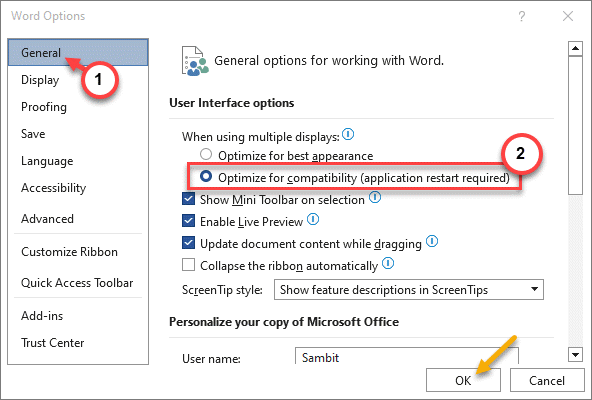
Then, restart Microsoft Word and test. You won’t have any graphics rendering issues again.
Fix 3 – Disable Hardware Graphics Acceleration
Rendering the Microsoft Word interface on a high-DPI display puts a massive load on the GPU. The lack of the GPU acceleration feature may cause such rendering issues.
Step 1 – Once again, go this way in Microsoft Word document –
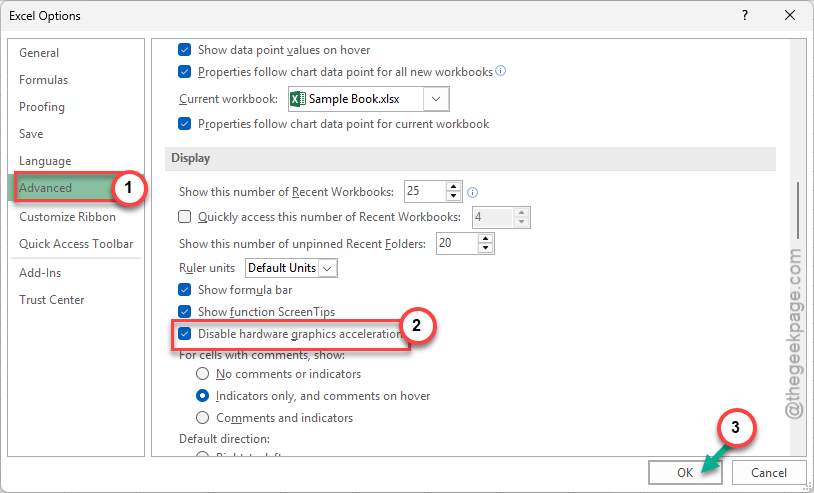
File > Options > Advanced
Step 2 – In the Advanced tab, scroll to the Display section.
Step 3 – Check the Disable hardware graphics acceleration feature. Click OK to save this change.
NOTE –
If you are using a modern version of Word that does not offer the hardware acceleration feature, do this –
- Open the Windows Settings.
- Follow this path, next –
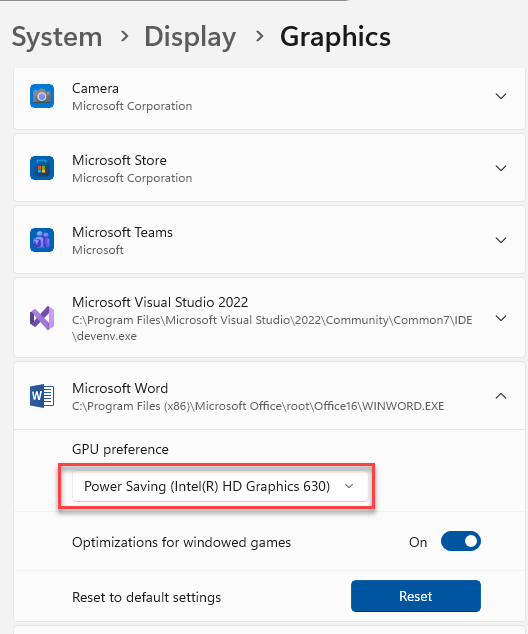
System > Display > Graphics
- Find Microsoft Word in the list of apps. If you can’t find it, add it from there.
- Then, set the GPU Preference to Power Saving (Integrated Graphics) mode.
Check if this solves the issue.
Fix 4 – Adjust Image Size and Quality Settings
Sometimes MS Word may ‘reduce’ the images to 220 PPI to save on file size. This may result in such issues.
Step 1 – One more time, follow this path in Microsoft Word –
File > Options
Step 2 – Proceed to the Advanced tab.
Step 3 – Find the Image Size and Quality section.
Step 4 – Check the Do not compress images in file feature. Then, set the Default Resolution to High Fidelity mode. Tap OK to save it.
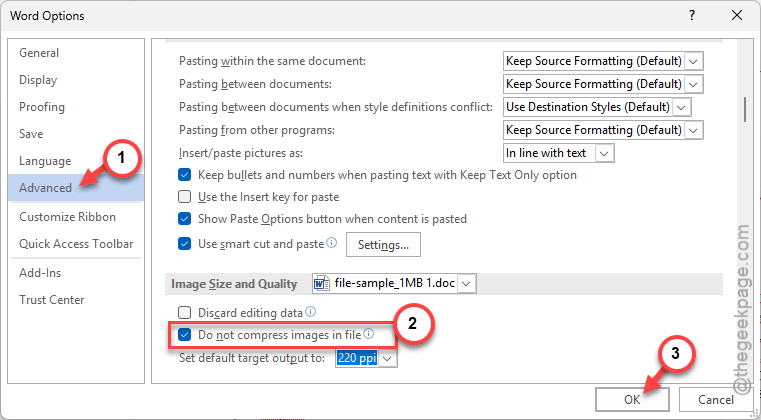
This ensures Microsoft Word is displaying images at its native resolution.
Fix 5 – Disable Subpixel Positioning
Microsoft Word’s Subpixel positioning can sometimes cause such graphics rendering issues in High-DPI panels.
Step 1 – In your Microsoft Word document, follow this path—
File > Options > Advanced
Step 2 – Find the Display section there.
Step 3 – Uncheck the Use subpixel positioning to smooth fonts on screen feature. Don’t forget to save the changes there.
This ensures Microsoft Word forces text to align with the physical pixels of the display, ensuring there is no blurriness at all.
Hope these fixes have solved your problem.