Do the apps are not downloading on your Apple Watch? You may have stumbled upon this “Can’t connect to App Store” message while trying to download an application from the App Store on the watchOS. Downloading or updating the application requires some of the checkboxes ticked. Go through this guide to troubleshoot the problem.
Fix 1 – Force restart the Apple Watch
Force restart your Apple Watch to fix the problem.
Step 1 – Press and hold the Crown and Side button on your Apple Watch.
Step 2 – Continue pressing those two buttons until the watch restarts and shows up the Apple logo on the screen.
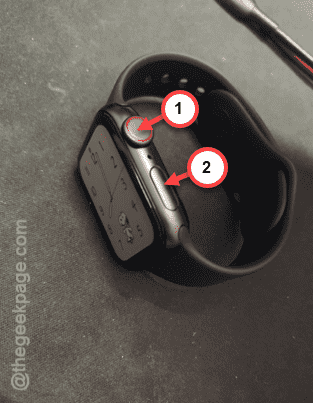
This force restart procedure should fix the apps downloading problem on the watch.
Fix 2 – Use the same Apple ID
You must use the same Apple ID on the watch and the iPhone for your watch to get app updates.
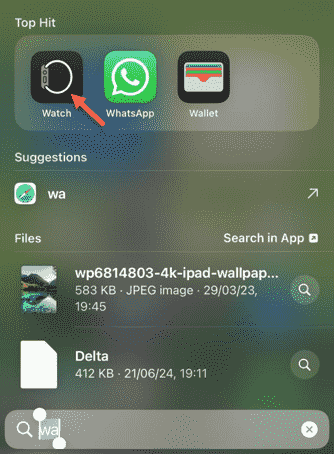
Step 1 – Open the Watch app using the search box.
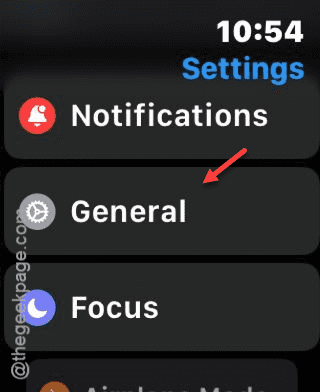
Step 2 – Thereafter, go to the “General” settings.
Step 3 – Touch the “Apple Account” option.
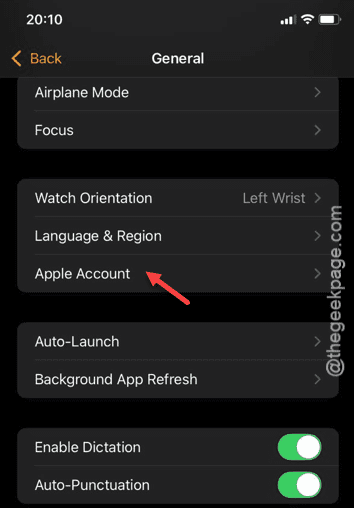
Step 4 – On the following page, see whether you can see your Apple ID or not.
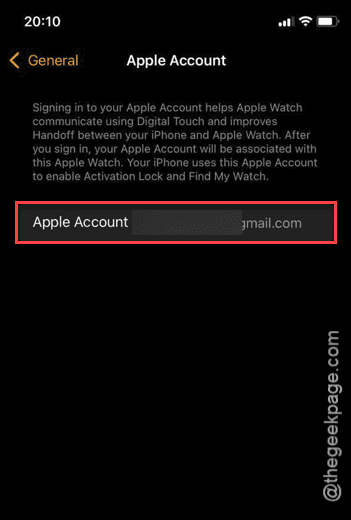
If you find any difference in the Apple IDs on watch and iPhone, change it.
Fix 3 – Disable the VPN
VPN users may face this problem at their end. If you are using VPN to connect the watch to the internet, the App Store may block your access. So, if you have VPN, disable it and reconnect the watch directly to the internet and try again.
Fix 4 – Make sure to use the same Wi-Fi
You have to use the same Wi-Fi as the one that you are using on your iPhone.
Step 1 – Check which Wi-Fi you are using from the iPhone.
Step 2 – Open the Control Center, and you shall see the name of the Wi-Fi that you are connected to.

Step 3 – Now, tap the side button on the watch.
Step 4 – Tap and hold the Wi-Fi.
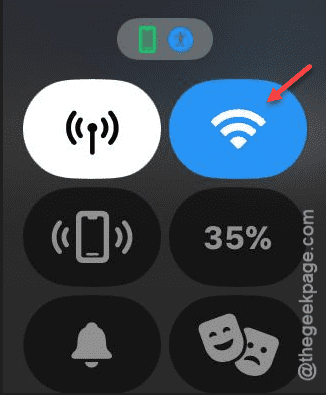
Step 5 – Connect to the same Wi-Fi on the watch as well.
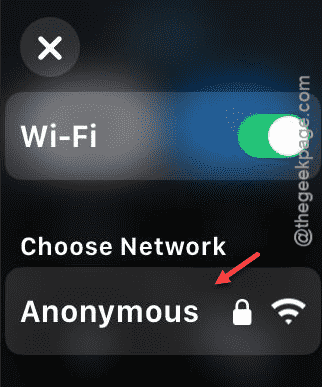
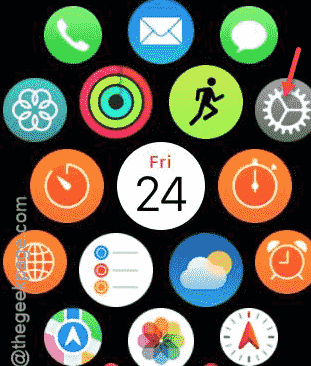
Step 6 – Now, press the crown on the watch once.
Step 7 – Later, open up the “Settings” utility.
Step 8 – Open the “Bluetooth” settings.
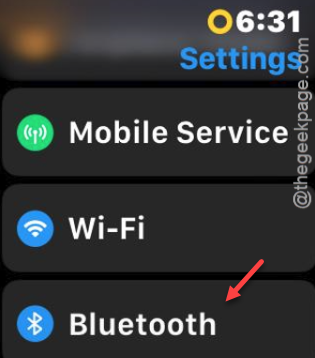
Step 9 – Make sure the Bluetooth is turned on your iPhone.
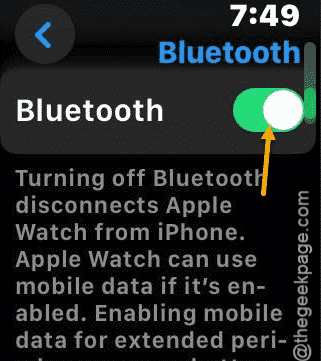
After running these checks, you can expect the Apple Watch to connect to the App Store normally and complete the app update process.
Fix 5 – Reset the network settings
The app downloading process completely depends upon the iPhone’s network.
Step 1 – So, go to your iPhone Settings.
Step 2 – From there, go this way –
General > Transfer or reset iPhone
Step 3 – Thereafter, tap the “Reset” option.

Step 4 – Tap the “Reset Network Settings” to reset all of your iPhone settings.
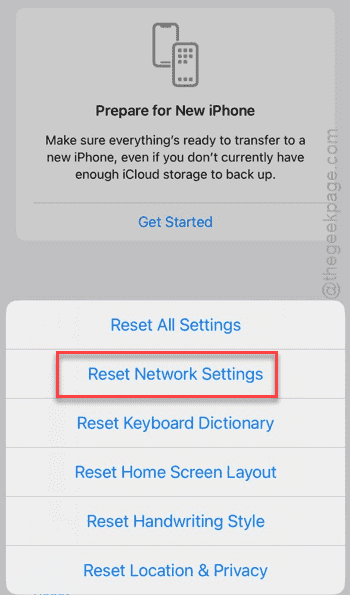
You have to reconnect to your Wi-Fi once this is done. After connecting to it, try to load a new app or update an existing one from there.
Fix 6 – Revoke and enable the Airplane mode
Put the watch on Airplane mode and refresh it by disabling it.
Step 1 – Simply, press the side button on the Apple Watch.
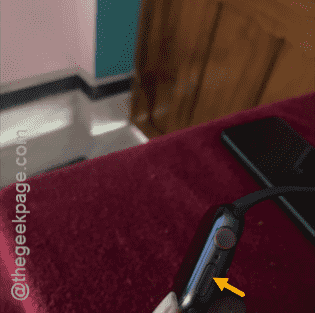
Step 2 – Turn on the Airplane mode.
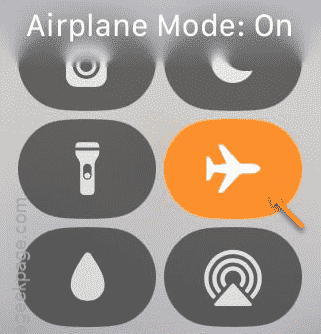
Step 3 – Give it a few seconds and turn it off.
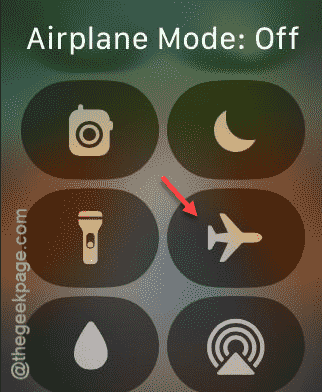
This should refresh the network system of the watch. See whether you can download apps now.
Fix 7 – Download apps automatically from App Store
You should enable the automatic app downloads feature from the App Store on the watch.
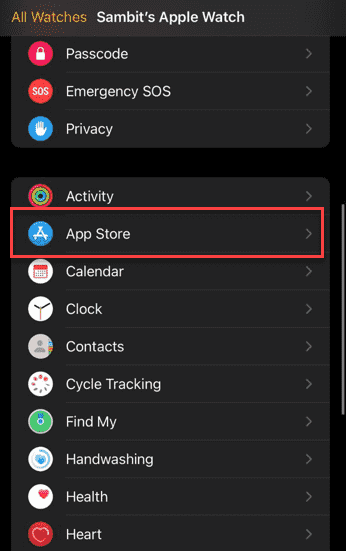
Step 1 – Load up the Watch app.
Step 2 – Thereafter, go to the “My Watch” panel.
Step 3 – Load up the “App Store” menu.
Step 4 – Next, enable the “Automatic Download” function there.
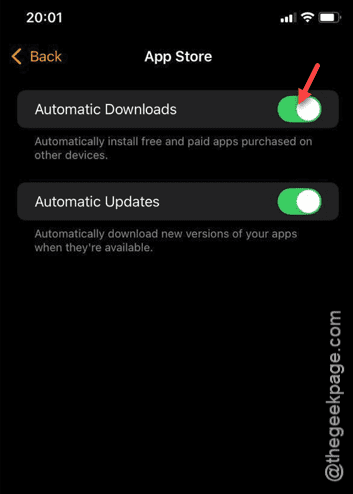
Once it is enabled, the App Store can fix the issue.