The screen recording on iOS 26 can stop in the middle of the process due to excessive overheating of the device. A storage-cache conflict in the iOS 26 bug or an actual shortage of space can cause this issue as well. Here are some tips that you can follow to troubleshoot this issue on your own.
Fix 1 – Disable the Full Screen Preview System
There are some reports of a specific bug in the iOS 26 that may cause the screen recorder to crash when it tries to generate the floating preview of the recording.
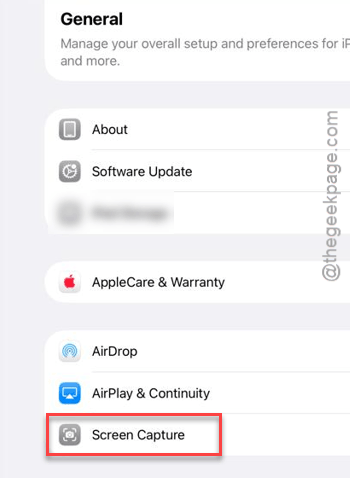
Step 1 – Open the iPhone Settings. Go to the General tab.
Step 2 – Tap on the Screen Capture tool.
Step 3 – Toggle Full-Screen Previews to OFF mode.
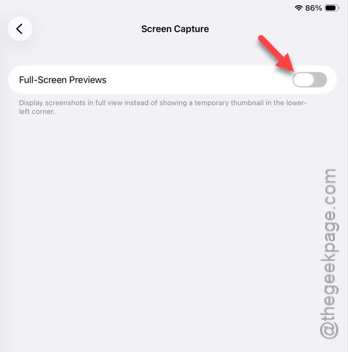
Once you have turned off the full-screen preview system, check whether this works or not.
Fix 2 – Disable Adaptive and Low Power Mode
Screen recording feature does consume a considerable amount of power. So, running the screen recorder in adaptive and low power mode can stop it suddenly.
Step 1 – Open the iPhone Settings. Load up the Battery settings.
Step 2 – Now, turn off the Low Power Mode and Adaptive Power Mode settings on the iPhone.
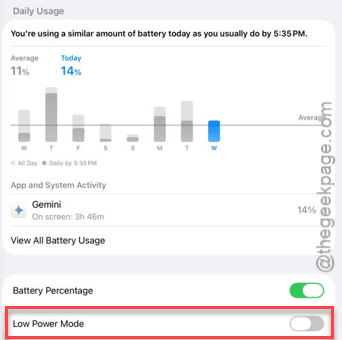
The screen recordings should resume properly on your device.
Fix 3 – Clean up the iPhone system storage bloat
If your iPhone is too low on space, the screen recorder won’t even have enough space to work properly.
Step 1 – Open the iPhone Settings. Proceed to the General tab.
Step 2 – Load up the iPhone Storage settings.
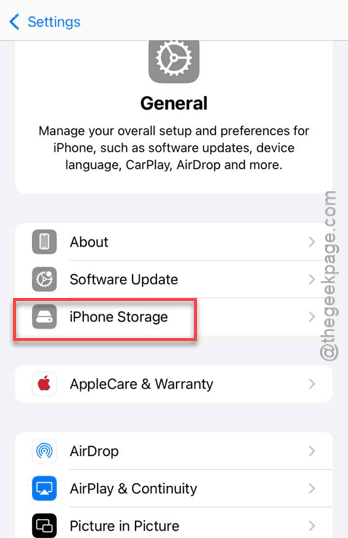
Step 3 – Scroll to the bottom to find the System Data settings.
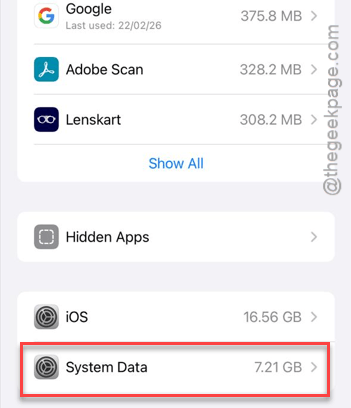
If you see the System Data has taken over 25-30 GB, follow these steps to force-restart the device once –
- Quickly press the Volume Up button and release it.
- Do the same with the Volume Down
- Then, hold the Side button until the Apple logo shows up on the device.
This way, once you have force-restarted the iPhone, the residual system data should be cleared off.
Try to record the screen again and test.
Fix 4 – Remove Screen Recording Restrictions
Sometimes the imposed screen recording restrictions can halt the screen recording in the middle of the recording process itself. Revoke those restrictions and start recording again.
Step 1 – Go to the Screen Time settings.
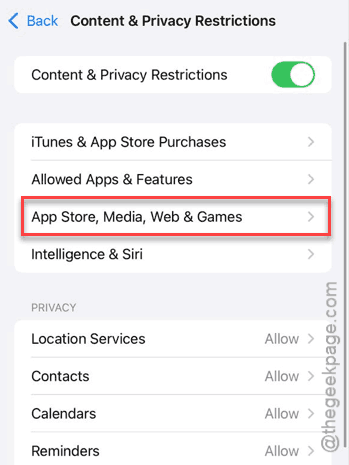
Step 2 – Open up the Content & Privacy Restrictions tab.
Step 3 – Tap the App Store, Media, Web & Games button.
Step 4 – Scroll down and find the Game Center settings. Find the Screen Recording settings and set it to Allow mode.
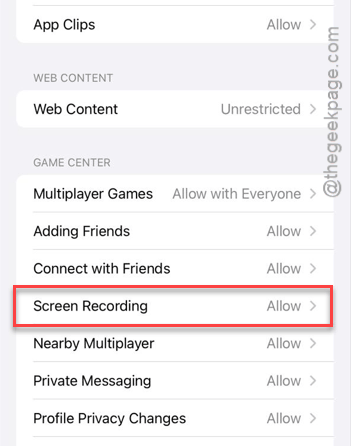
After this, you can record the screen without any restrictions at all.
Fix 5 – Try recording Without the Microphone Off
Sometimes, iOS 26 may cause audio sync, which can sometimes cause the device to hang while trying to process the spatial audio and screen video together. Here is a workaround you can try –
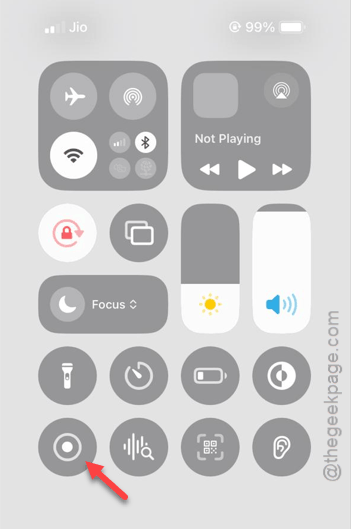
Step 1 – Swipe down to open the Control Center.
Step 2 – Long-press the Screen Record icon there.
Step 3 – Tap the Microphone icon and turn it OFF.
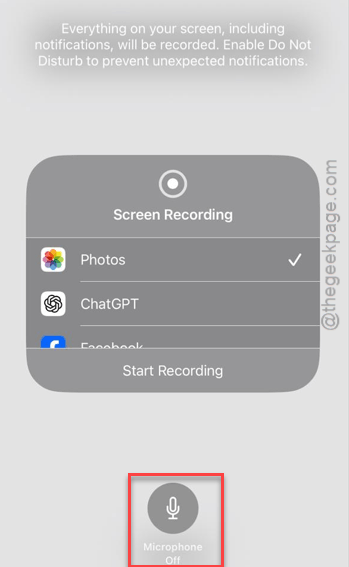
Step 4 – Try recording the screen again.
If the screen recording does not stop, the conflict is happening with the app’s audio output and microphone.
Hope these fixes have helped you solve the issue.