Some Apple Watch users have complained about apps crashing or freezing up on their Apple Watch. If the apps are crashing out of nowhere on the Apple Watch, it is usually due to a memory hang or a glitch in the background app refresh system. However, there are other possible reasons for this issue that can lead to this issue. Here are some countermeasures that you can apply to fix this problem on your own.
Fix 1 – Force Quit the Apple Watch
Most of the Apple Watch users, even the veteran ones, may not know that you can actually force-close the apps on the watch. Though it is not as simple as you do it on an iPhone.
Step 1 – While you are stuck in the frozen app, press and hold the side button of the Watch until the power slider appears.
Step 2 – Then, let go of the side button, and then, press and hold the Digital Crown until the app window disappears and the watch shows the home screen.
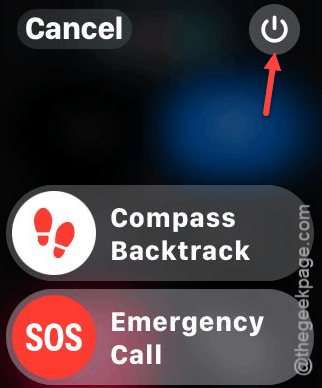
Step 3 – Reopen the app.
Check whether the app works on the wearable or not.
Fix 2 – Turn Off the AutoSwitcher for Apps on Apple Watch
The AutoSwitcher accessibility feature of the Apple Watch can actually cause the Apple Watch to hang, instead of smoothening the experience.
Step 1 – Open the Watch app. Next, go to the My Watch tab.
Step 2 – Go to the Accessibility section.
Step 3 – Later, find the App Switcher section. Toggle the Auto-Select Focused App to OFF mode.
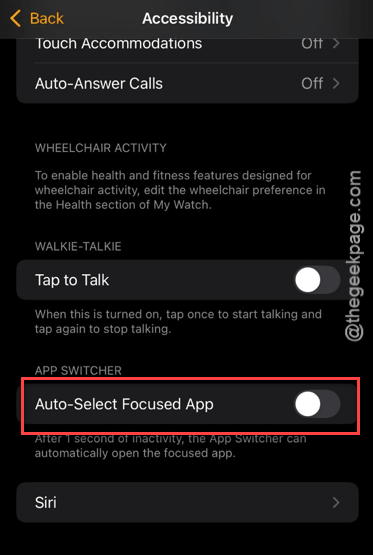
Turning off this setting should resolve the sudden app crash issue that you are having.
Fix 3 – Disable Automatically Add Music Feature
If your Apple Watch continues to crash or freeze in the Workout or Music app, the background activity is responsible for that issue.
Step 1 – Load up the Watch app on the iPhone.
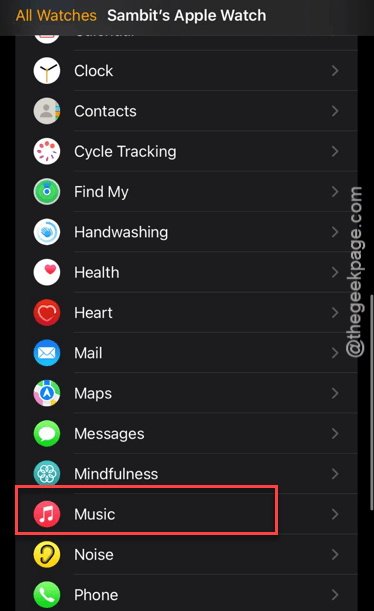
Step 2 – Go to the Music tab. Toggle the Recently Added or Automatically Add Music option to OFF.
Step 3 – Hold the side button on the Apple Watch until the power console loads up. Then, tap the Power button and then, use the slider to power off the Apple Watch.
Now, power on the Apple Watch. Check whether the apps are still getting stuck or freezing up.
Fix 4 – Uninstall and Reinstall the App
If a particular app is getting stuck, you can uninstall that particular app from the Apple Watch and reinstall it from the App Store.
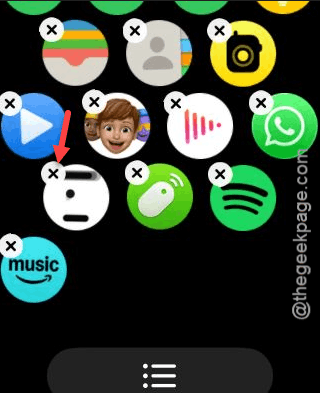
Step 1 – Long press the app icon on the Apple Watch. Then, tap the X button to delete it.
Step 2 – Load up the App Store on the Apple Watch.
Step 3 – Search for the uninstalled app from the App Store, and tap the cloud icon to reinstall the app.

A fresh reinstall should take care of any temporary glitch or bug that is causing this problem. Run the app on the Apple Watch and test it yourself.
Fix 5 – Check the Background App Refresh
If the apps are opening but there is no update to the data, like the Weather app not showing live data, it can be due to disallowed background app refresh.
Step 1 – Go back to the Watch app on the iPhone. Open the General tab.
Step 2 – Load up the Background App Refresh section.
Step 3 – Toggle it to OFF mode. Then, wait for 10 seconds. Then, toggle it back to ON.
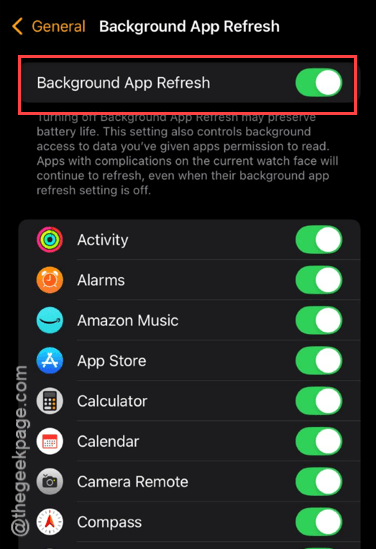
This simple refresh should resolve the app issue on the Apple Watch. Check if this helps.